MAC Mobile Setup
Transferring from Another Device
Please follow the Apple official guide.
Use Quick Start to transfer data to a new iPhone or iPad - Apple Support
This does not complete setup for SecureMobile or Microsoft Authenticator. Please follow the instructions below for mandatory compliance.
From Unboxed to Home Screen without Transferring
based on iOS 18.5
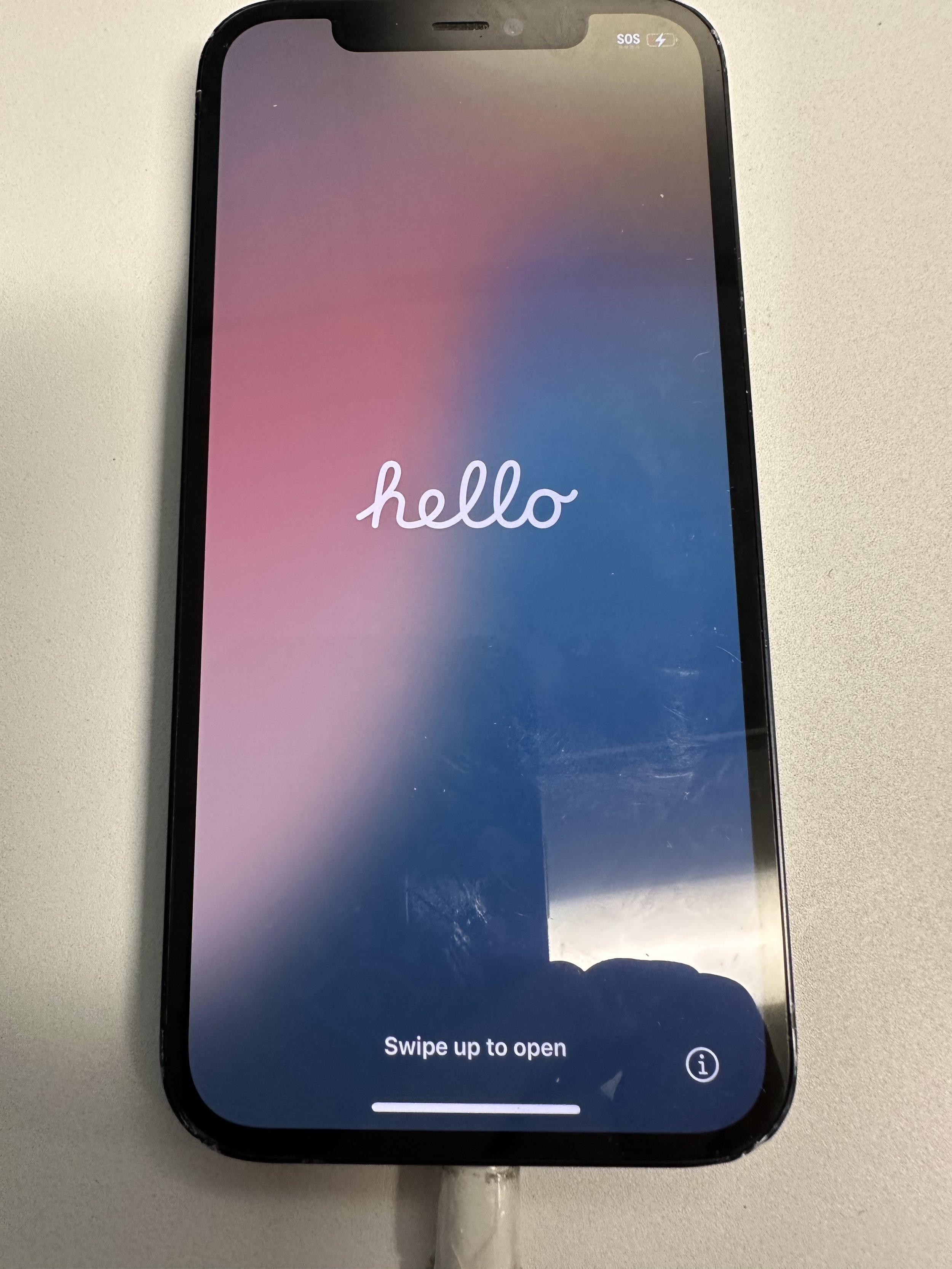
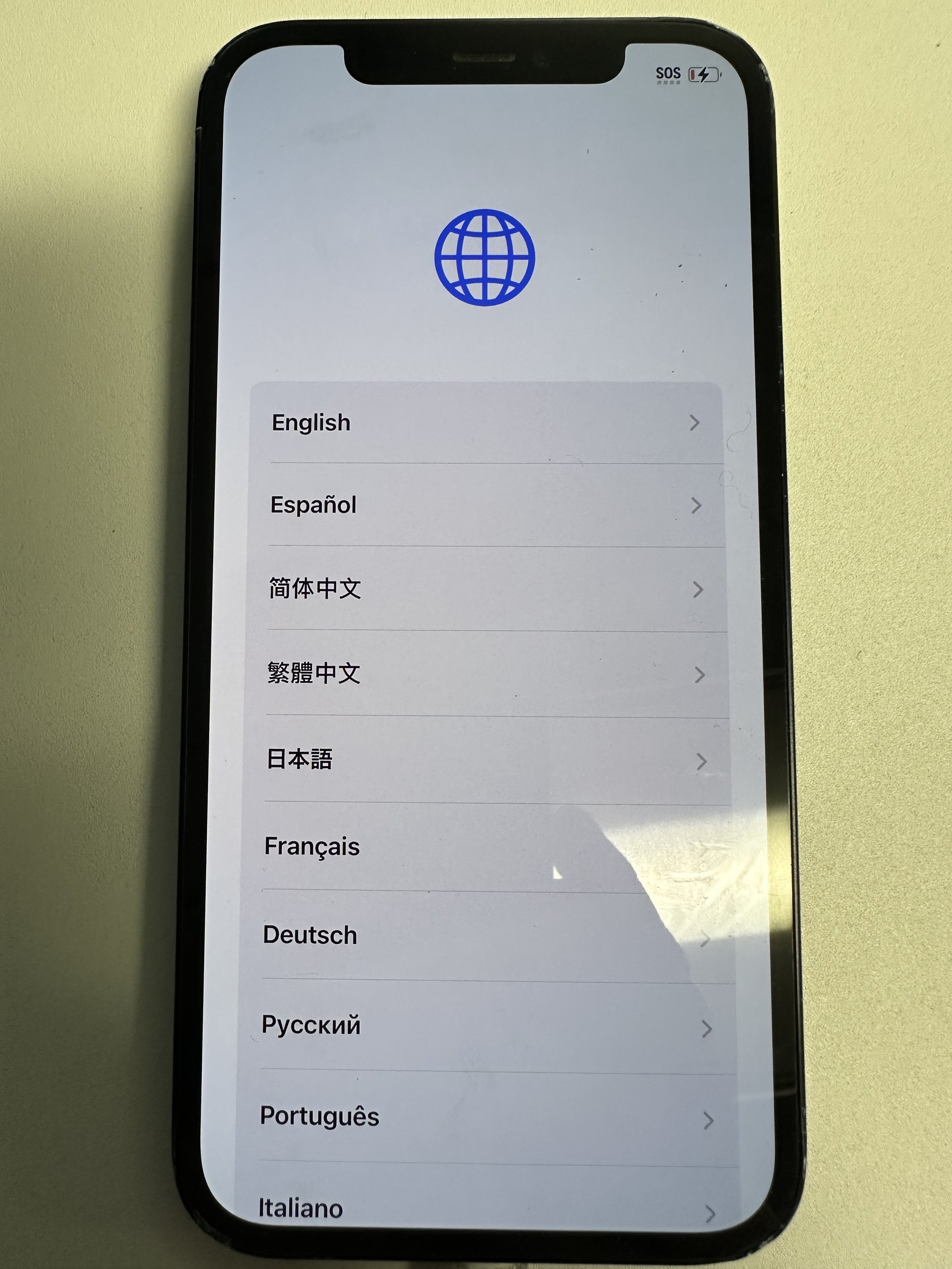
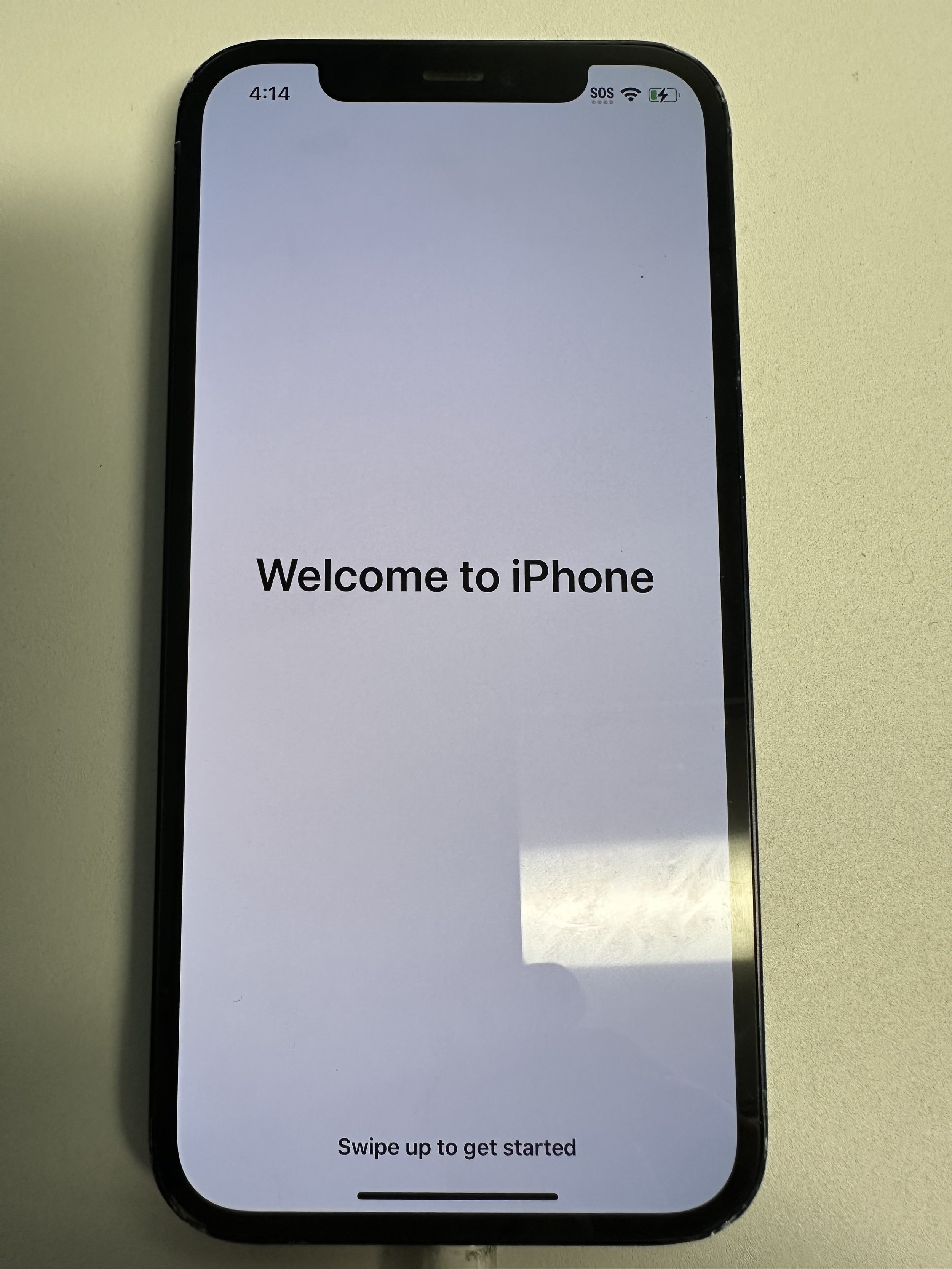
swipe up
select language
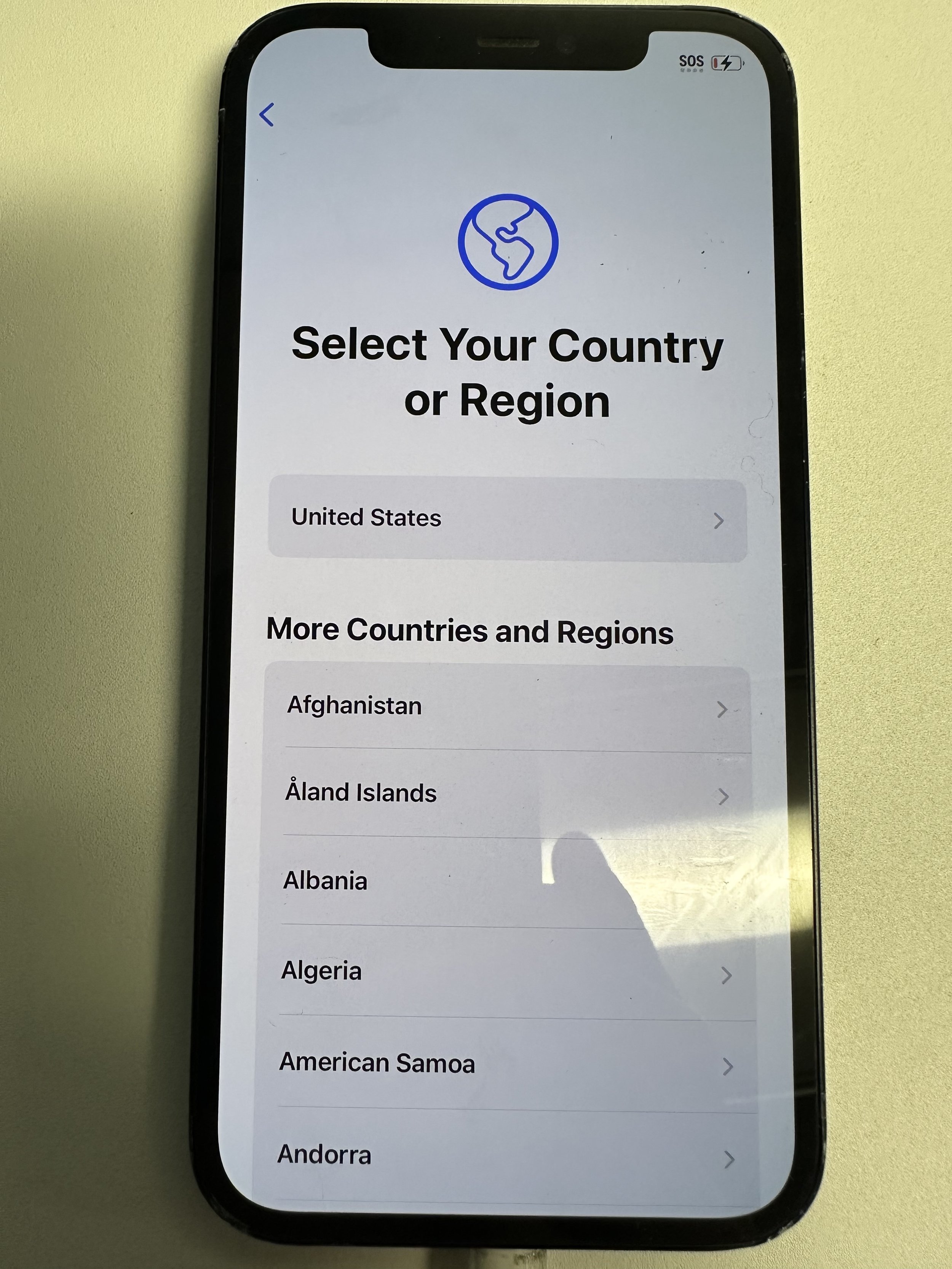
select region. may affect Apple Store content for new Apple IDs.
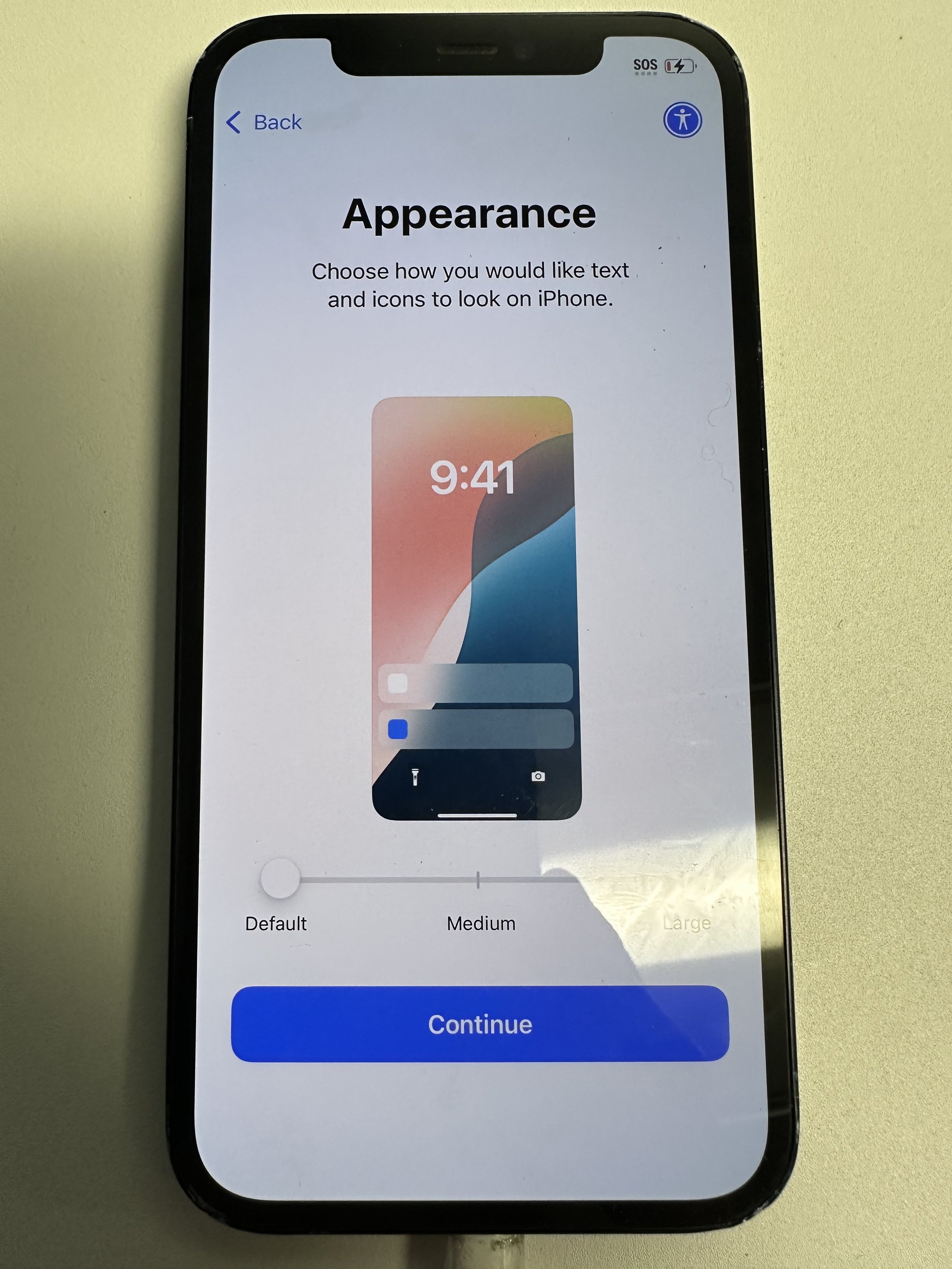
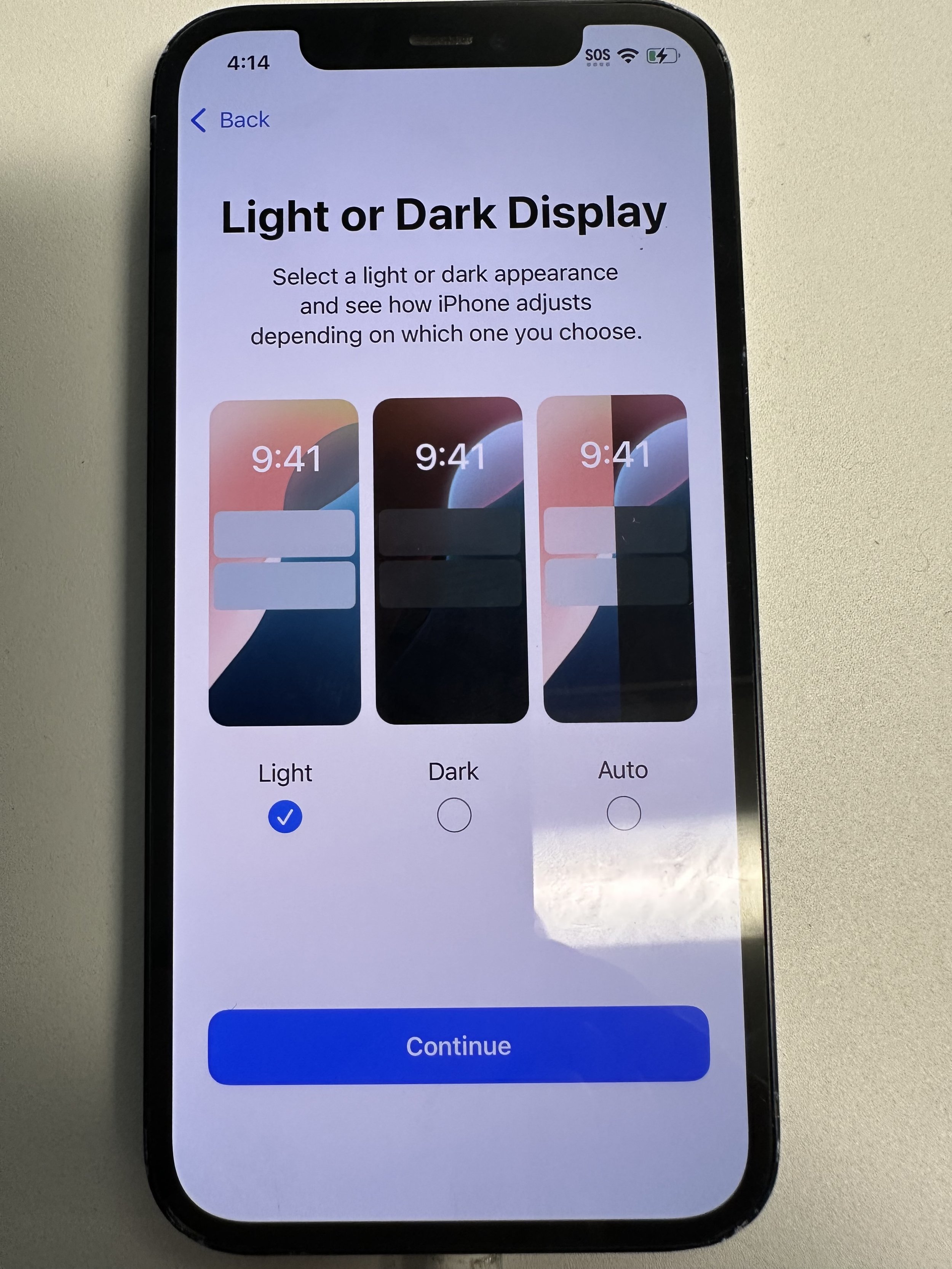
preference
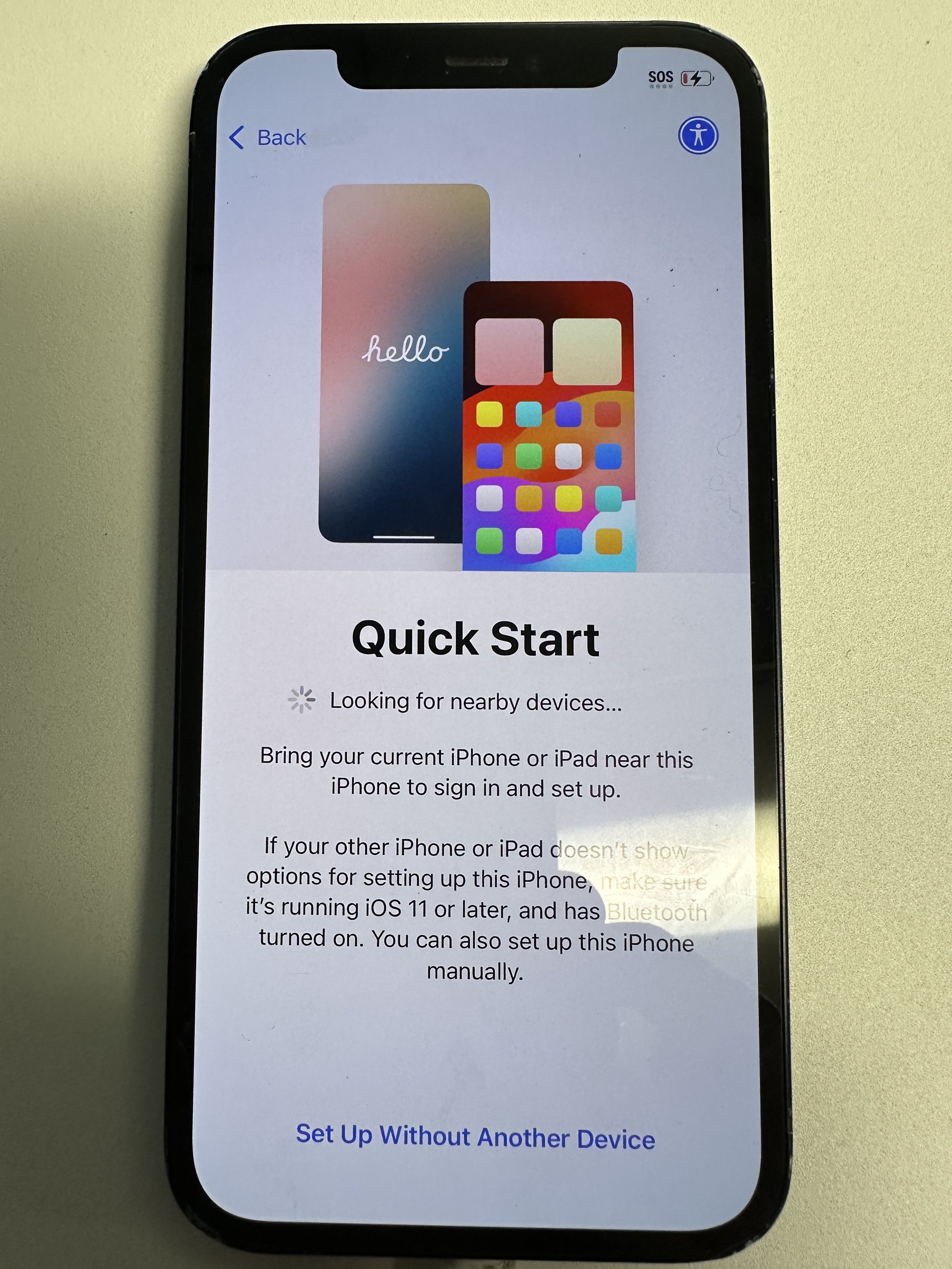
recommended to set up without another device unless if doing upgrade from non-broken device. This does NOT let you skip SecureMobile setup.
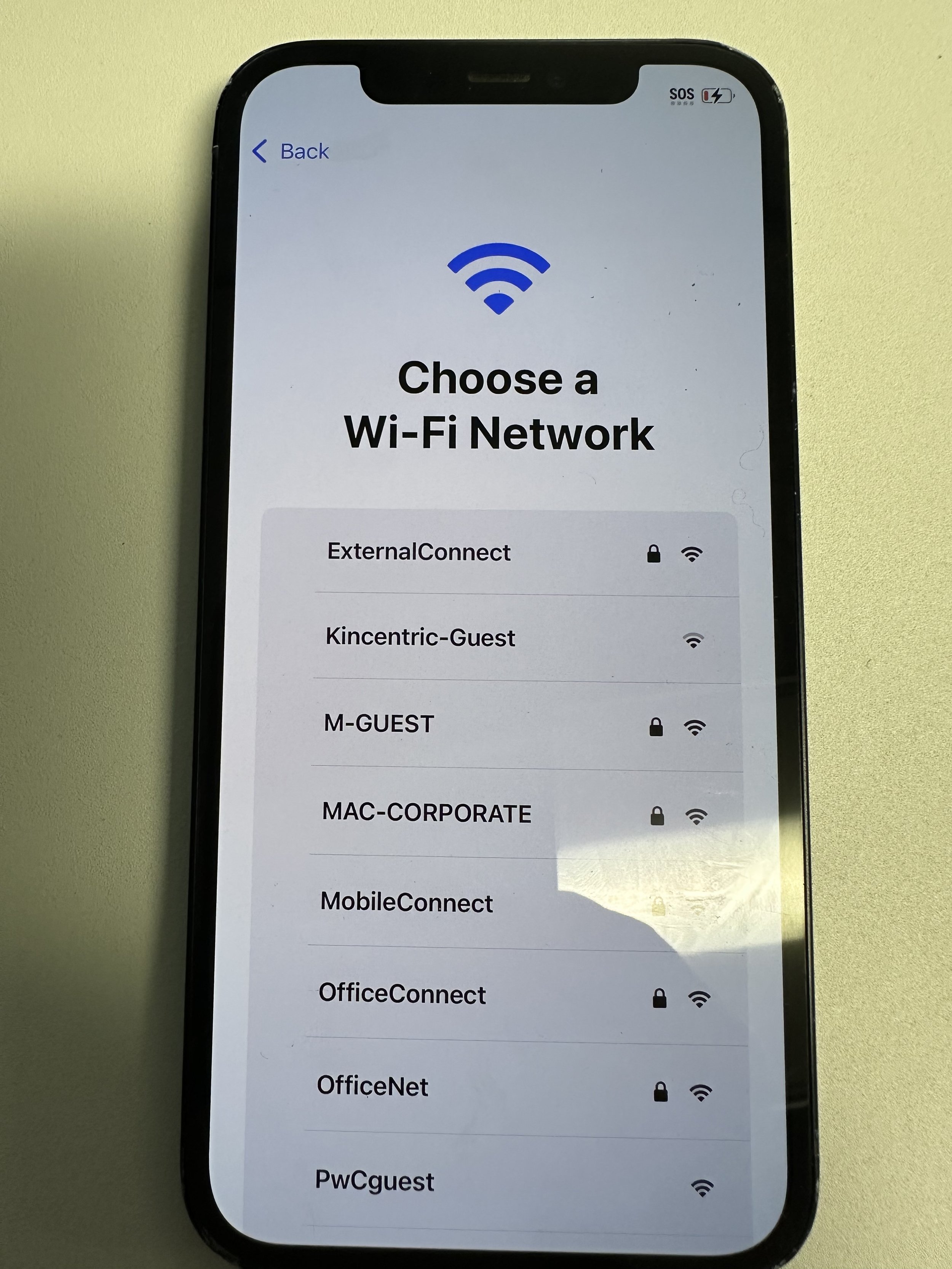
best to avoid data. use M-GUEST in MAC branch office (click this image for pw). it will automatically change to MAC-CORPORATE after installing company profile.
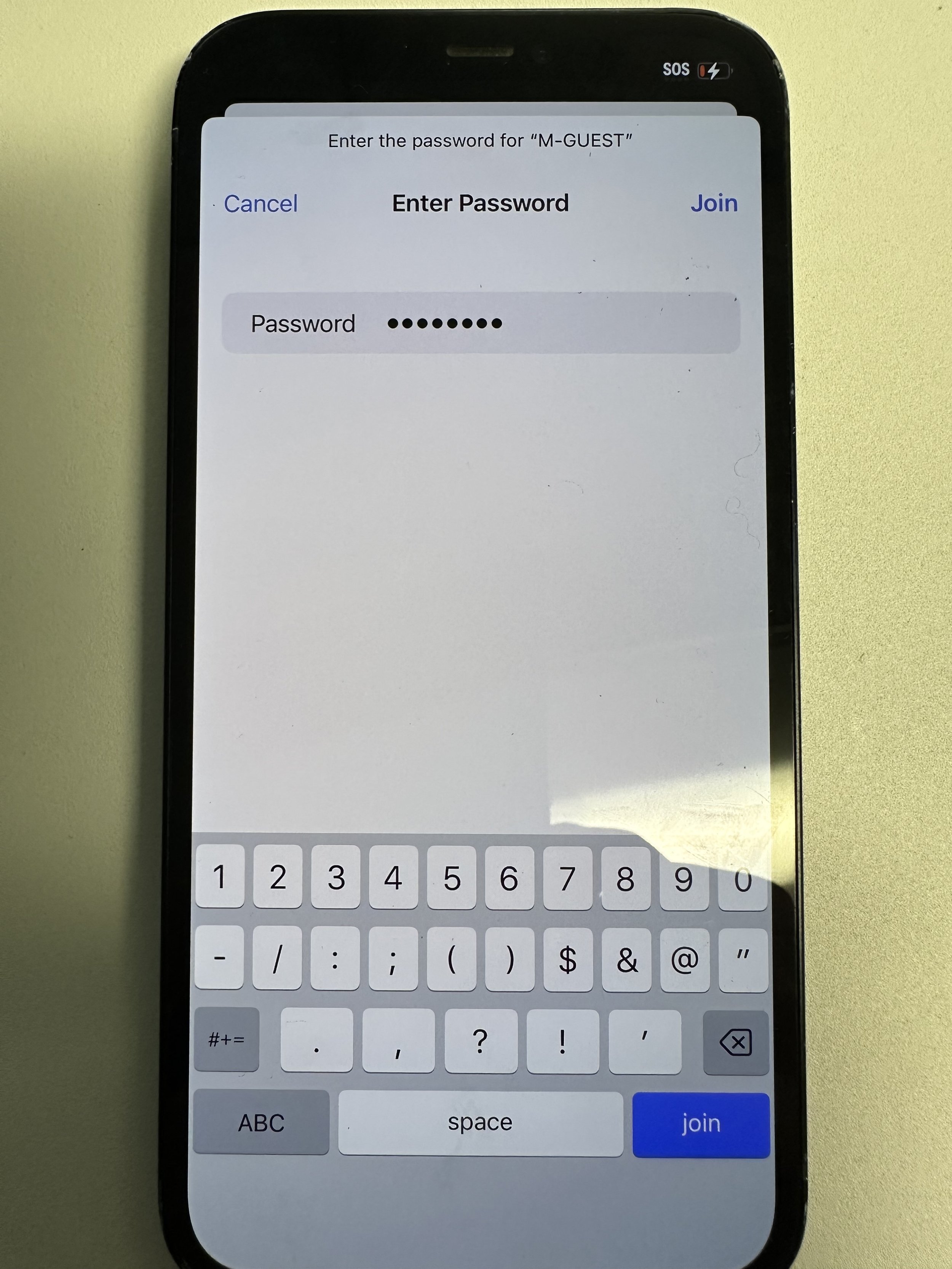
enter WiFi password if any
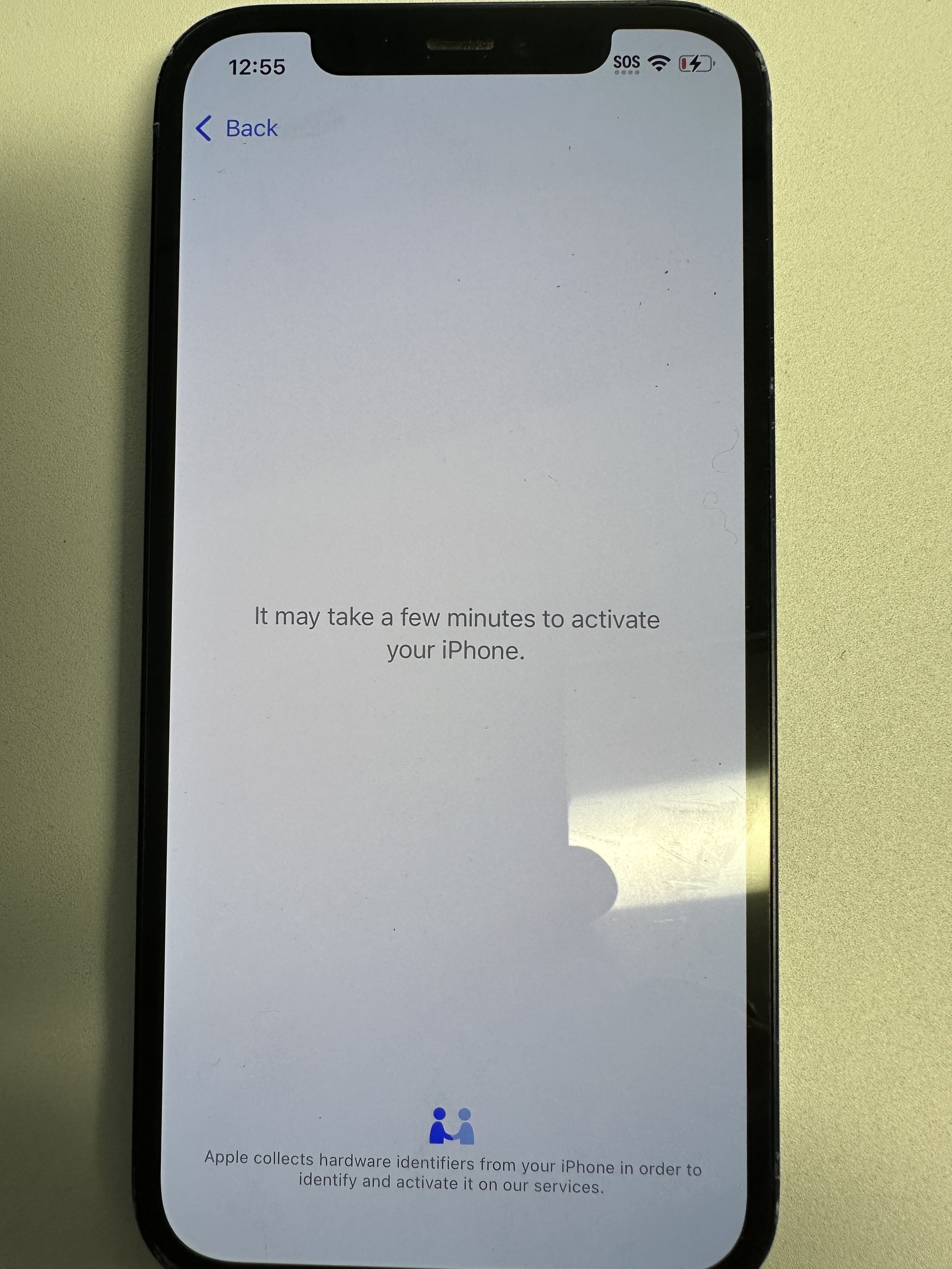
wait for the next screen
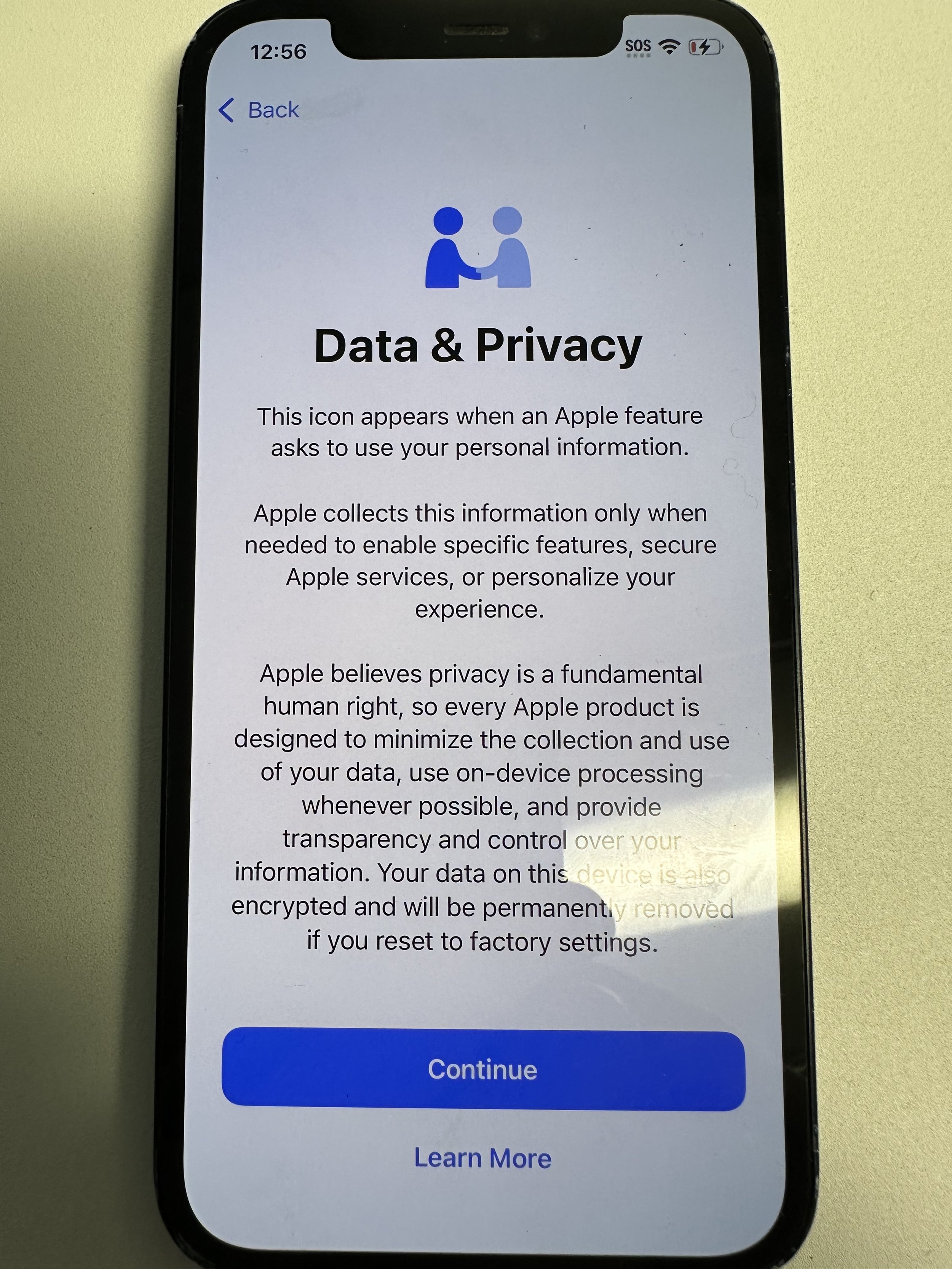
continue
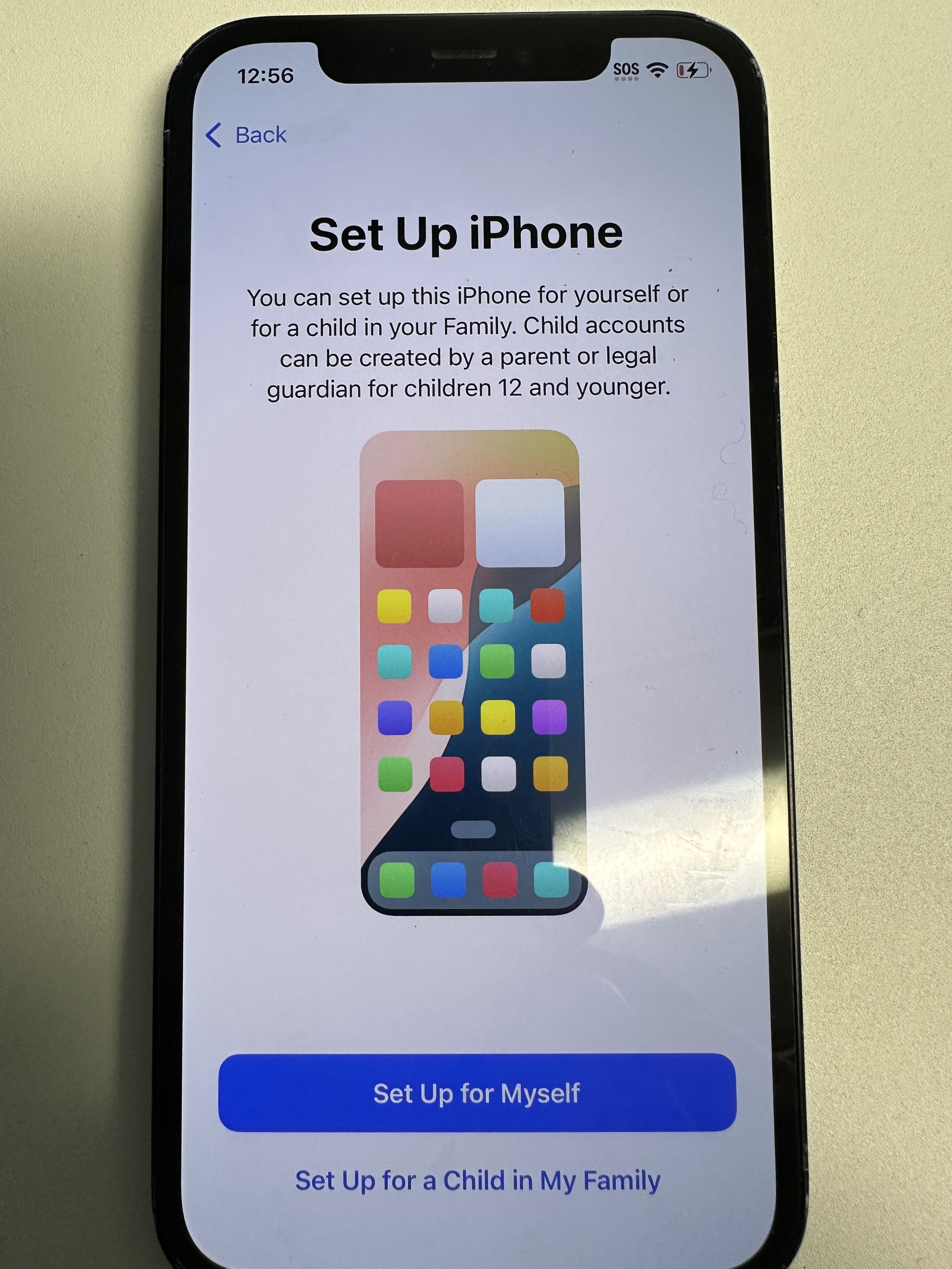
set up for myself
preference
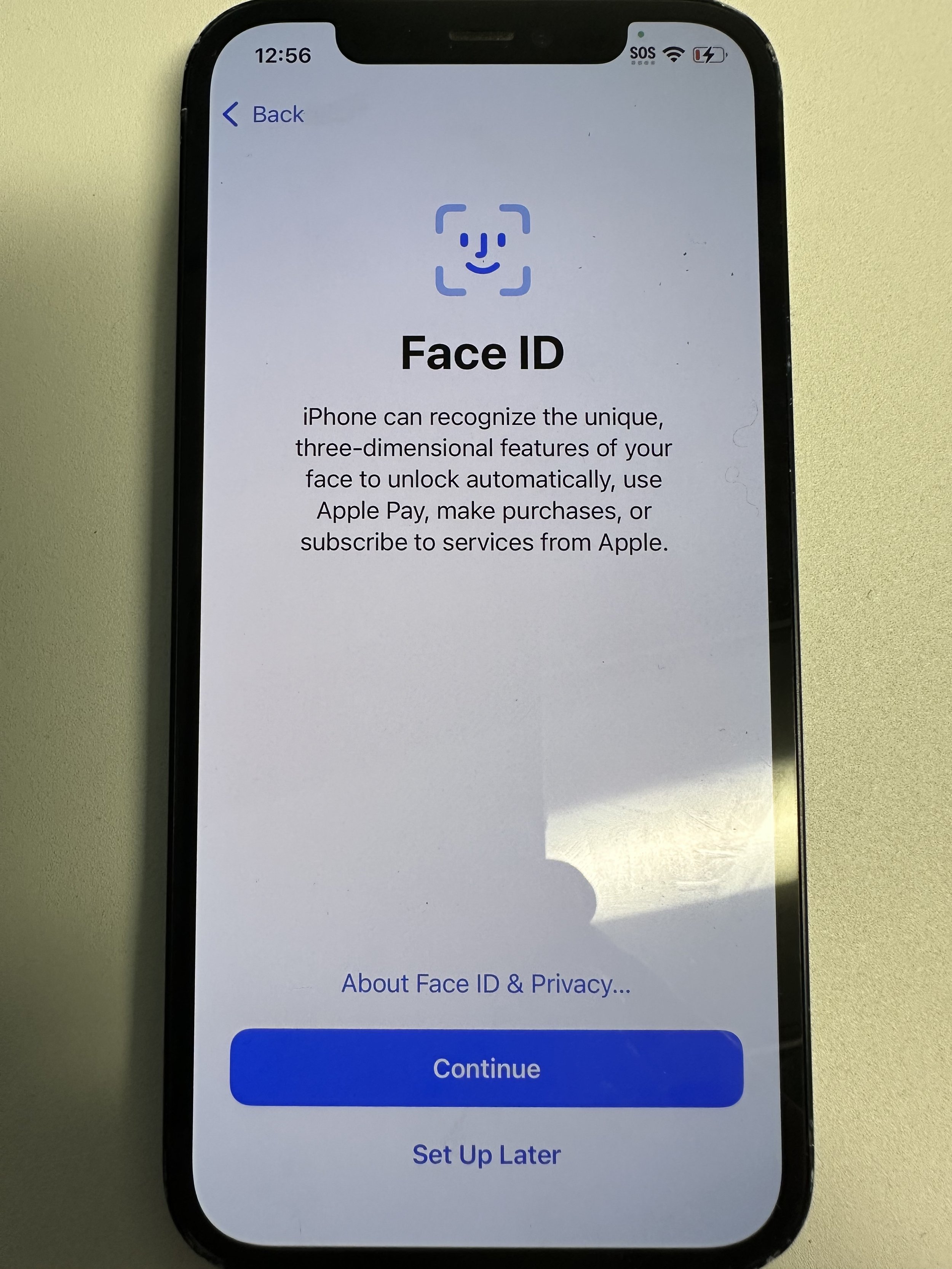
if setting up, follow on-screen instructions
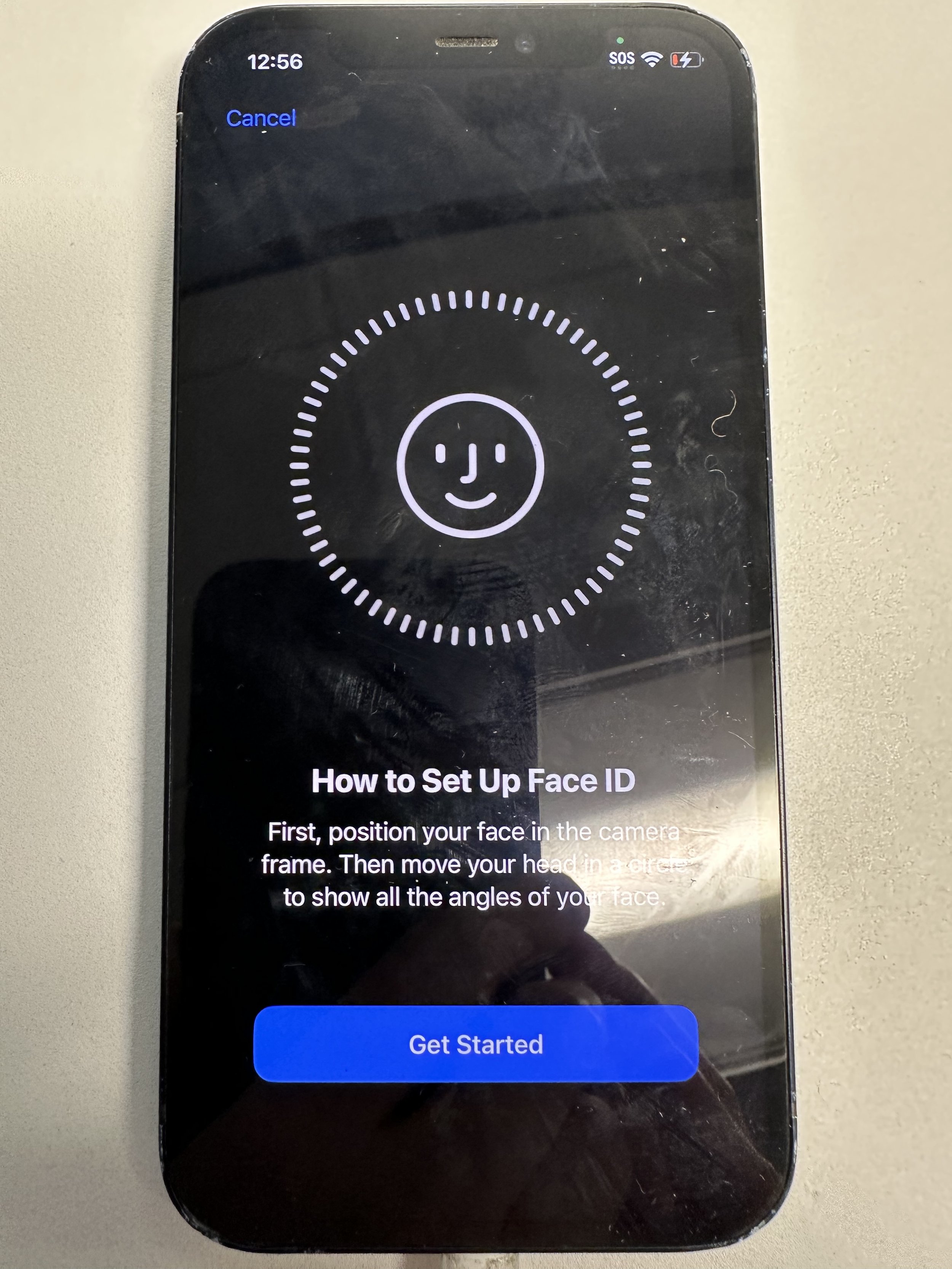
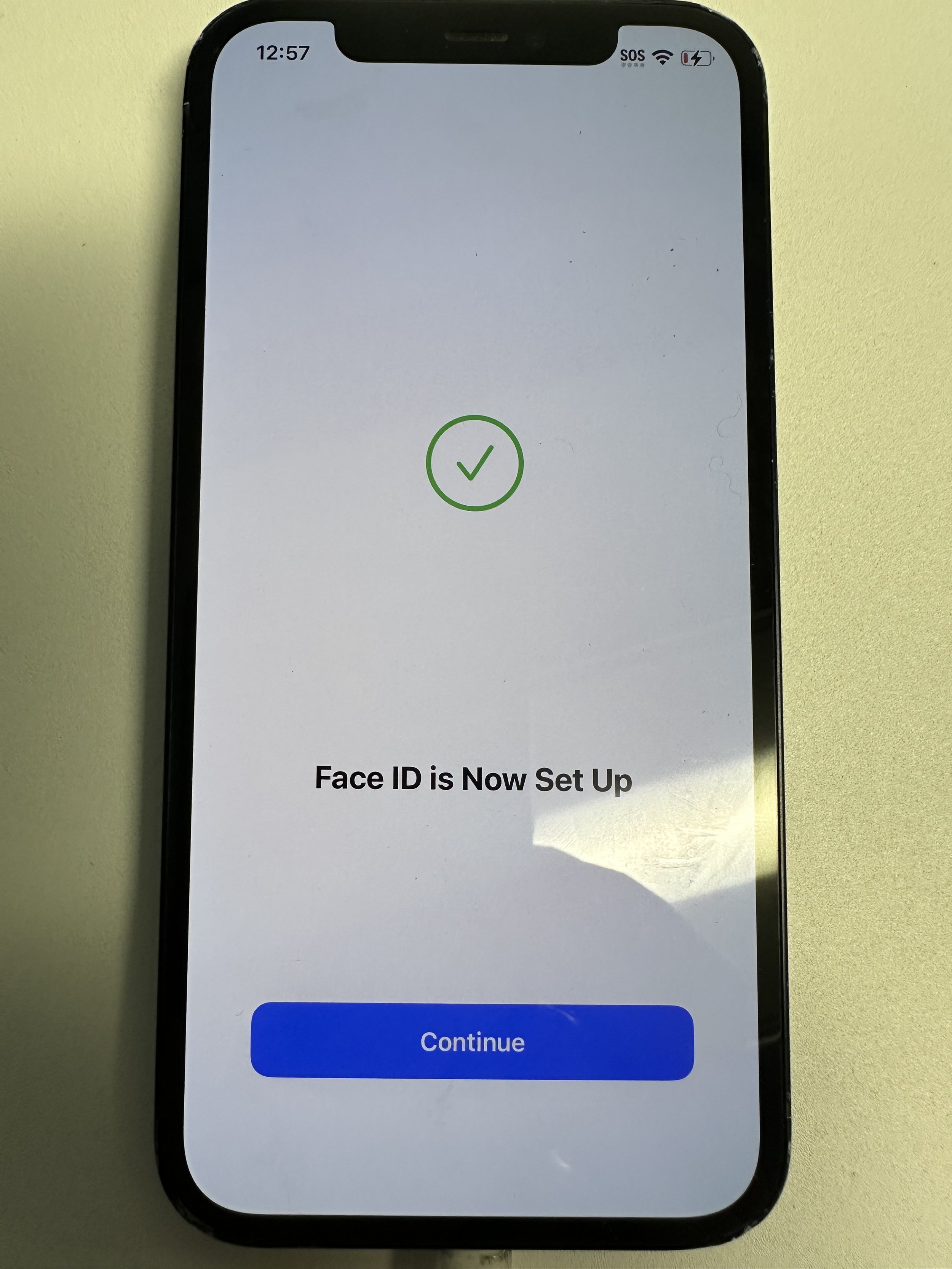
if setting up, continue
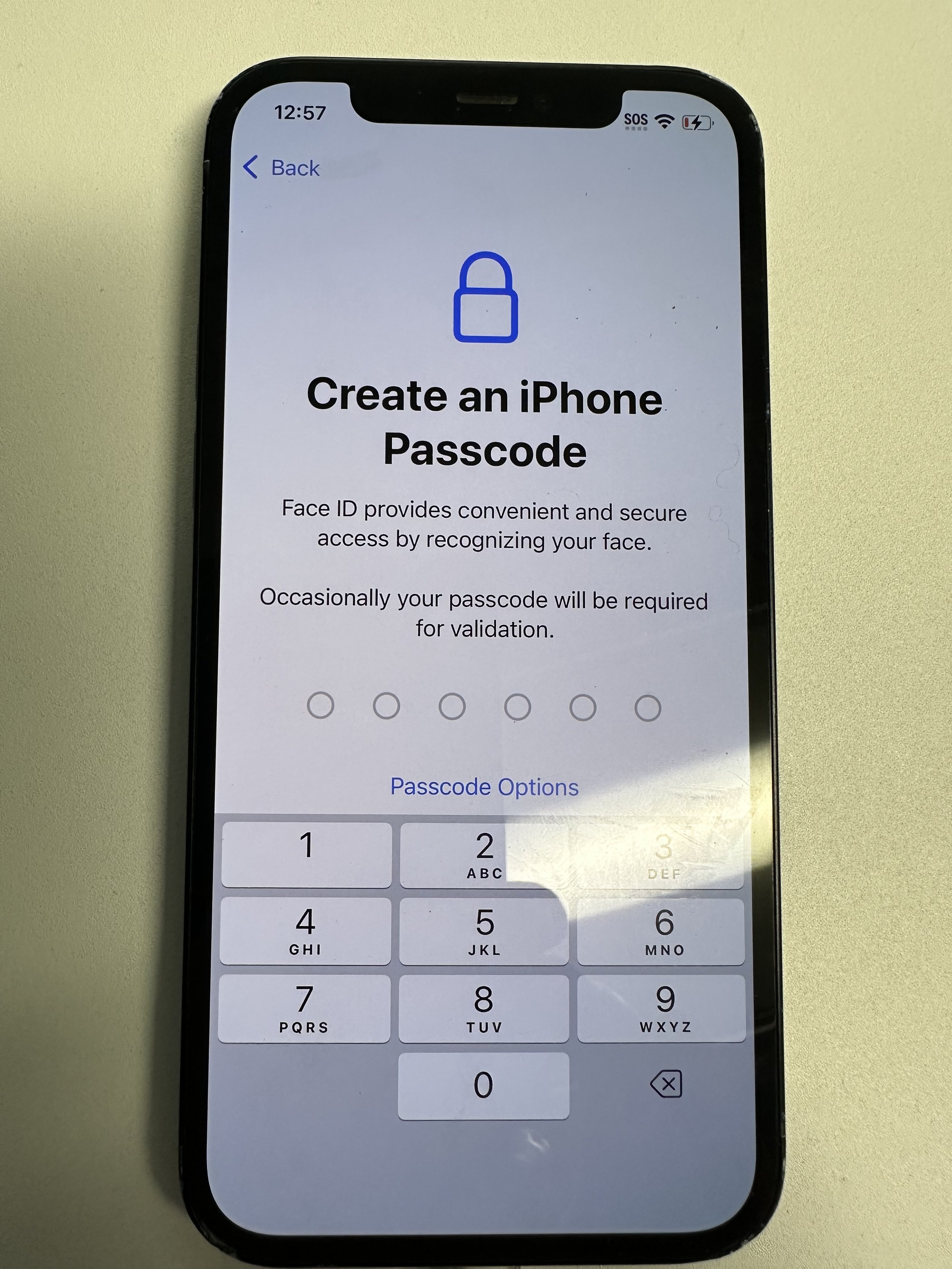
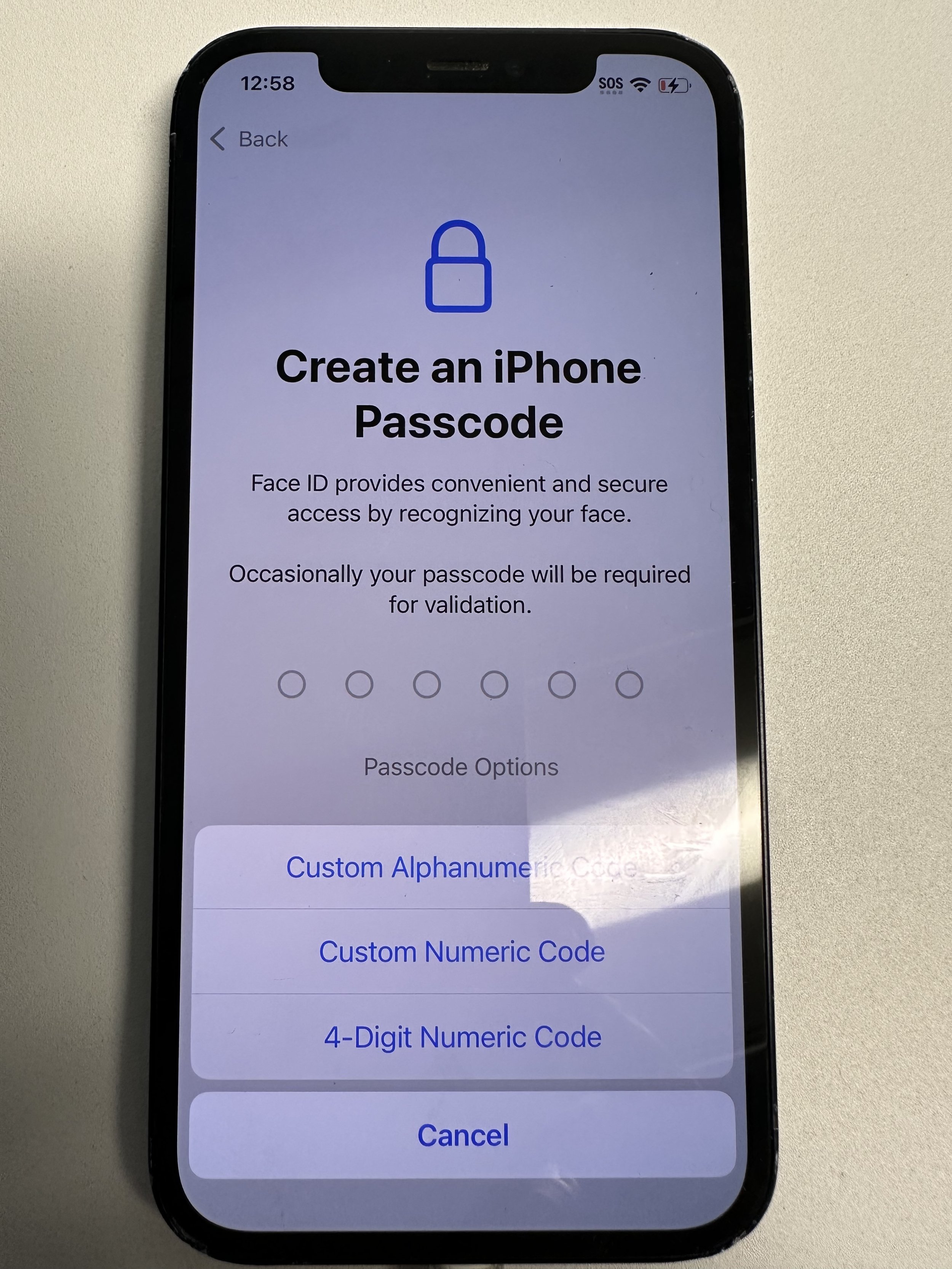
mandatory. recommended to use 6-digits. does not sync with any other passcode.
if it doesn’t show 6-digit passcode option by default, tap passcode options
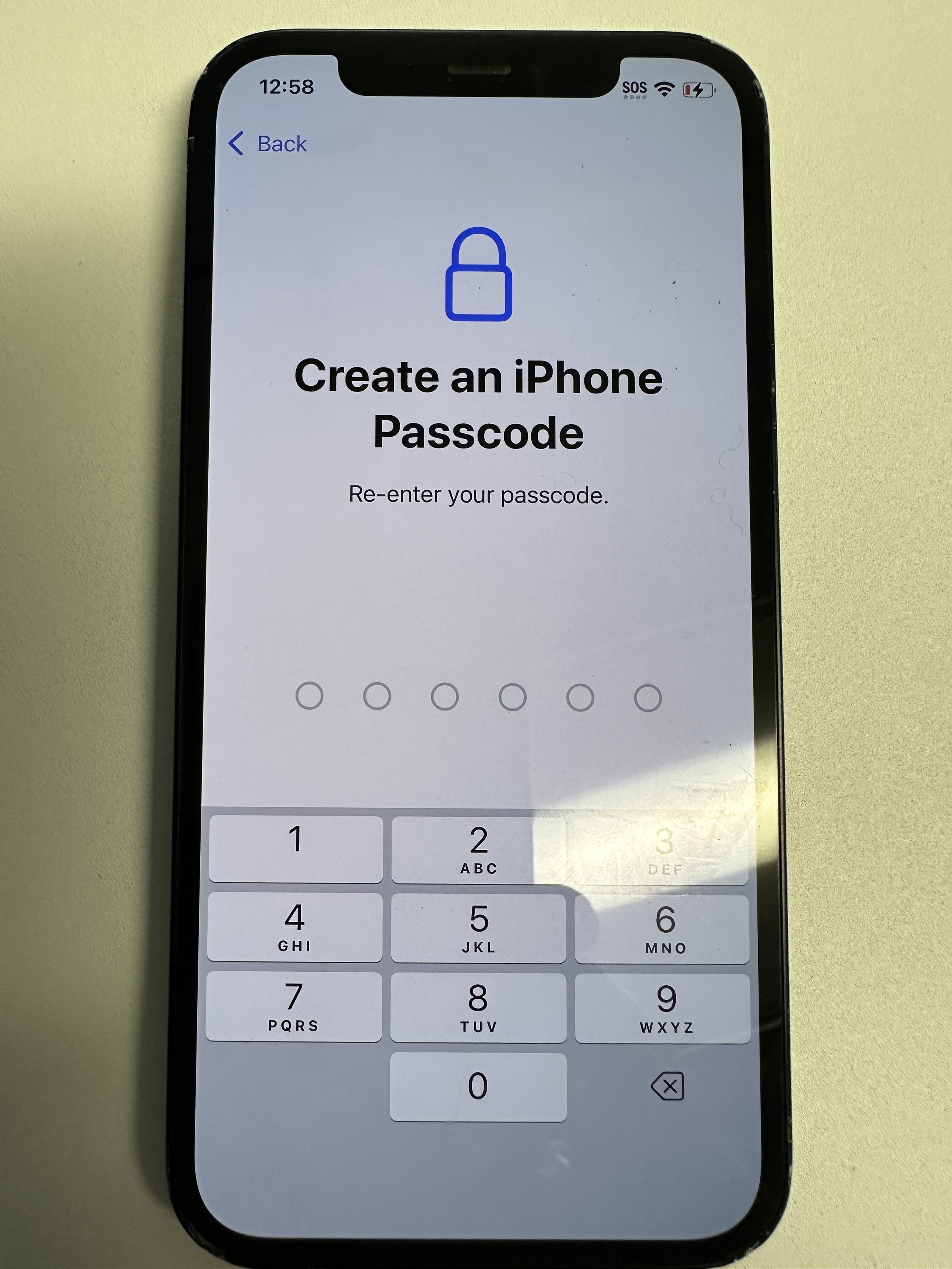
reenter same passcode
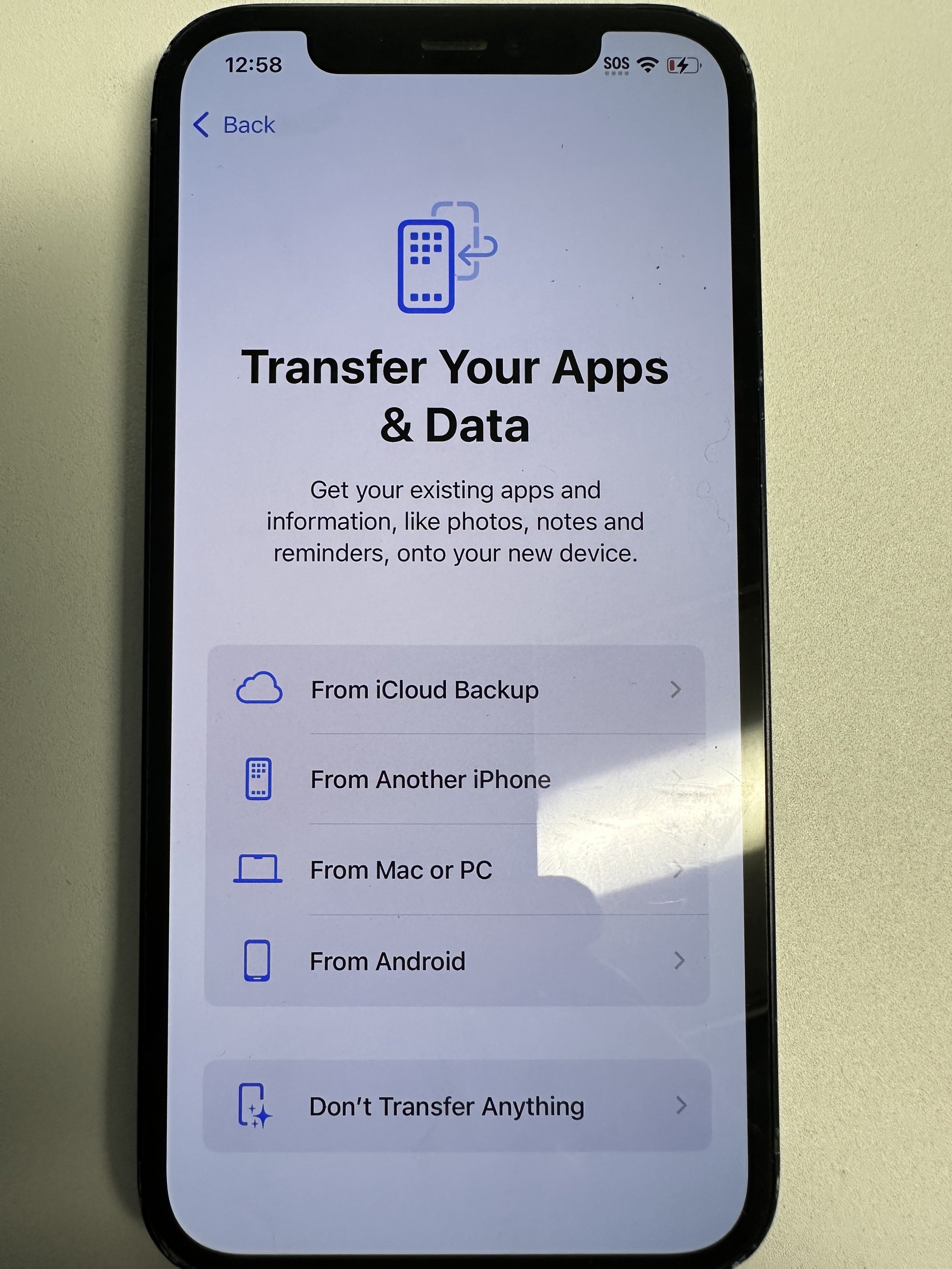
Don’t Transfer Anything
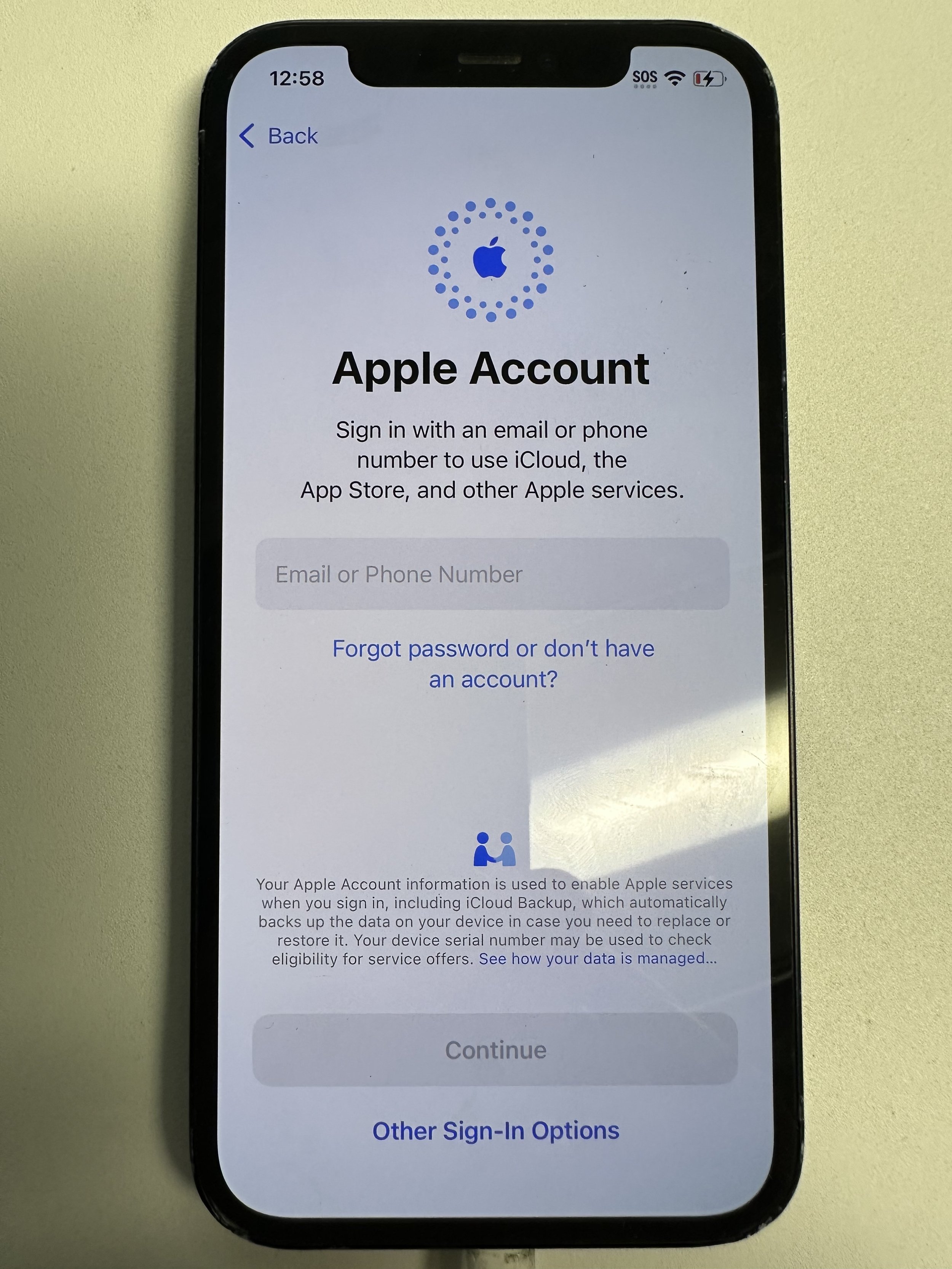
use or create any Apple ID. This does not sync with any other account.
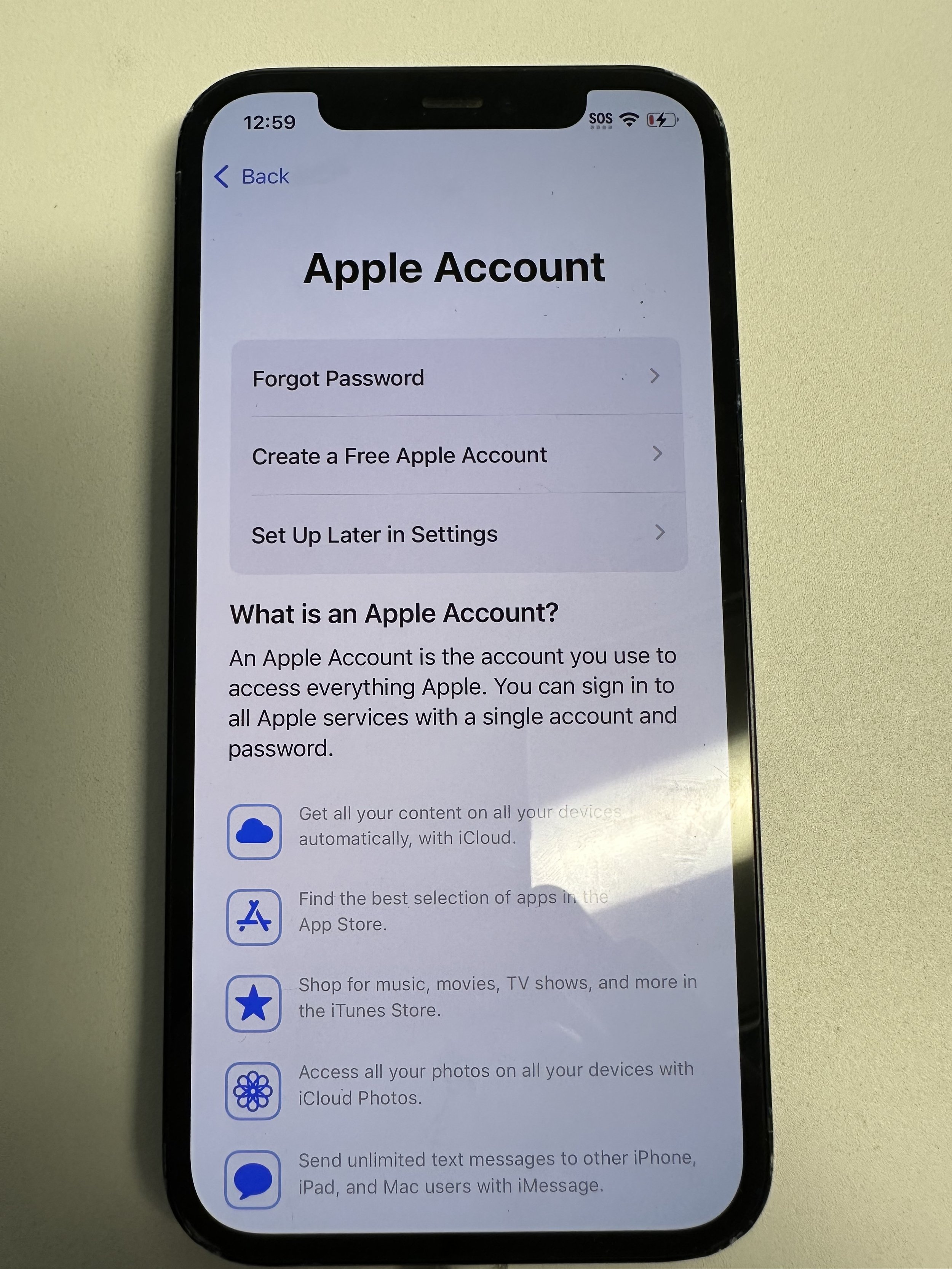
if creating an account, tap Create a Free Account. even if you skip this step, you will need one when installing apps.
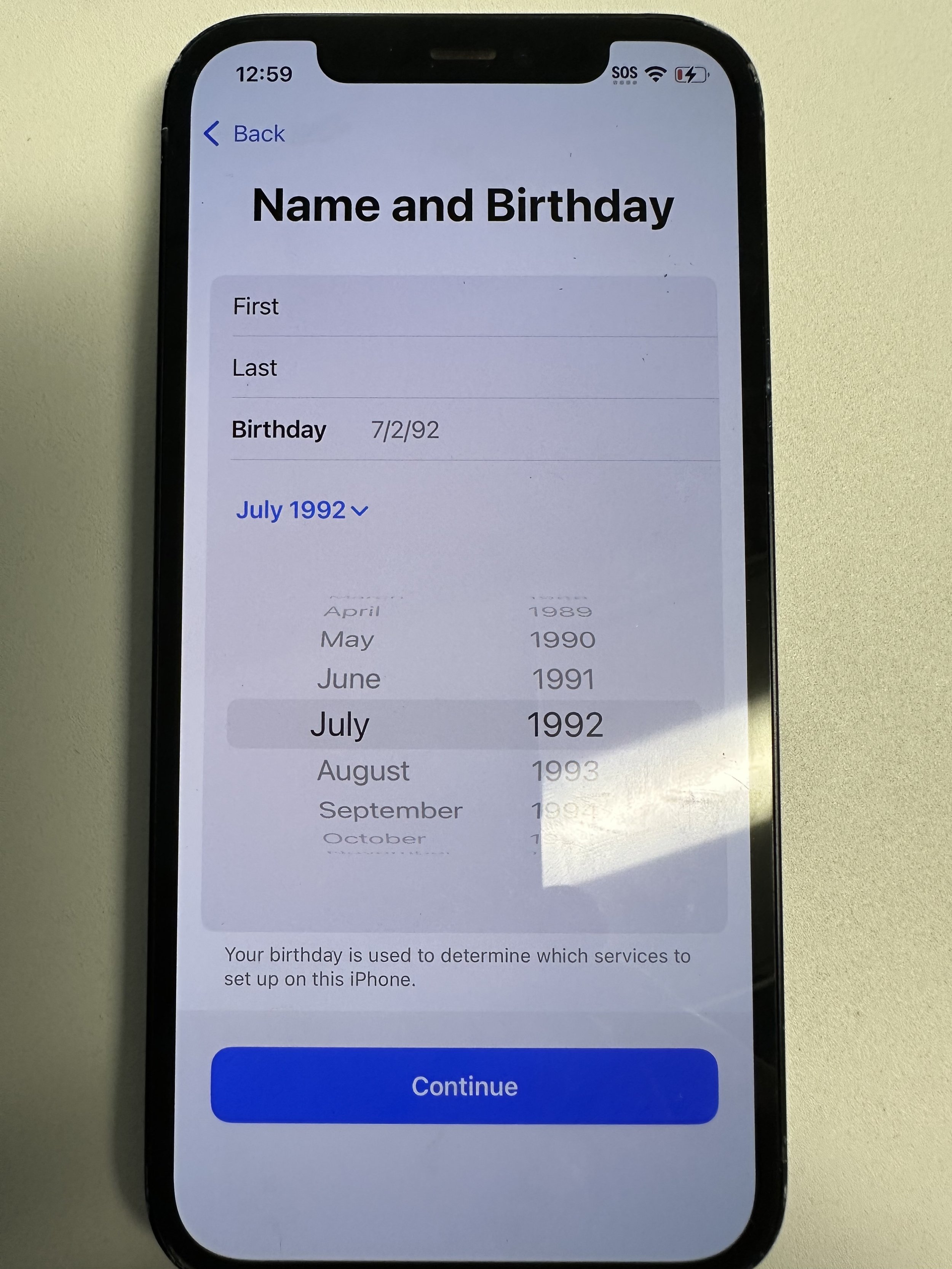
enter birthdate. if unsure, set something above 21 years old and ask the user to fix on https://account.apple.com/ later.
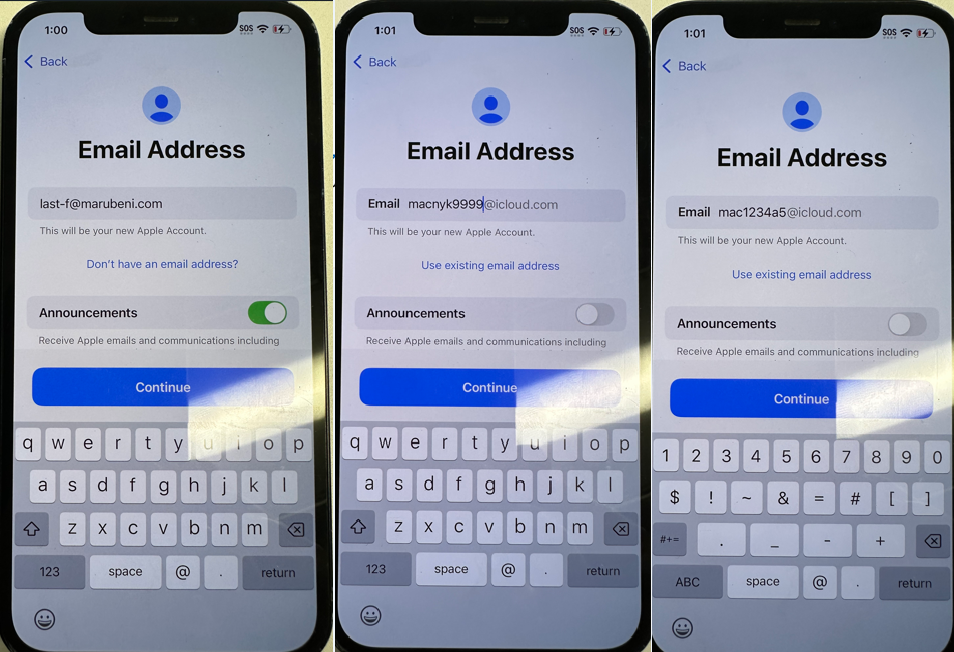
left is Marubeni address. middle is national, right is expat custom Apple ID example.
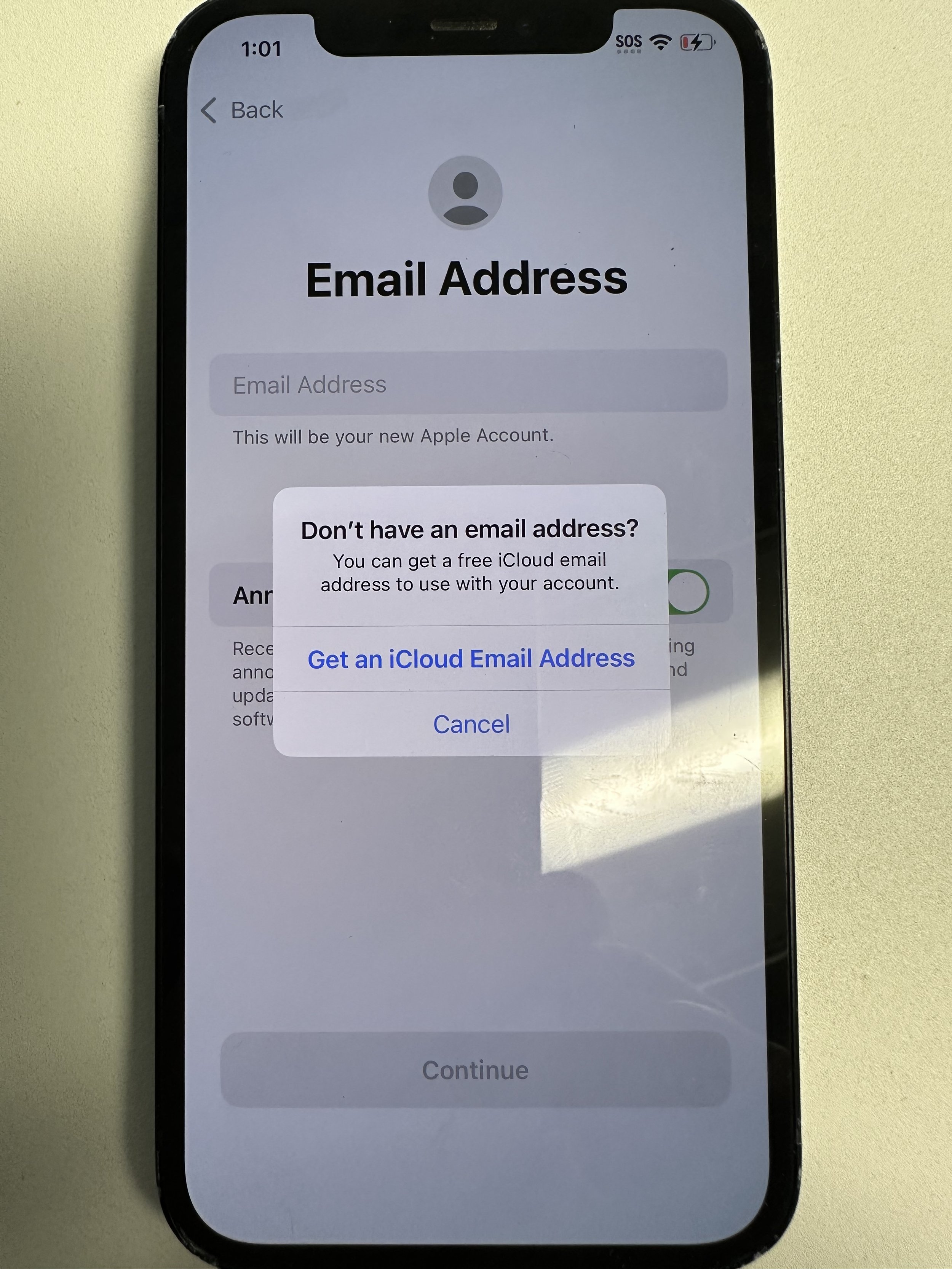
recommended to cancel and use marubeni address when possible
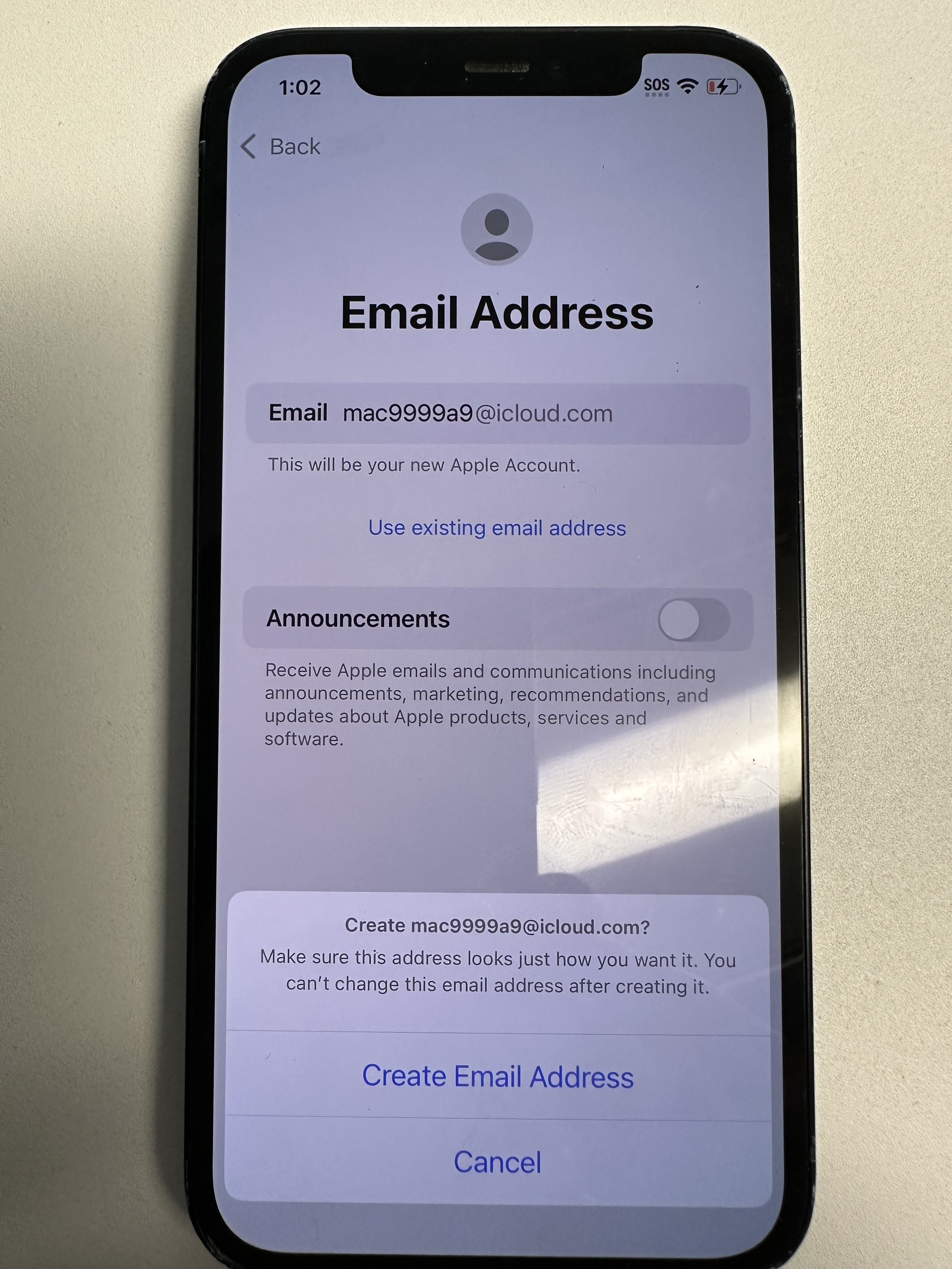
create email address
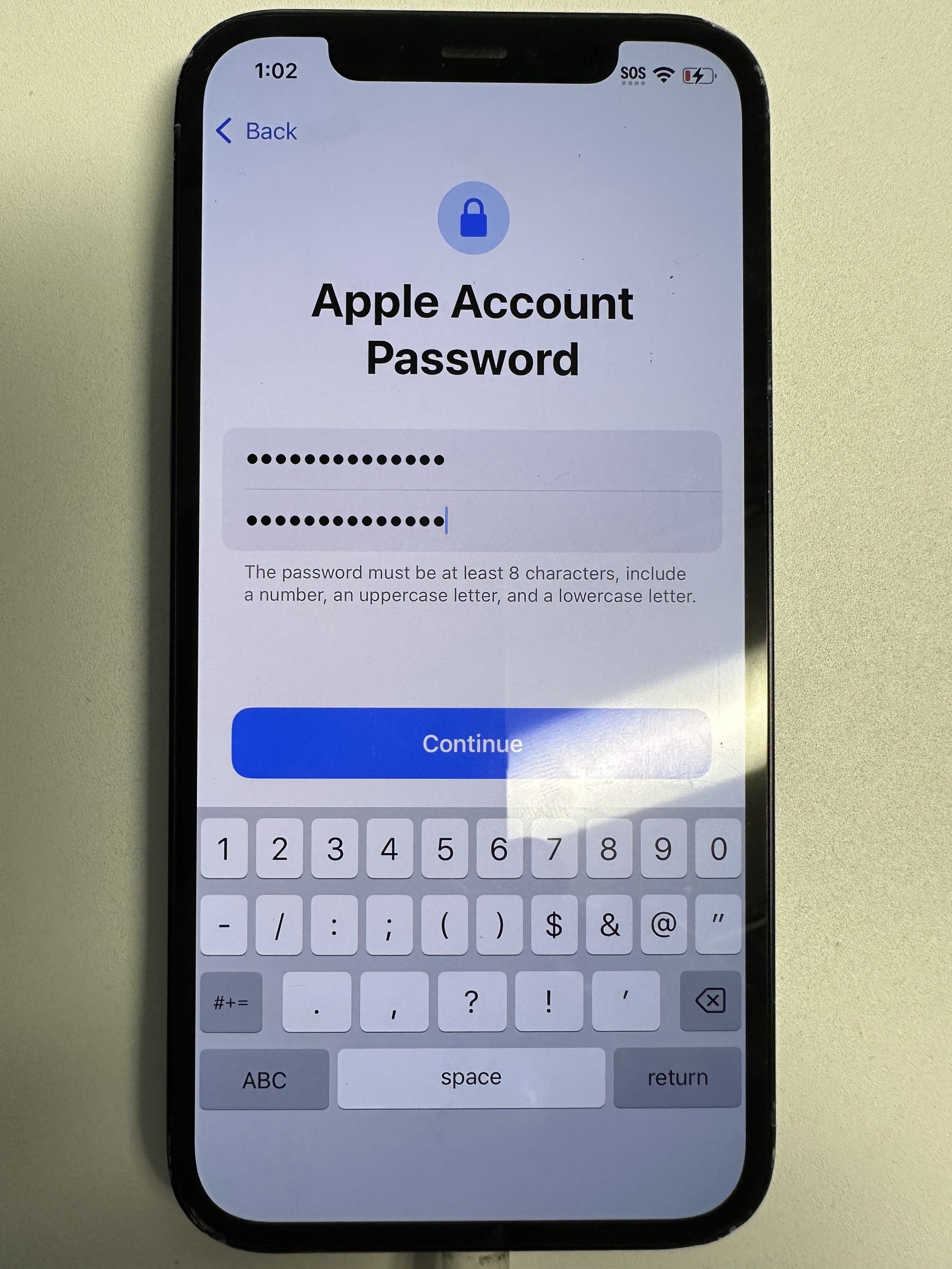
This password does not sync with anything else. You are responsible for remembering your Apple ID/PW. No one else has any means of resetting for you. They will be necessary when returning the device.
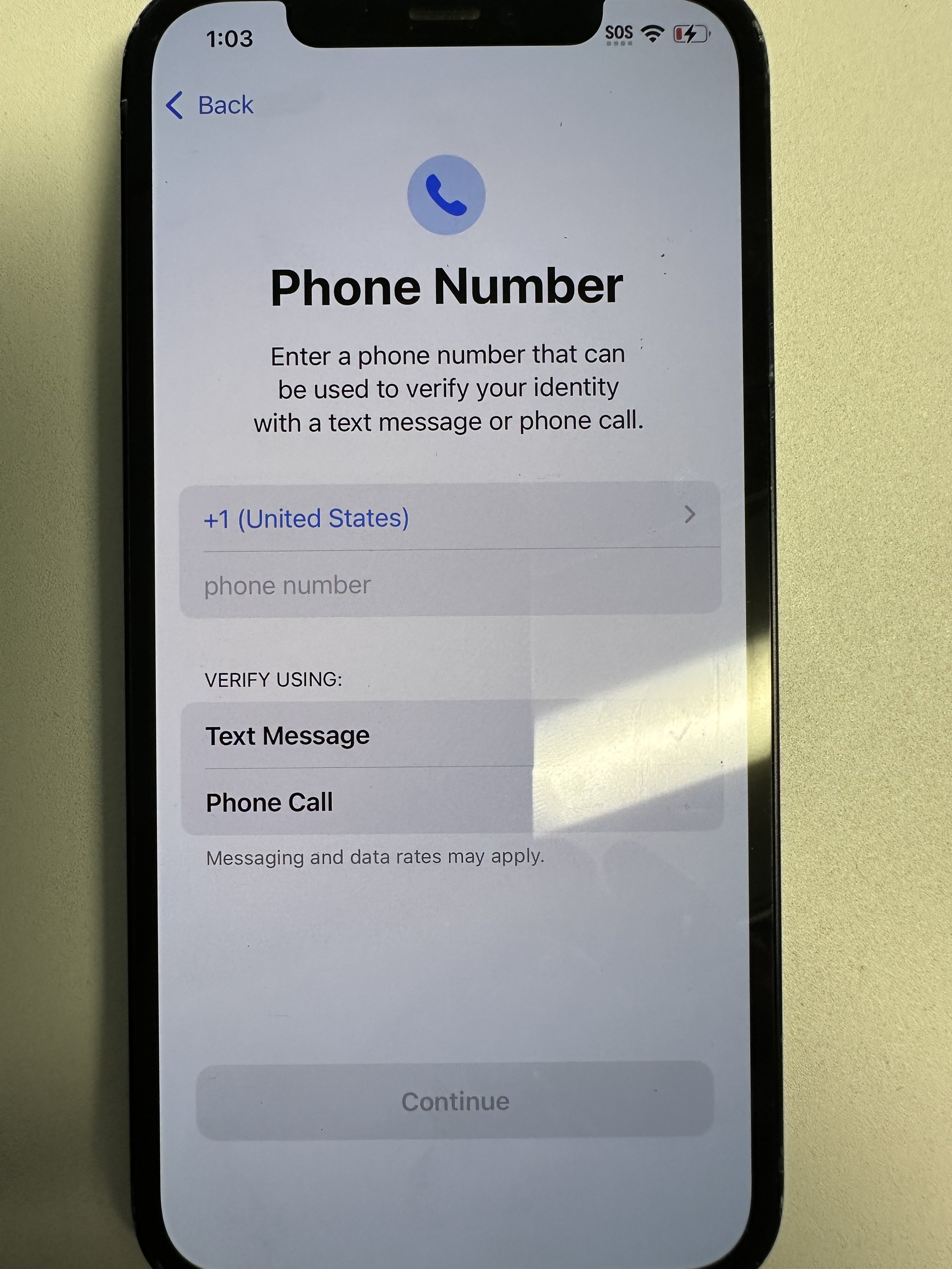
enter phone number to be used when you forget your Apple PW
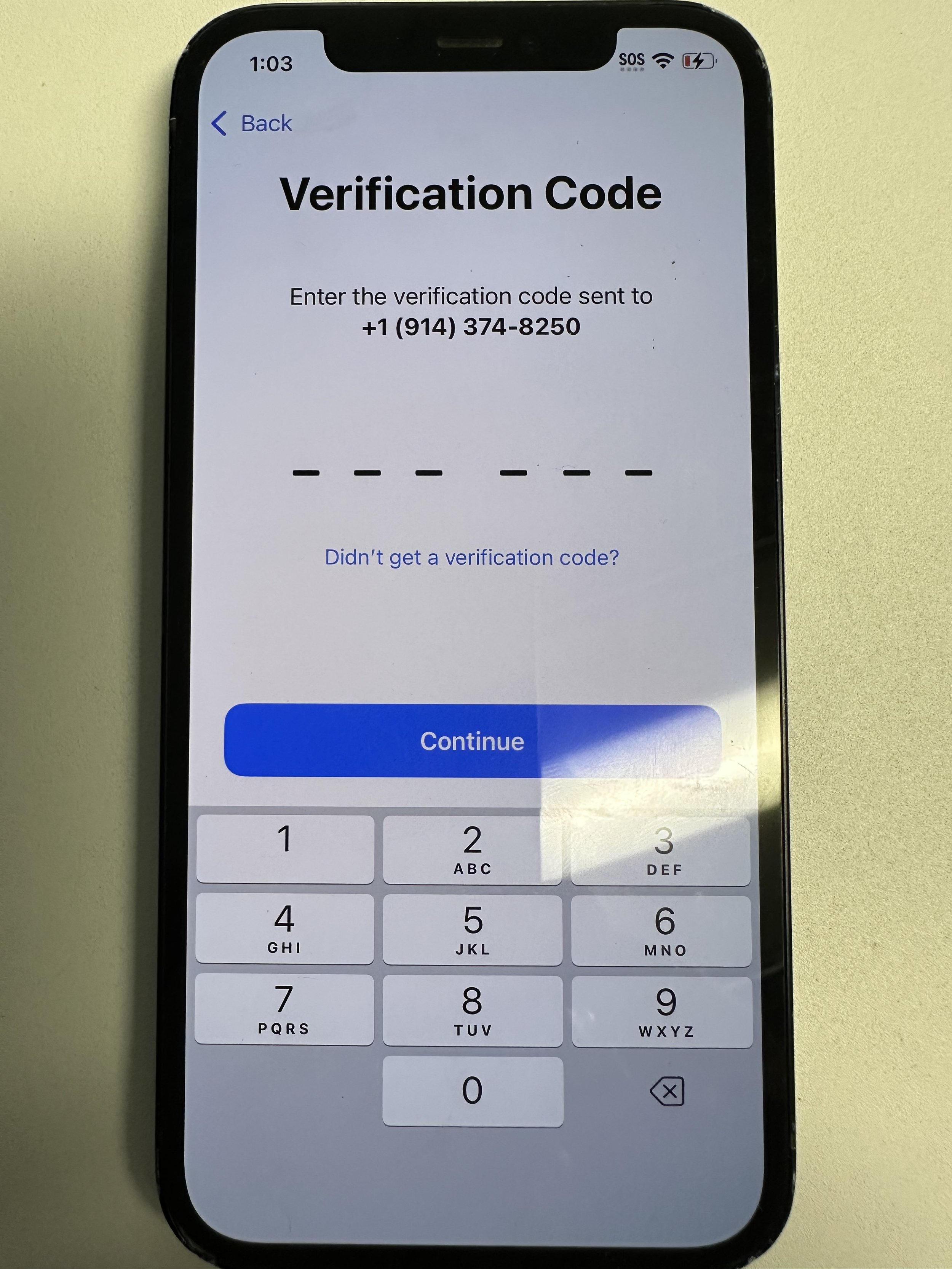
enter verification code
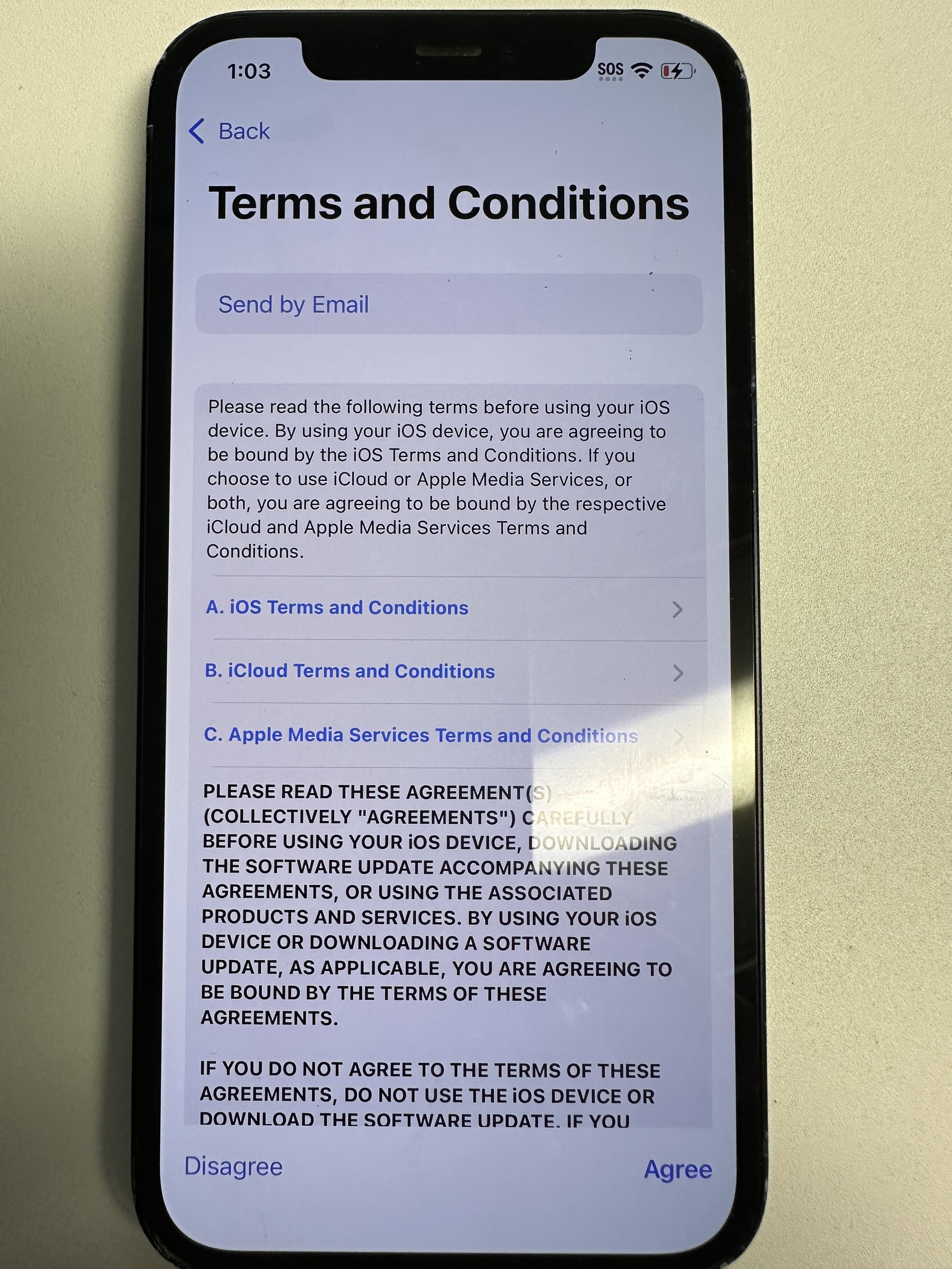
agree
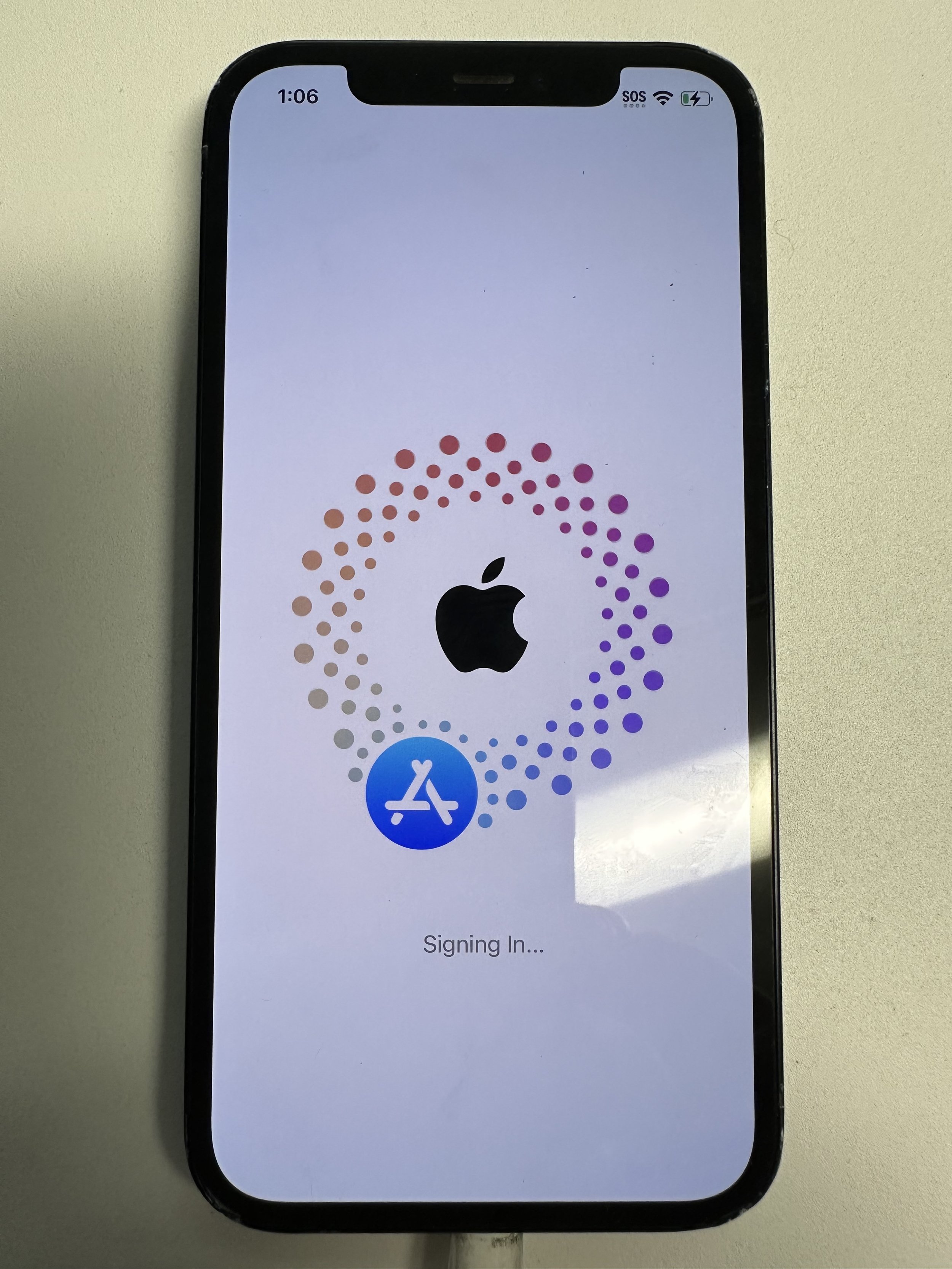
wait a minute or so
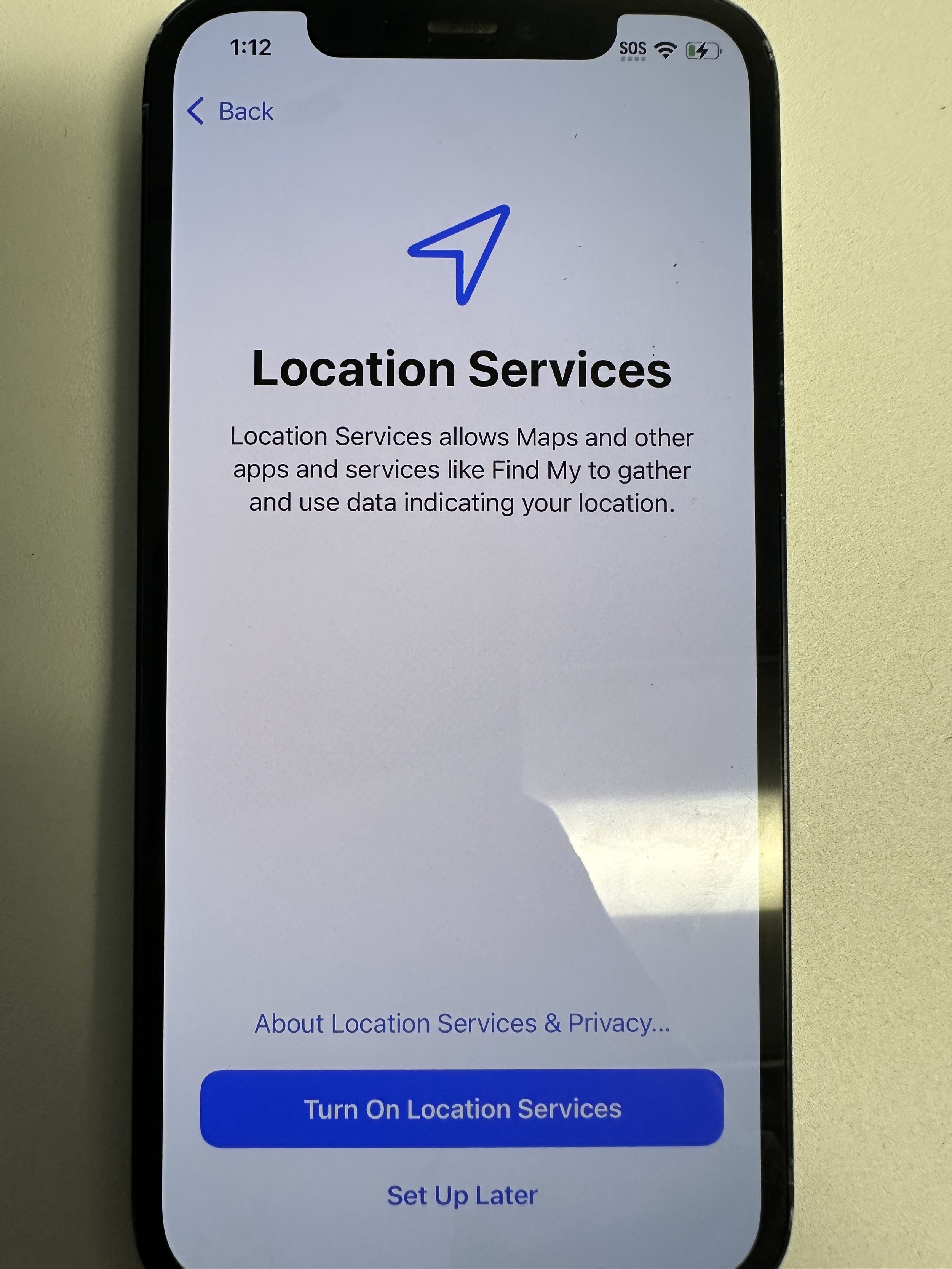
Turn On Location Services
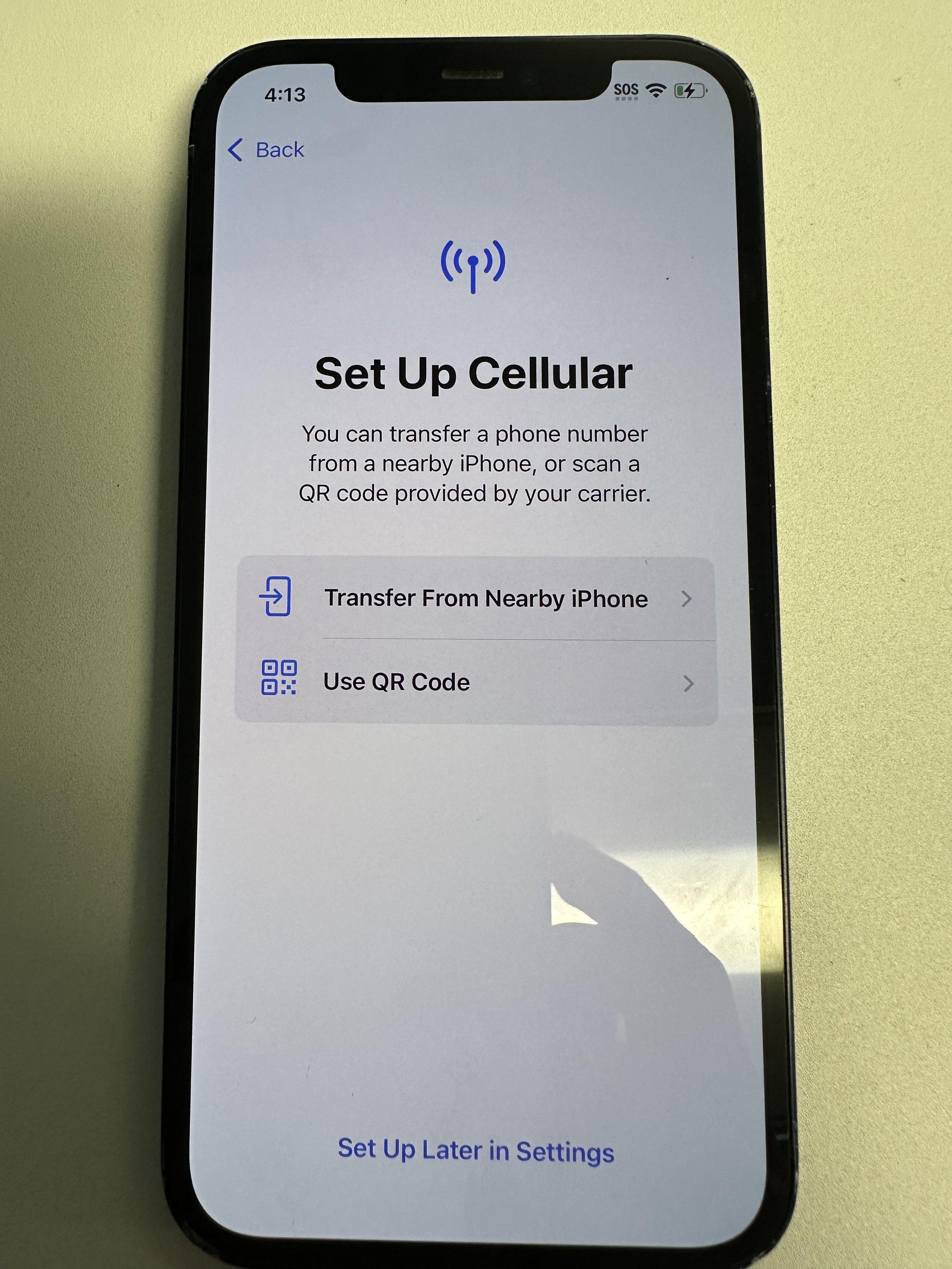
should not show up. if cellular data is not already available, please contact Helpdesk@marubeni.com.
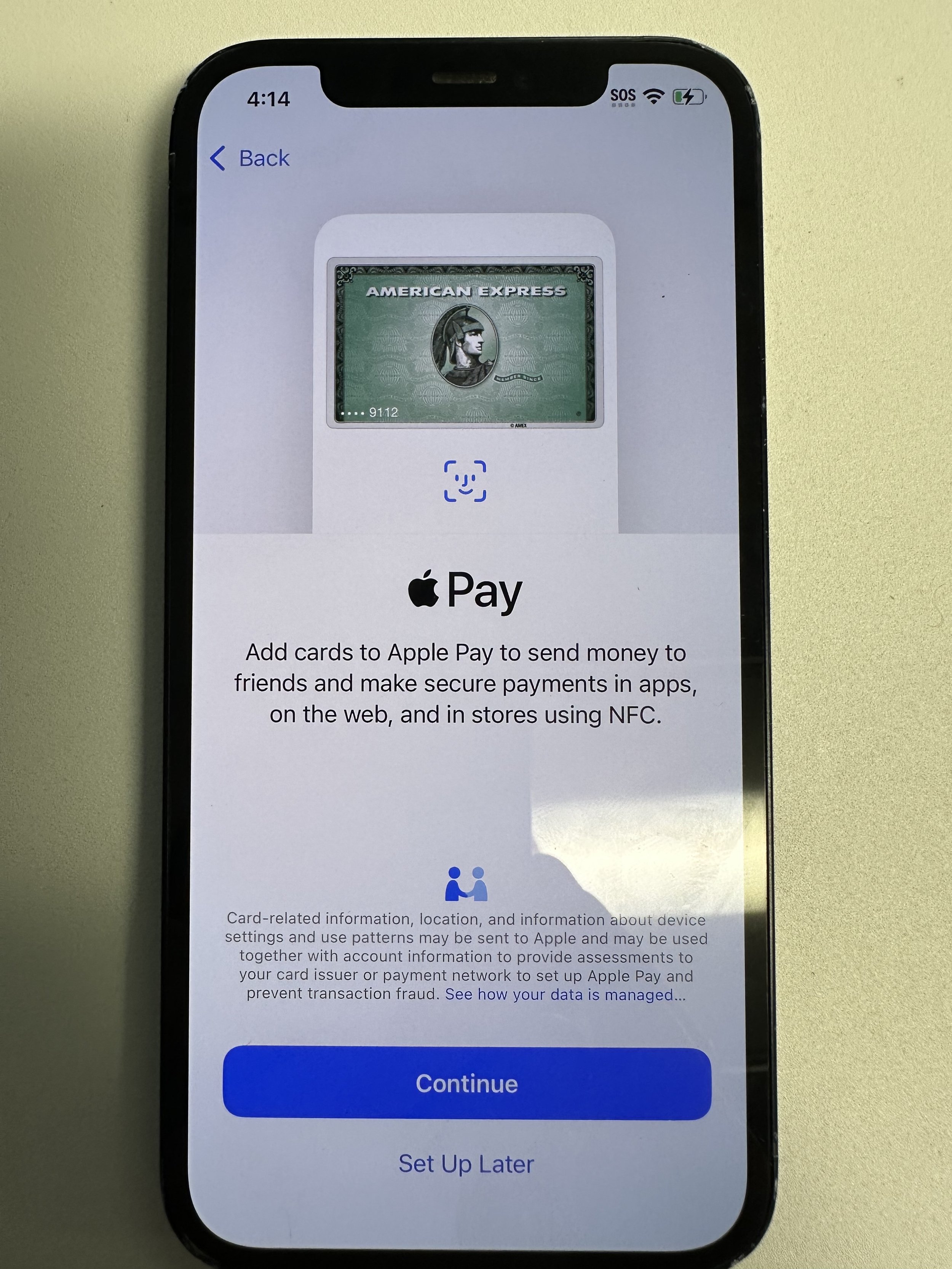
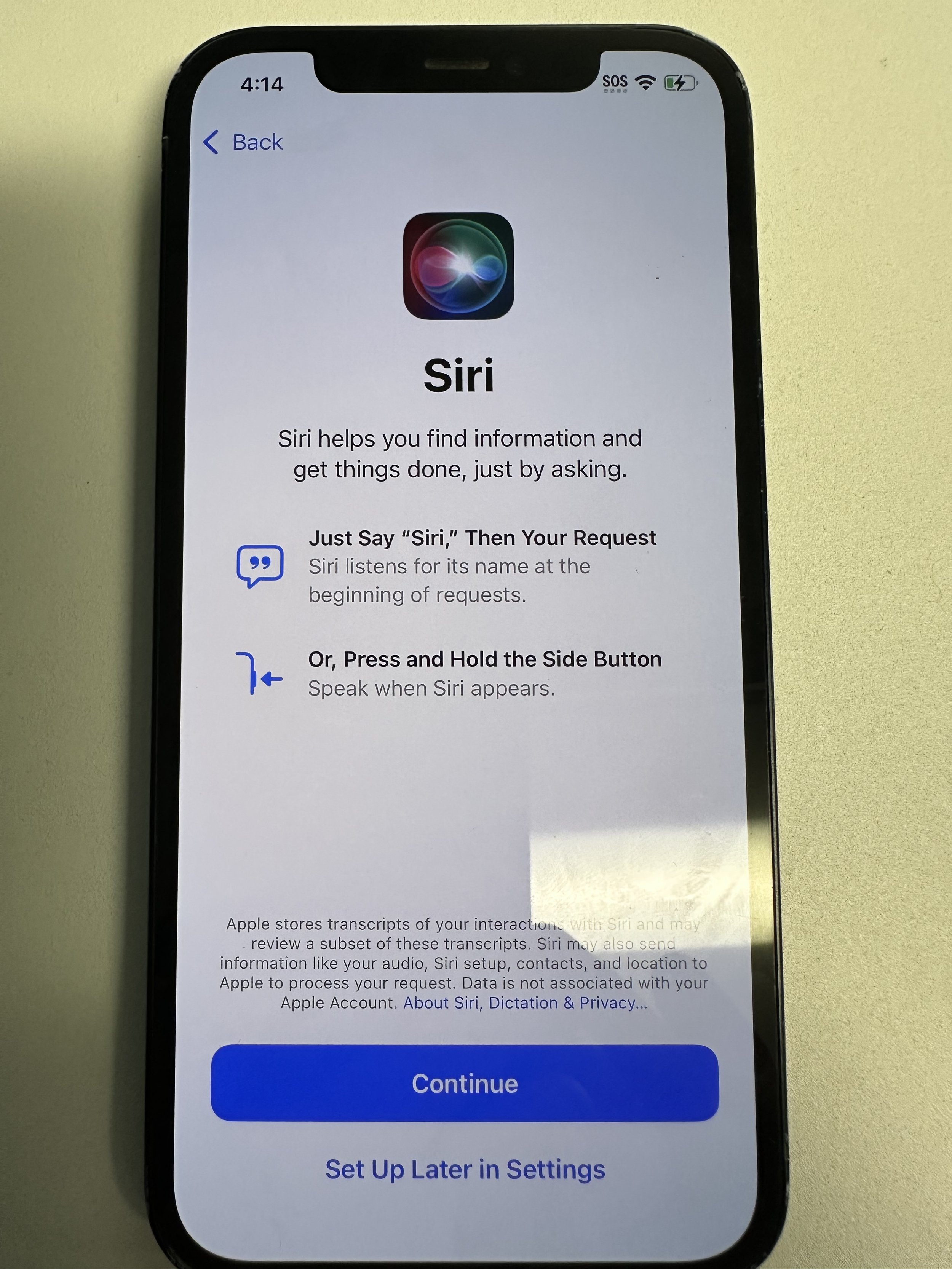
optional
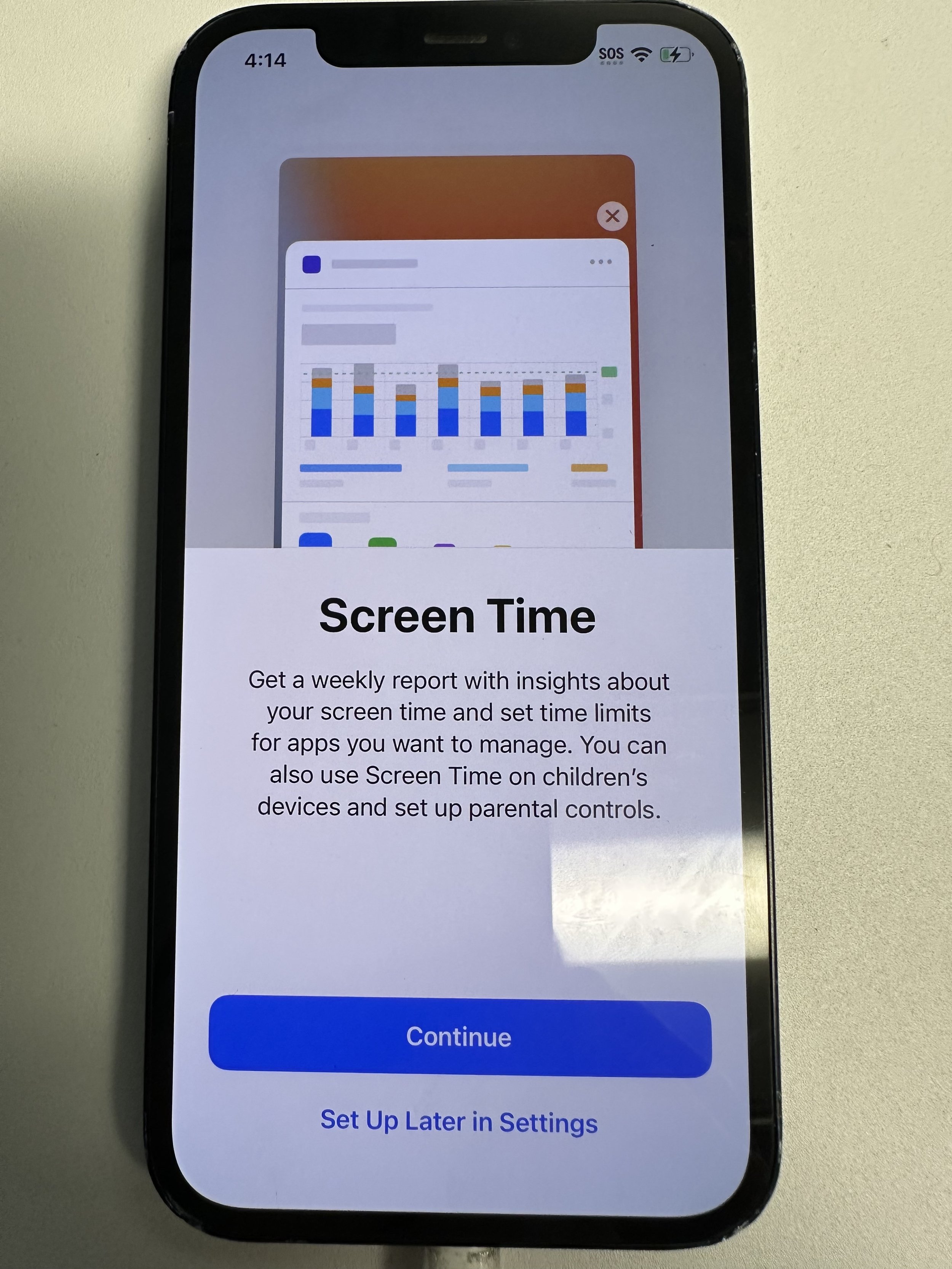
optional
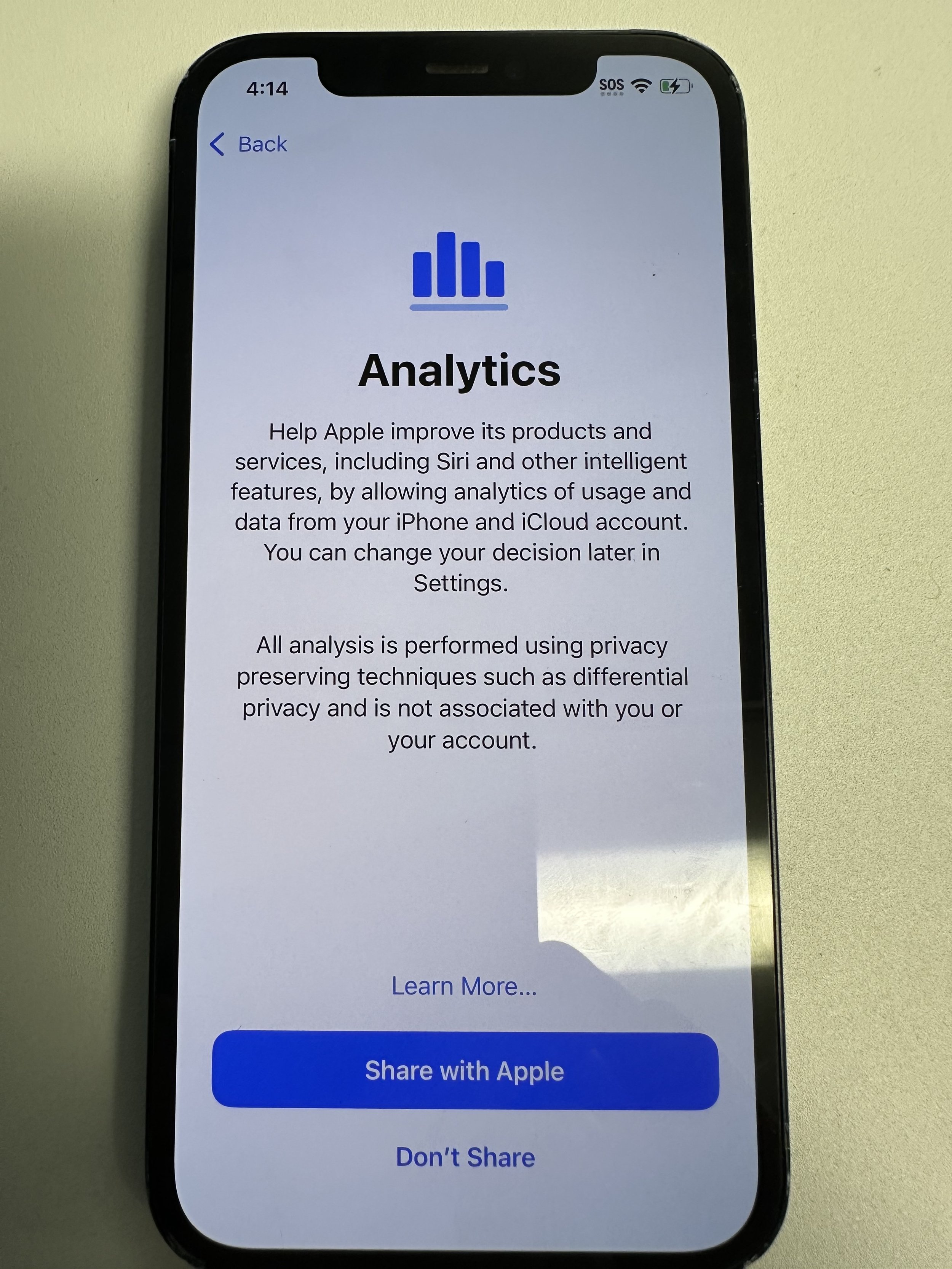
optional
preference
optional
swipe up
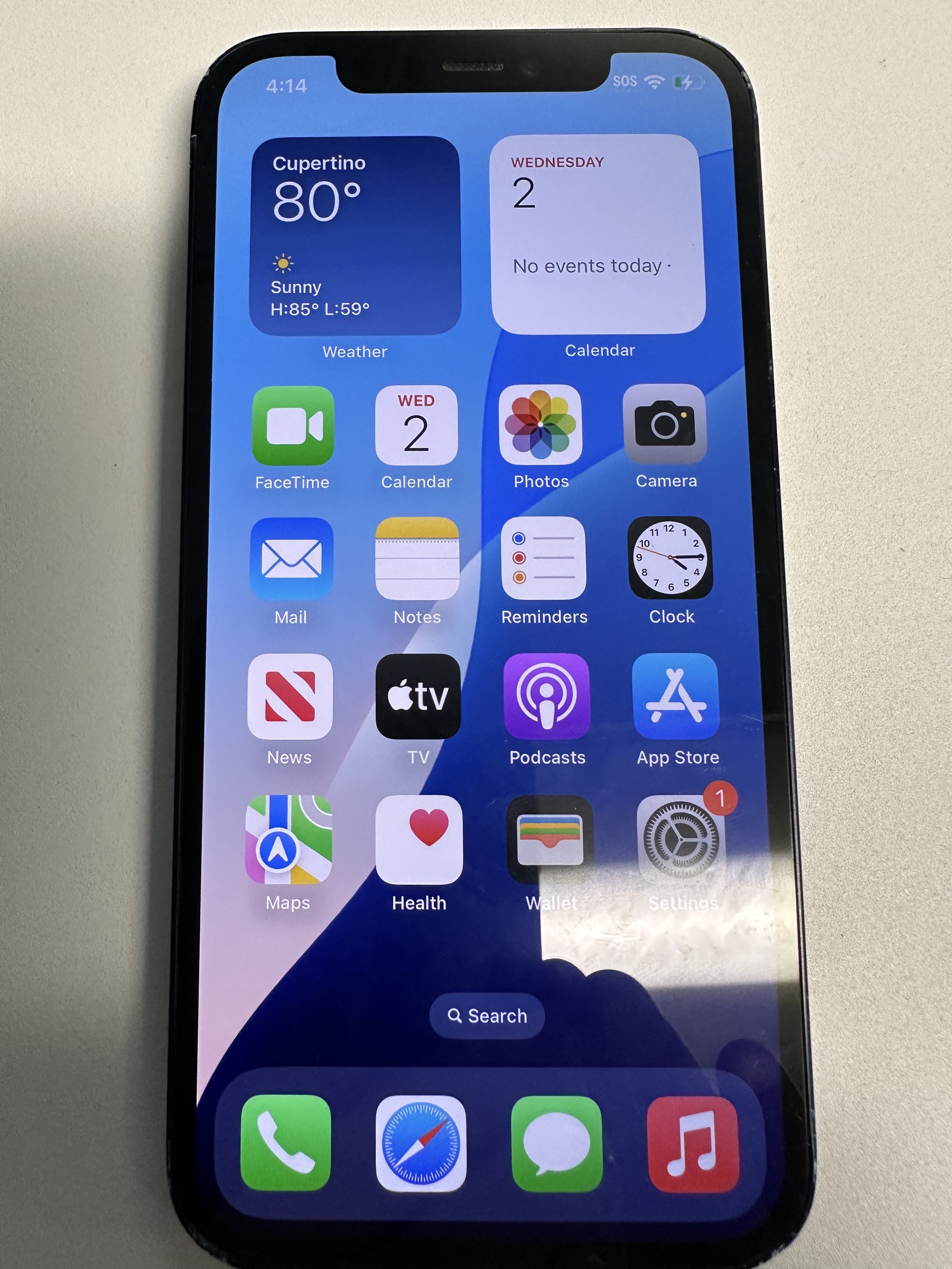
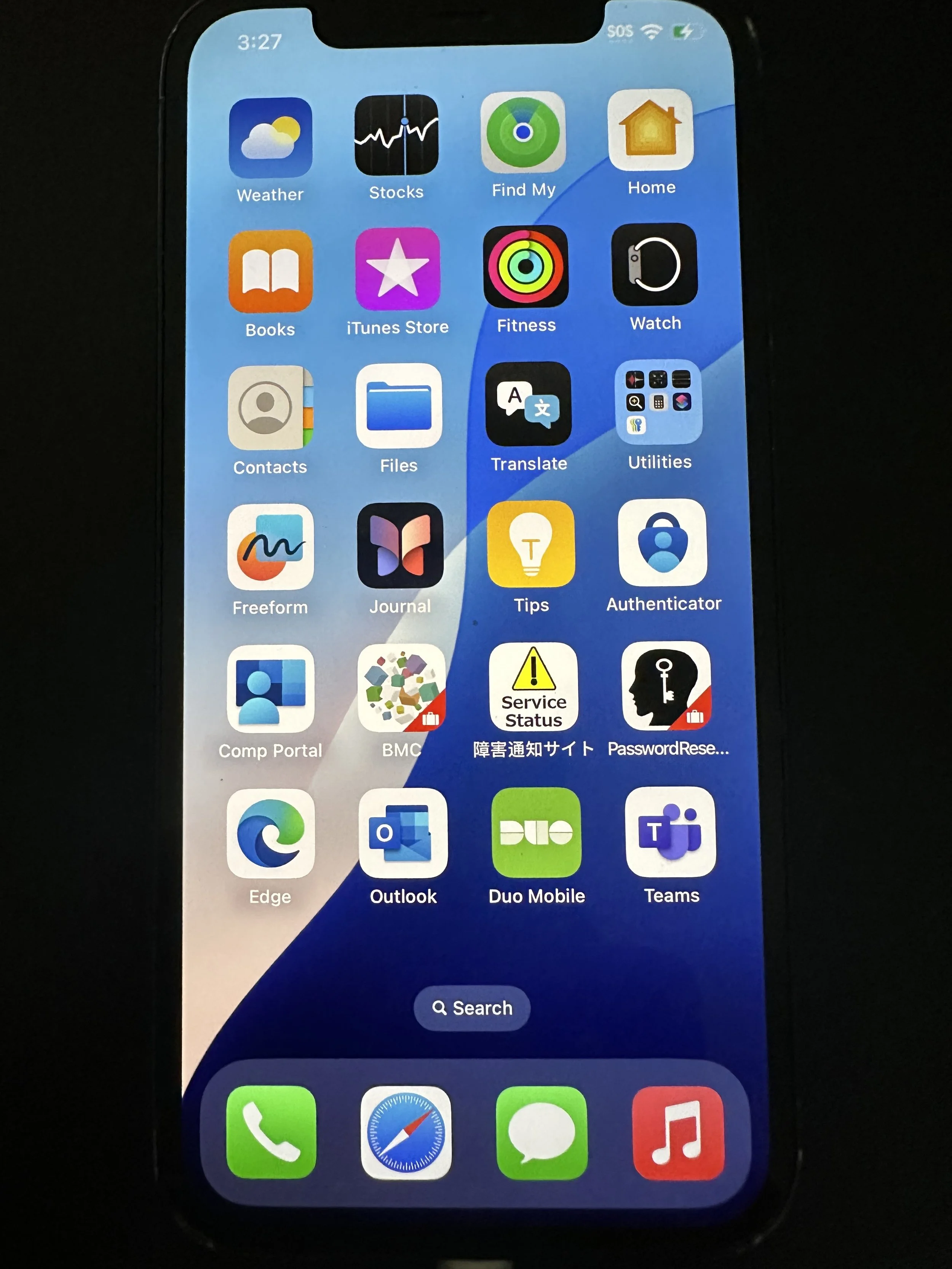
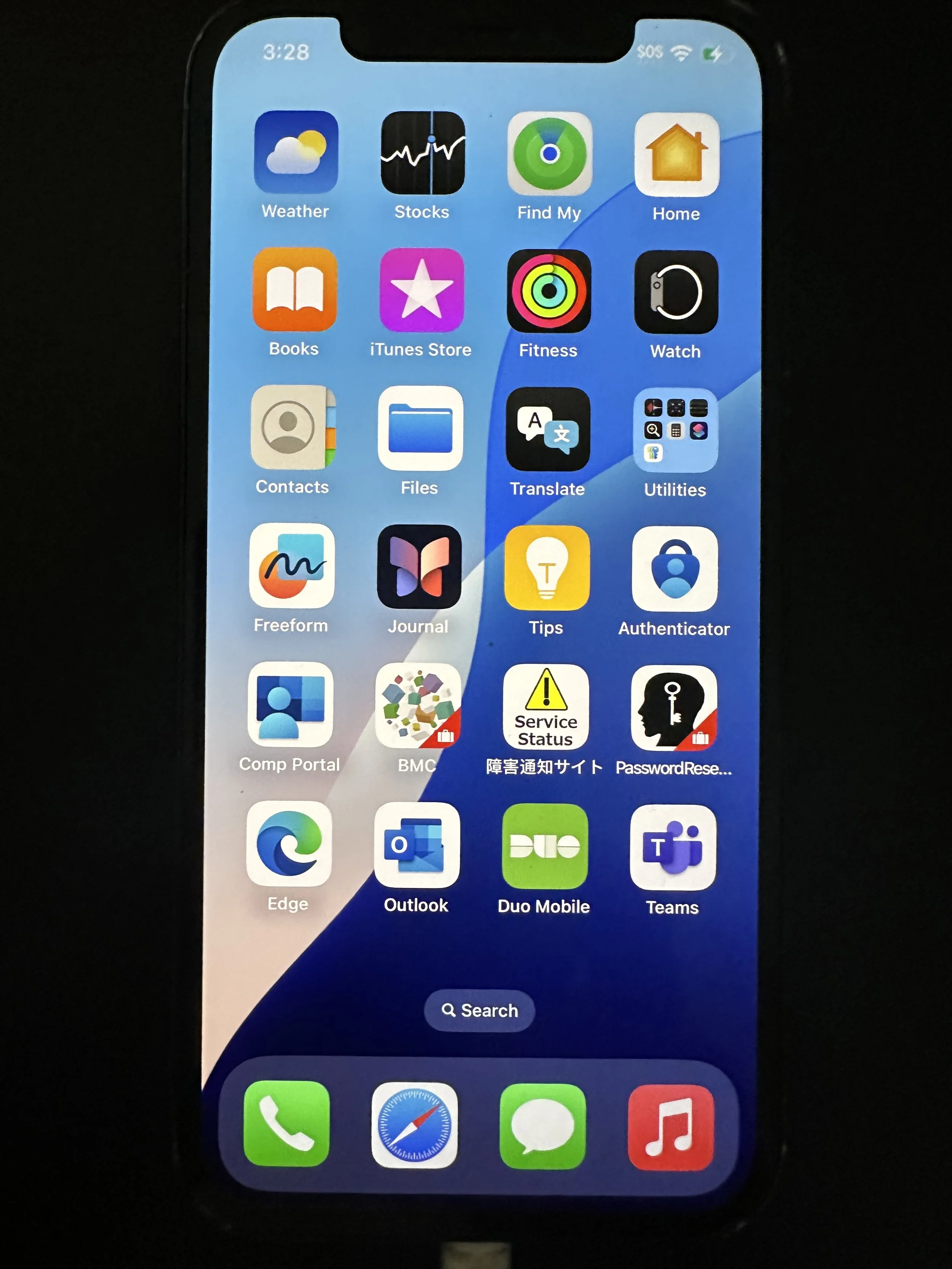
done. no apps should be grayed out.
Microsoft Authenticator (mandatory on at least one device)
can also be installed to personal or non-MAC mobile
recommended to have on multiple devices for backup and lost/stolen device protocol
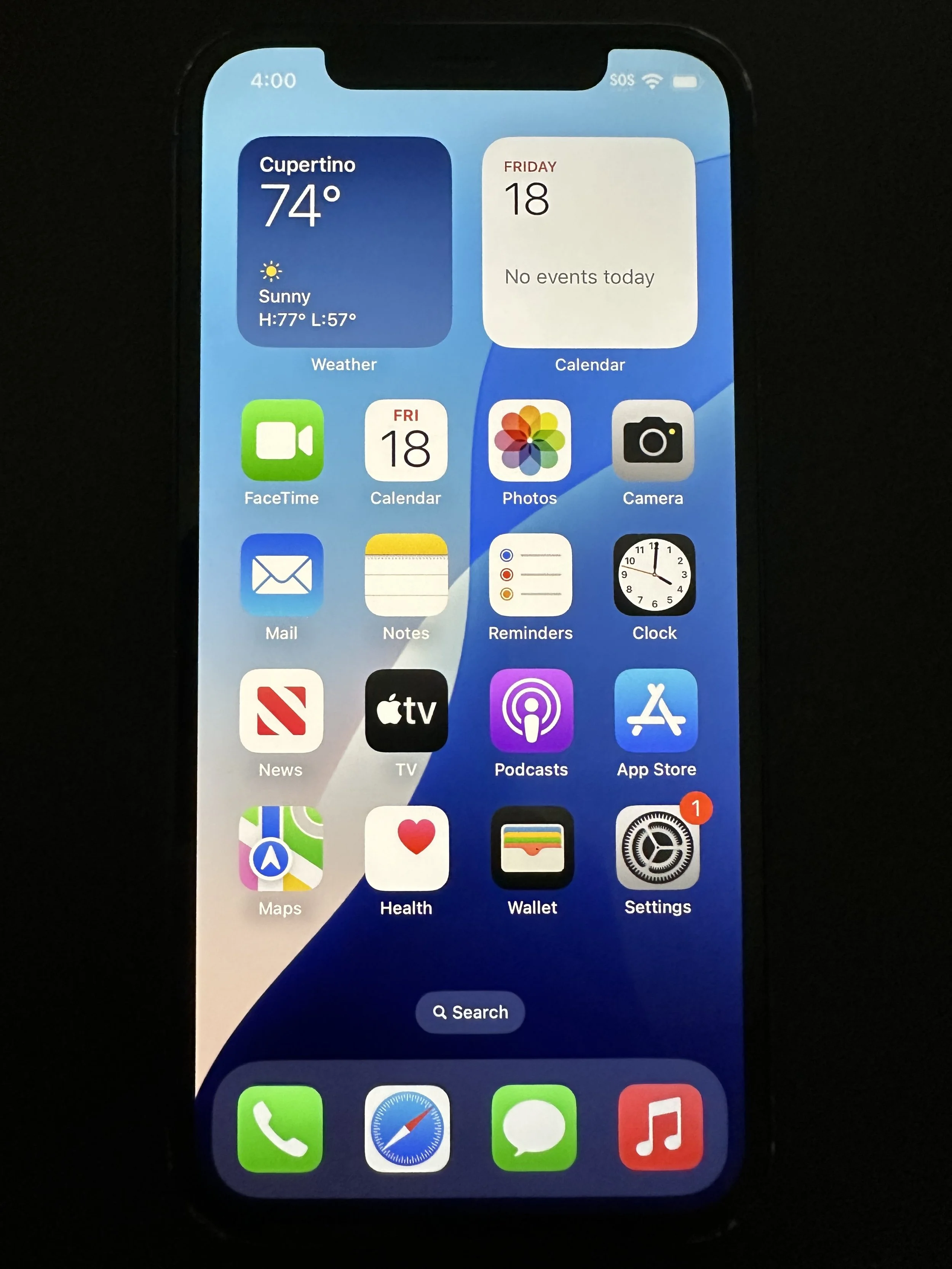
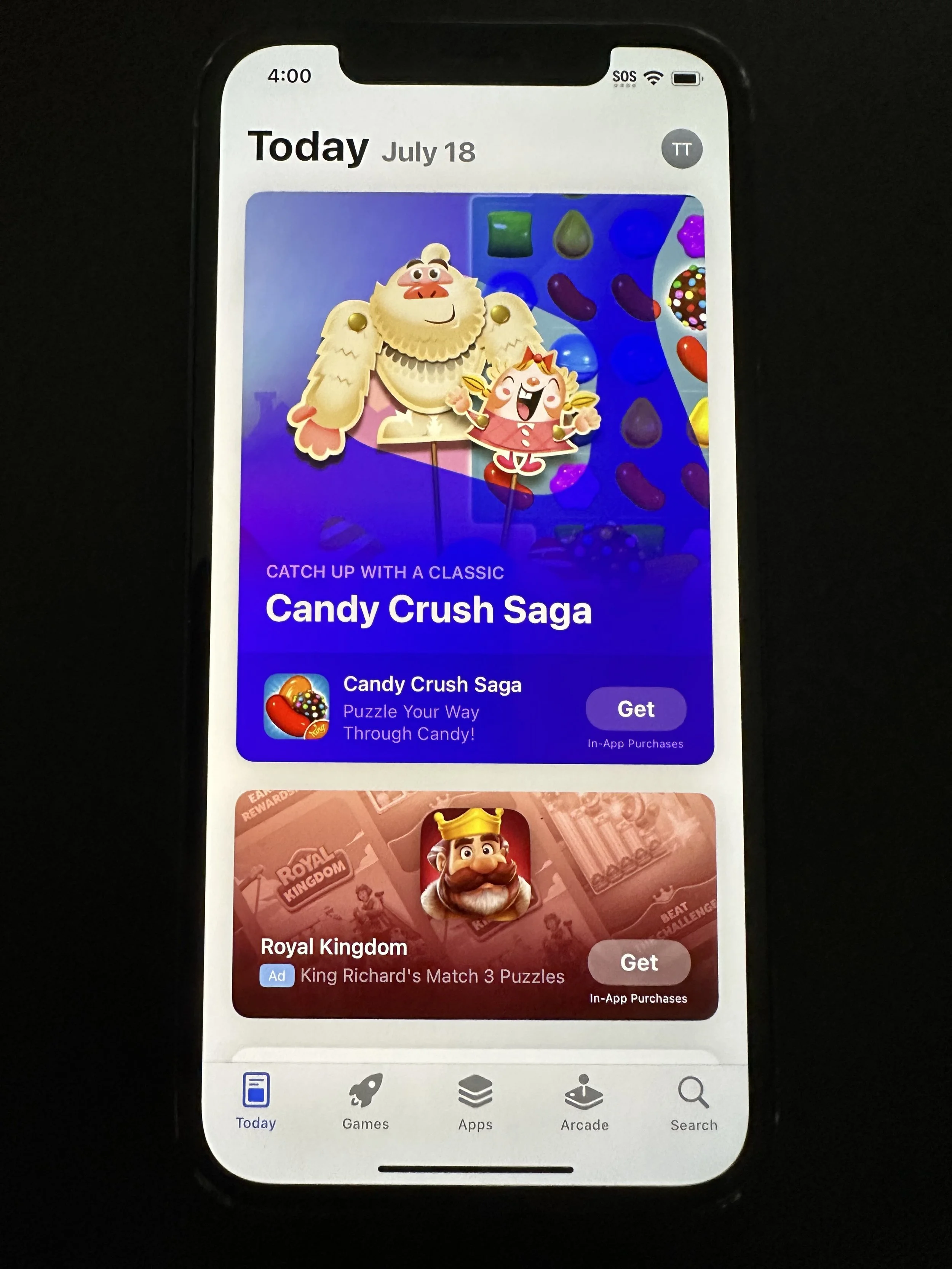
tap App Store
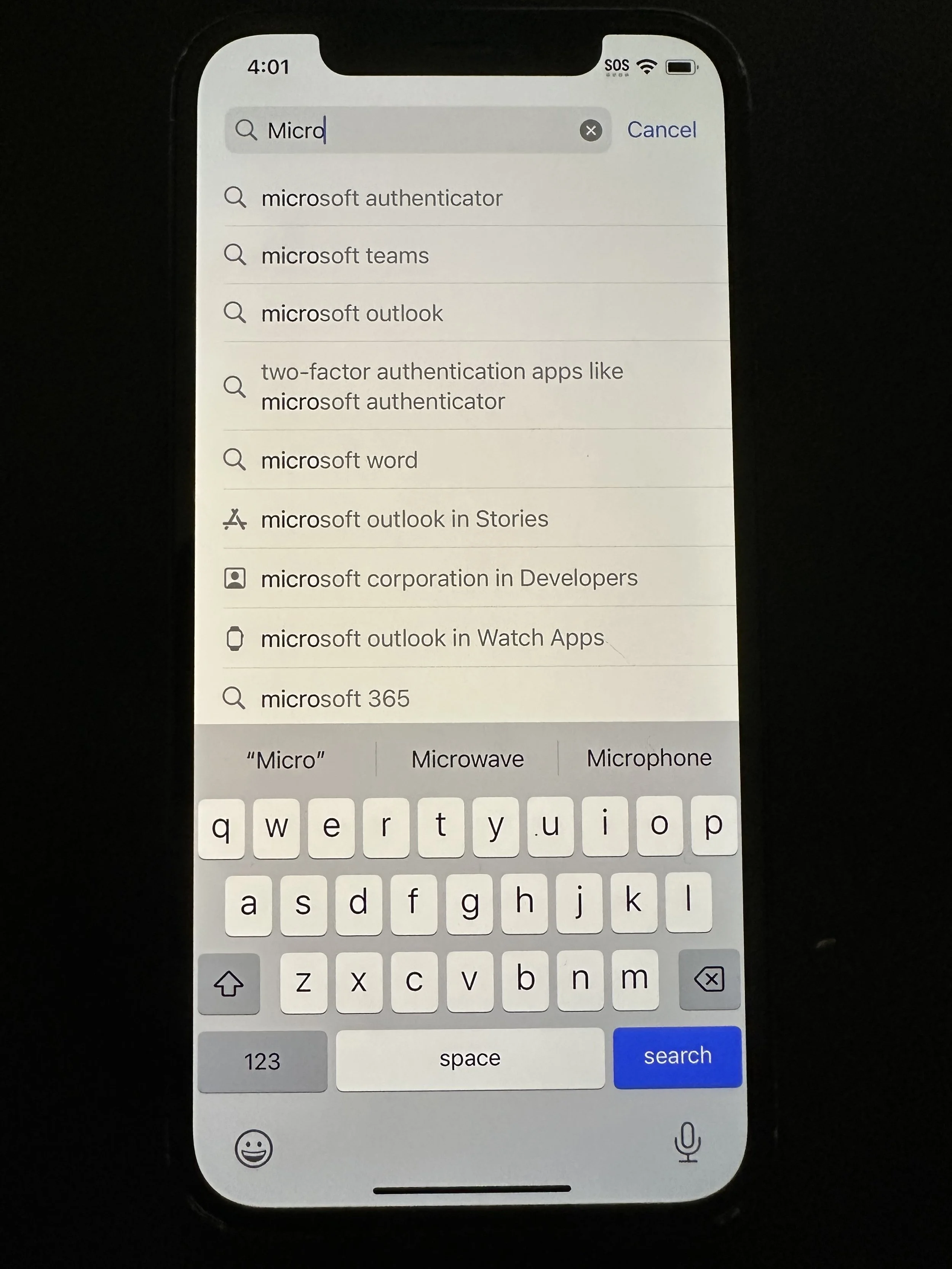
tap Search
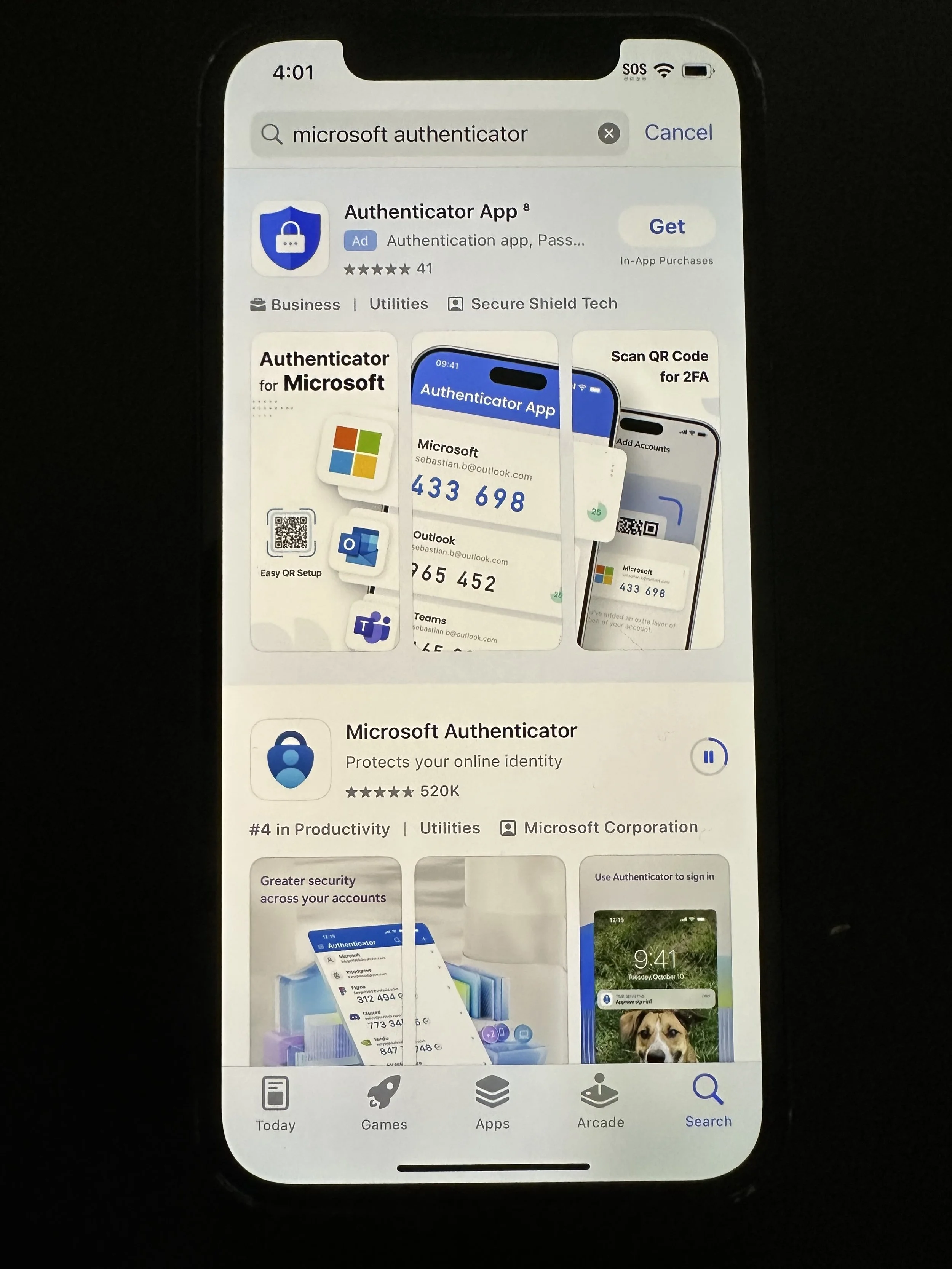
search Microsoft Authenticator
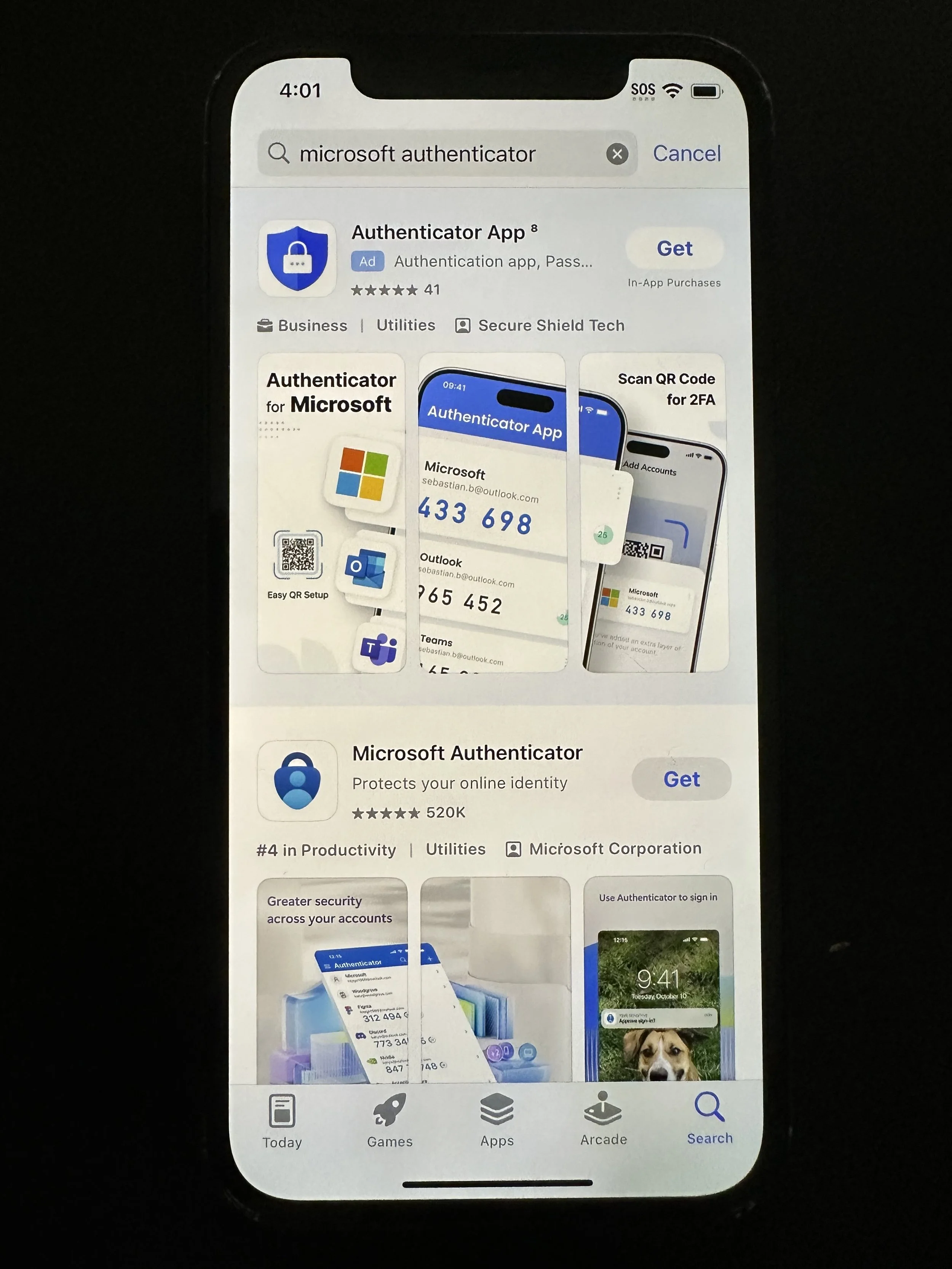
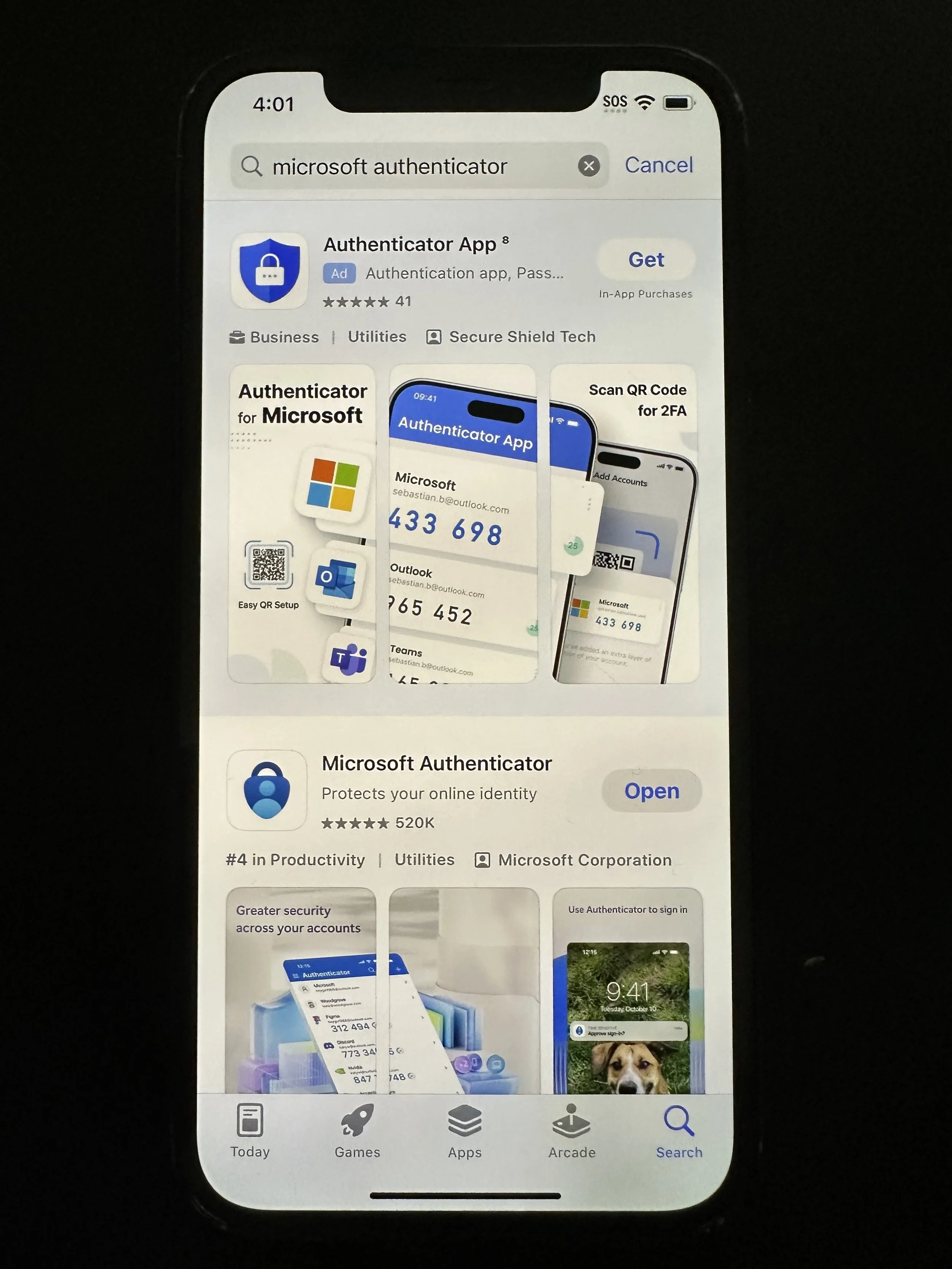
avoid any advertisements and tap Install on Microsoft Authenticator (e.g. bottom)
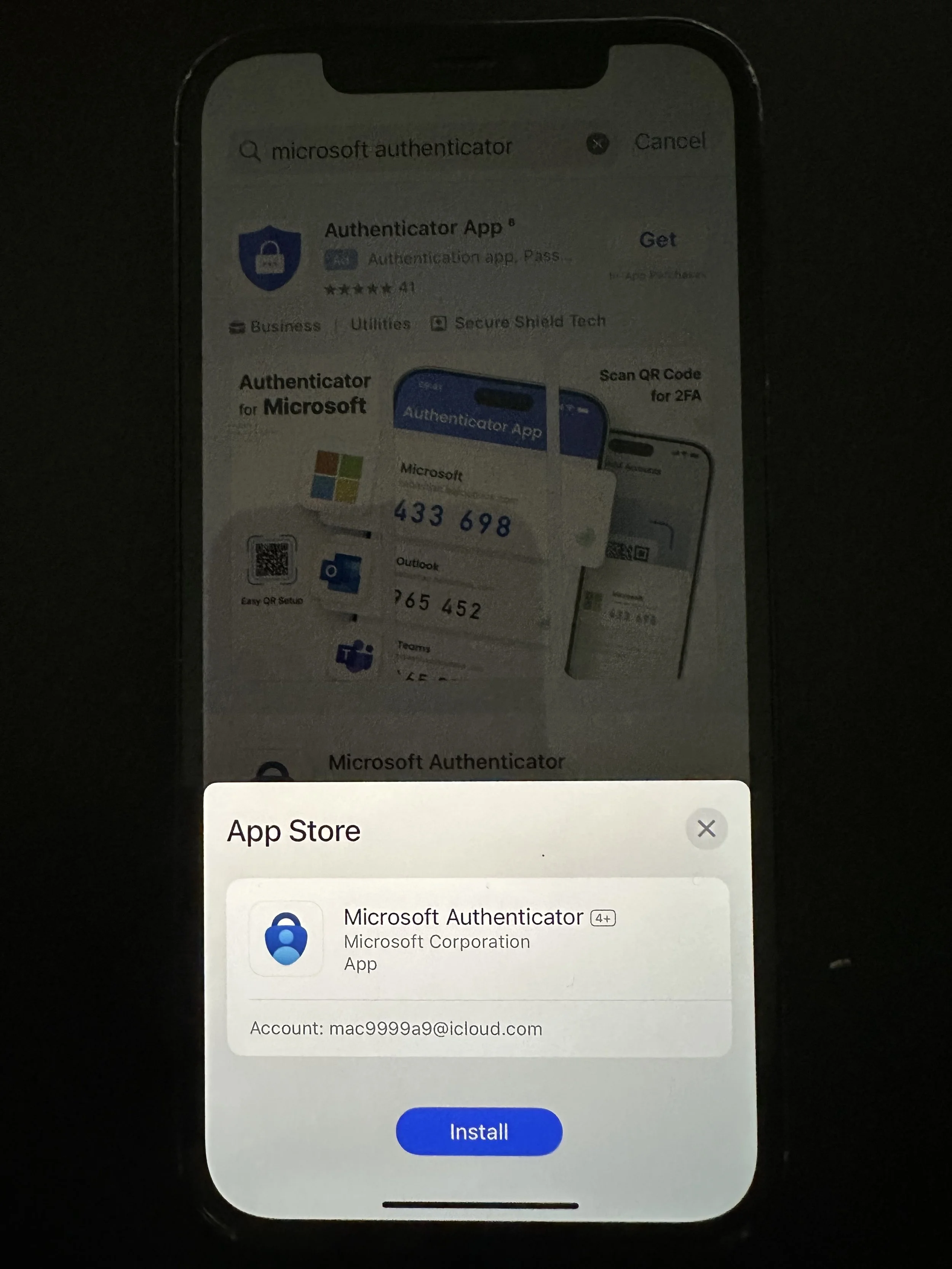
tap Install
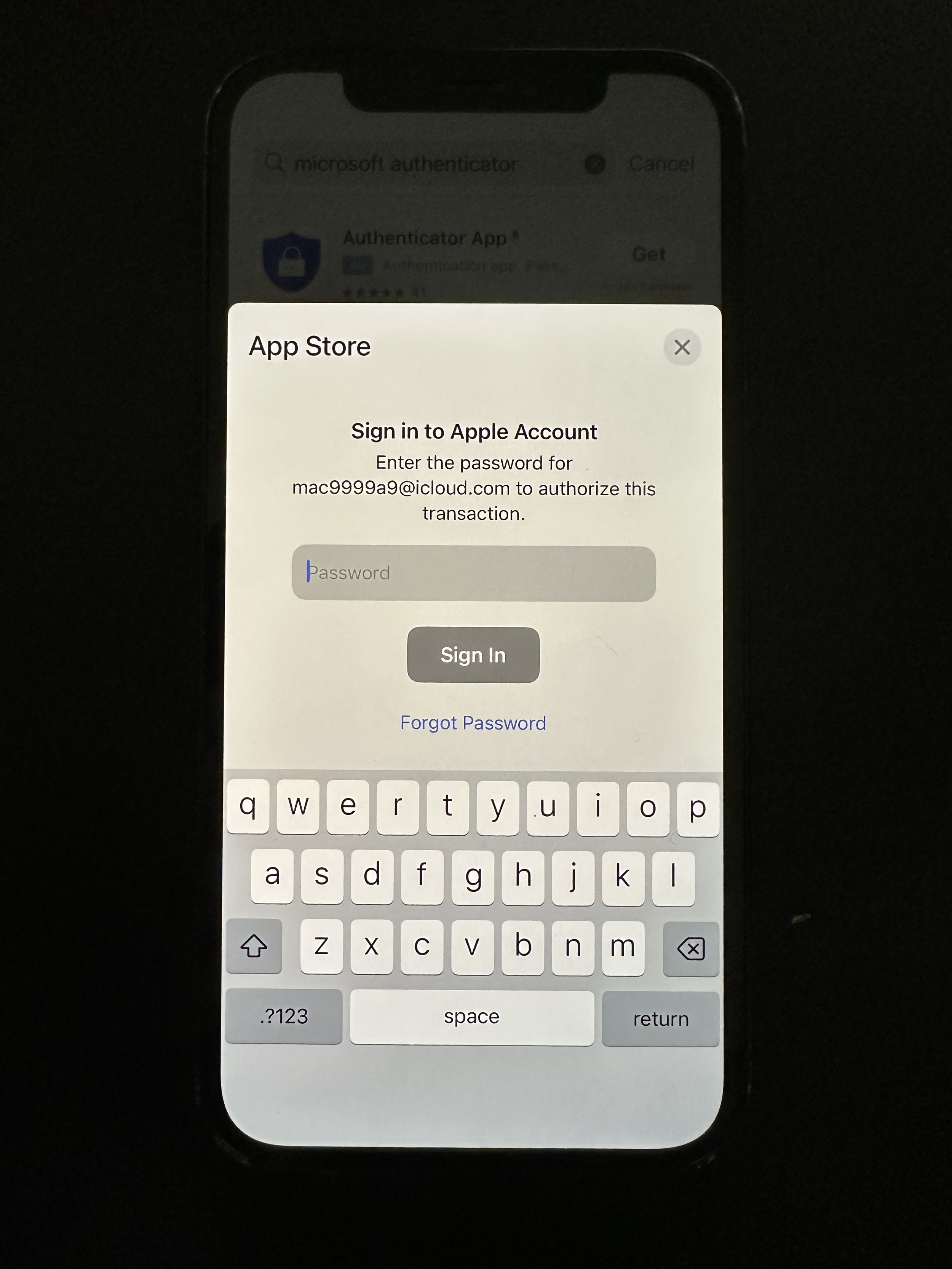
enter password for Apple ID
wait for the install
tap Open
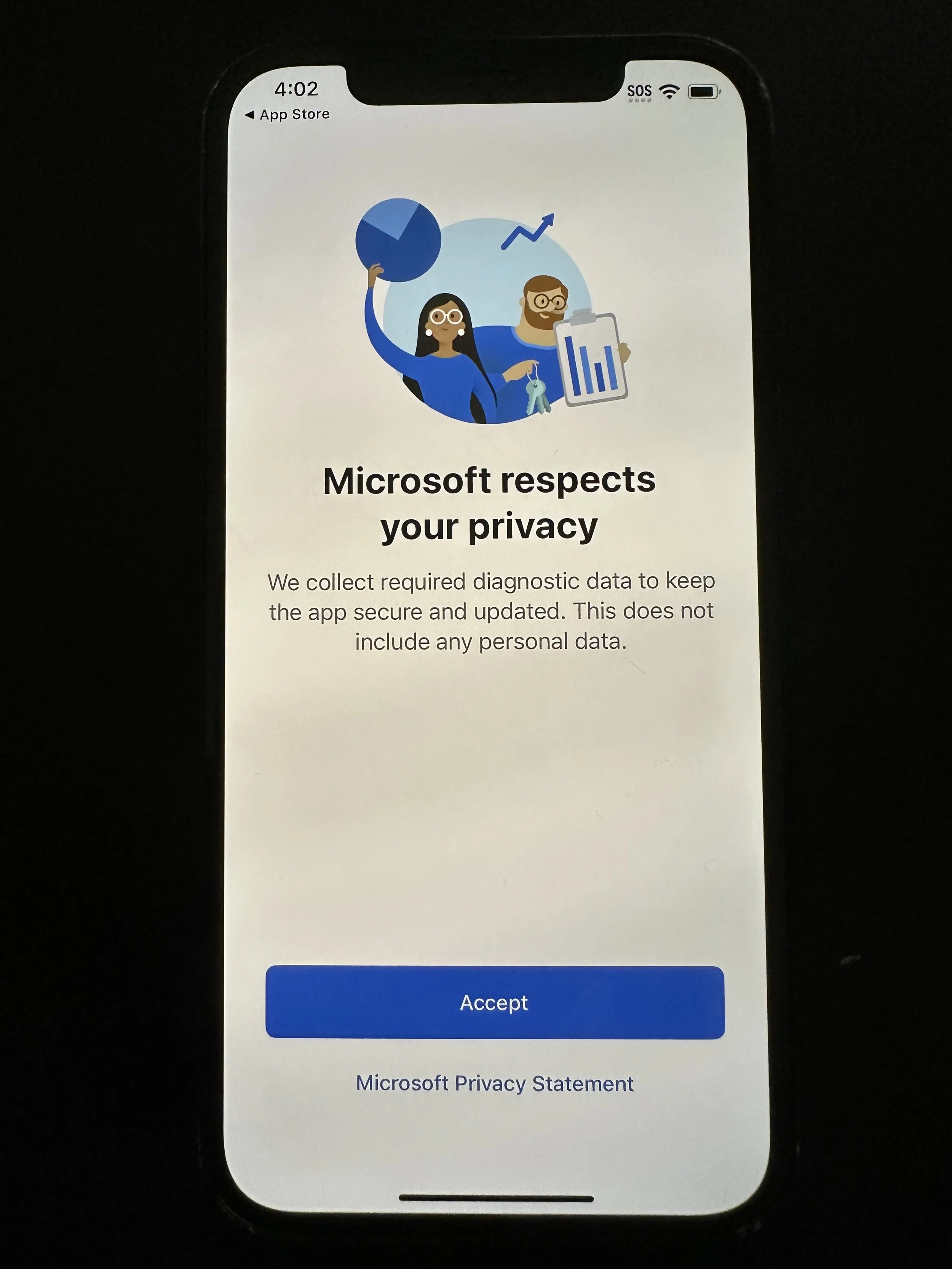
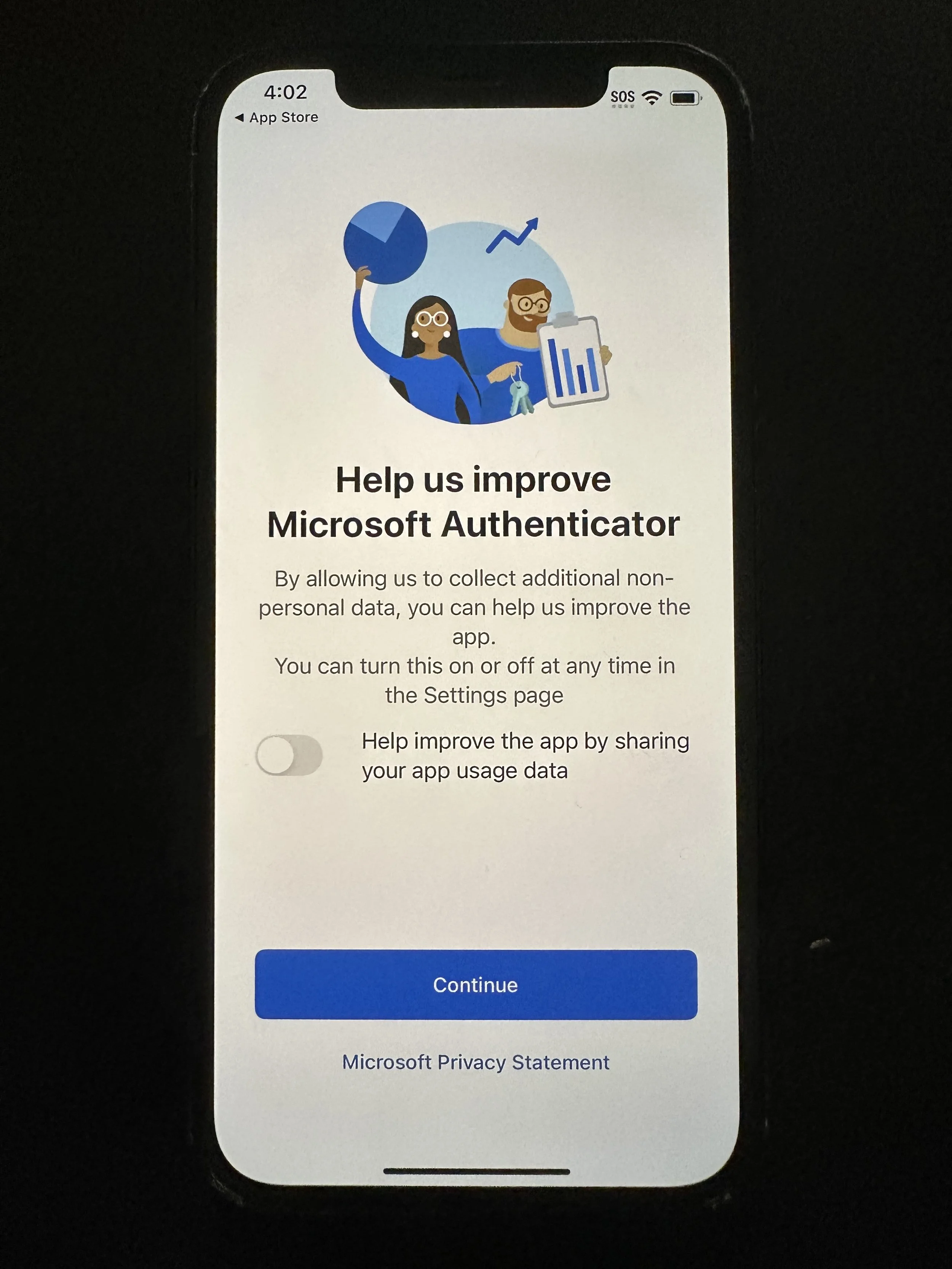
tap Accept
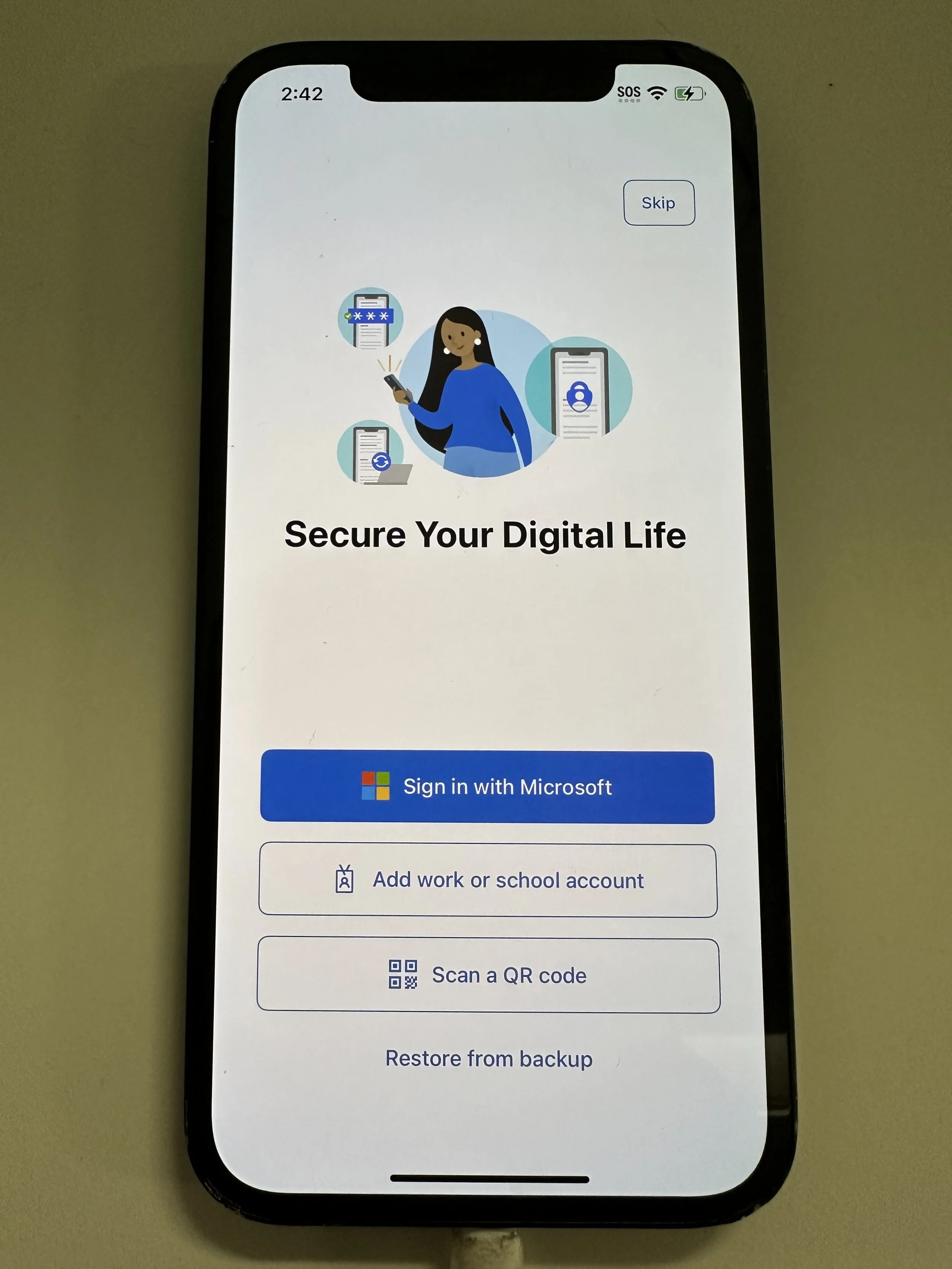
tap Continue
tap Add Work or School Account
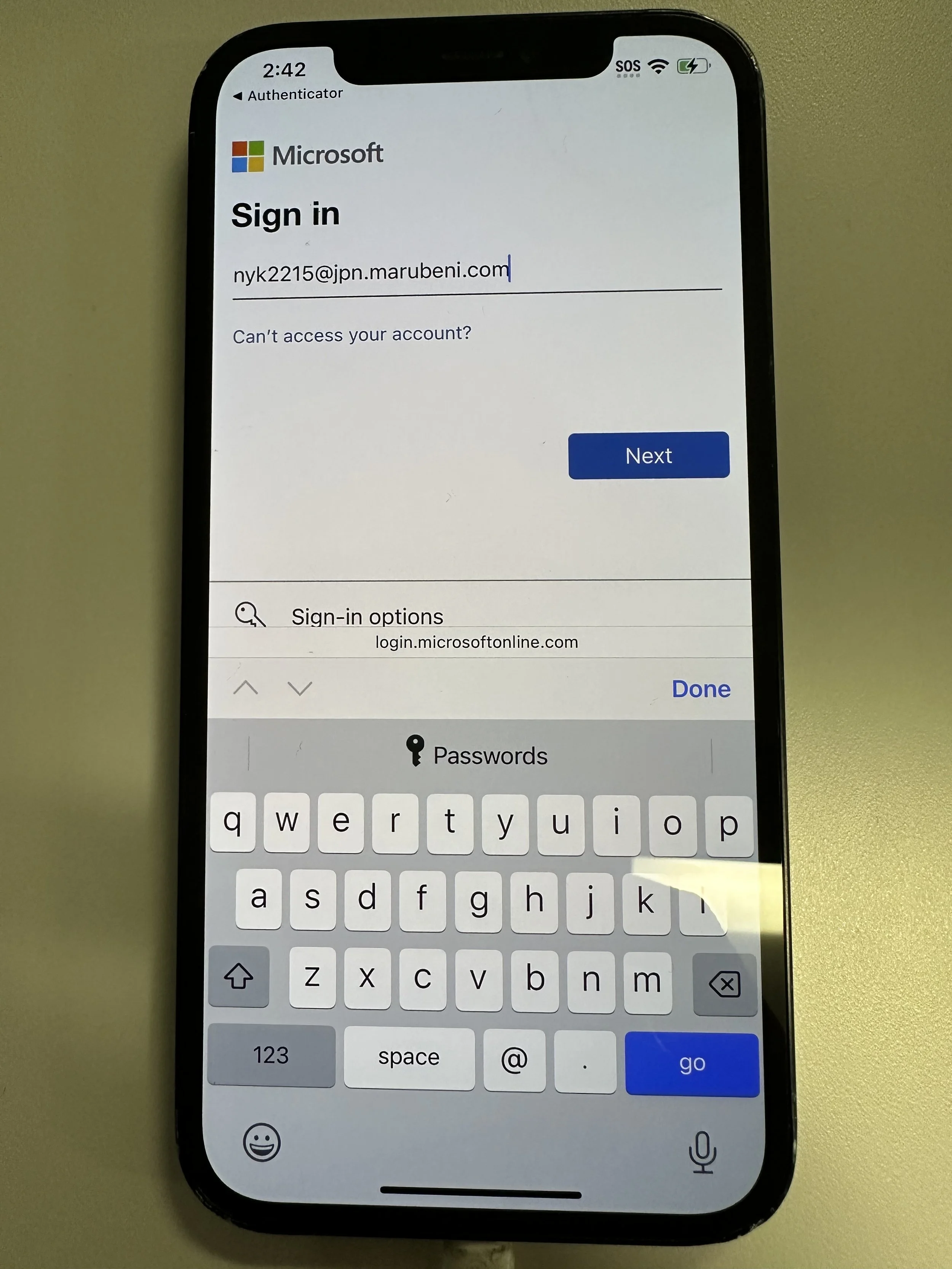
enter VDI/PC ID@jpn.marubeni.com
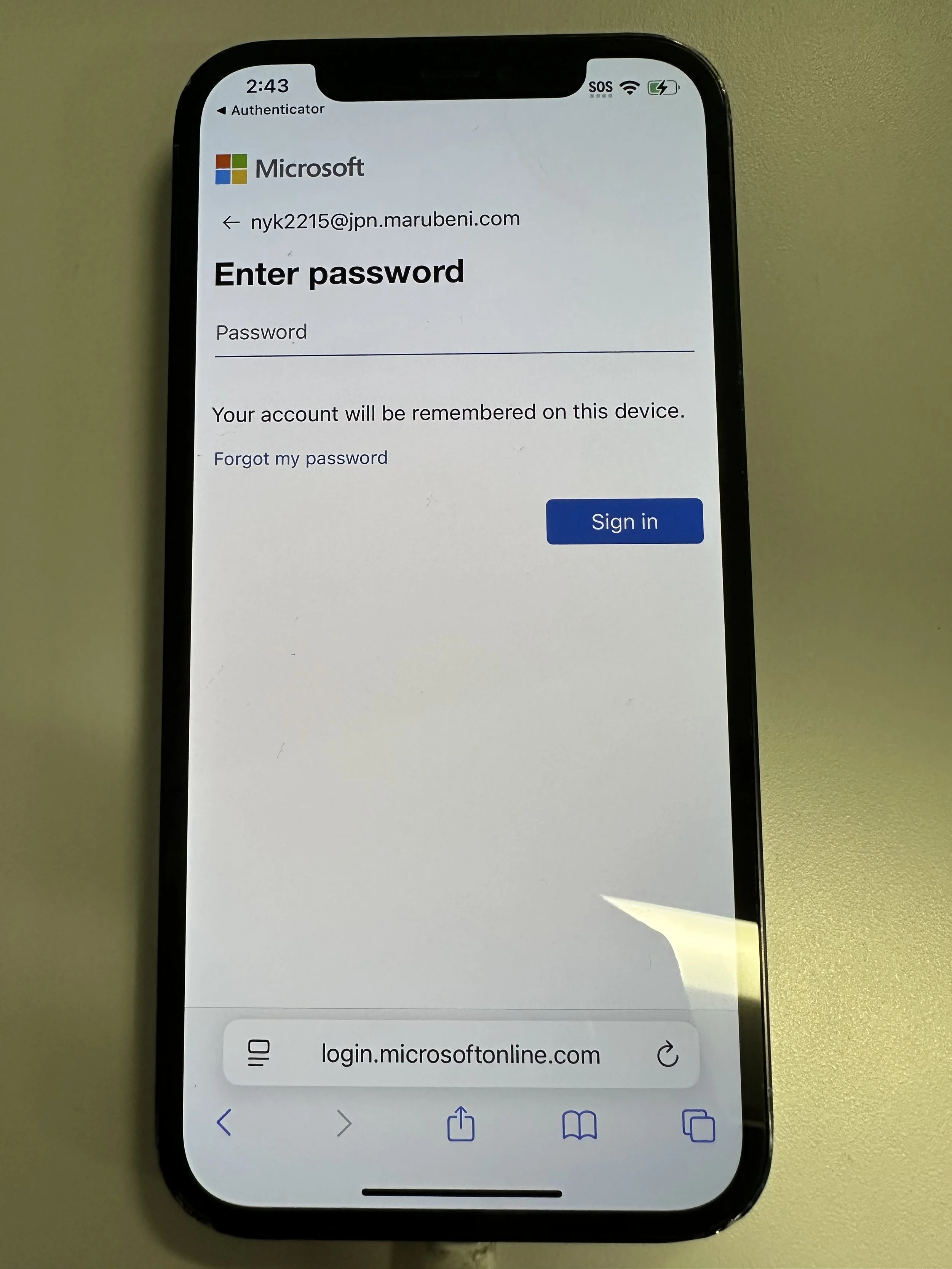
enter VDI/PC password
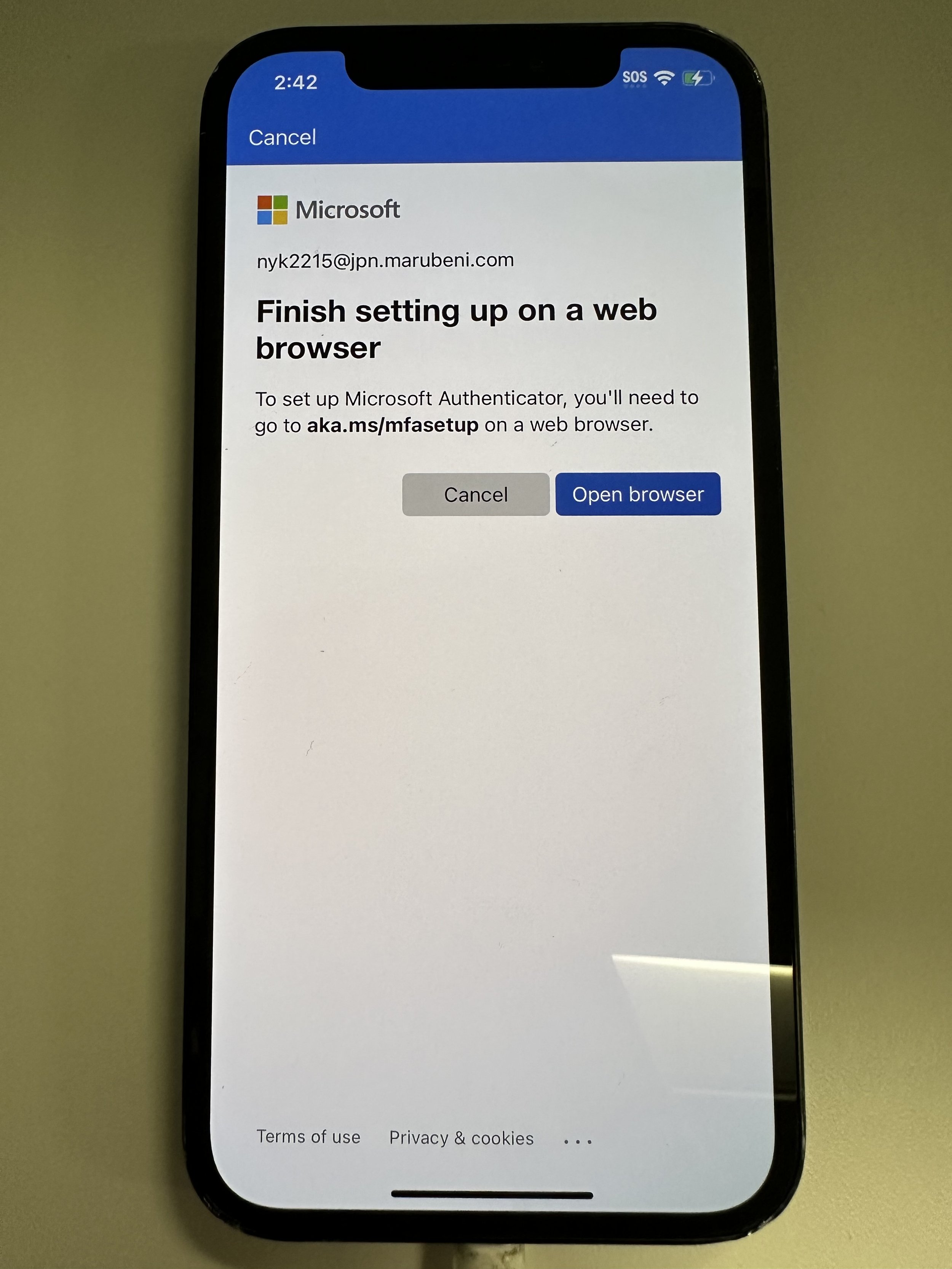
if you have set up MFA already, authenticate accordingly. if you have not set up MFA prior, tap Open Browser.
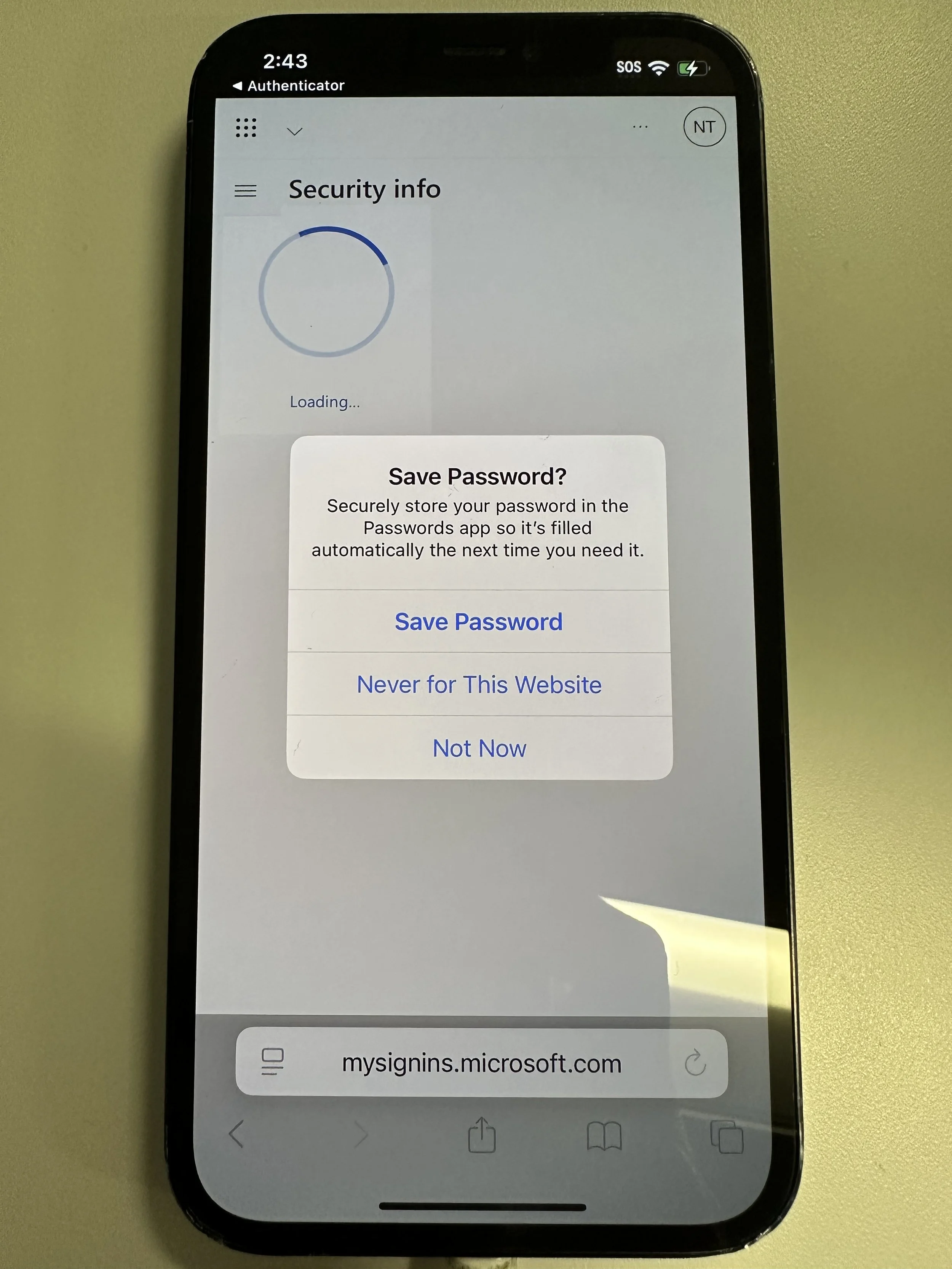
if prompted, tap Never for This Website
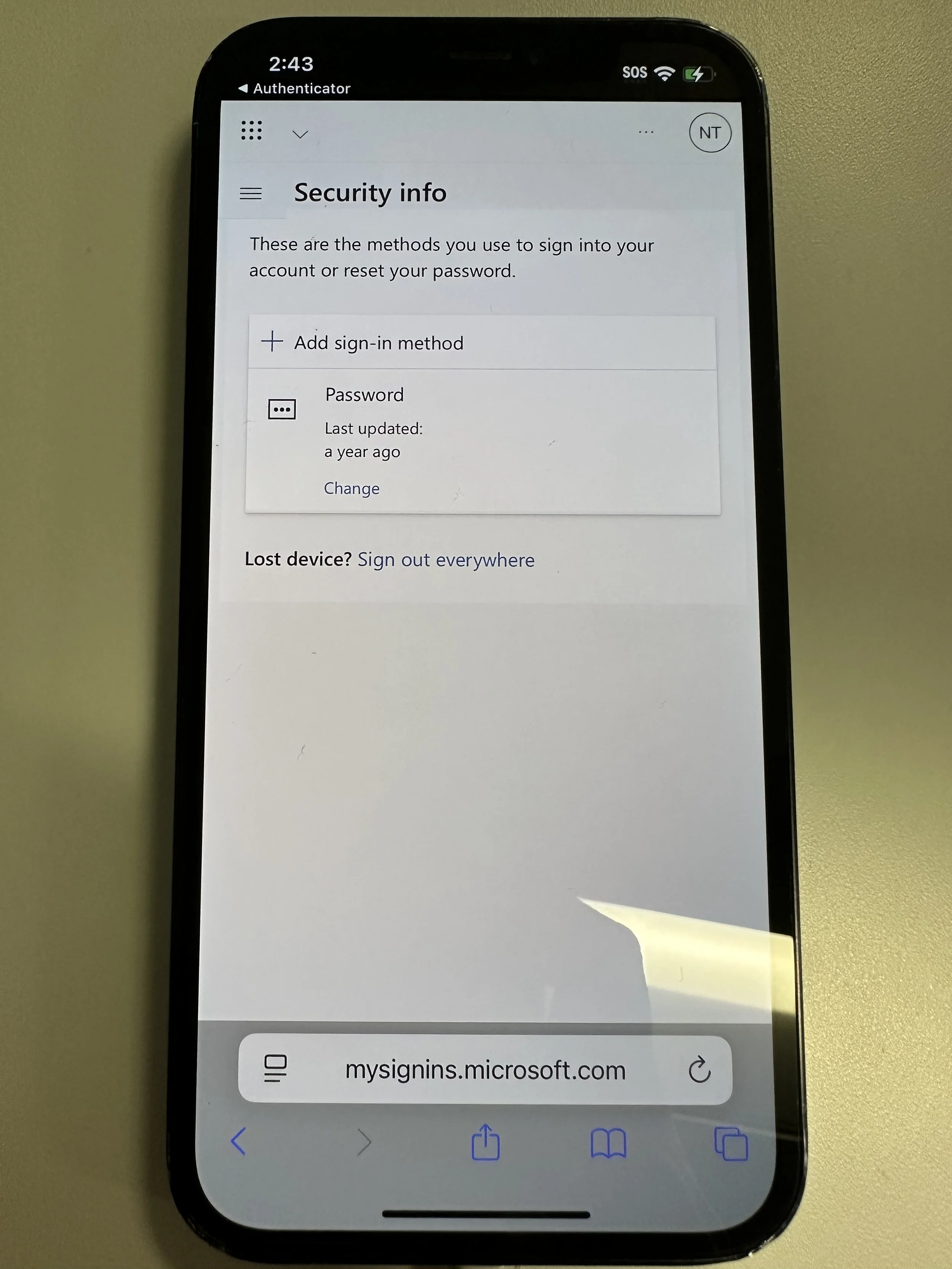
tap Add sign-in method
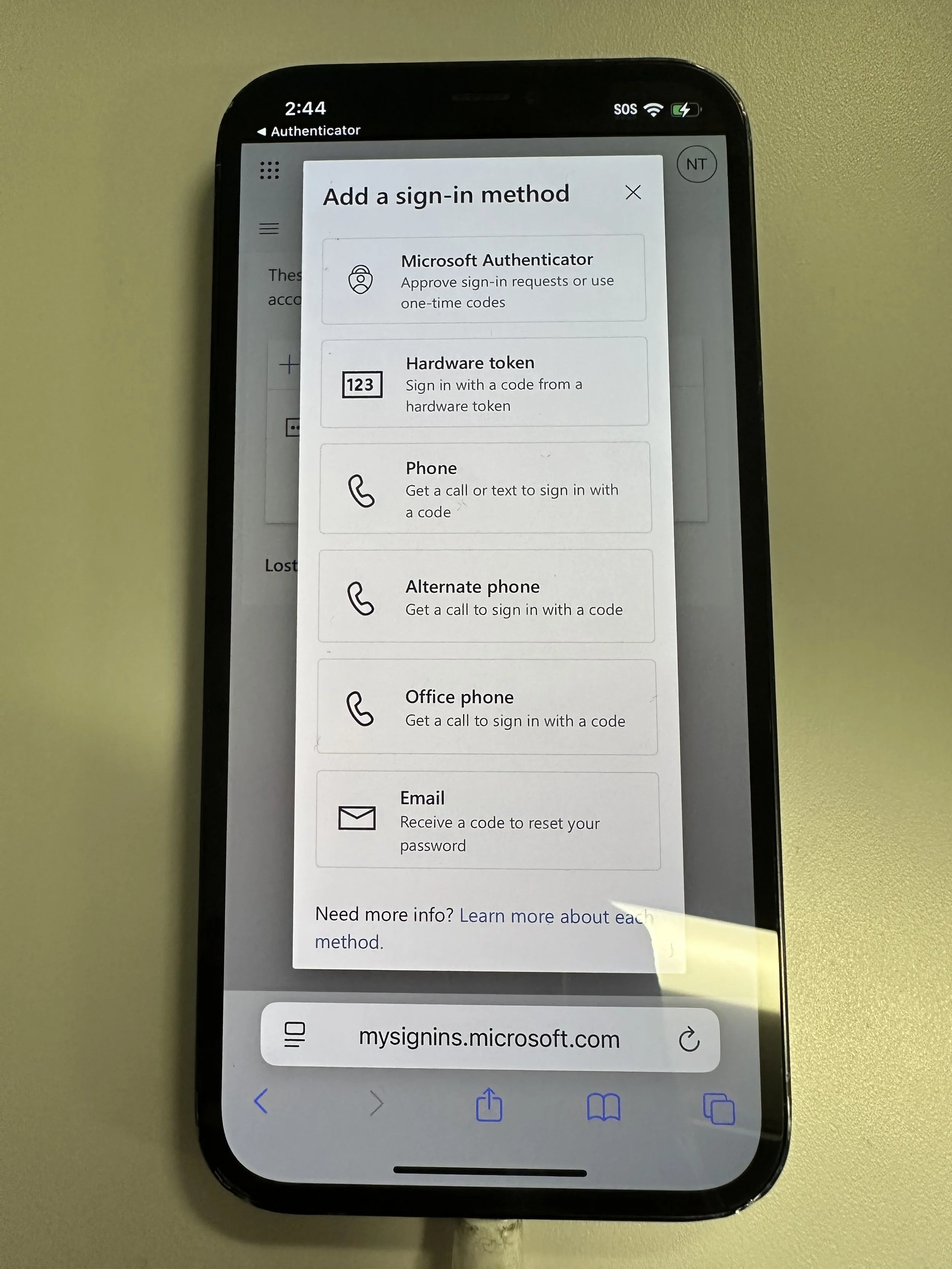
tap Microsoft Authenticator
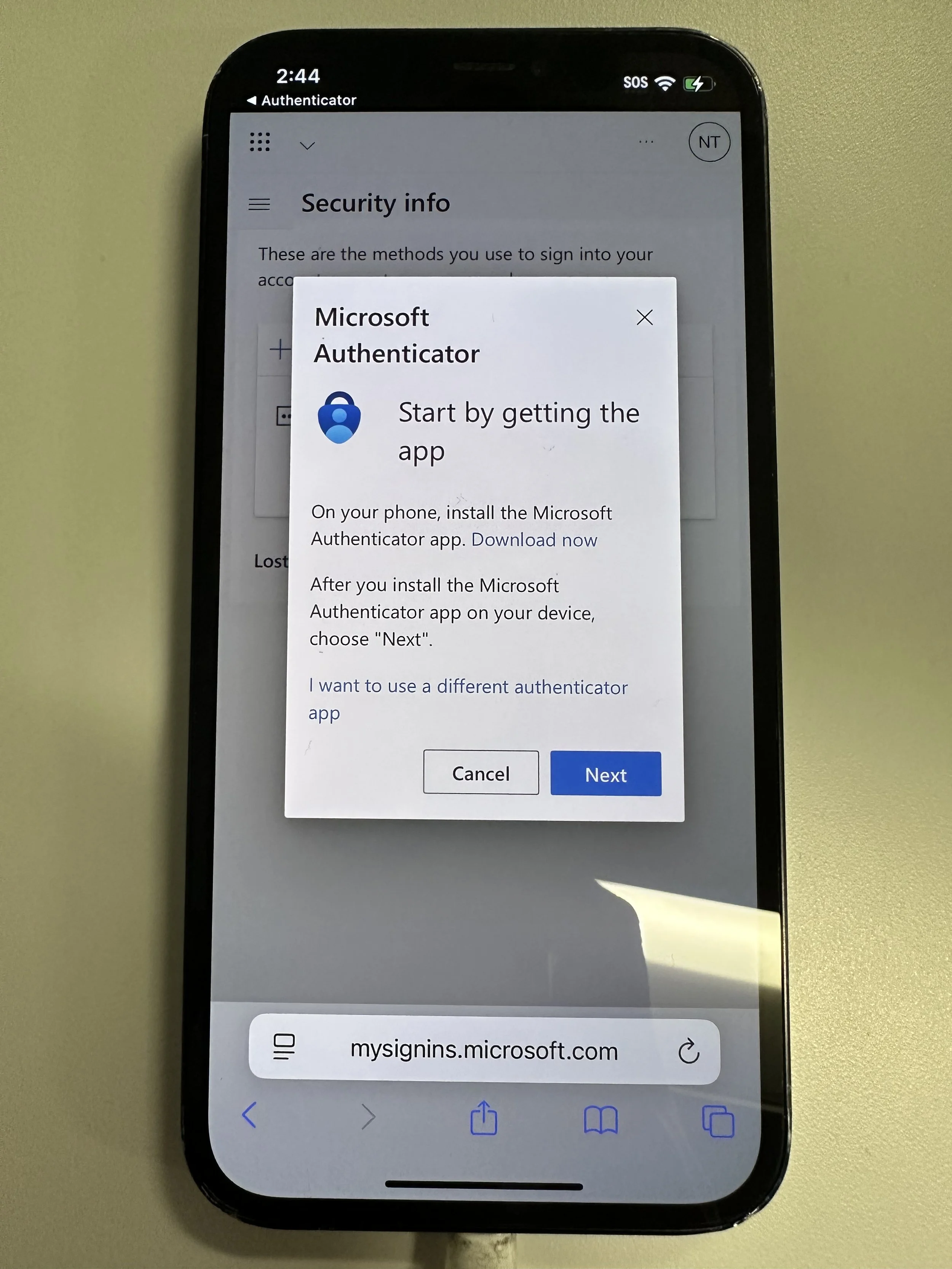
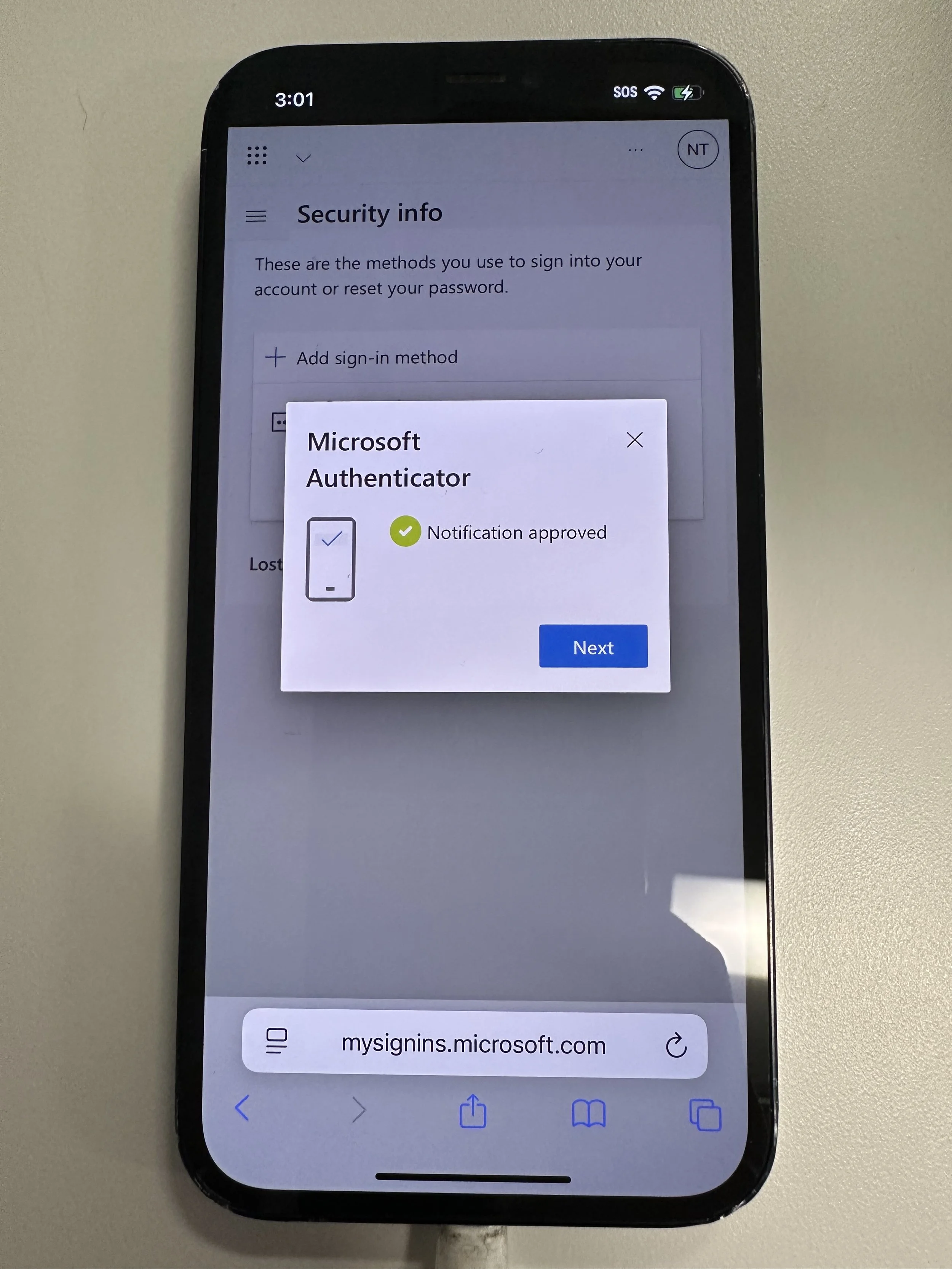
tap Next
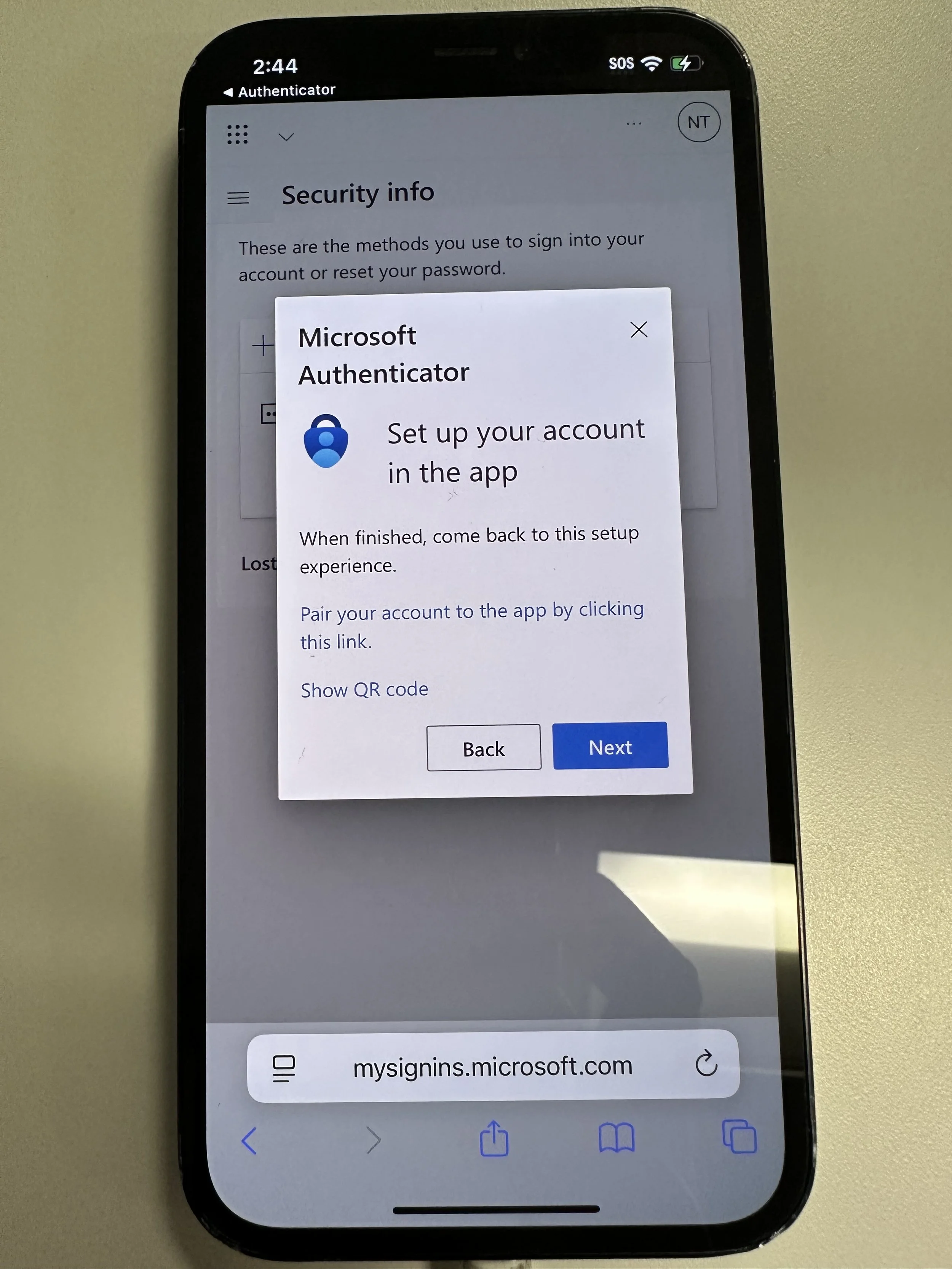
tap Pair your account to the app by clicking this link (NOT NEXT)
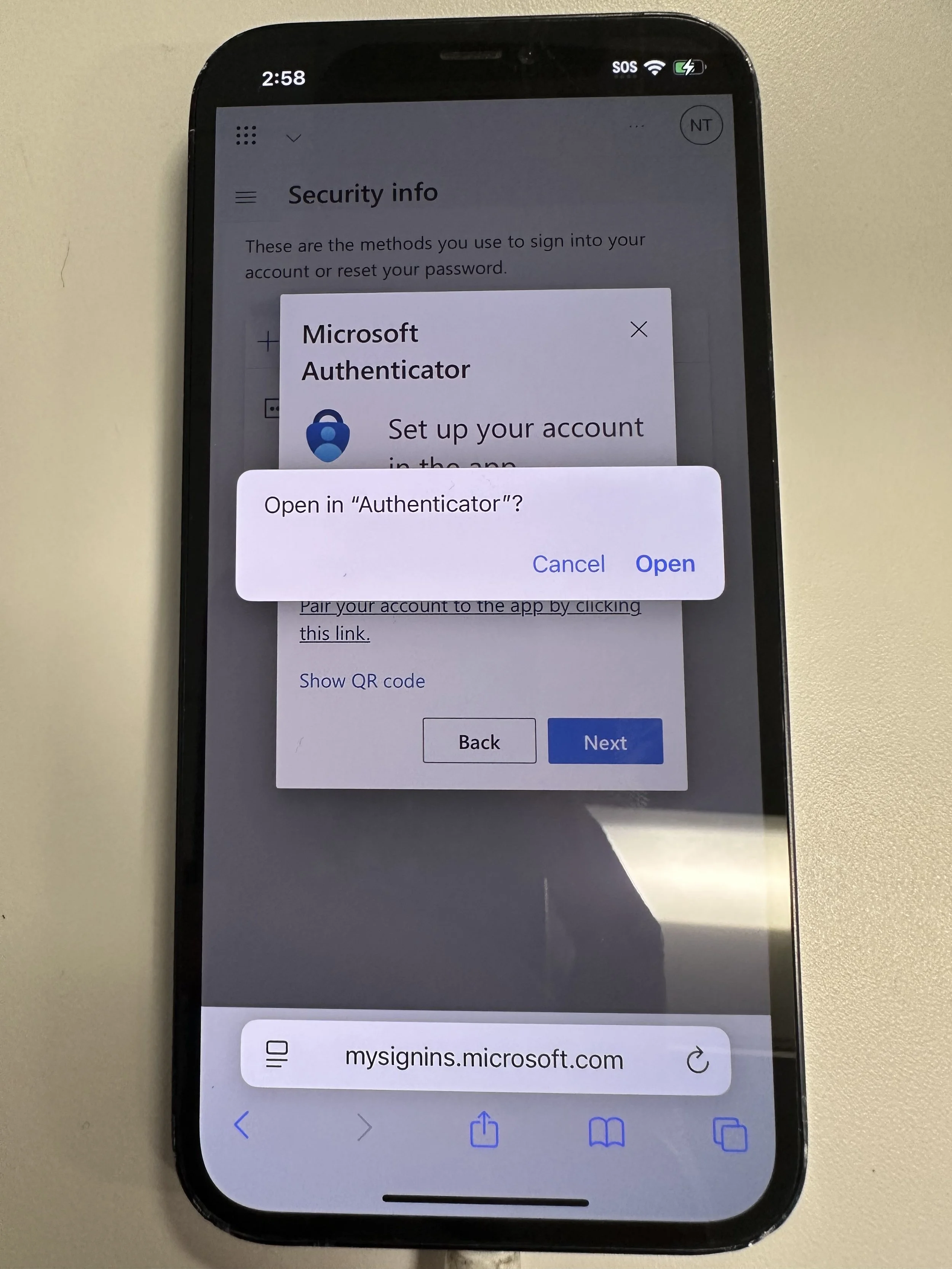
tap Open
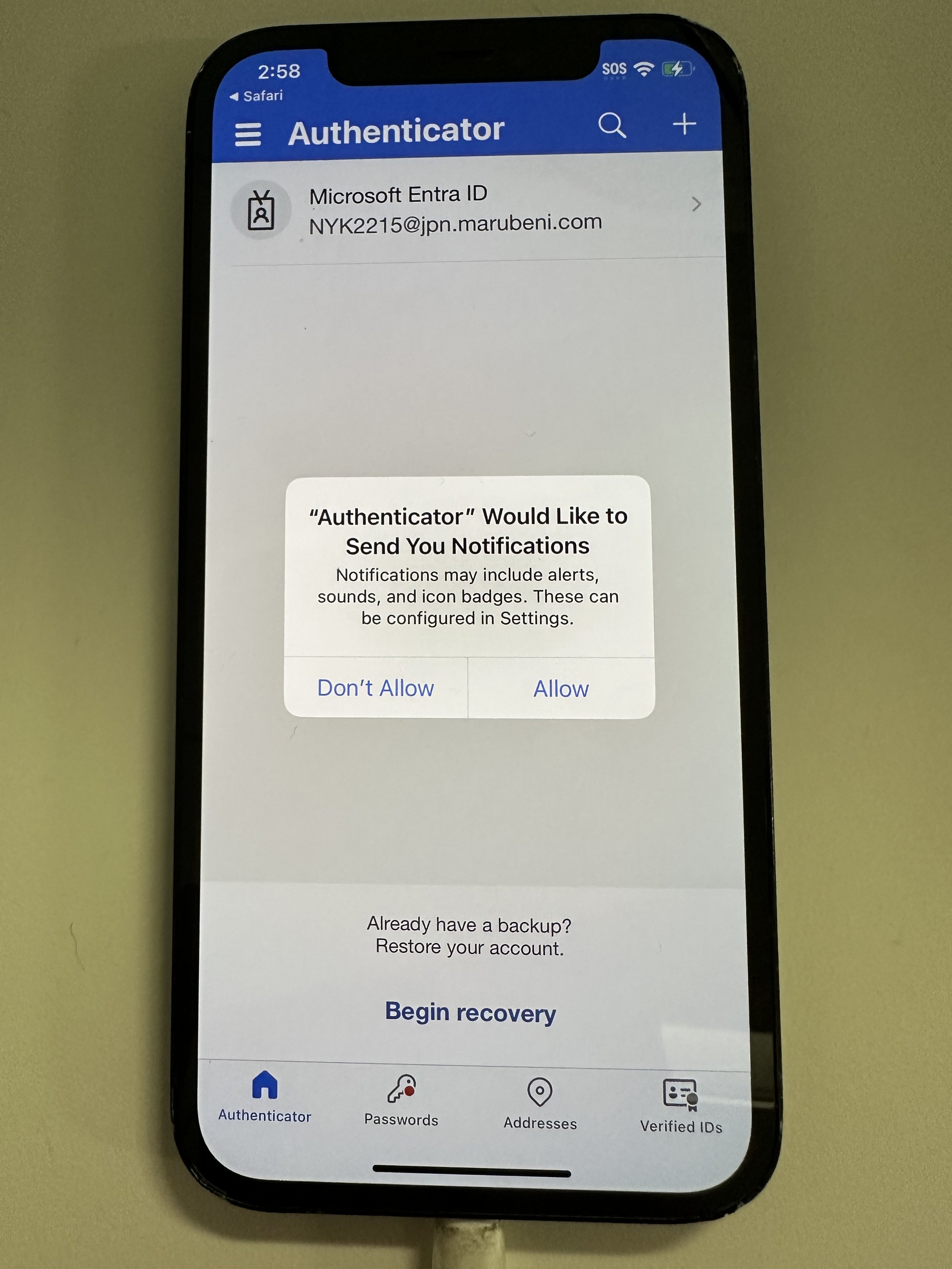
tap Allow
tap the banner up top. If you miss it, go back to Home screen and open Microsoft Authenticator manually.
enter the code from the previous Edge prompt.
tap Yes
tap Safari on the top left
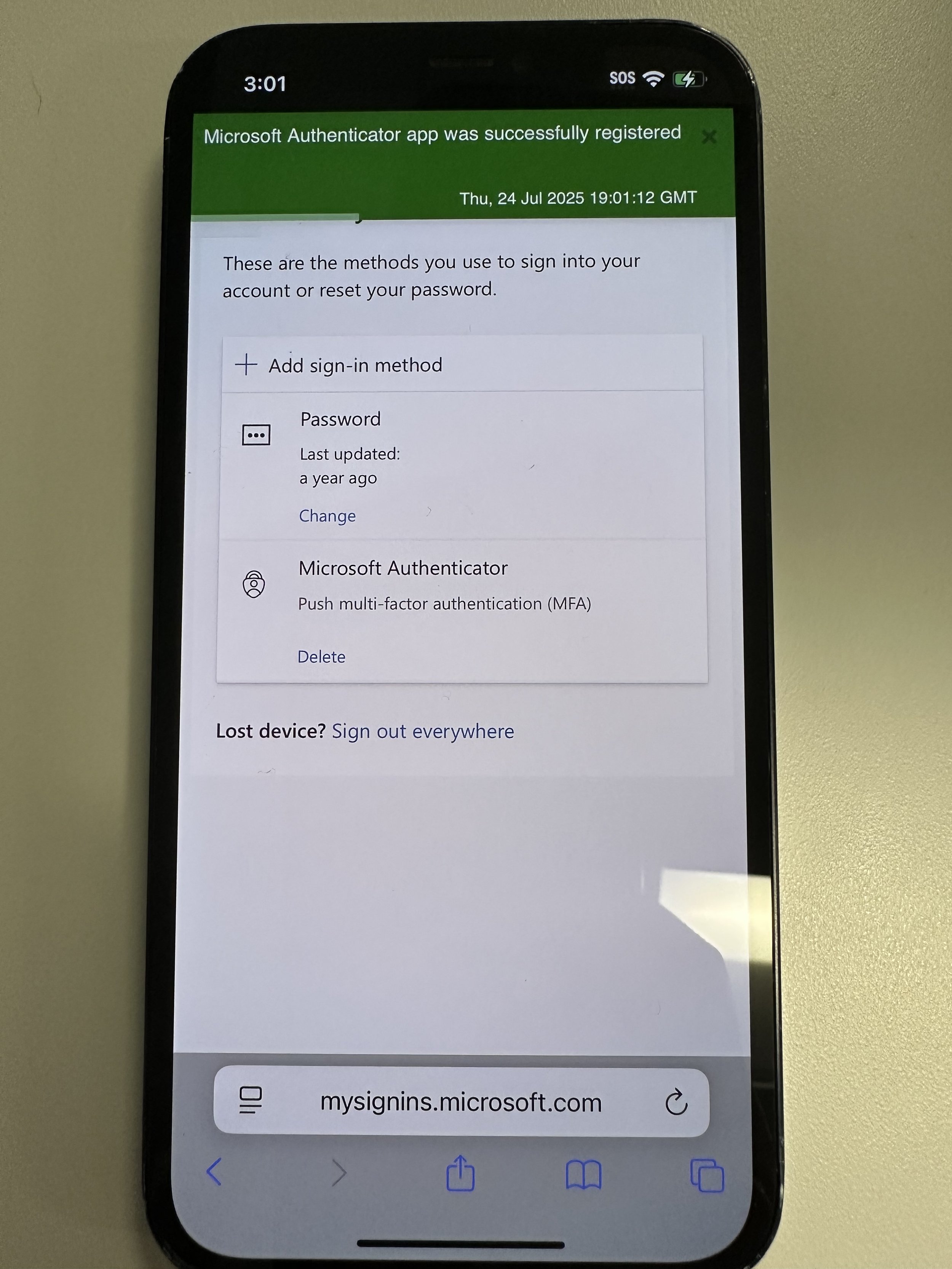
tap Next
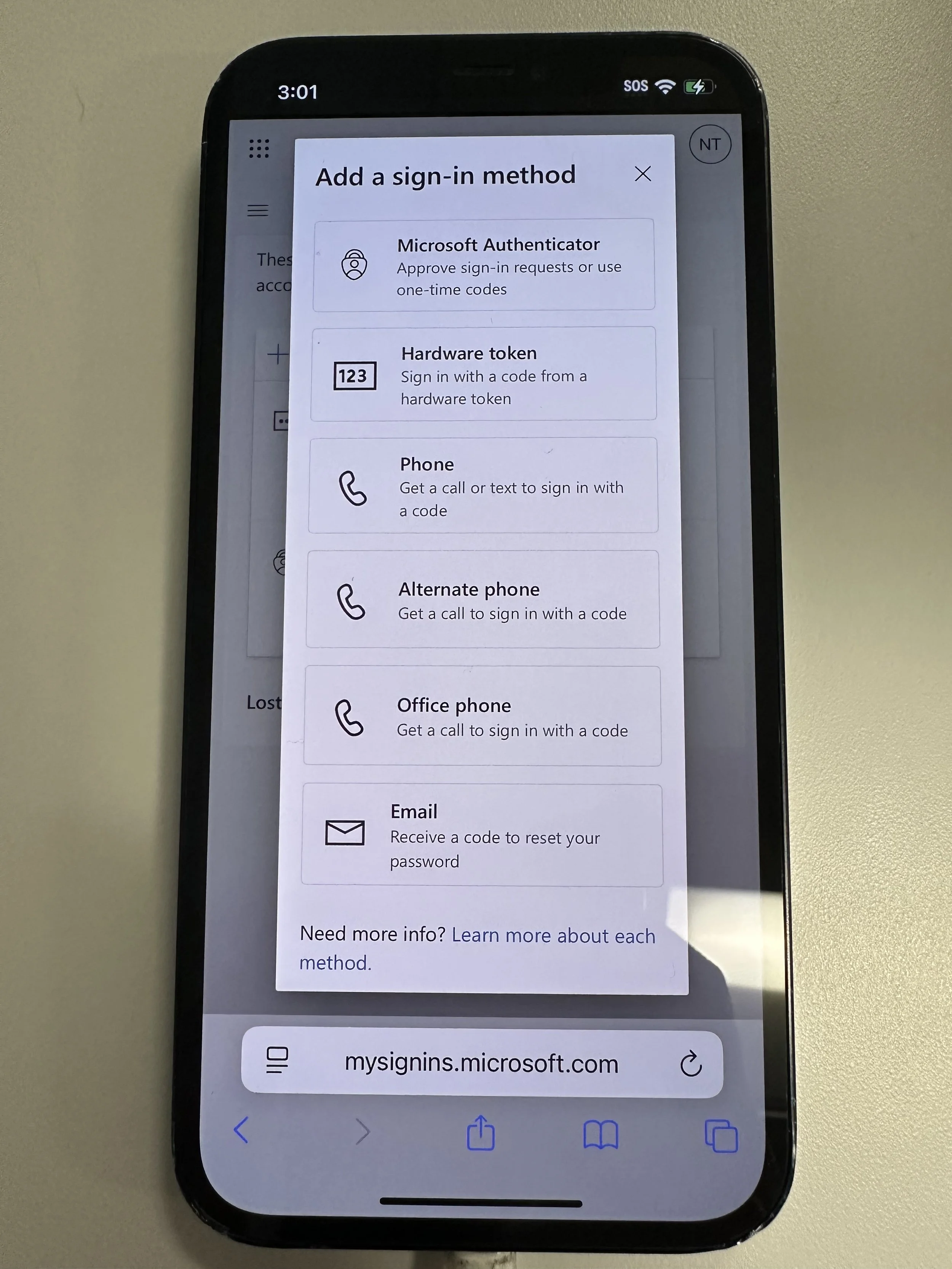
tap Add sign-in method (2nd time)
tap Phone
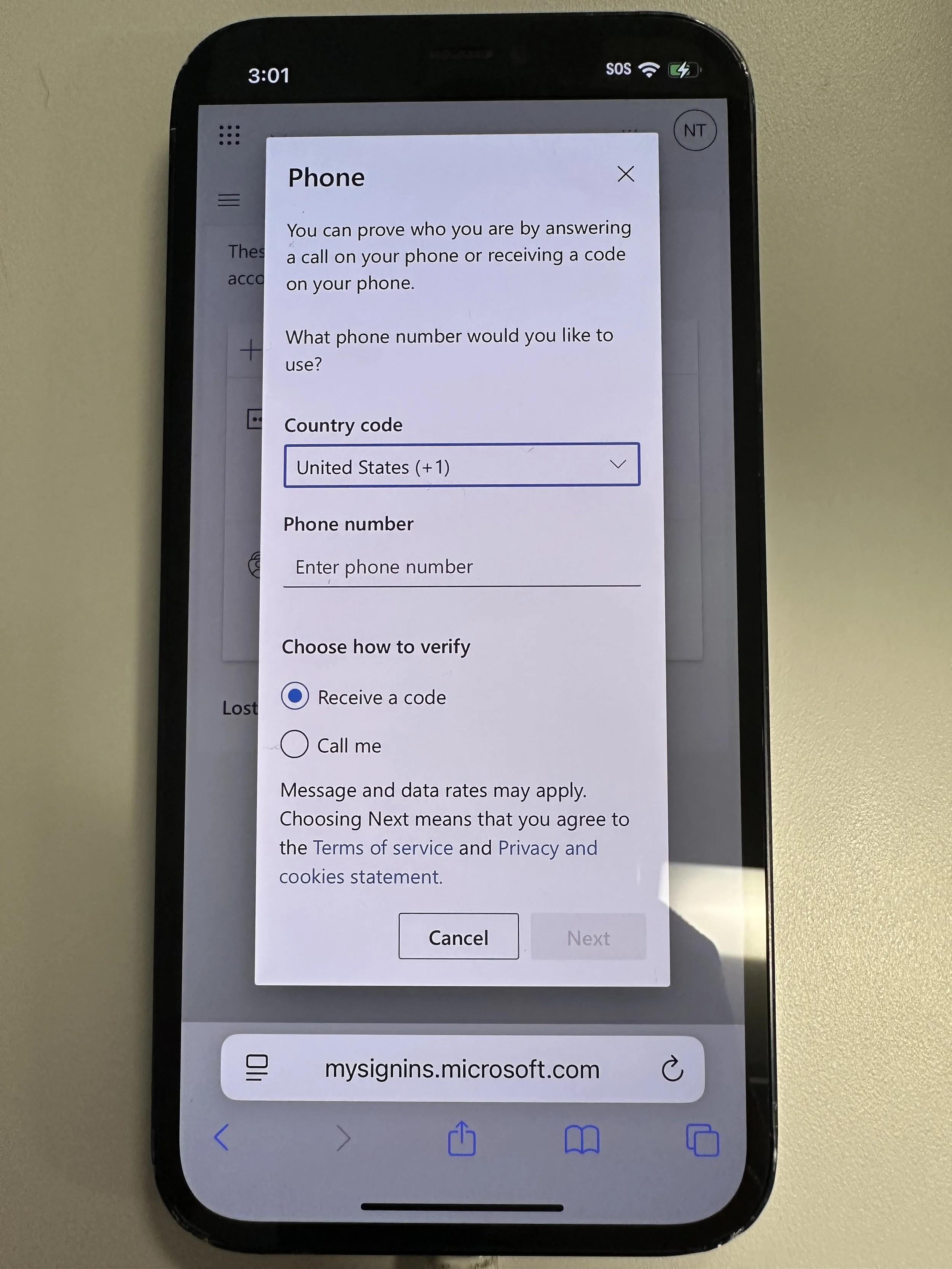
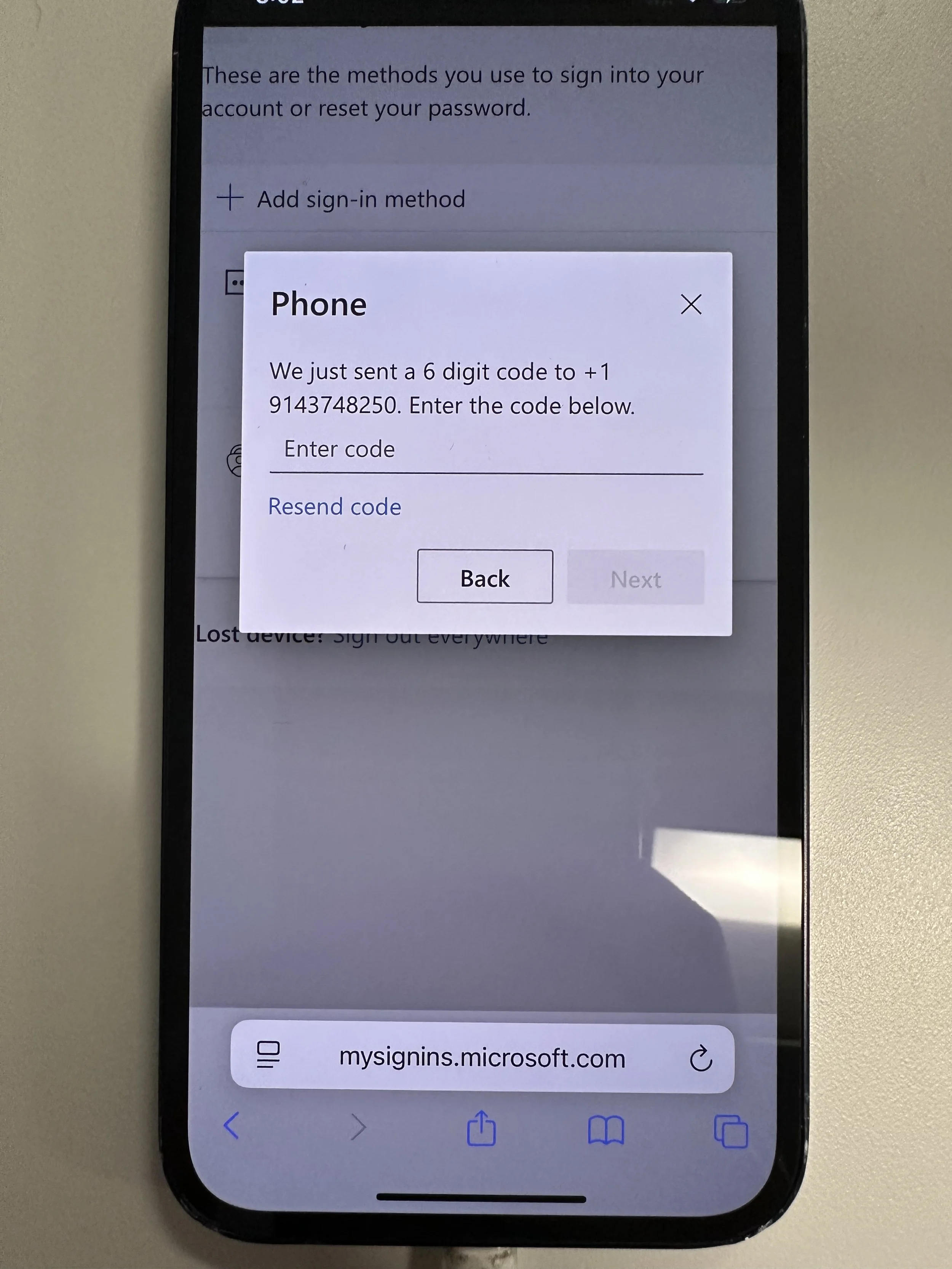
enter phone number. If using a non-US number, change the country code. Specify text or call. Tap Next
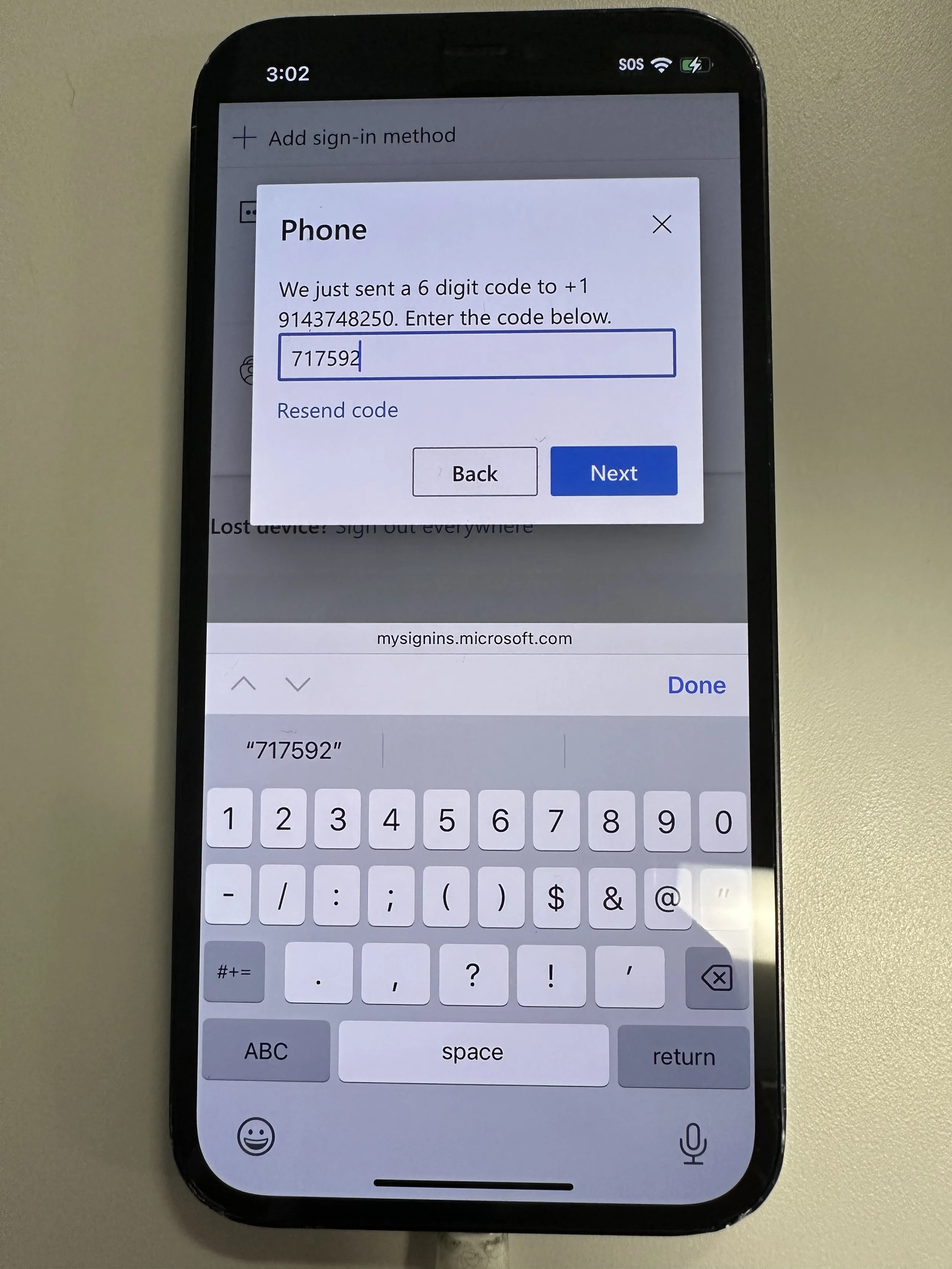
enter code provided by text or call
tap Next
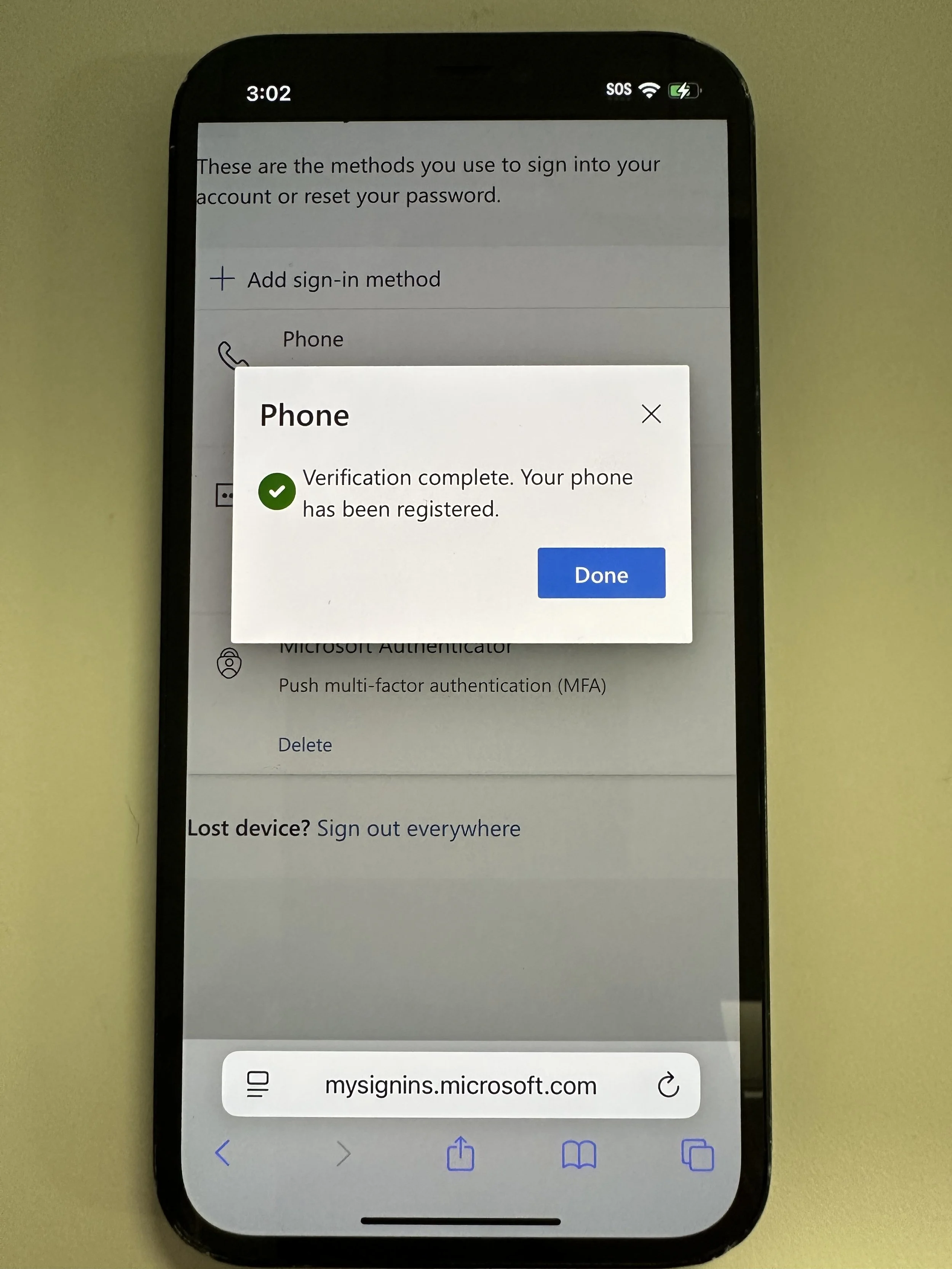
tap Done
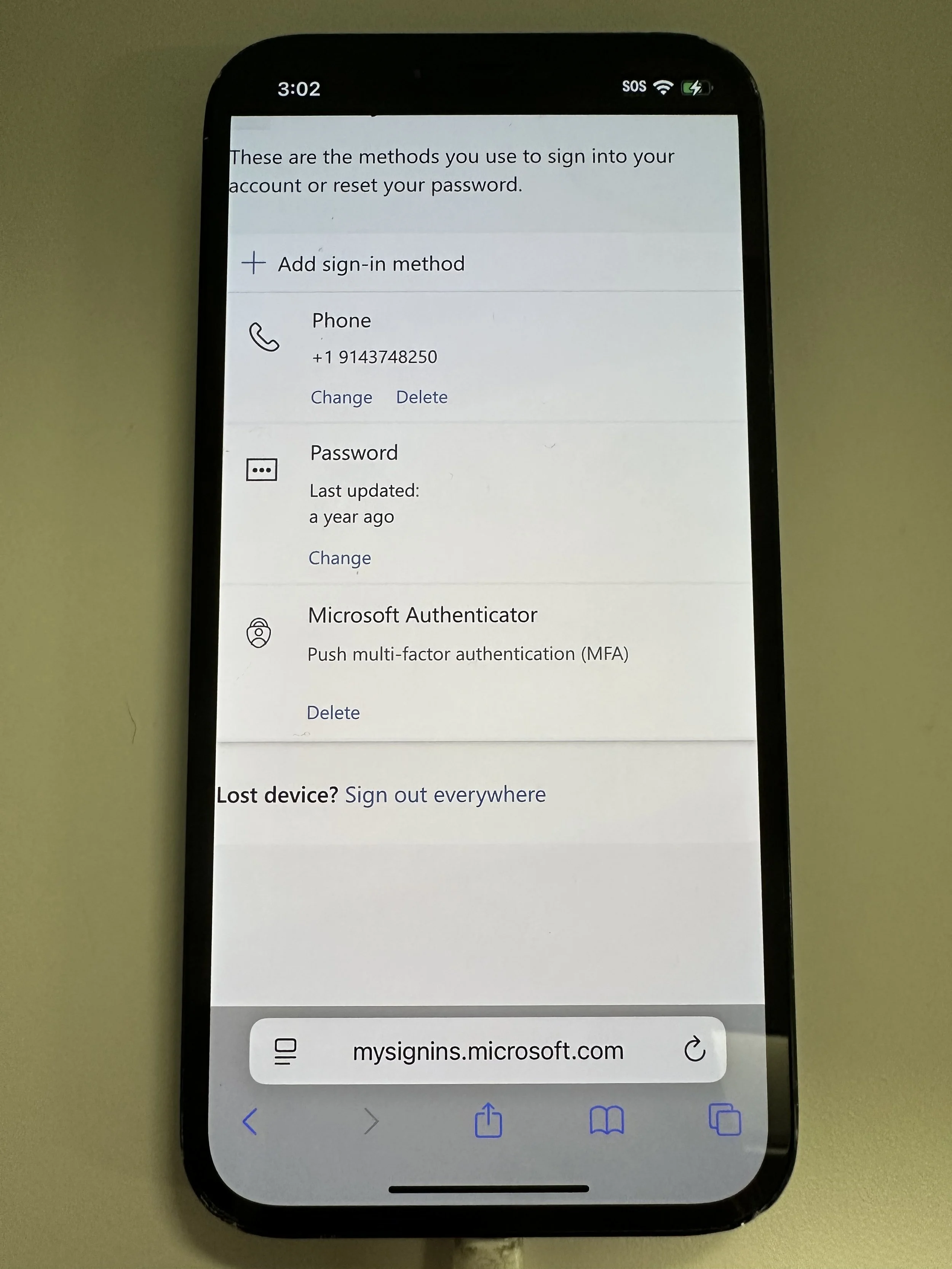
confirm both Microsoft Authenticator and your phone number are listed
SecureMobile (mandatory on all MAC mobile)
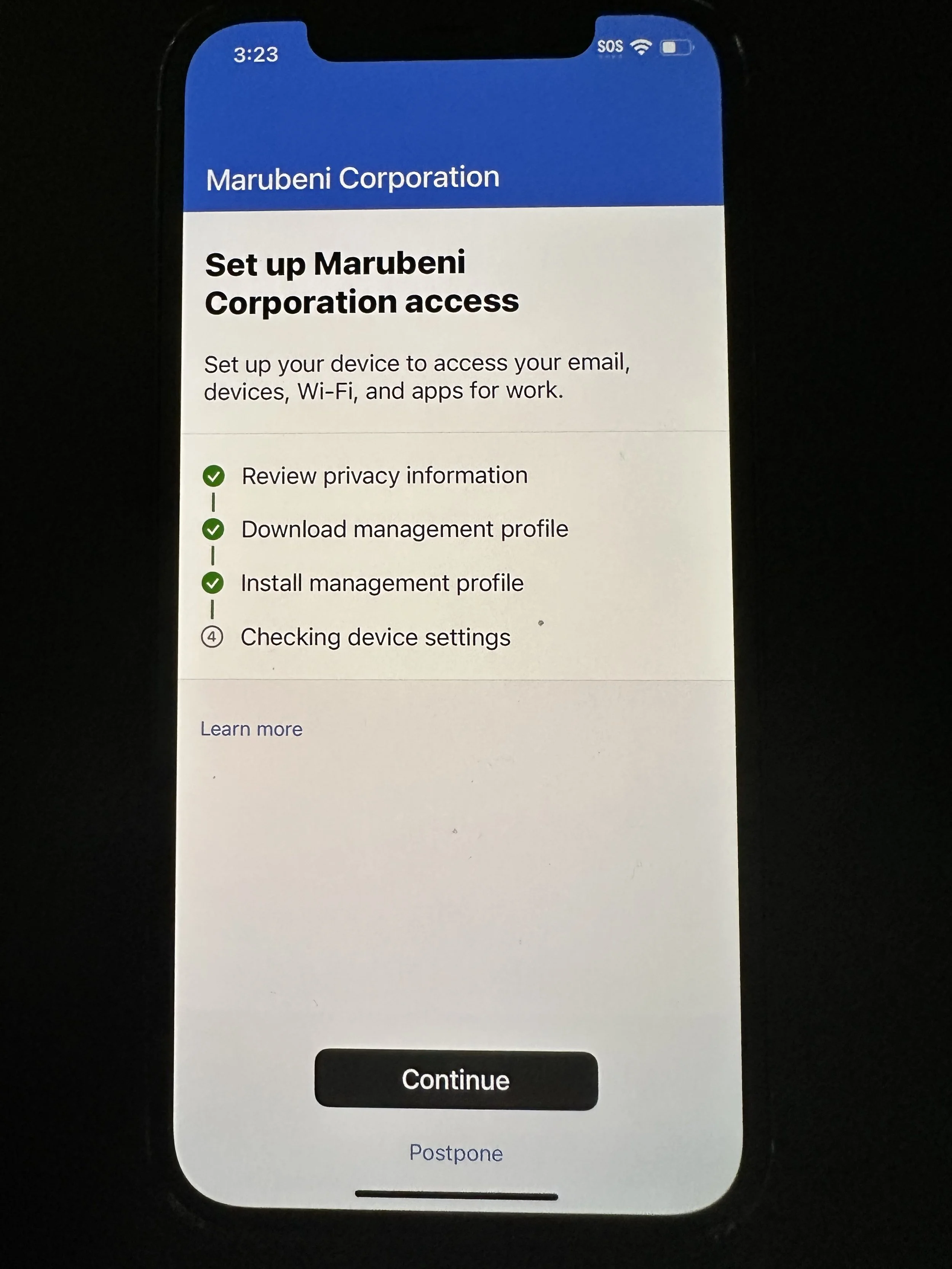
includes Intune Company Portal, Marubeni Outlook, Marubeni Teams
cannot be installed to any device with a separate company profile
requires Microsoft Authenticator on any device prior
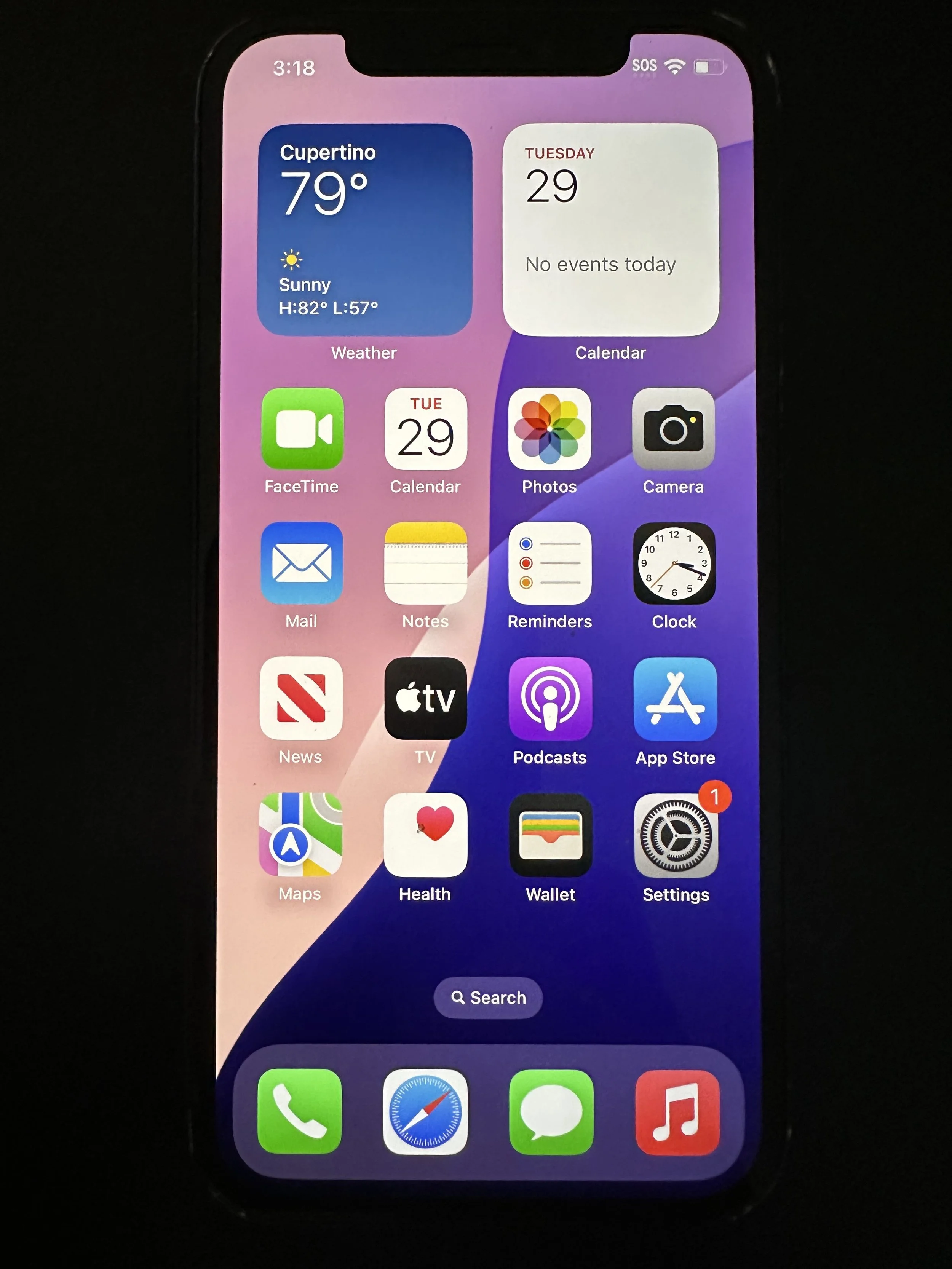
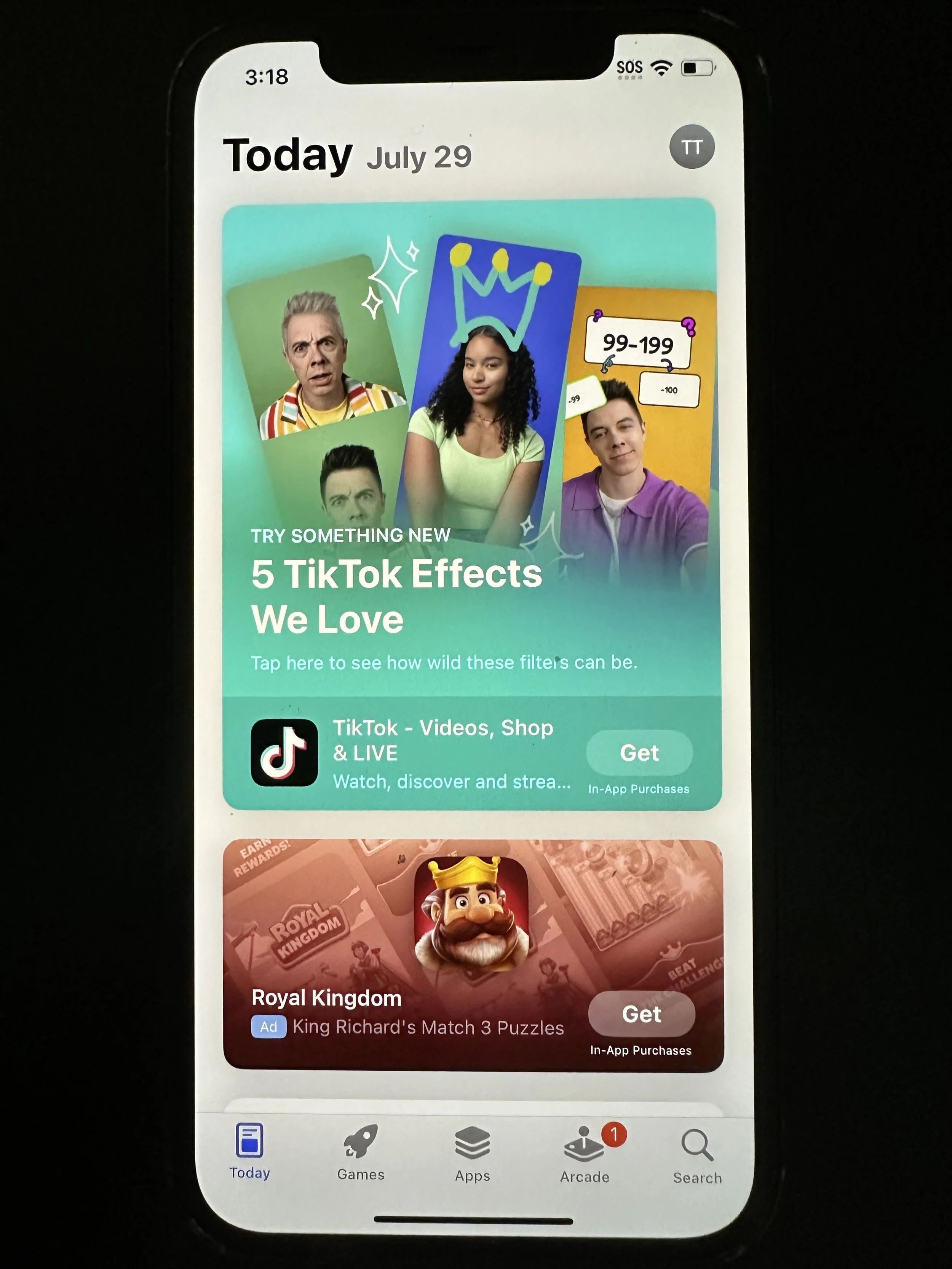
tap App Store
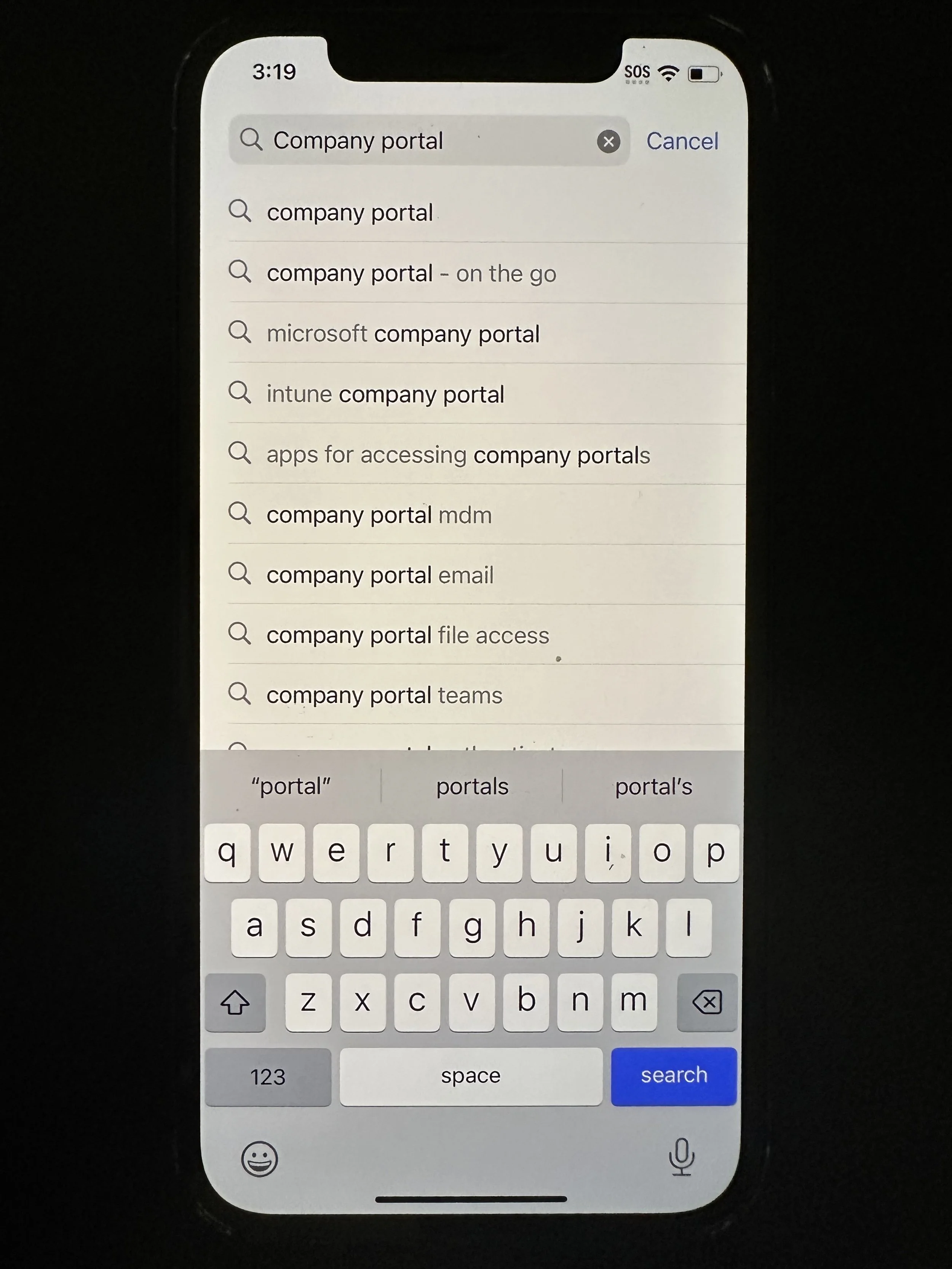
tap Search
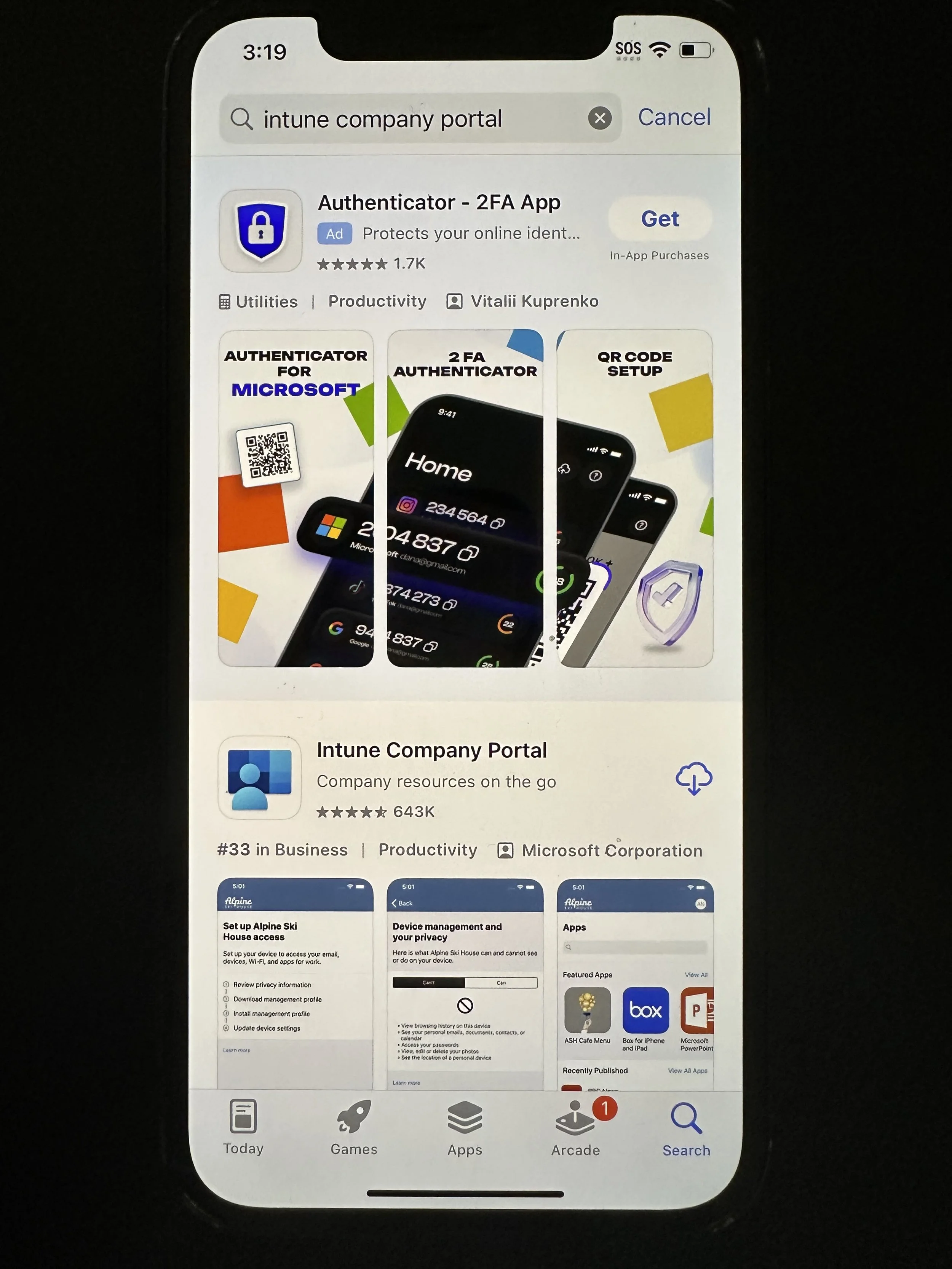
search Company Portal and tap Intune Company Portal
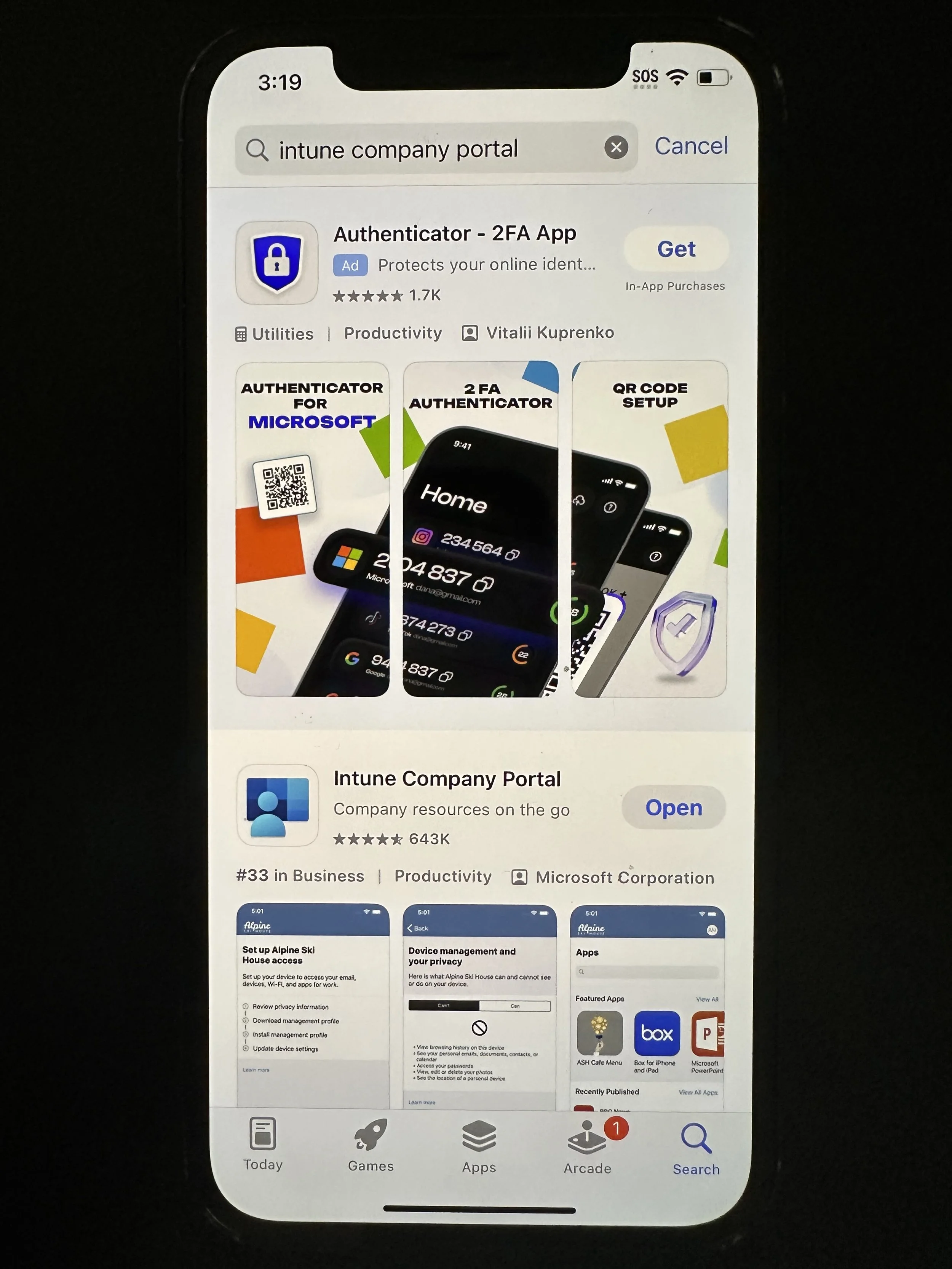
AVOID the AD on the top and tap the download icon for Intune Company Portal
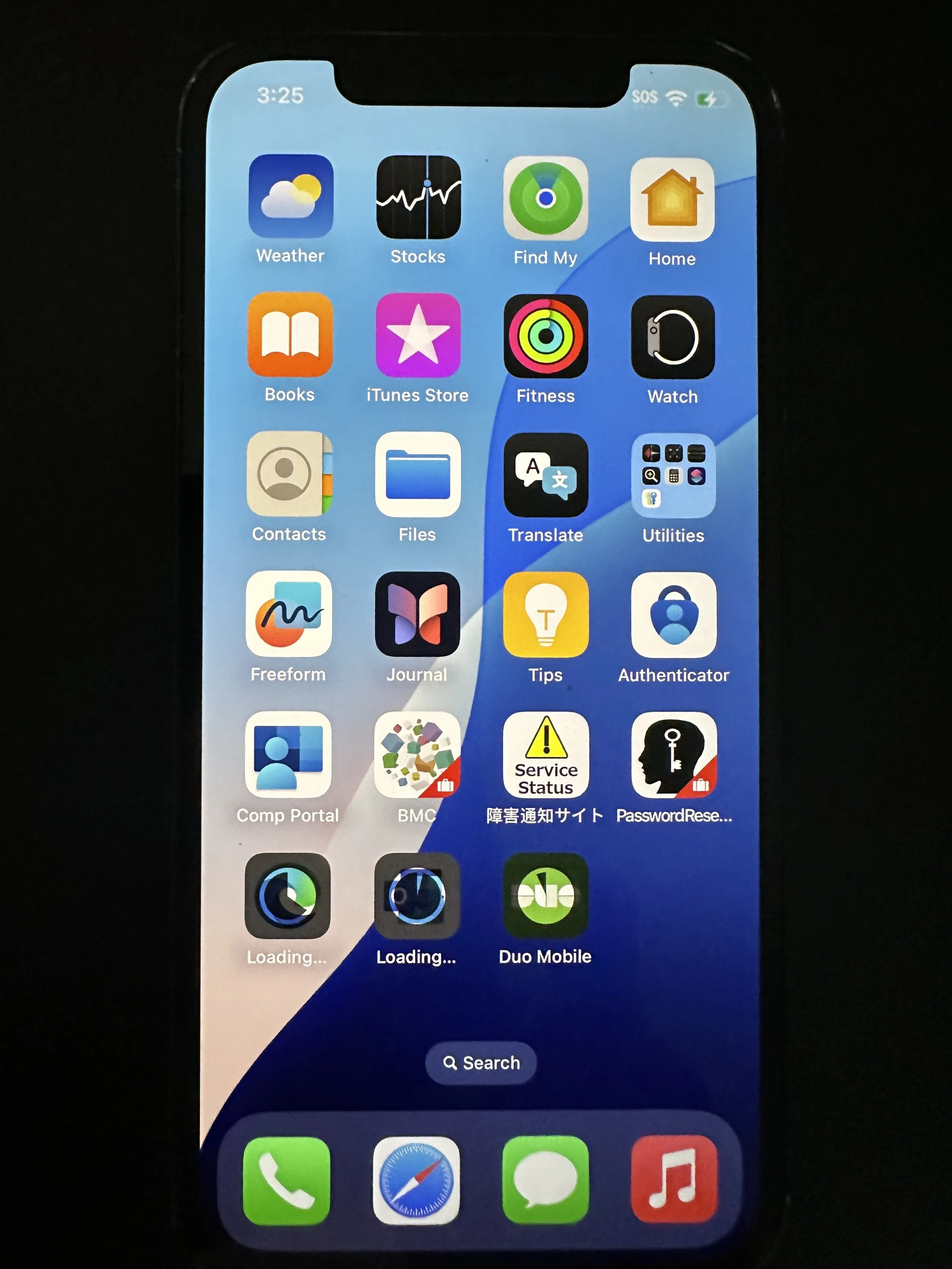
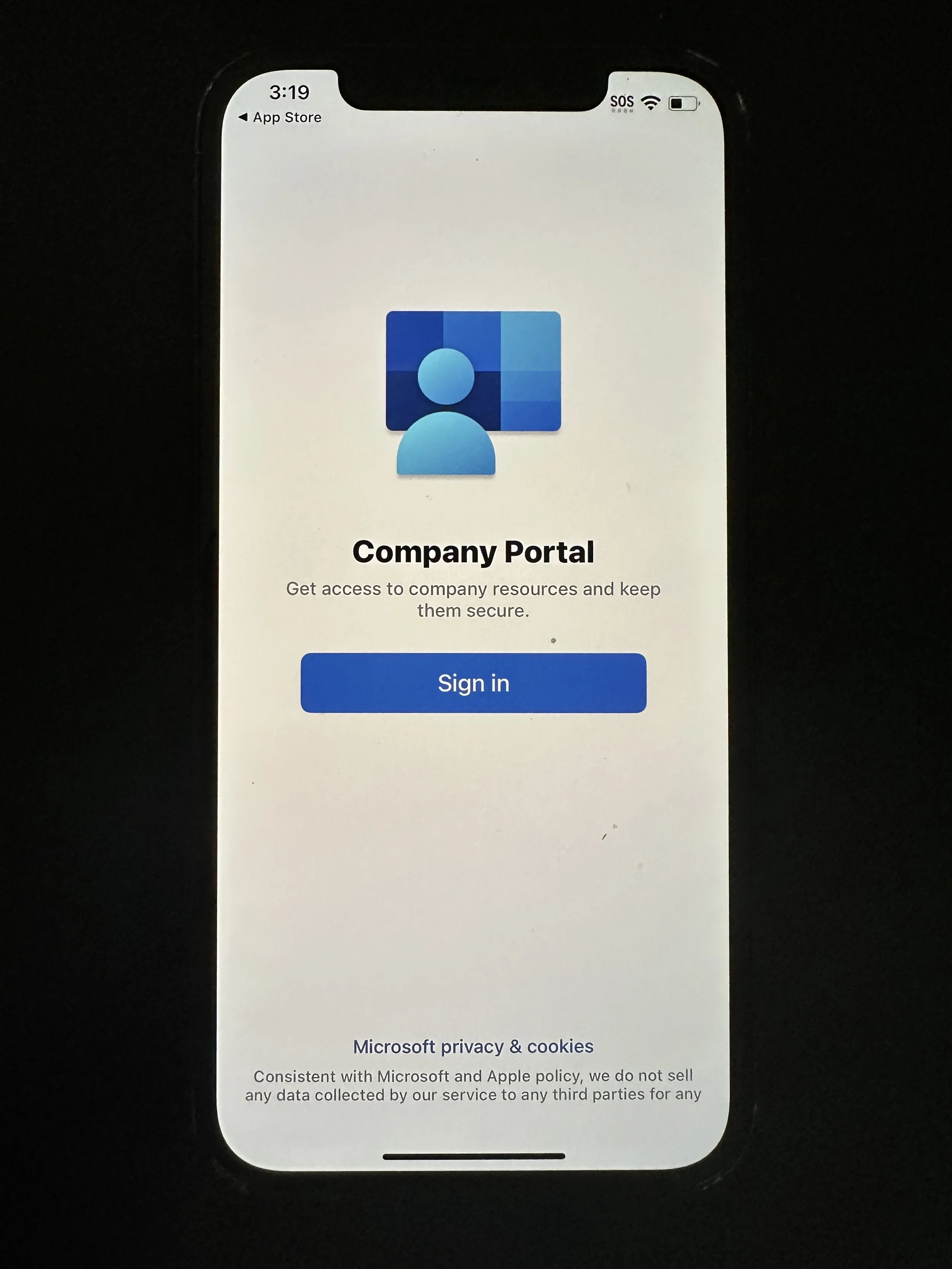
tap Open
tap Sign in
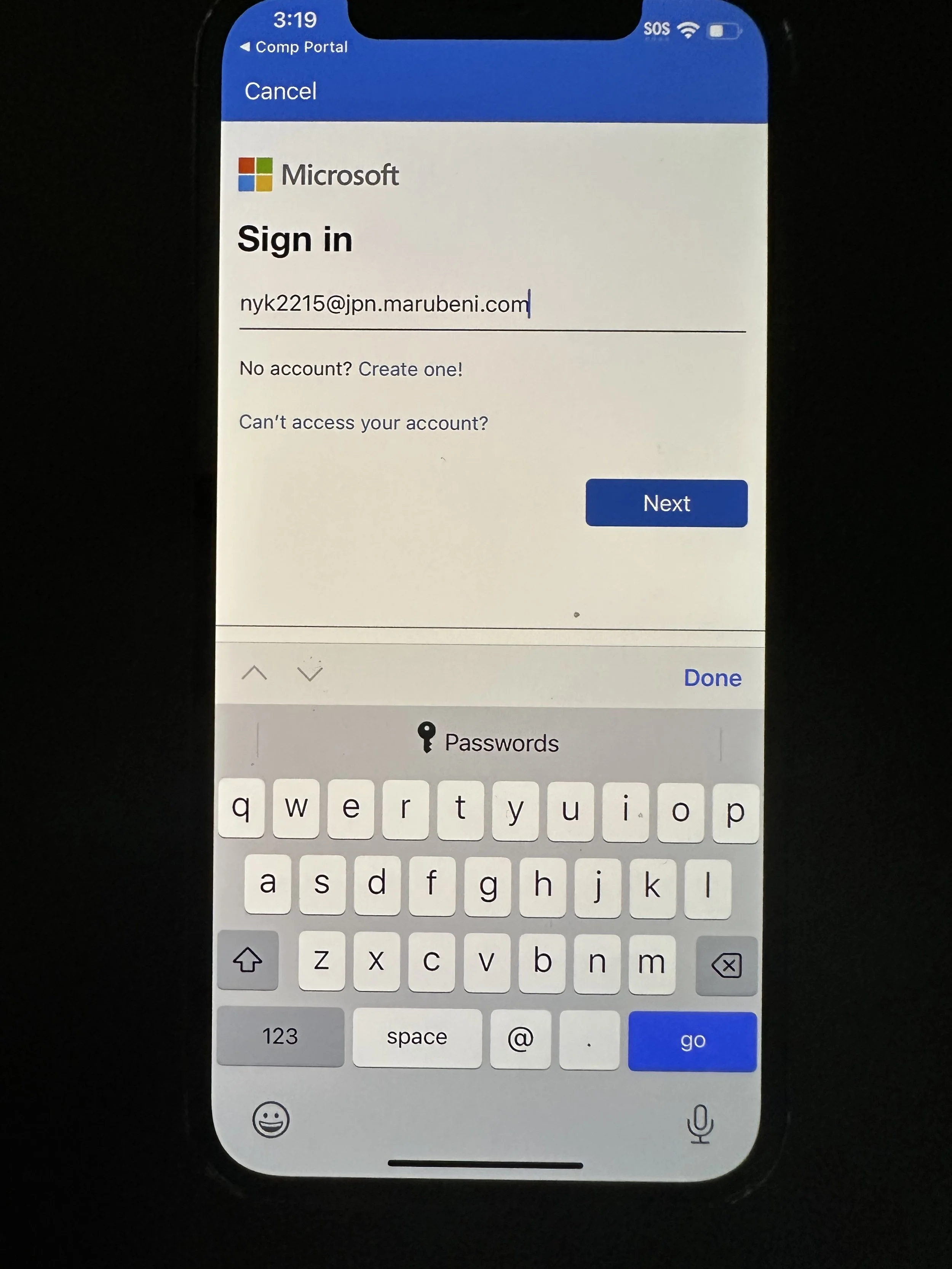
enter PC/VDI ID@jpn.marubeni.com
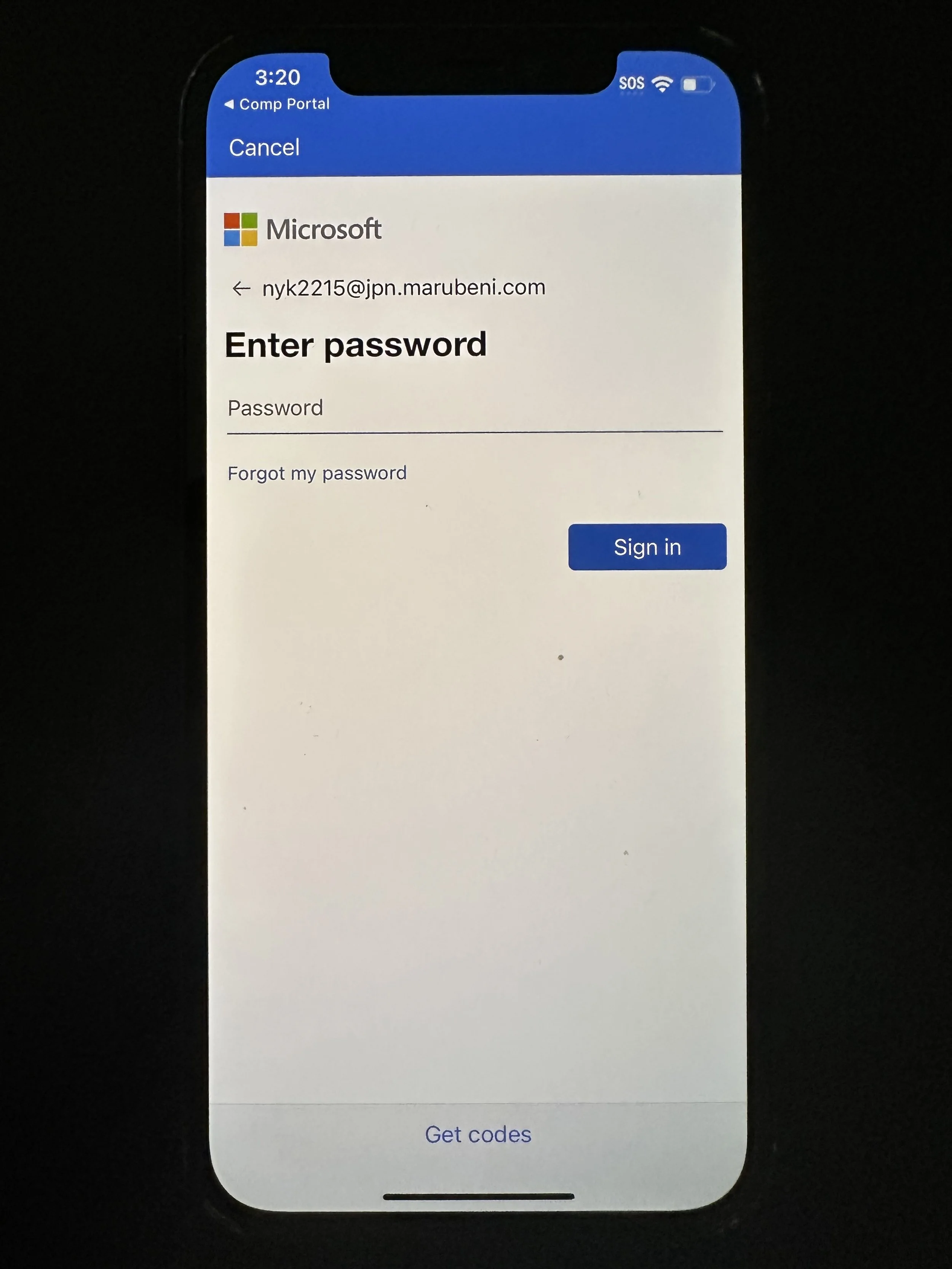
enter PC/VDI password
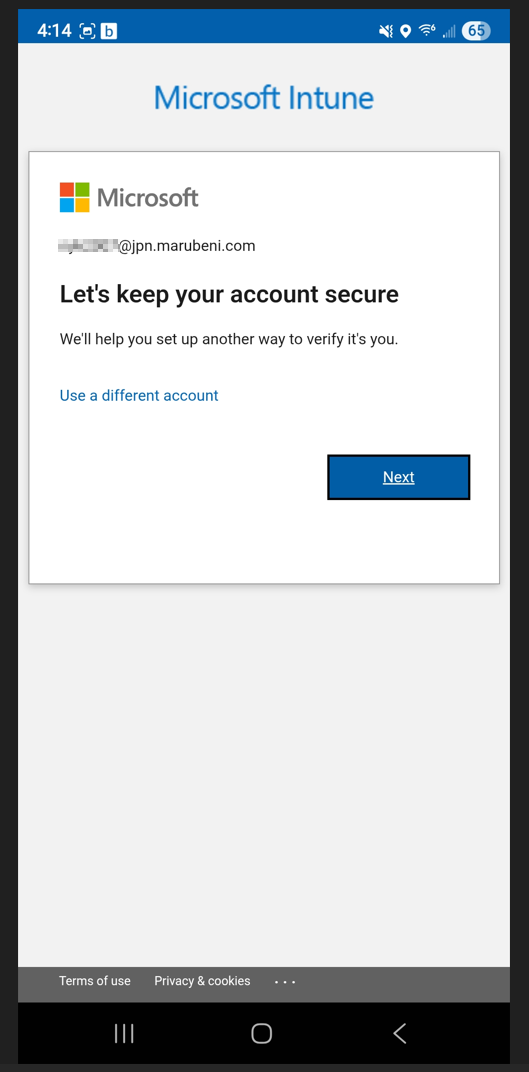
if you do not have any Microsoft Authenticator set up prior, you may get a prompt like this. If so, please follow Microsoft Authenticator setup above.
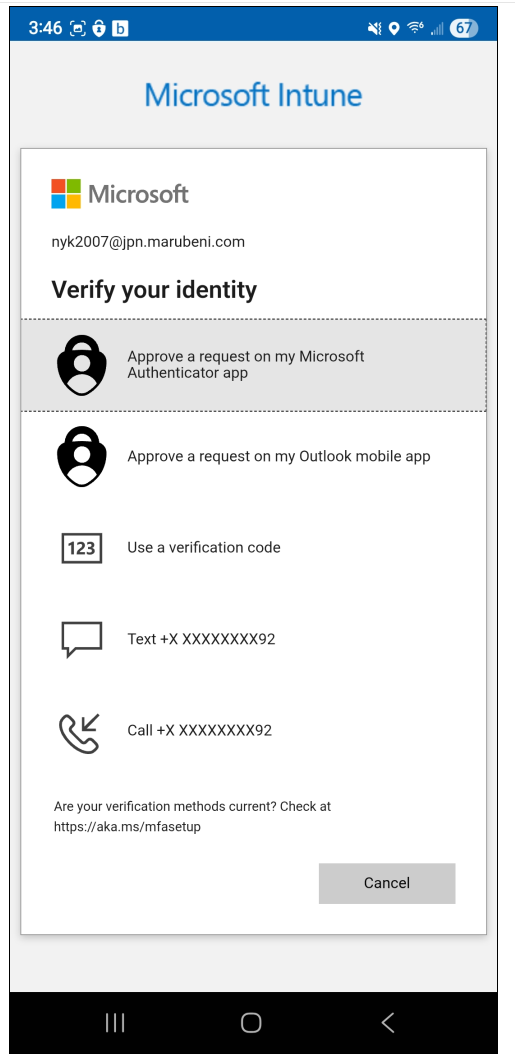
depending on your Microsoft Authenticator registration method, you may get a choice. Choose anything you can perform.
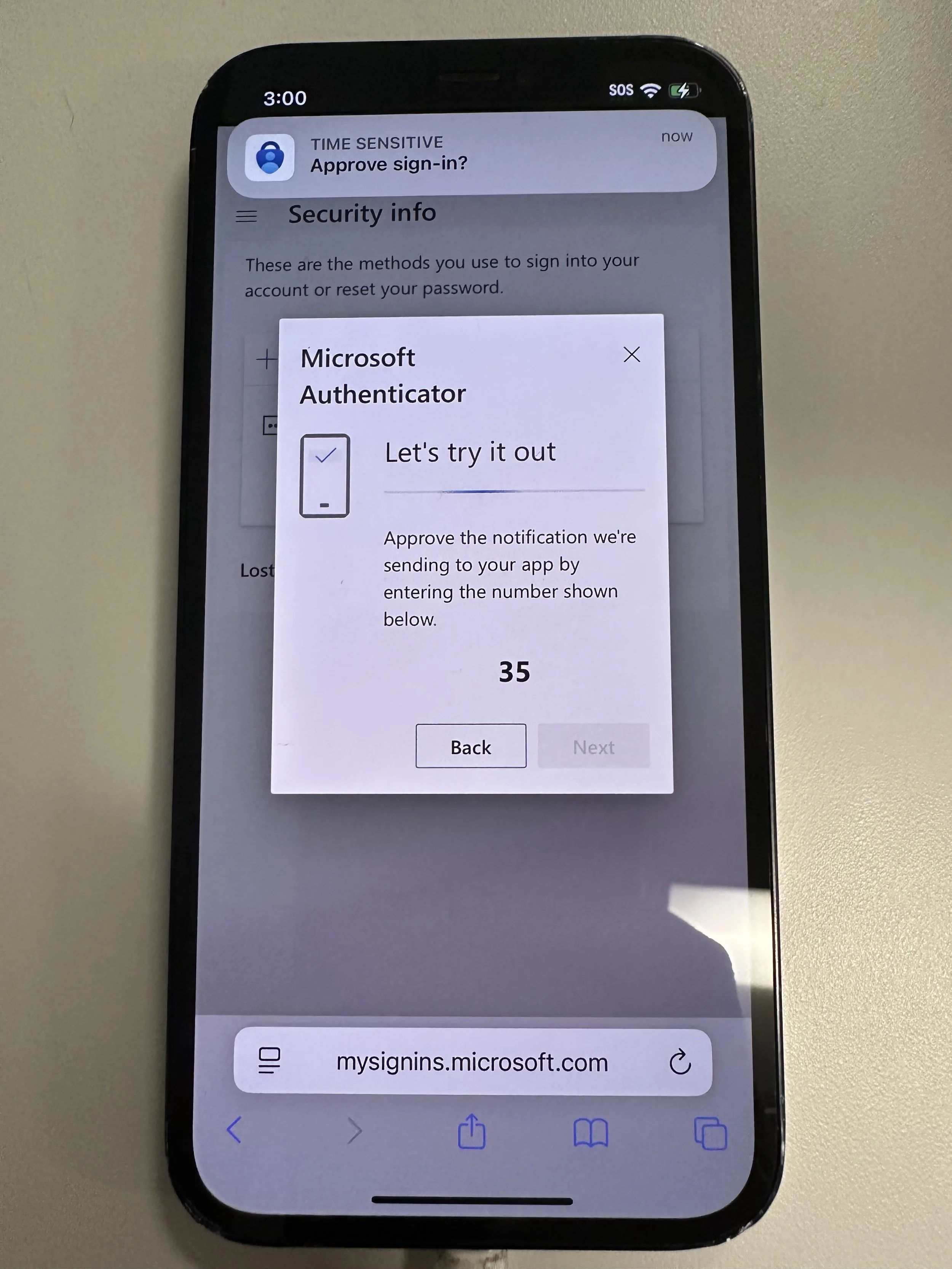
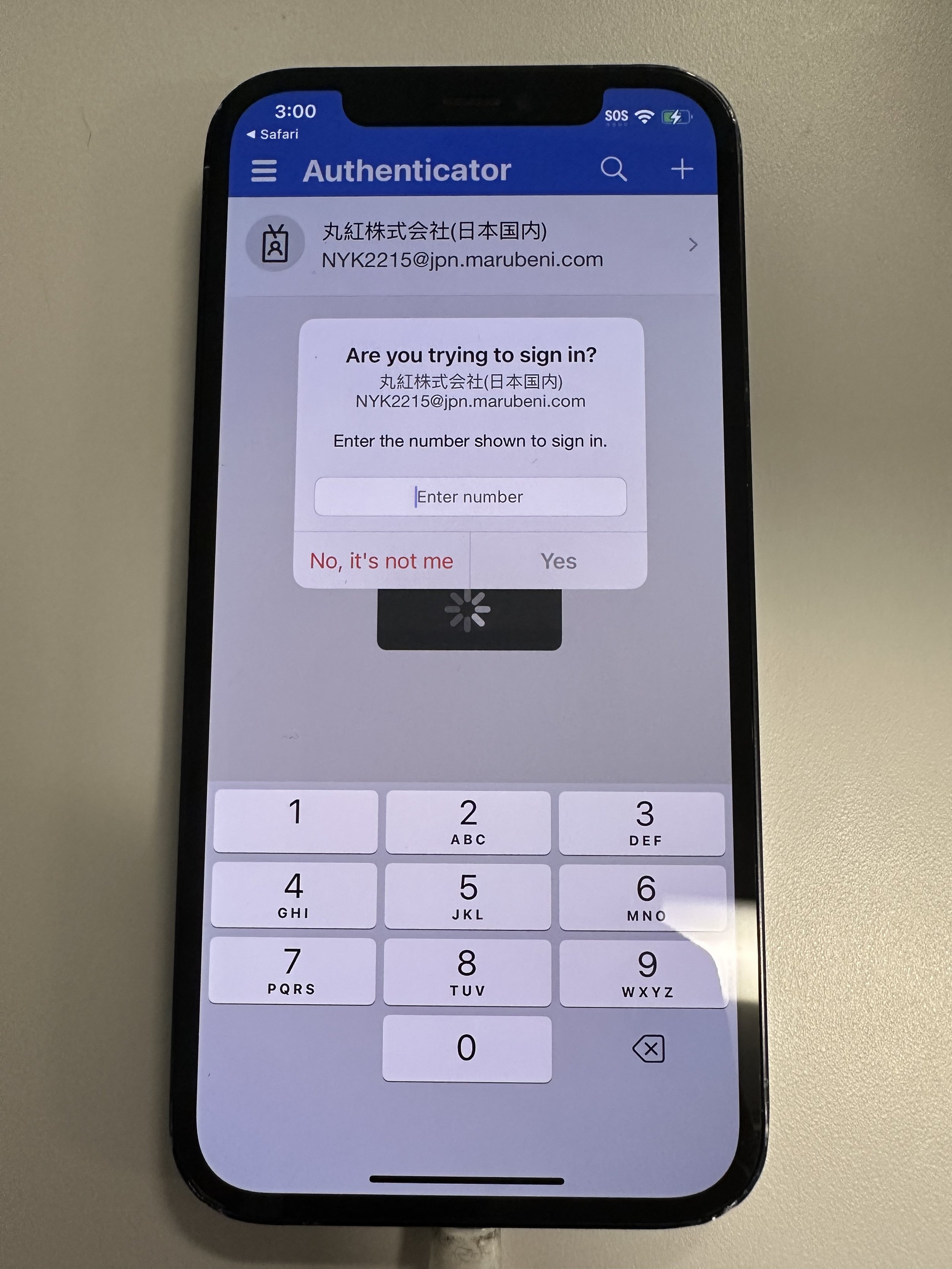
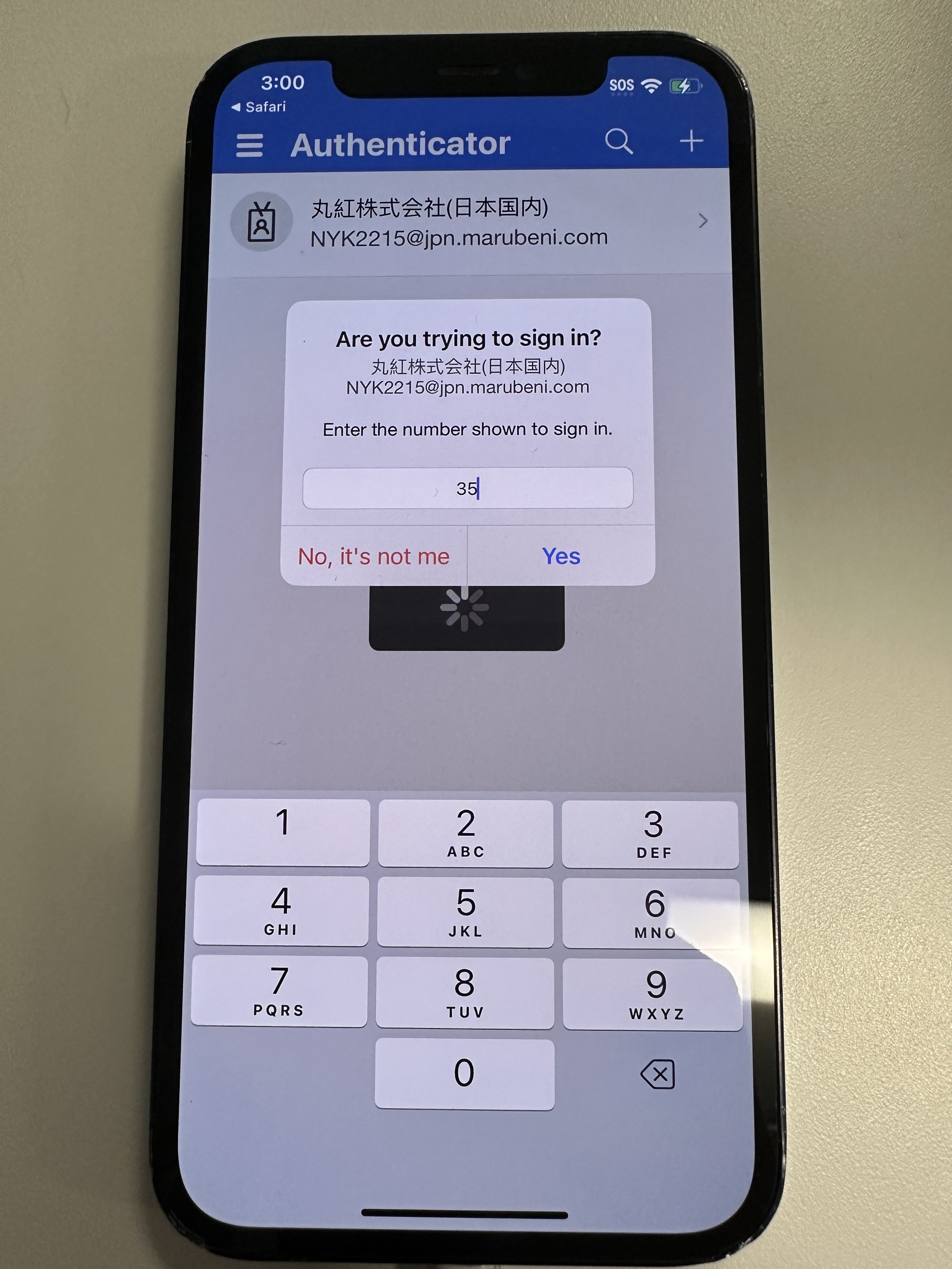
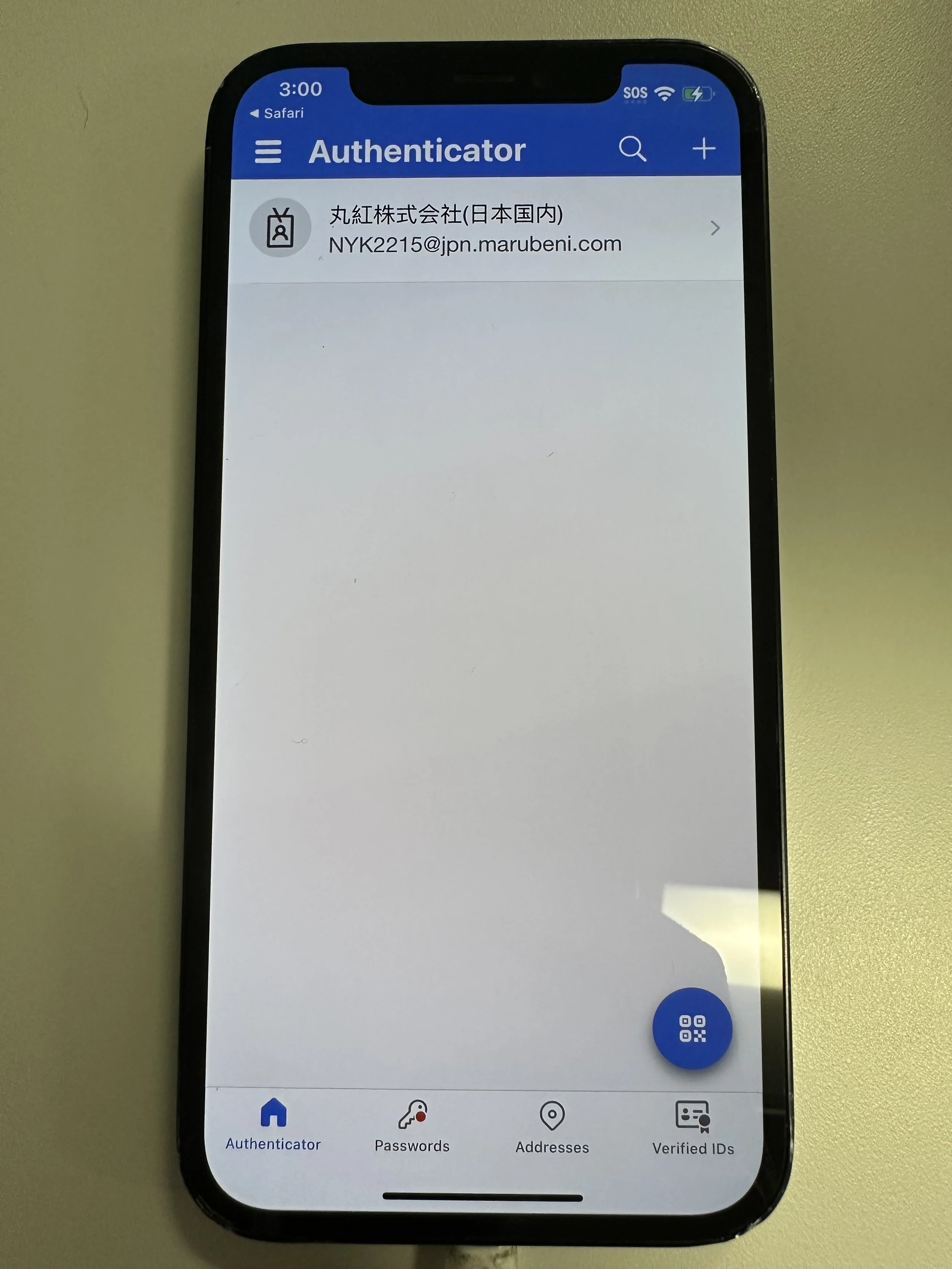
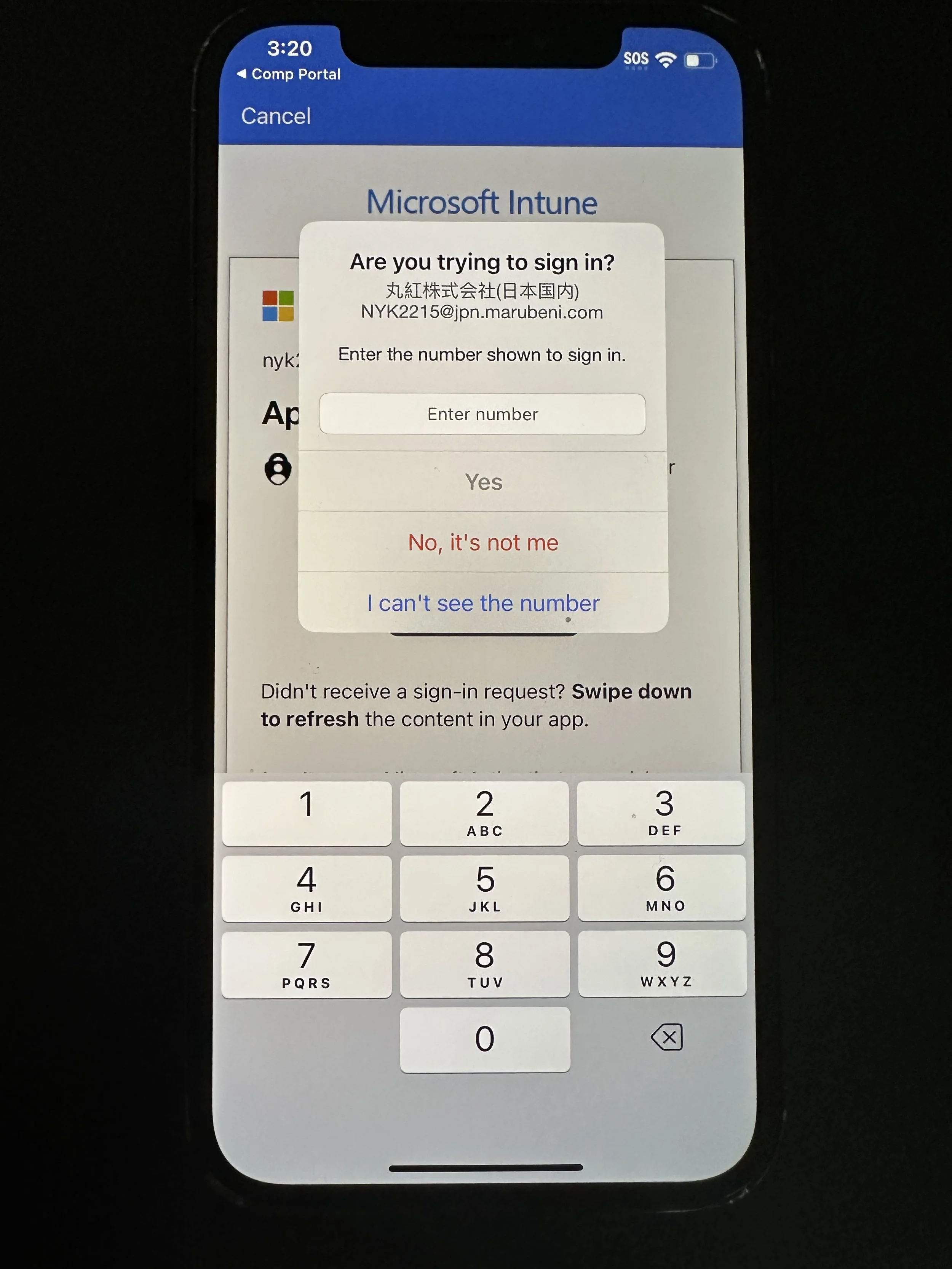
if you only have Microsoft Authenticator on this device, you will have a split second to see the number to enter.
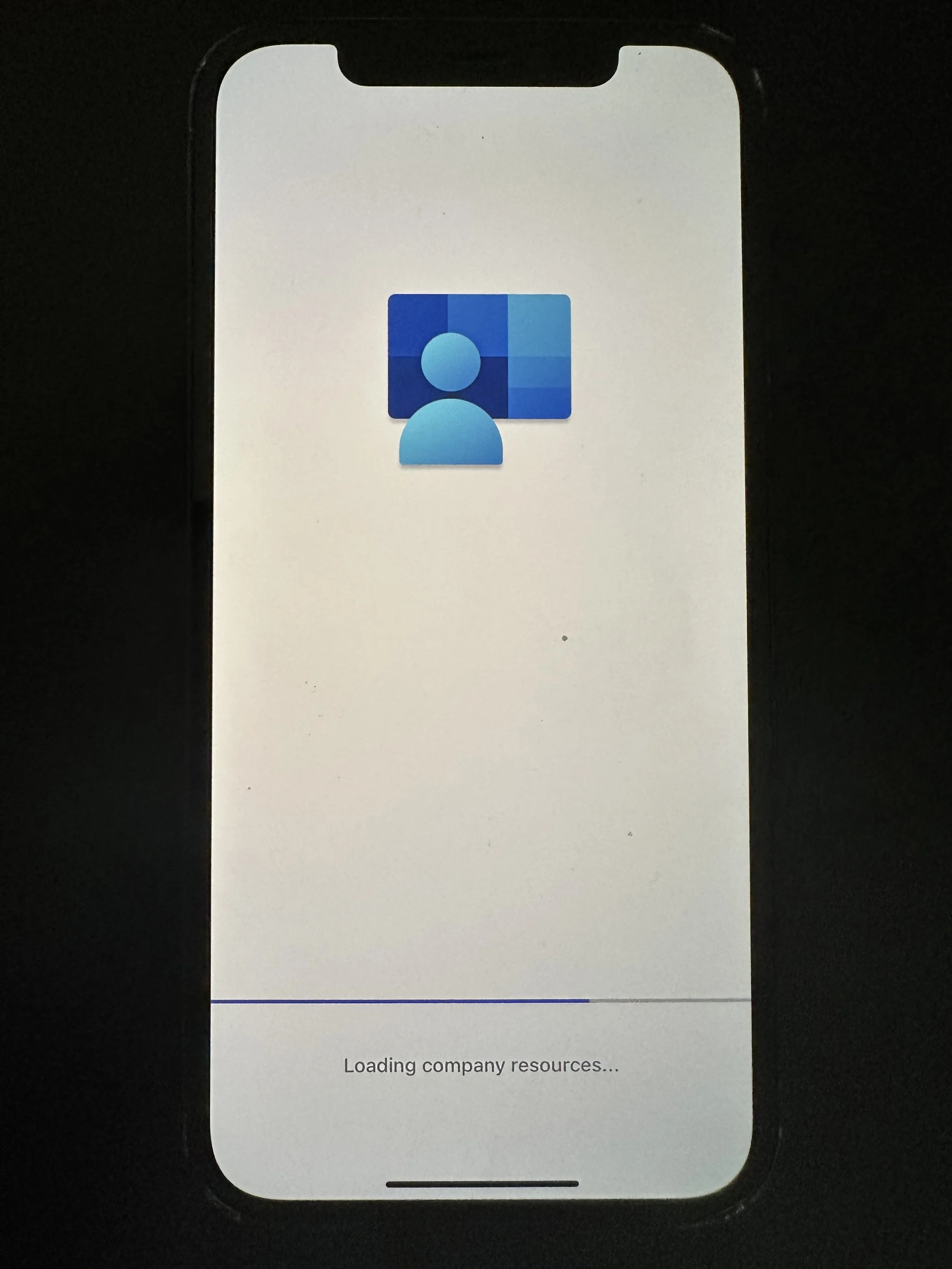
wait for loading
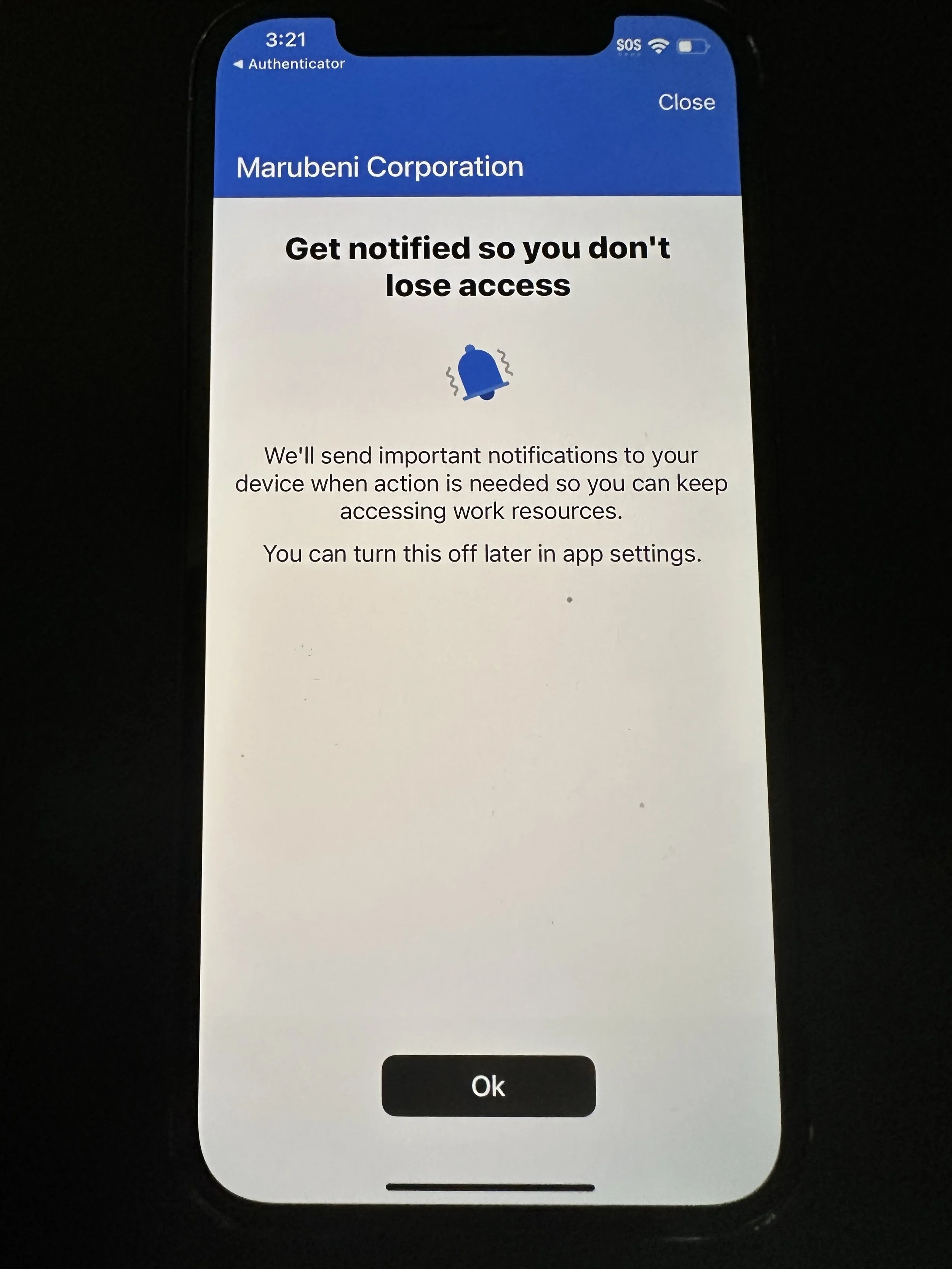
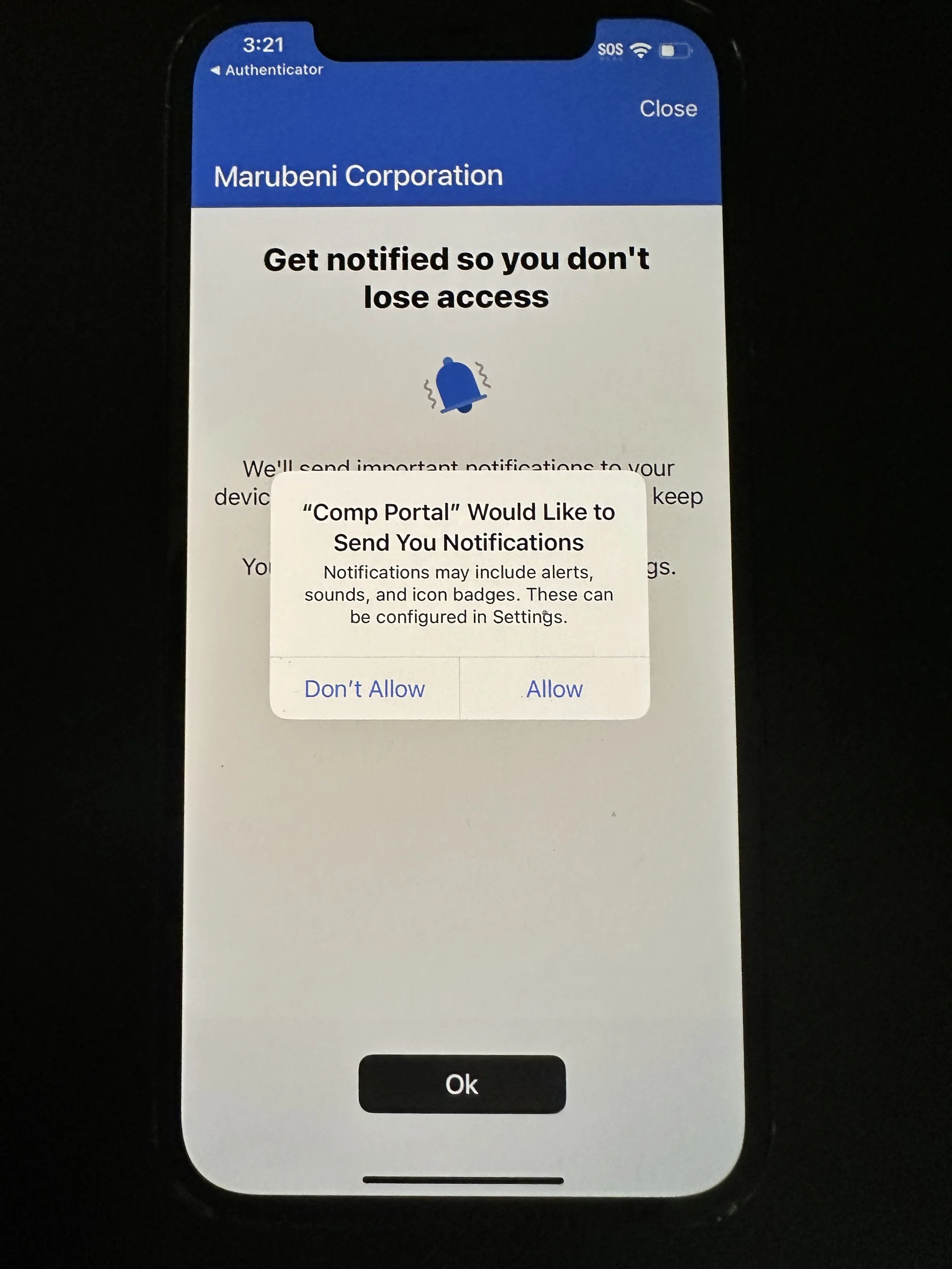
tap Ok
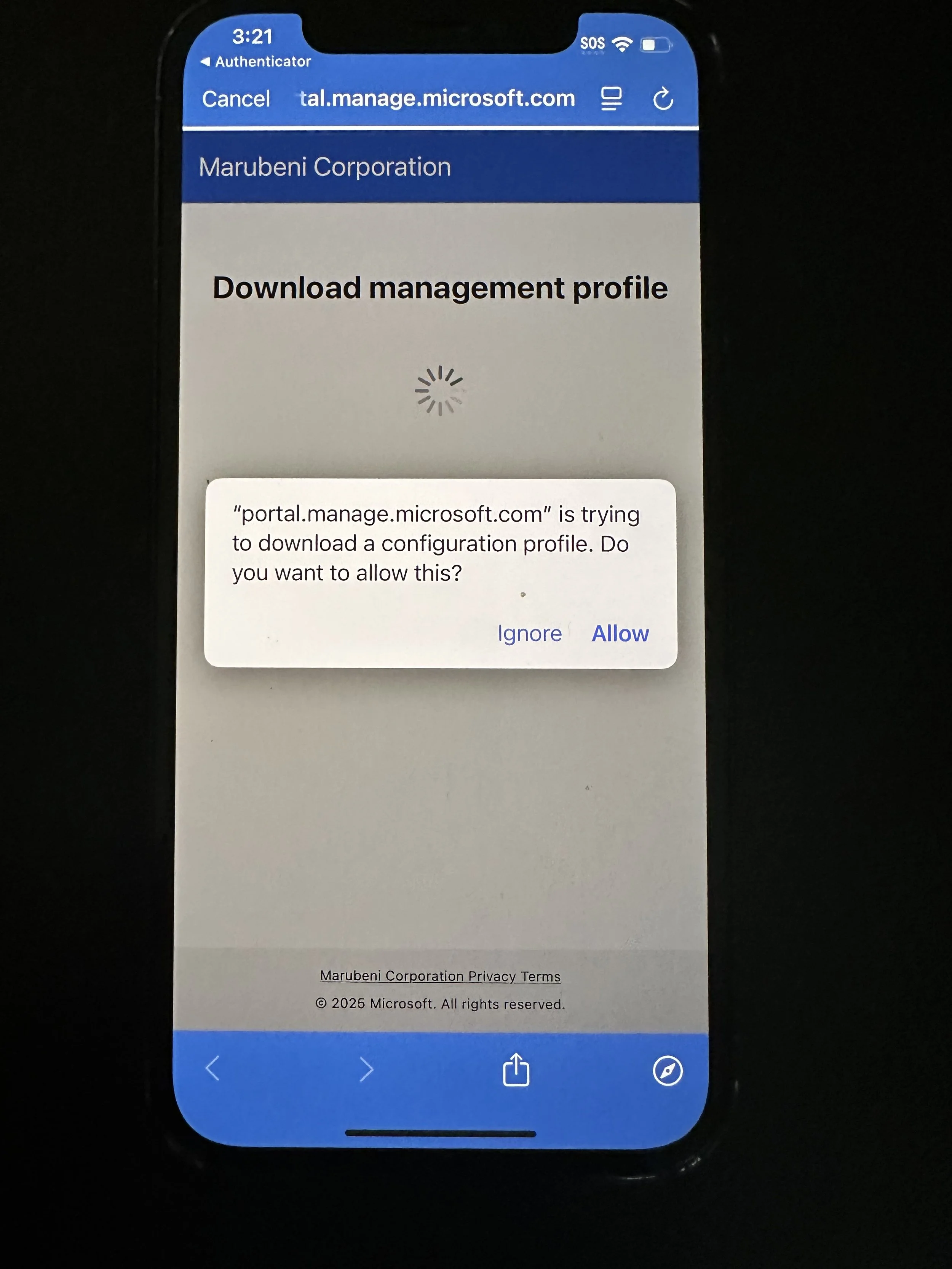
tap Allow
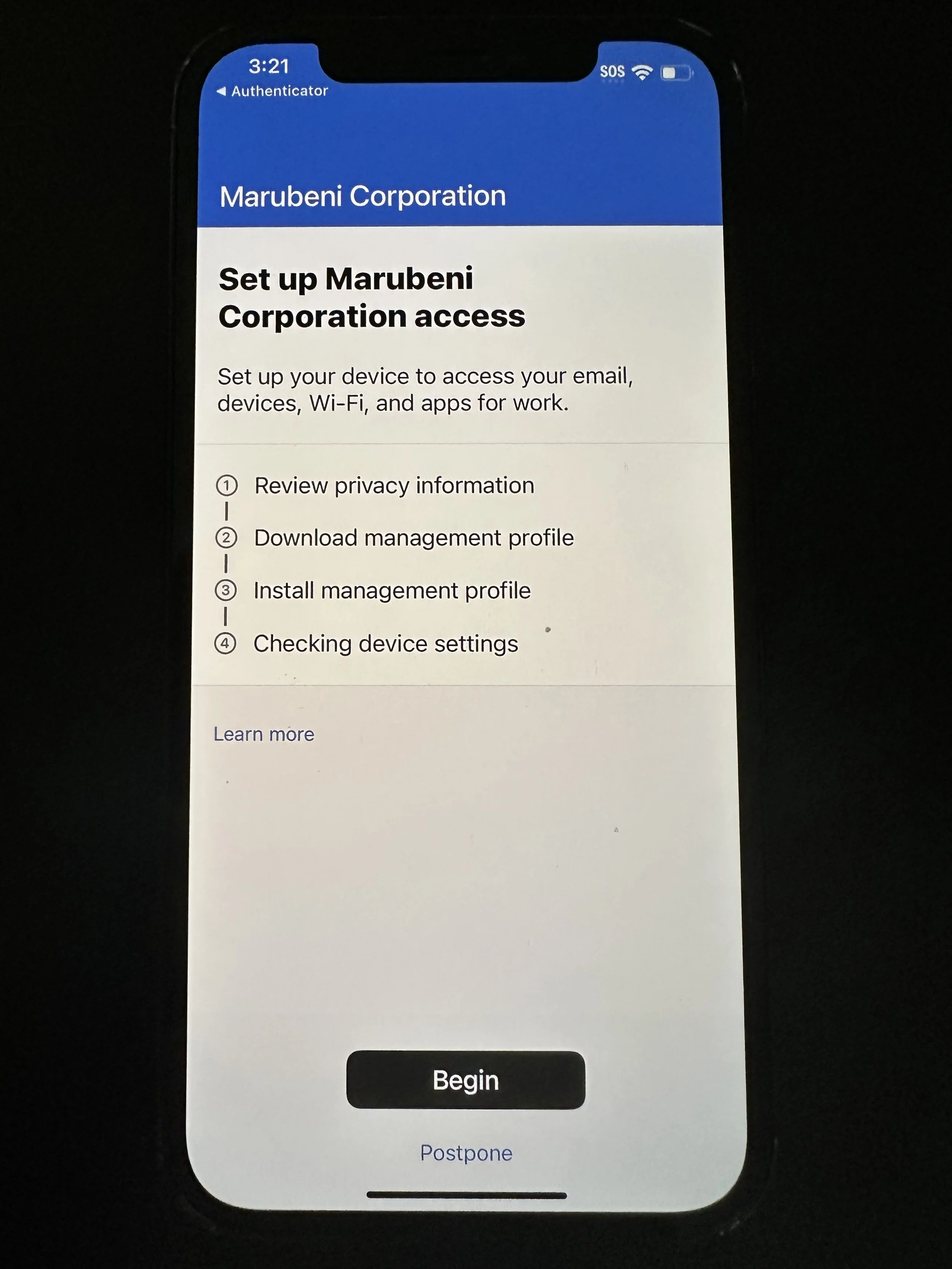
tap Begin
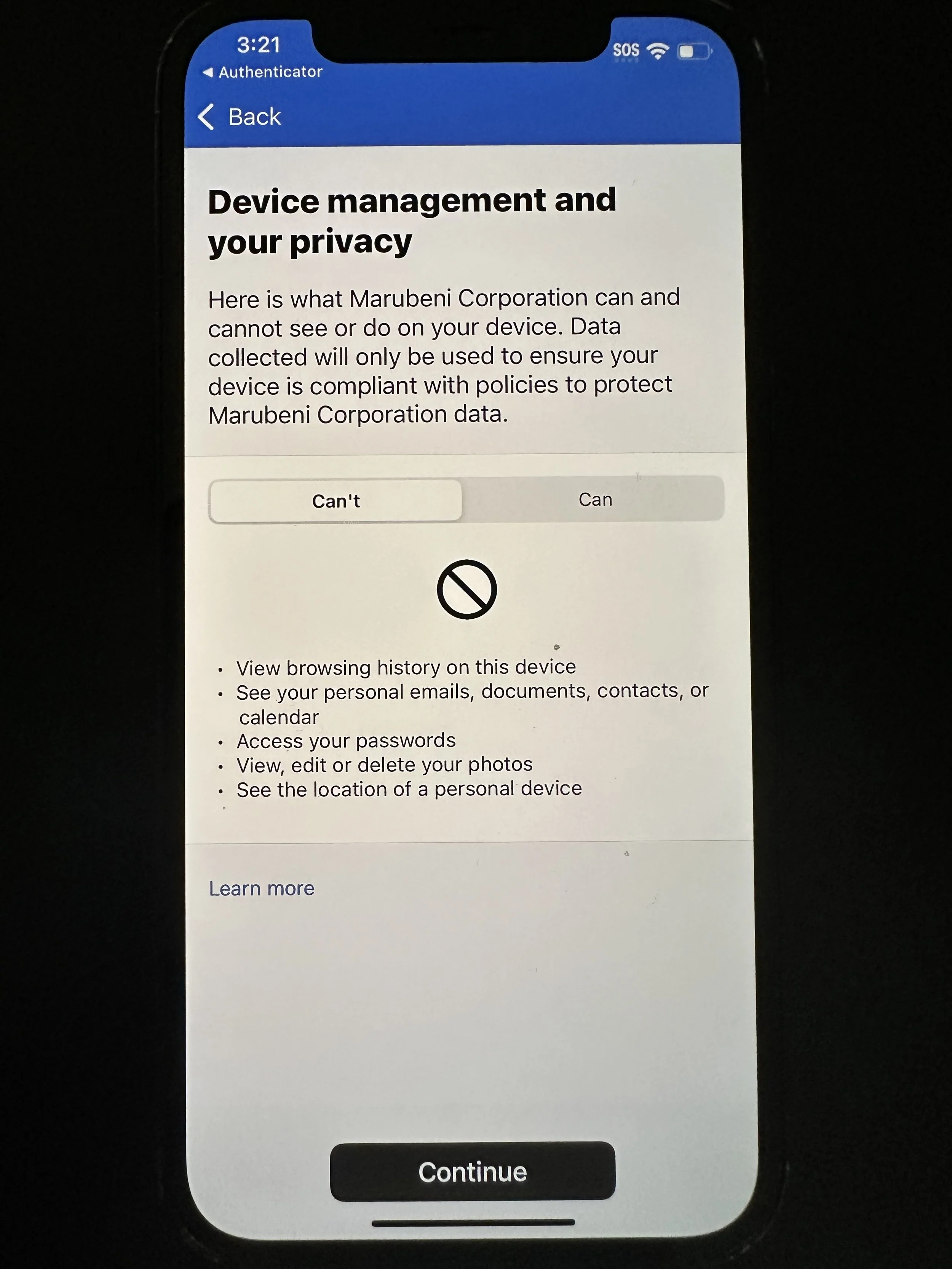
tap Continue. This screen shows what NYKSYPL can and cannot do to your device.
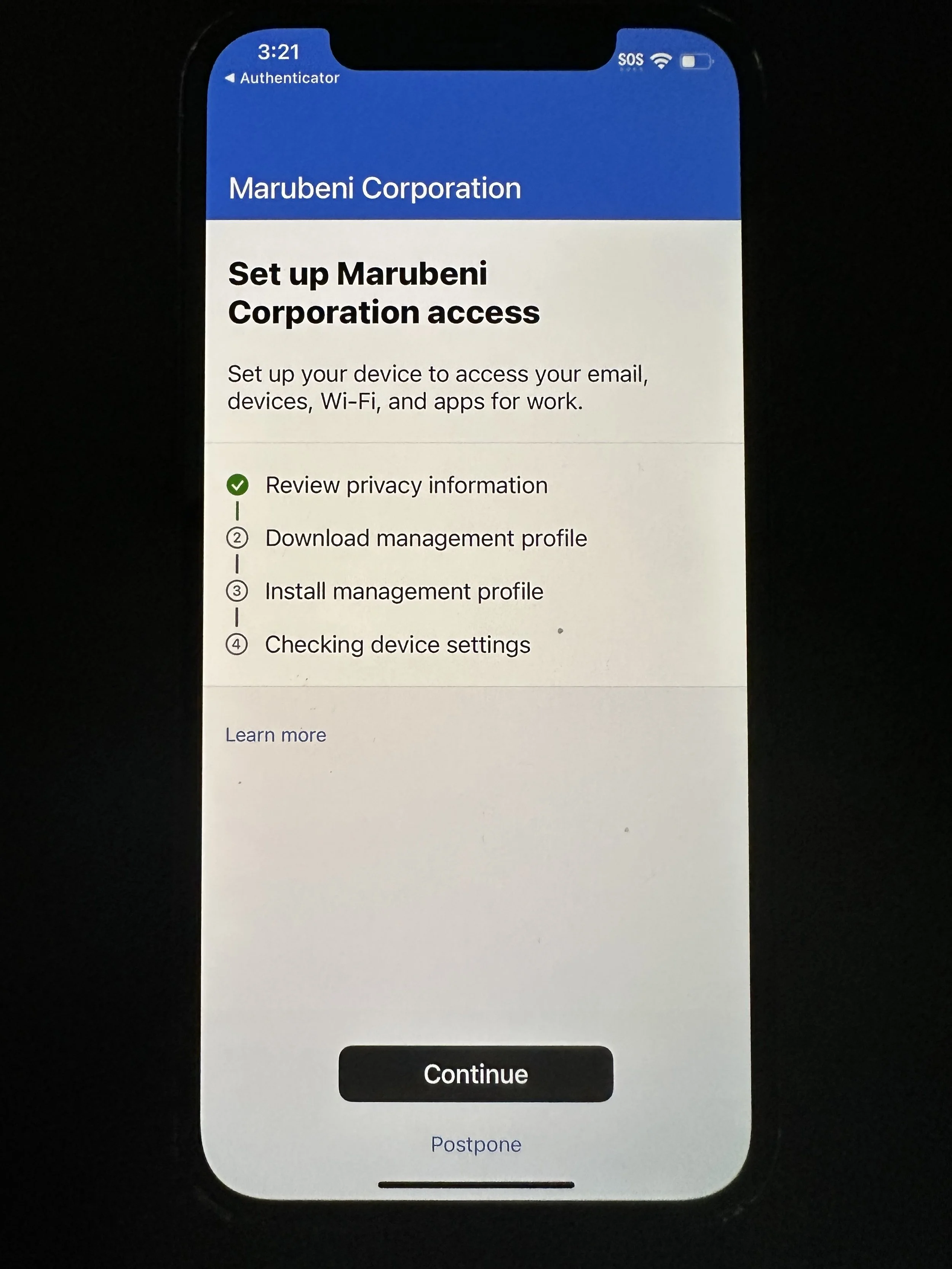
tap Continue
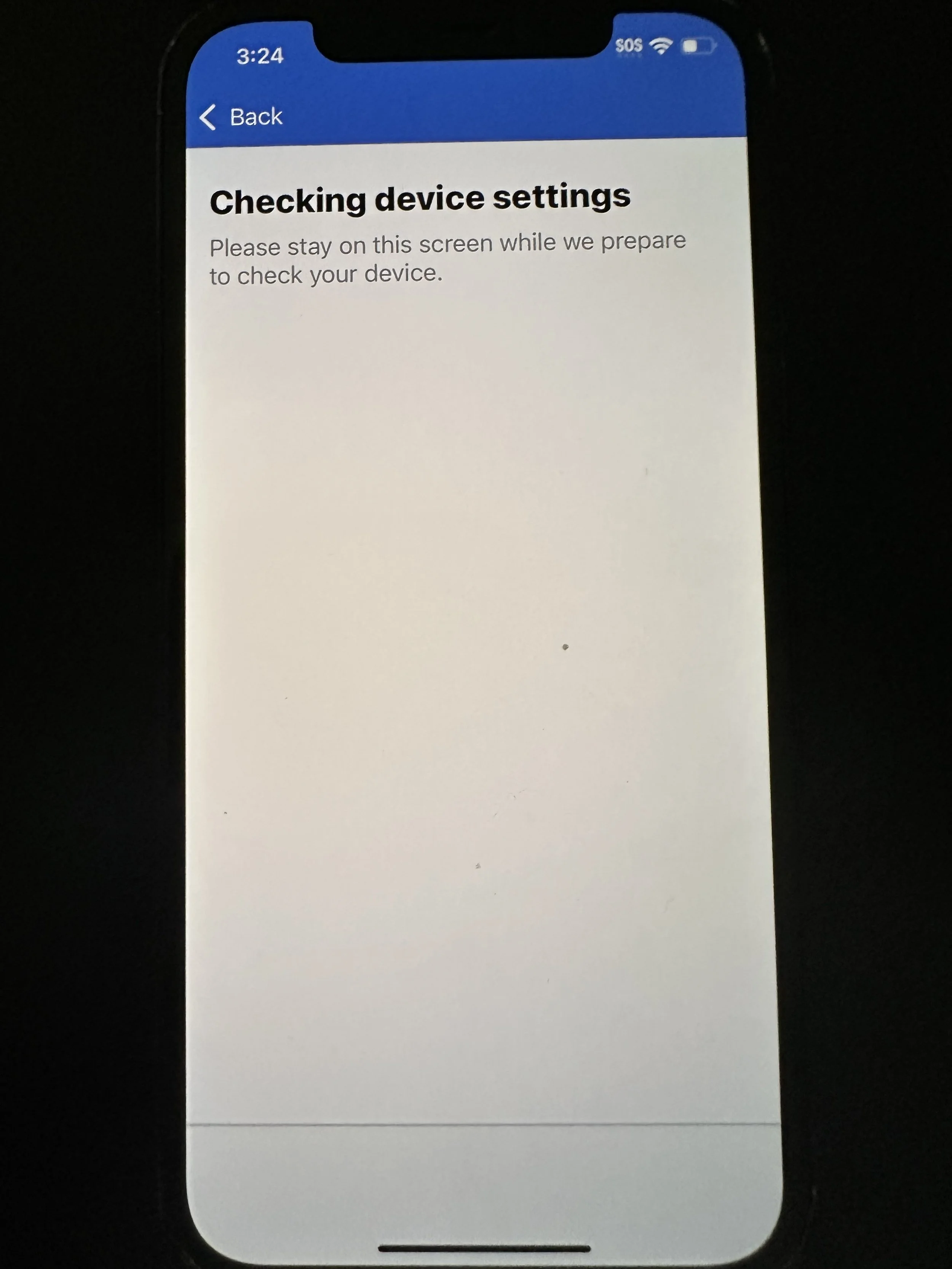
wait for loading
tap Allow
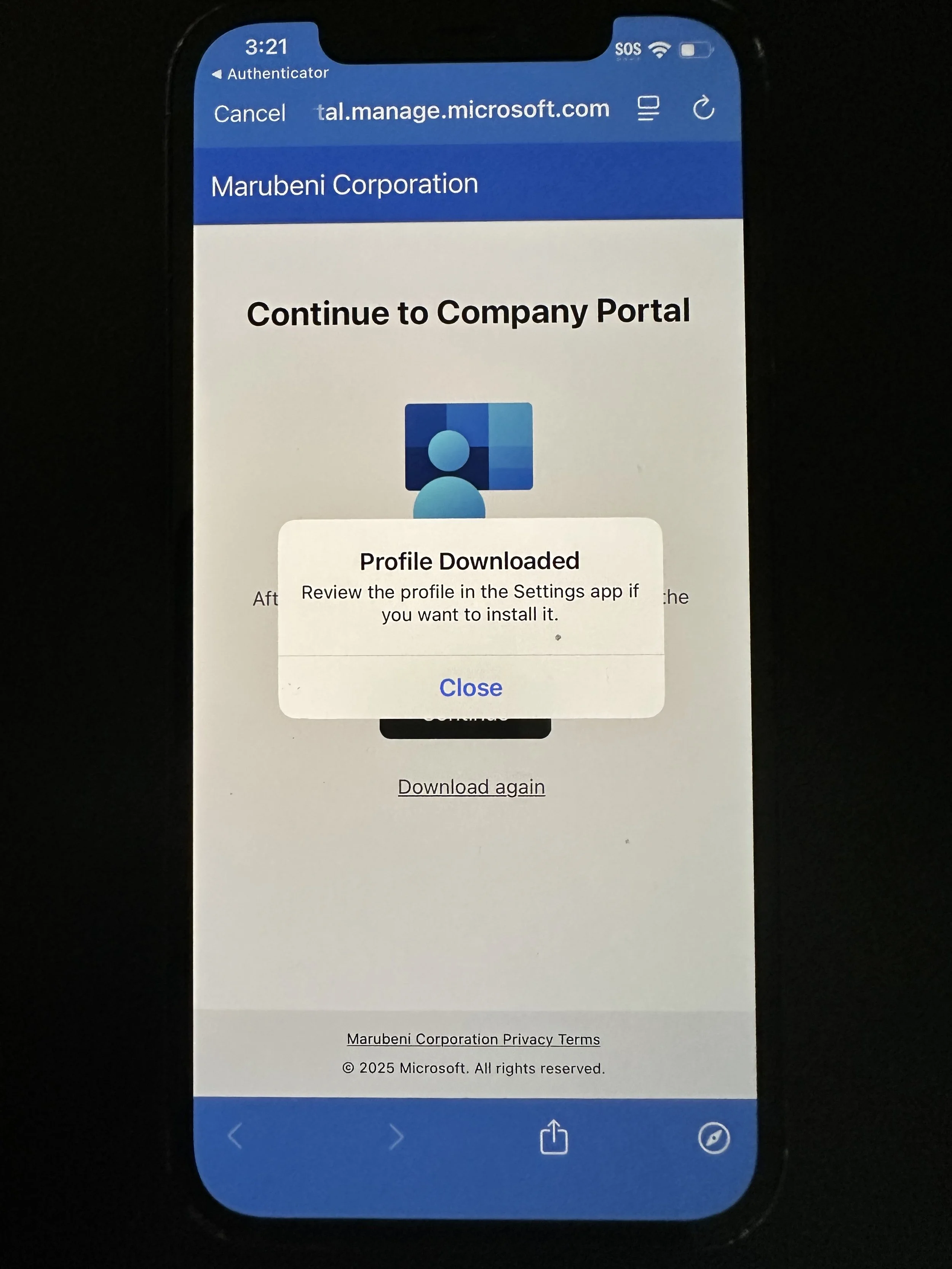
tap Close
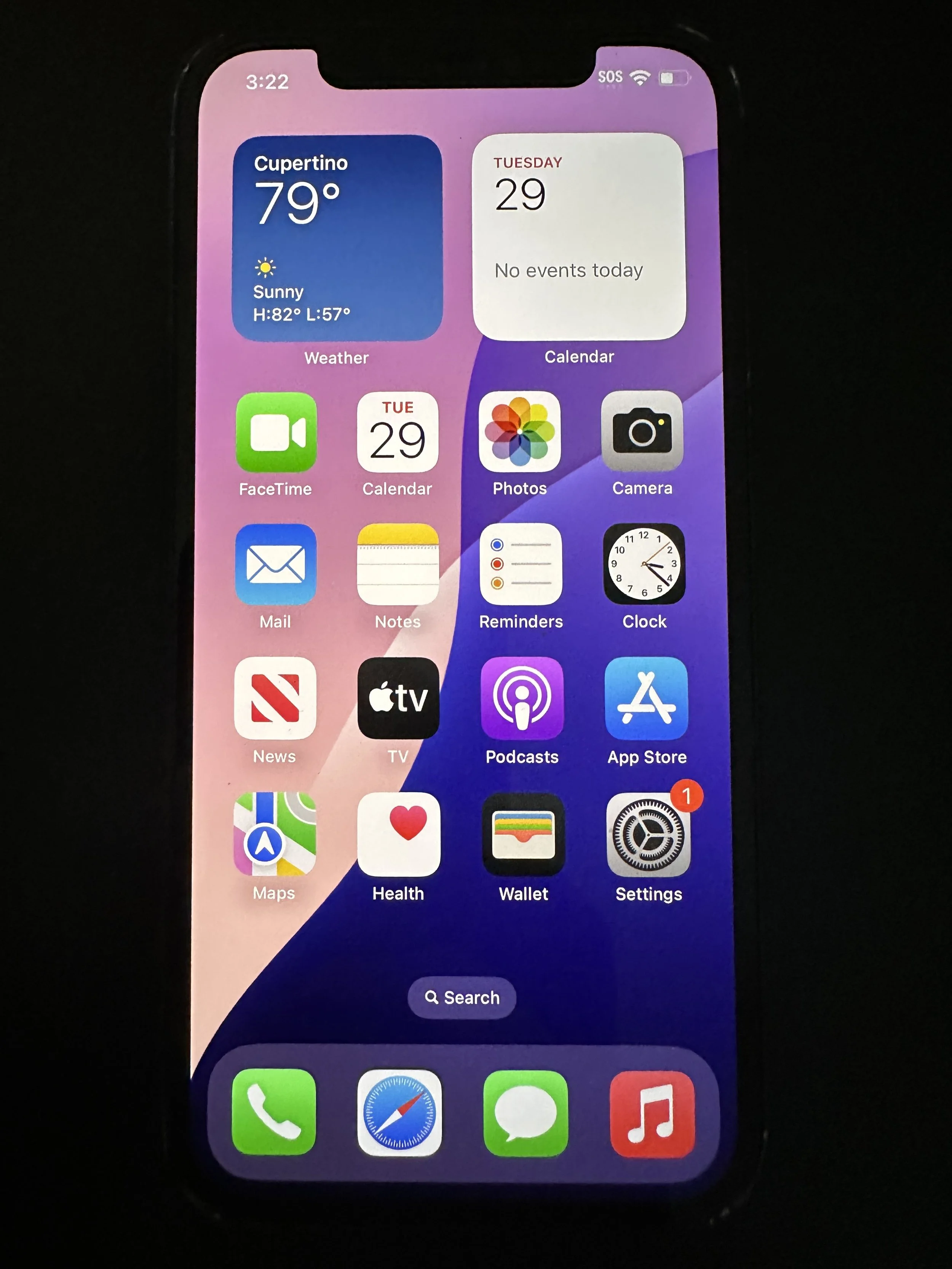
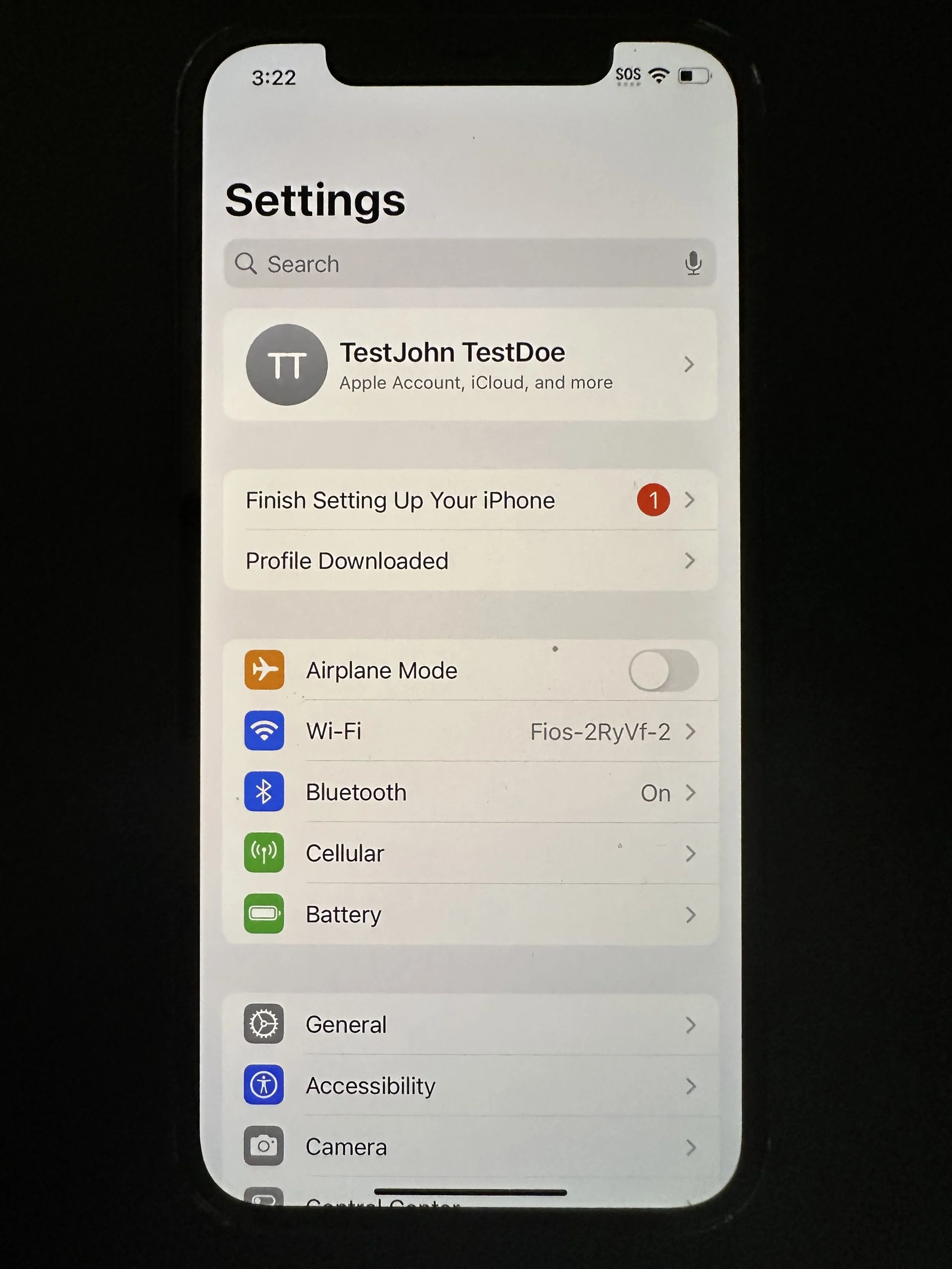
swipe up to go back to your home screen and tap Settings
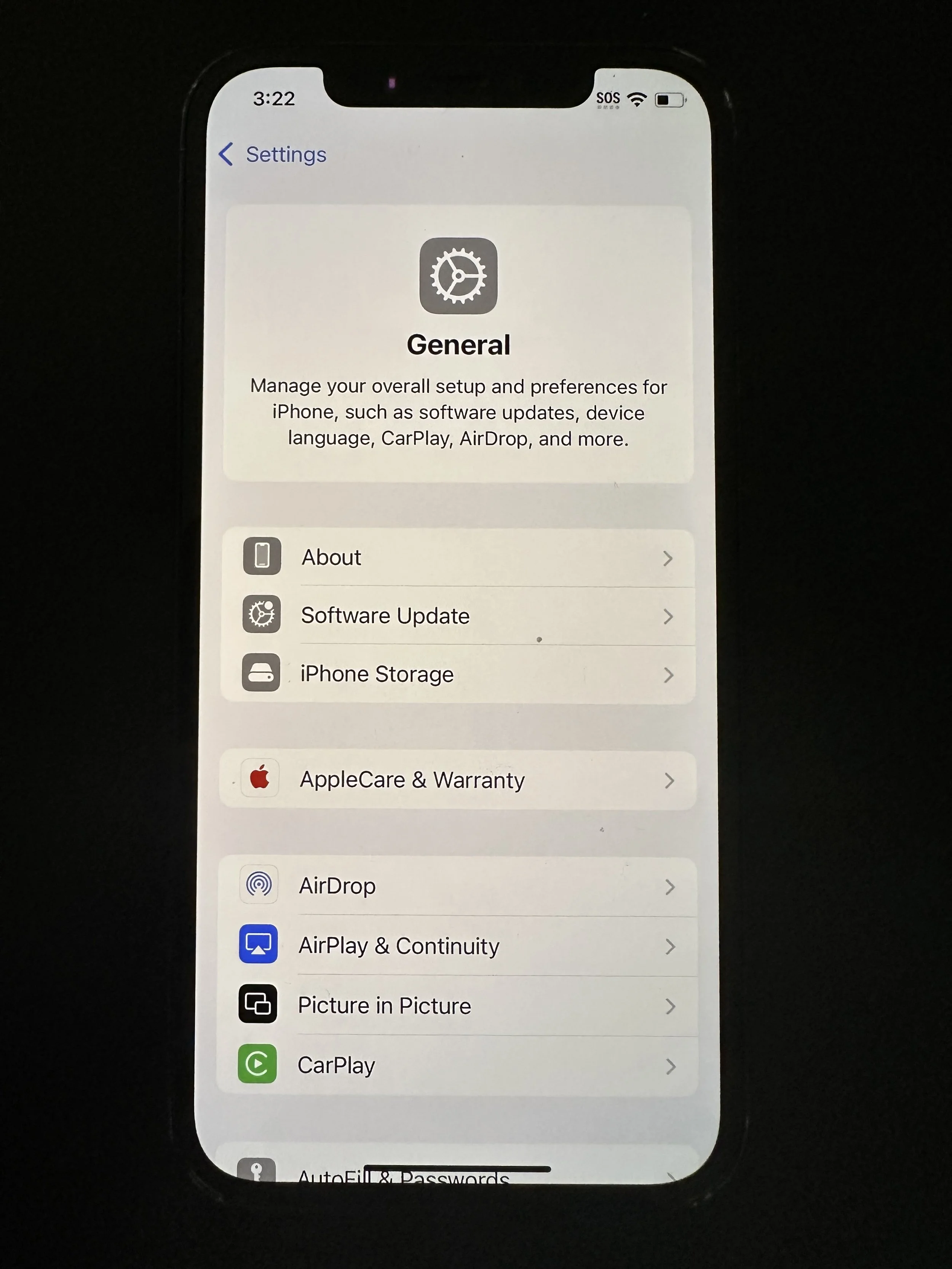
tap General
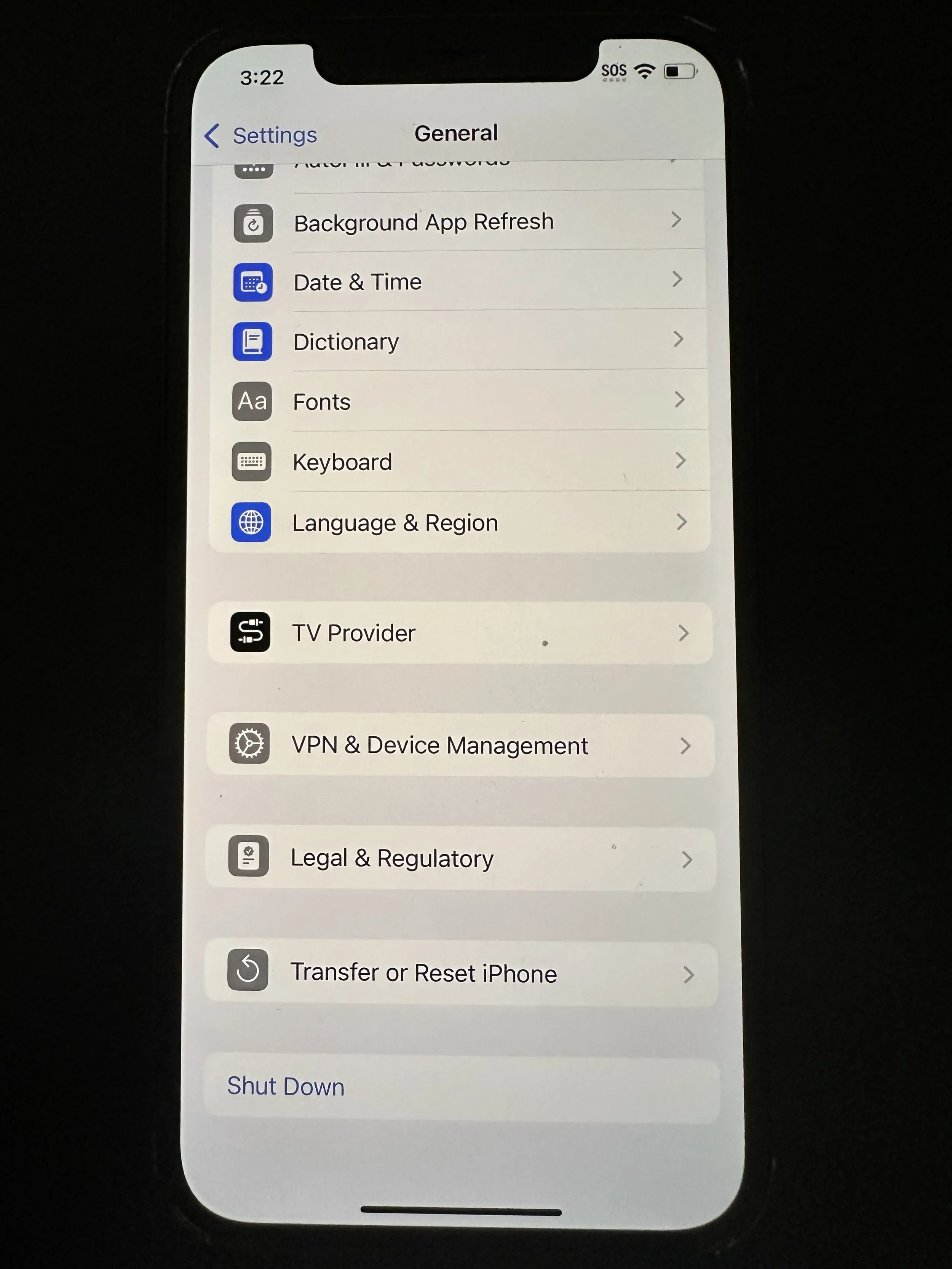
scroll down/swipe up
tap VPN & Device Management
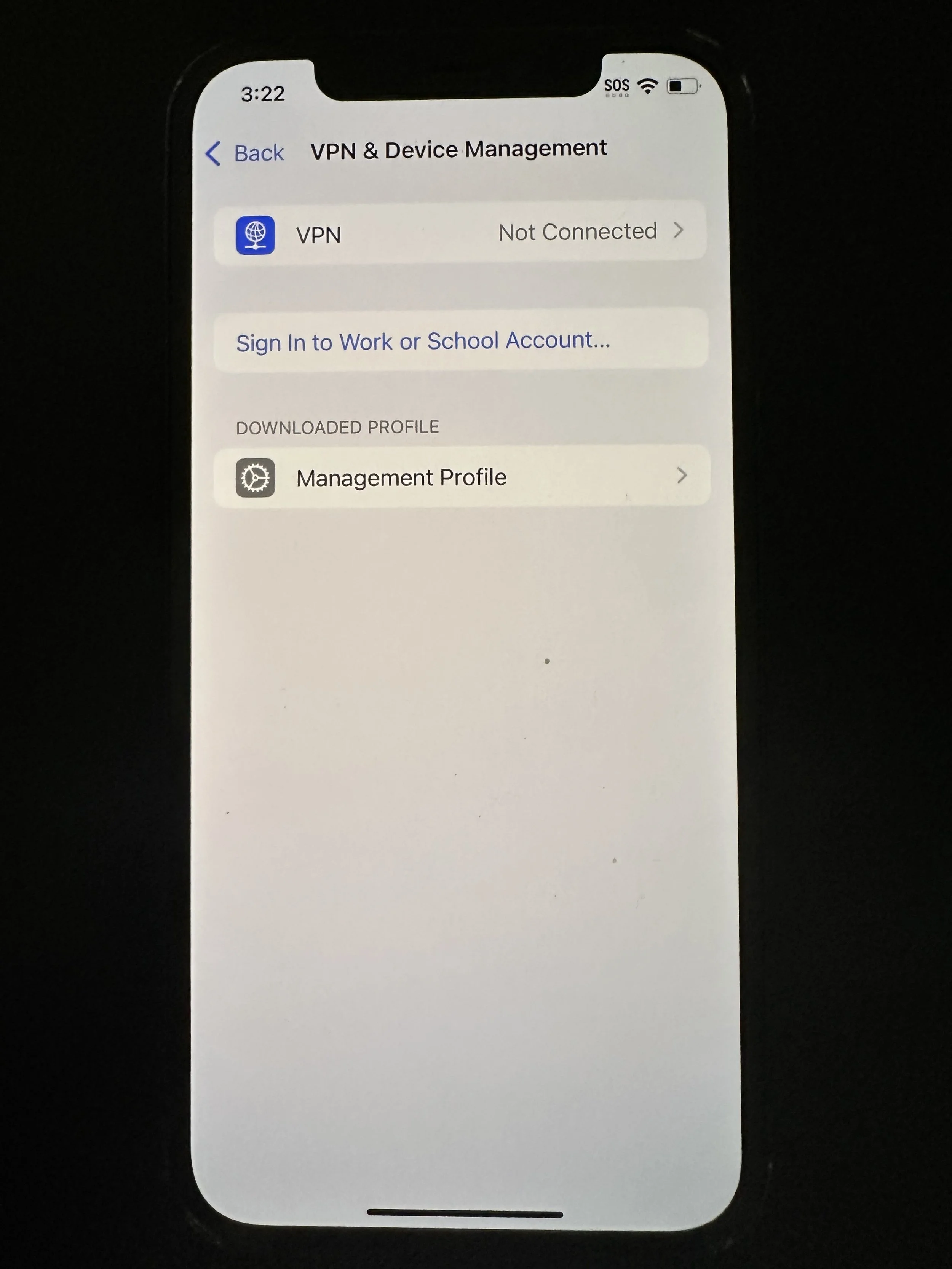
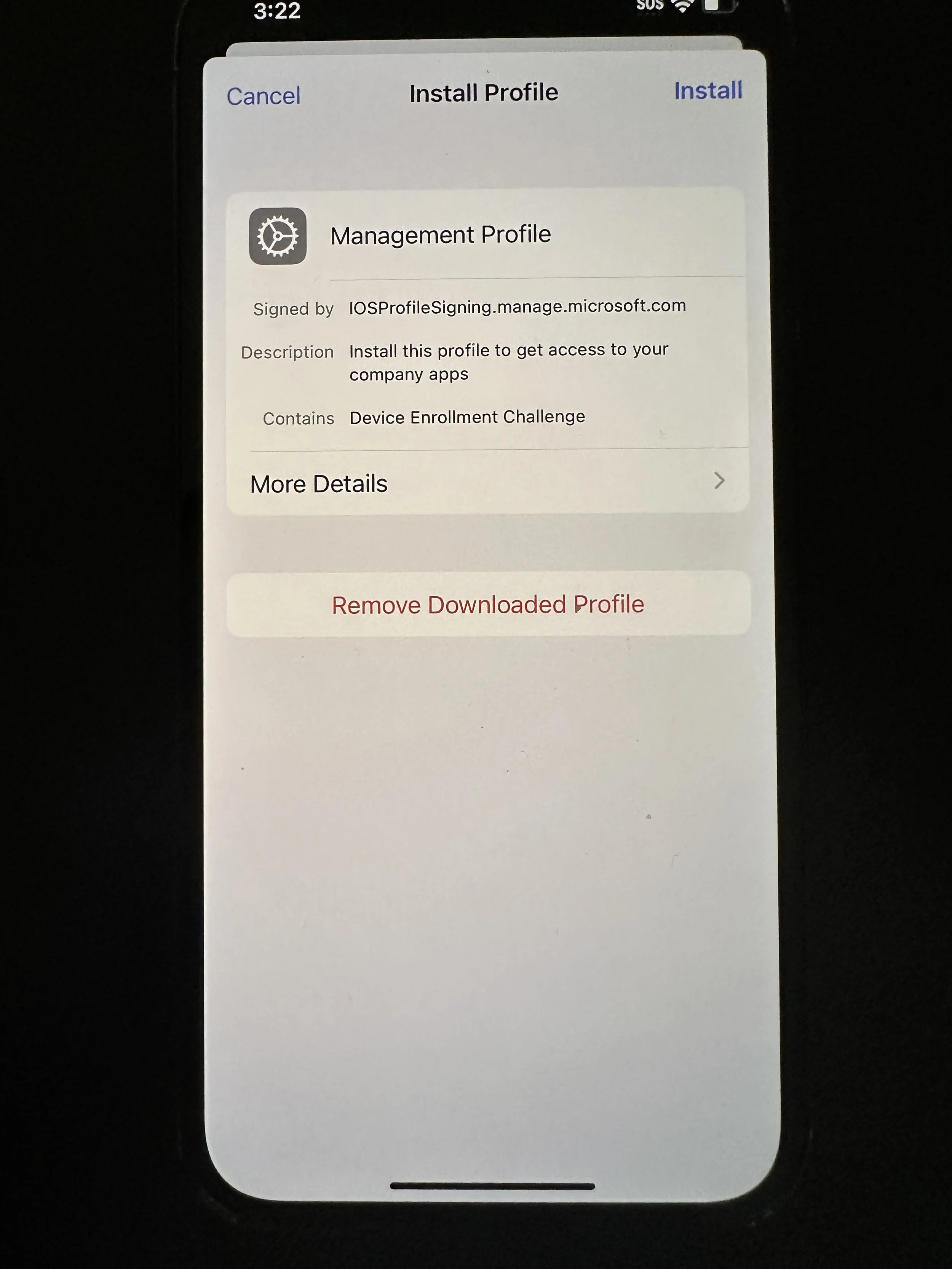
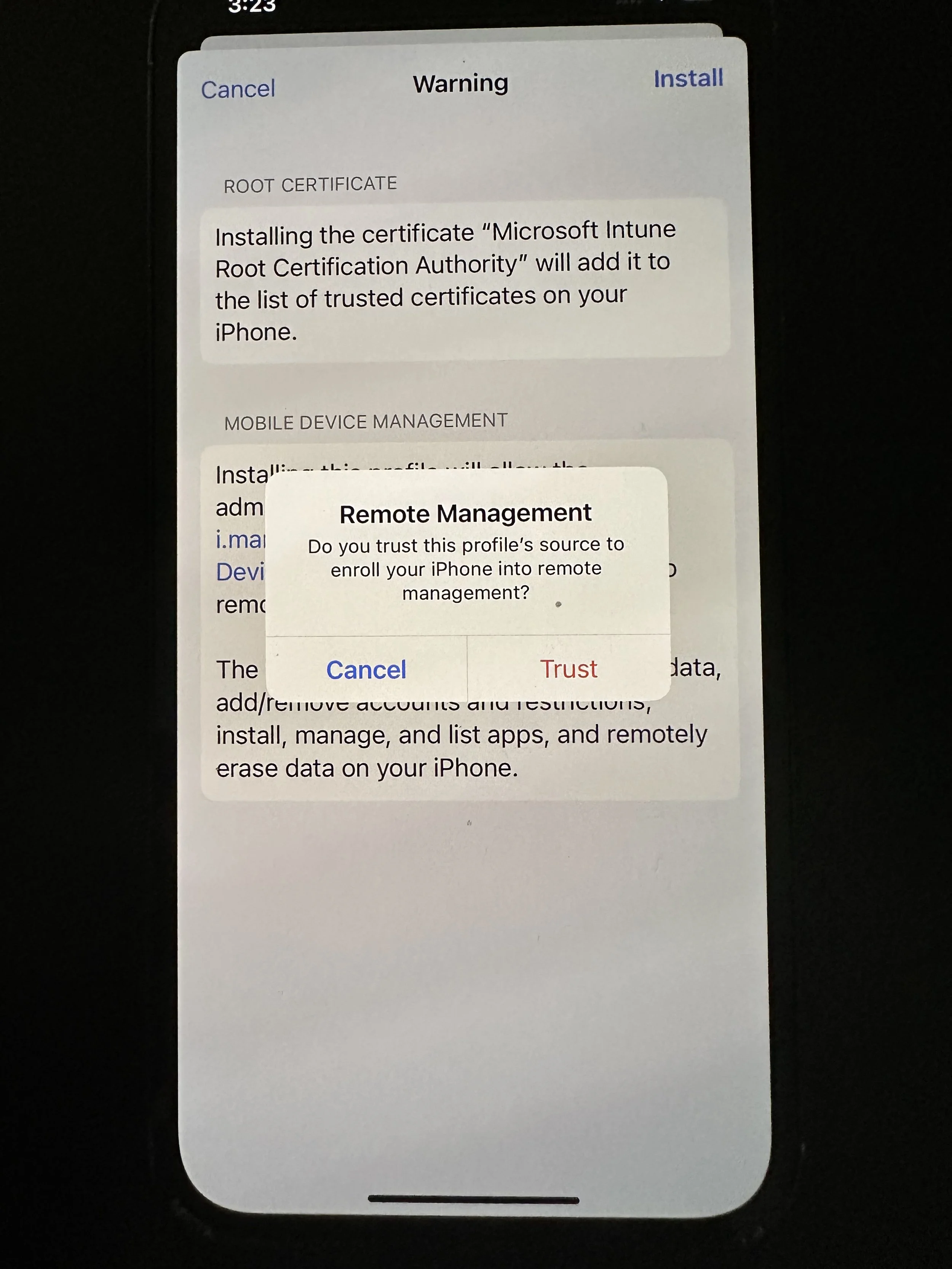
You should not see any other profile but the Management Profile on this screen. Tap Management Profile.
tap Install
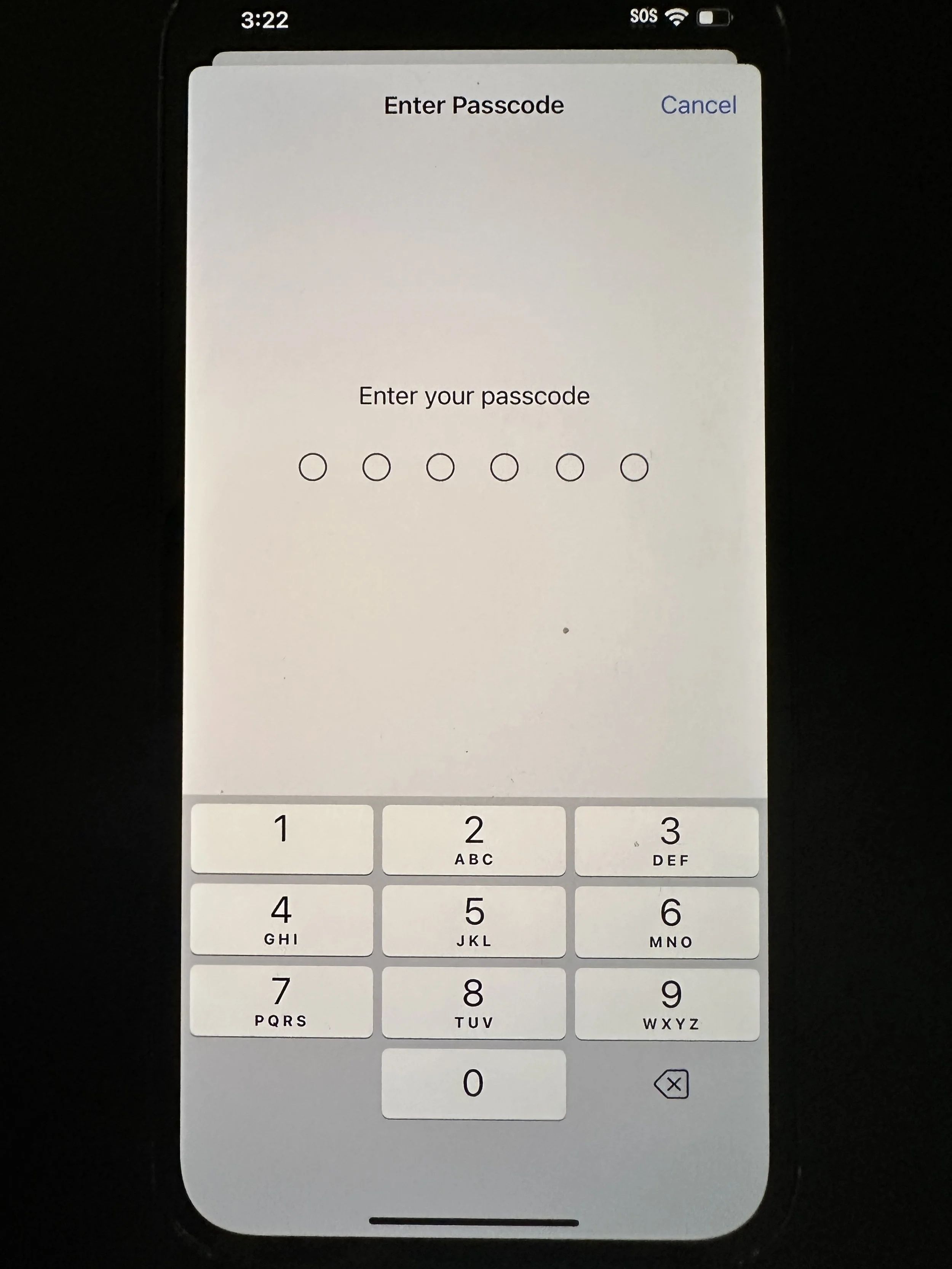
enter your device passcode
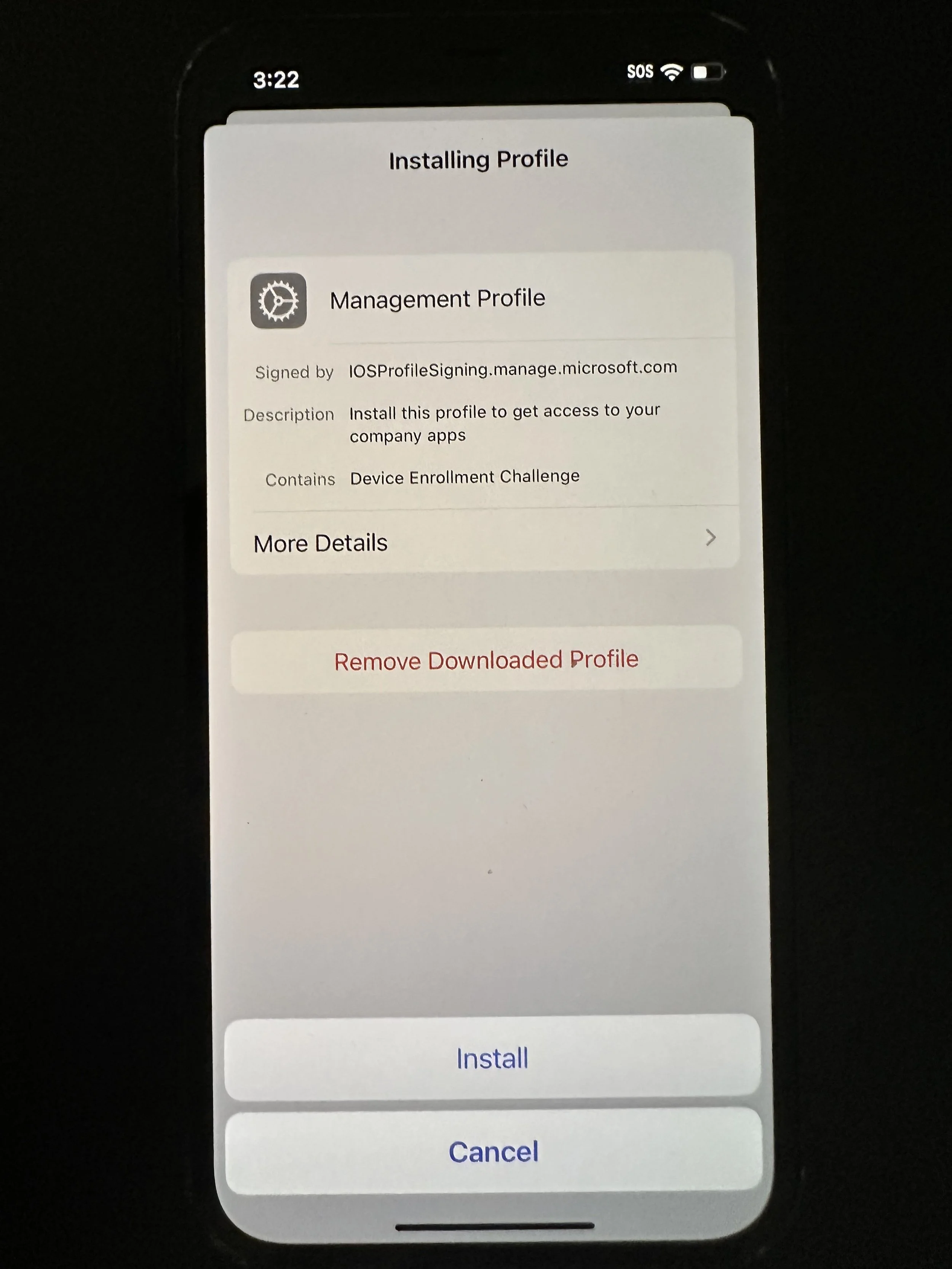
tap Install
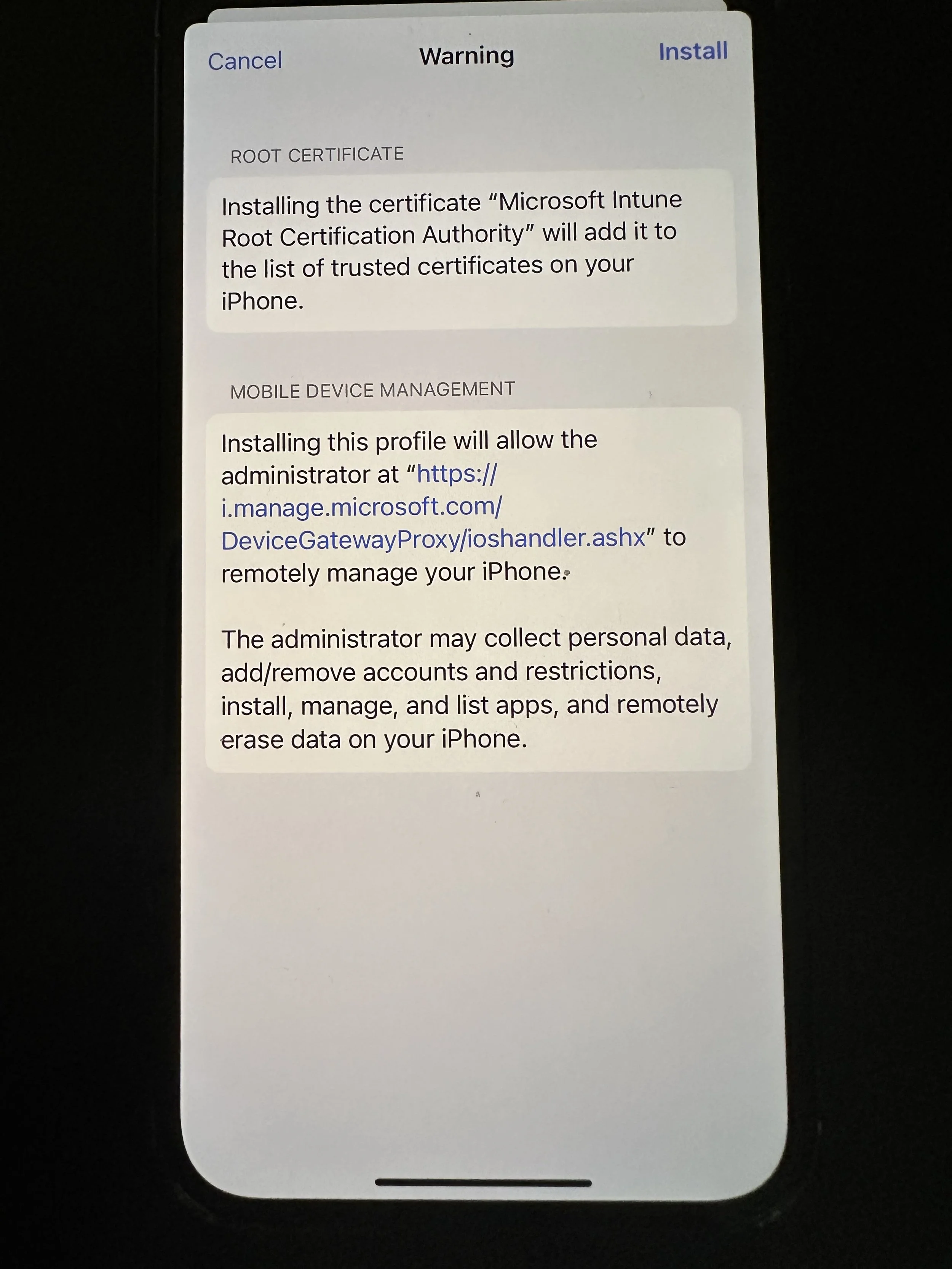
tap Install
tap Trust
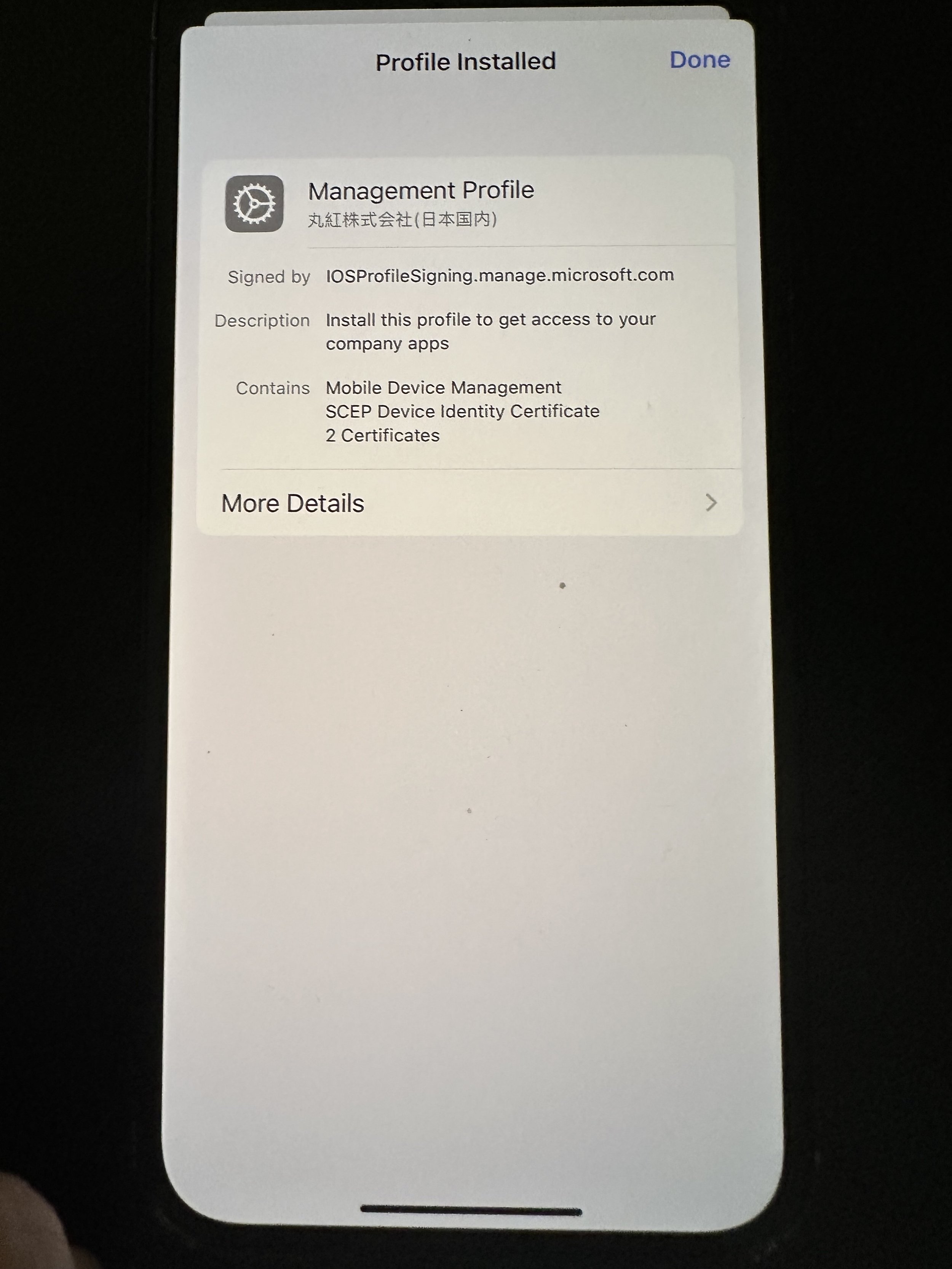
tap Done
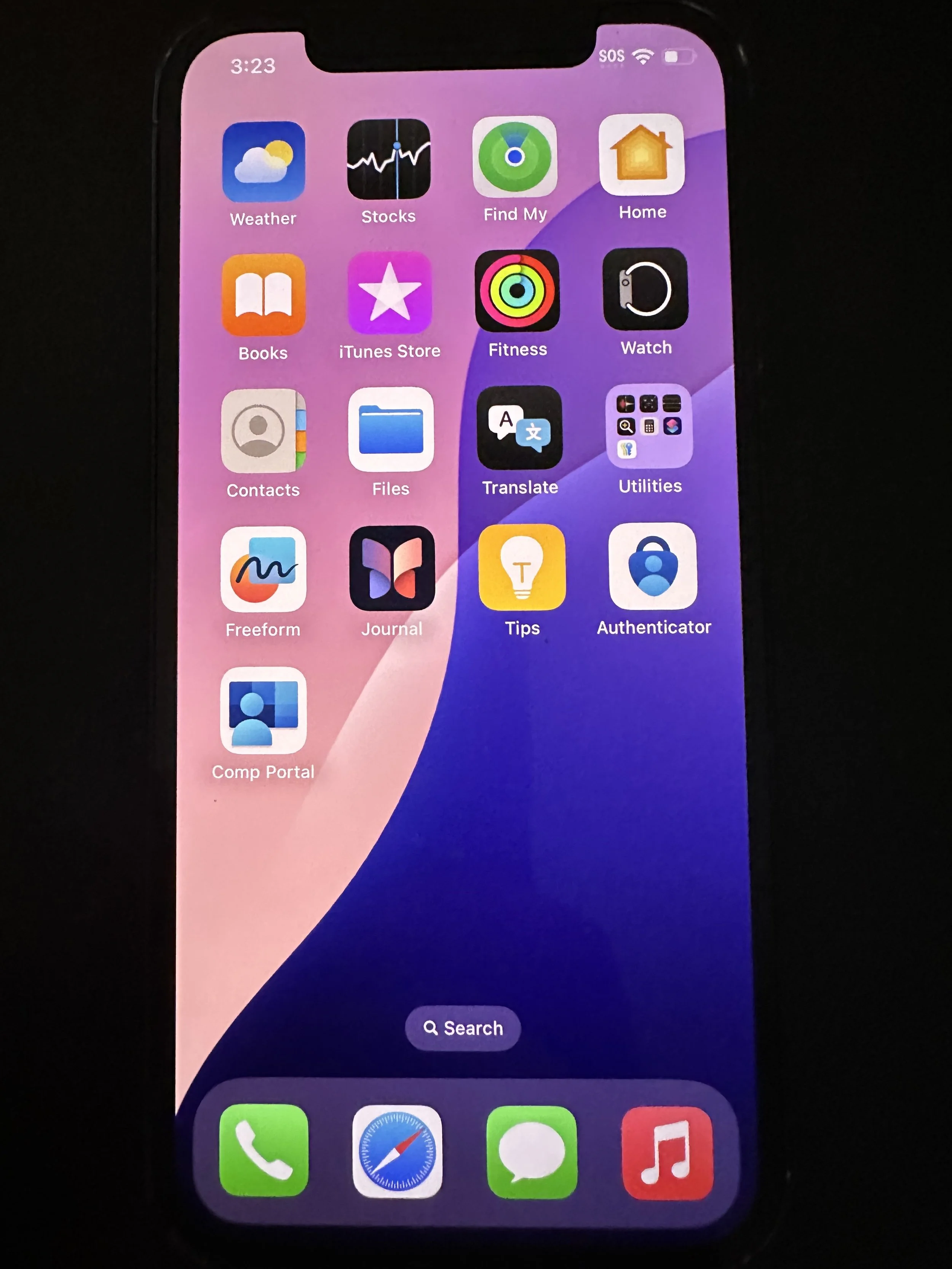
swipe up to go back to your home screen and tap Comp Portal
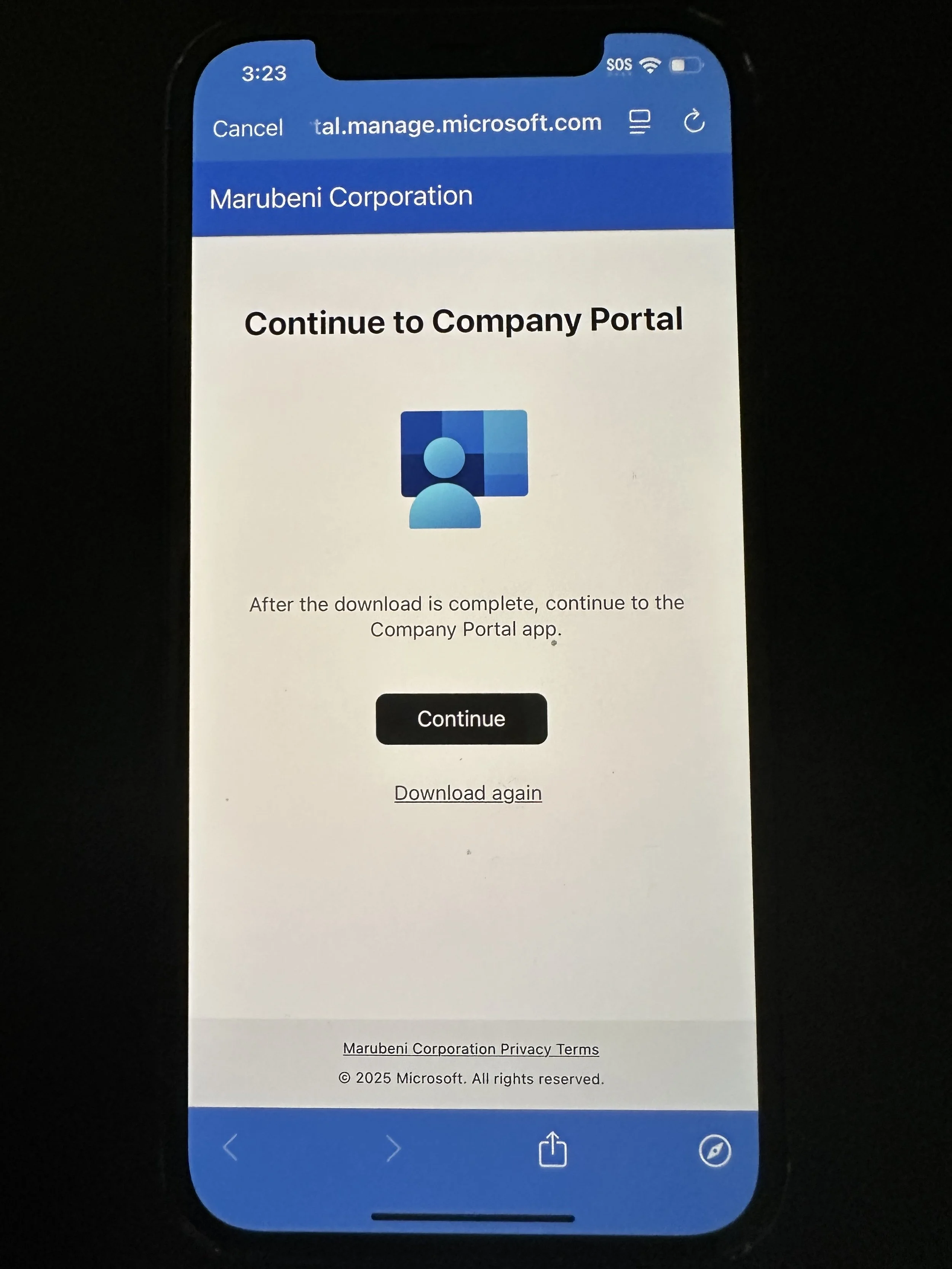
tap Continue
tap Continue
wait for loading. even the screen locks, you can unlock and continue waiting.
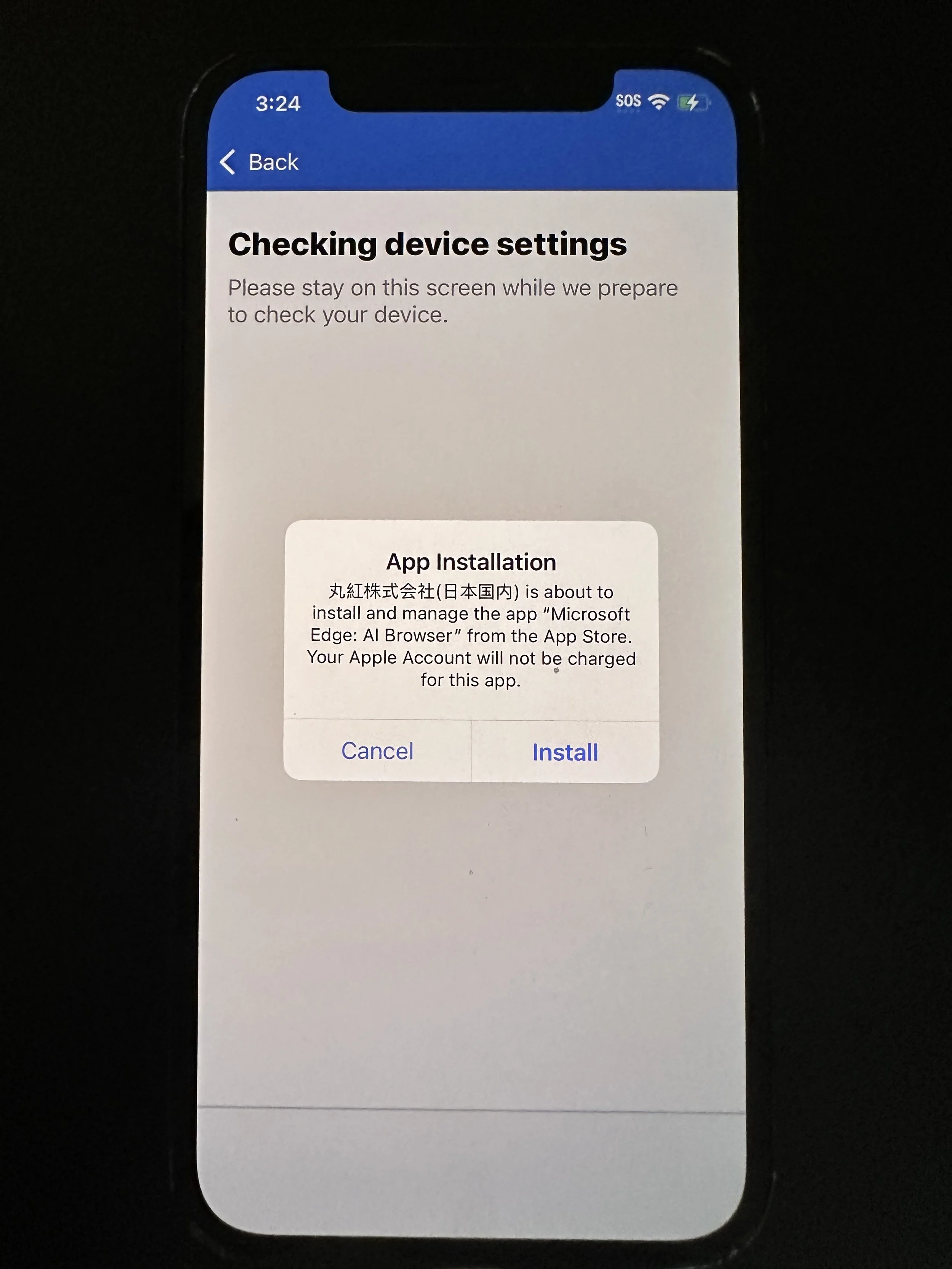
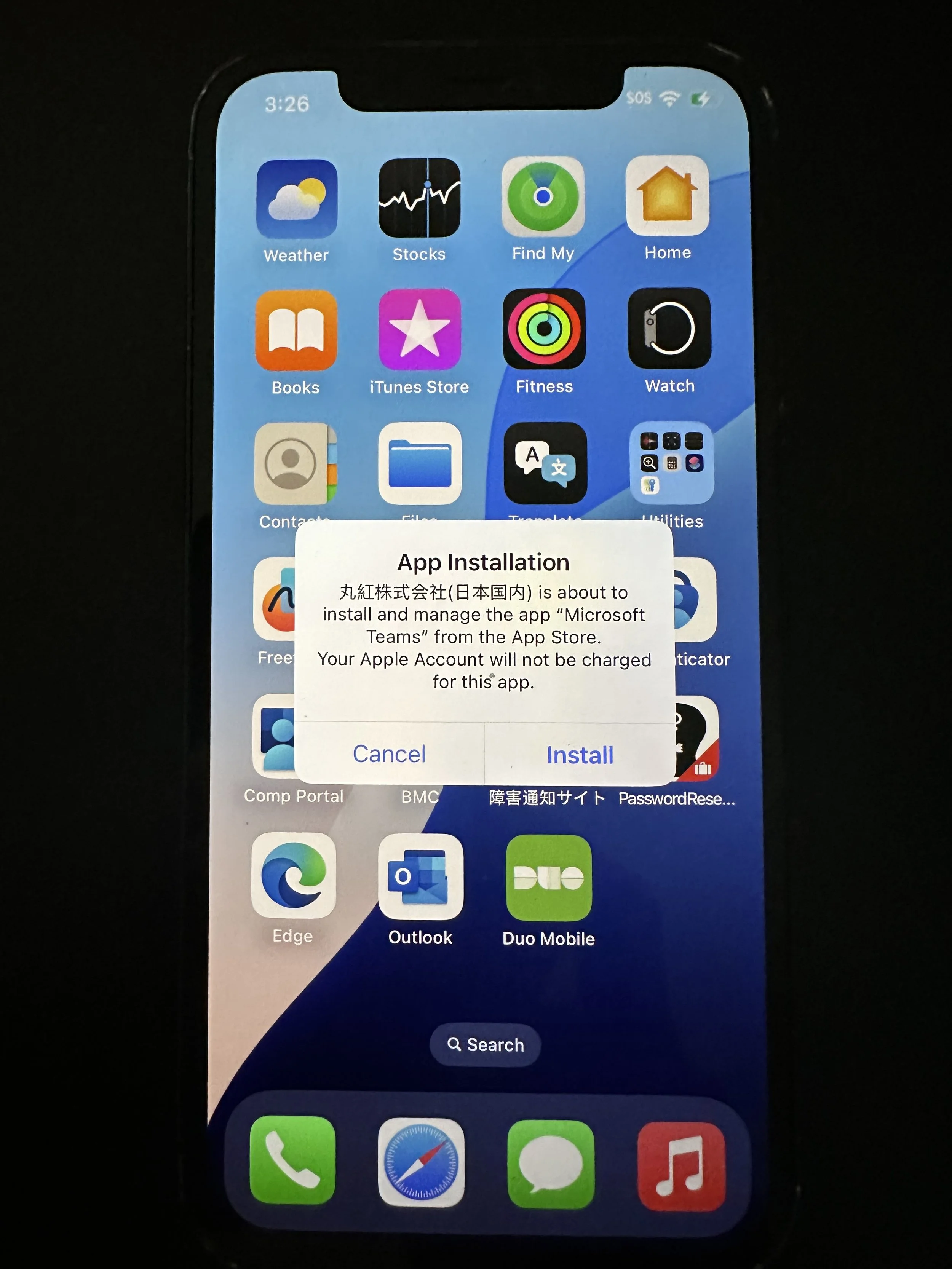
for all App Installation prompts, tap Install
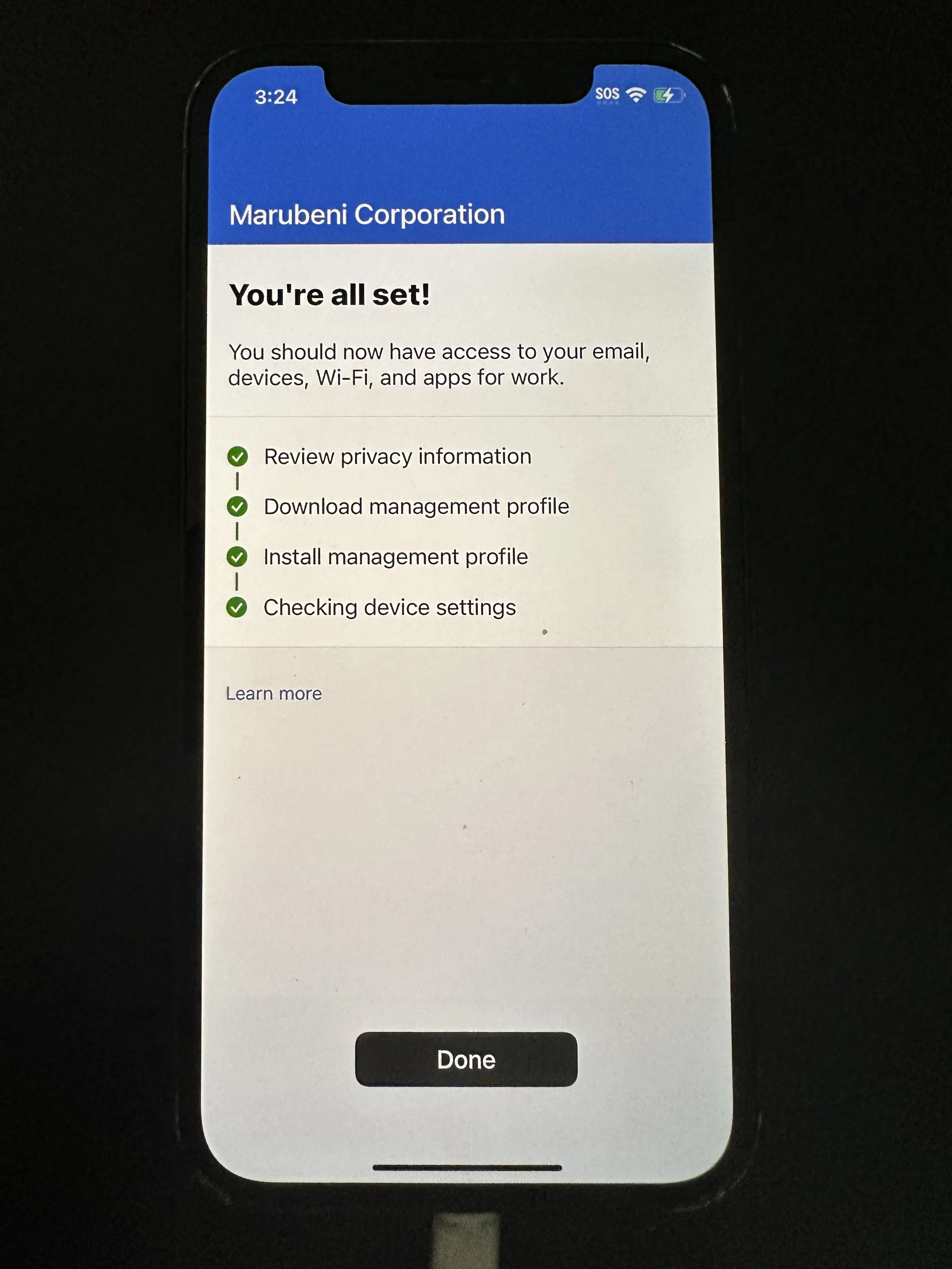
tap Done
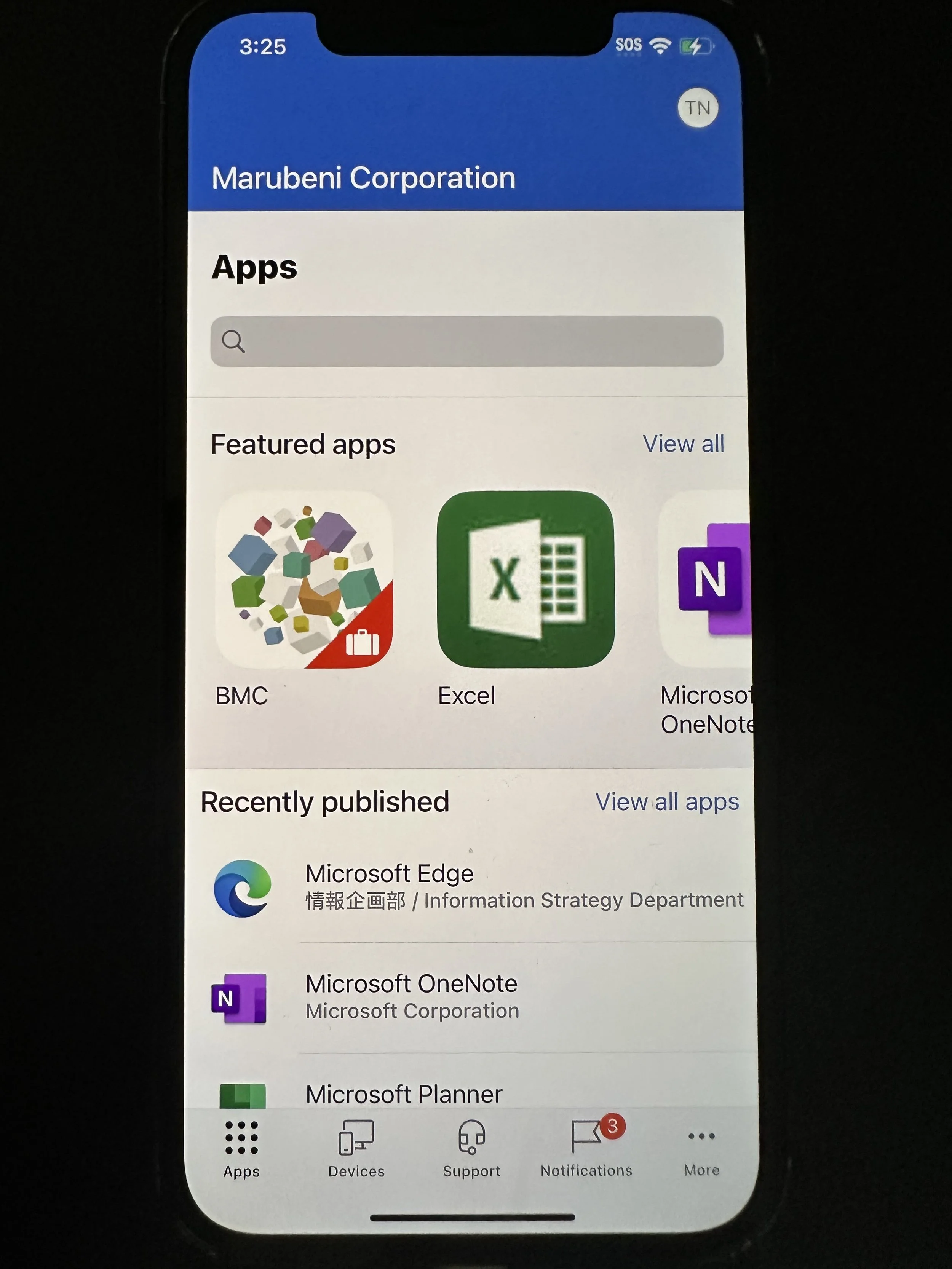
confirm the apps that were automatically installed.
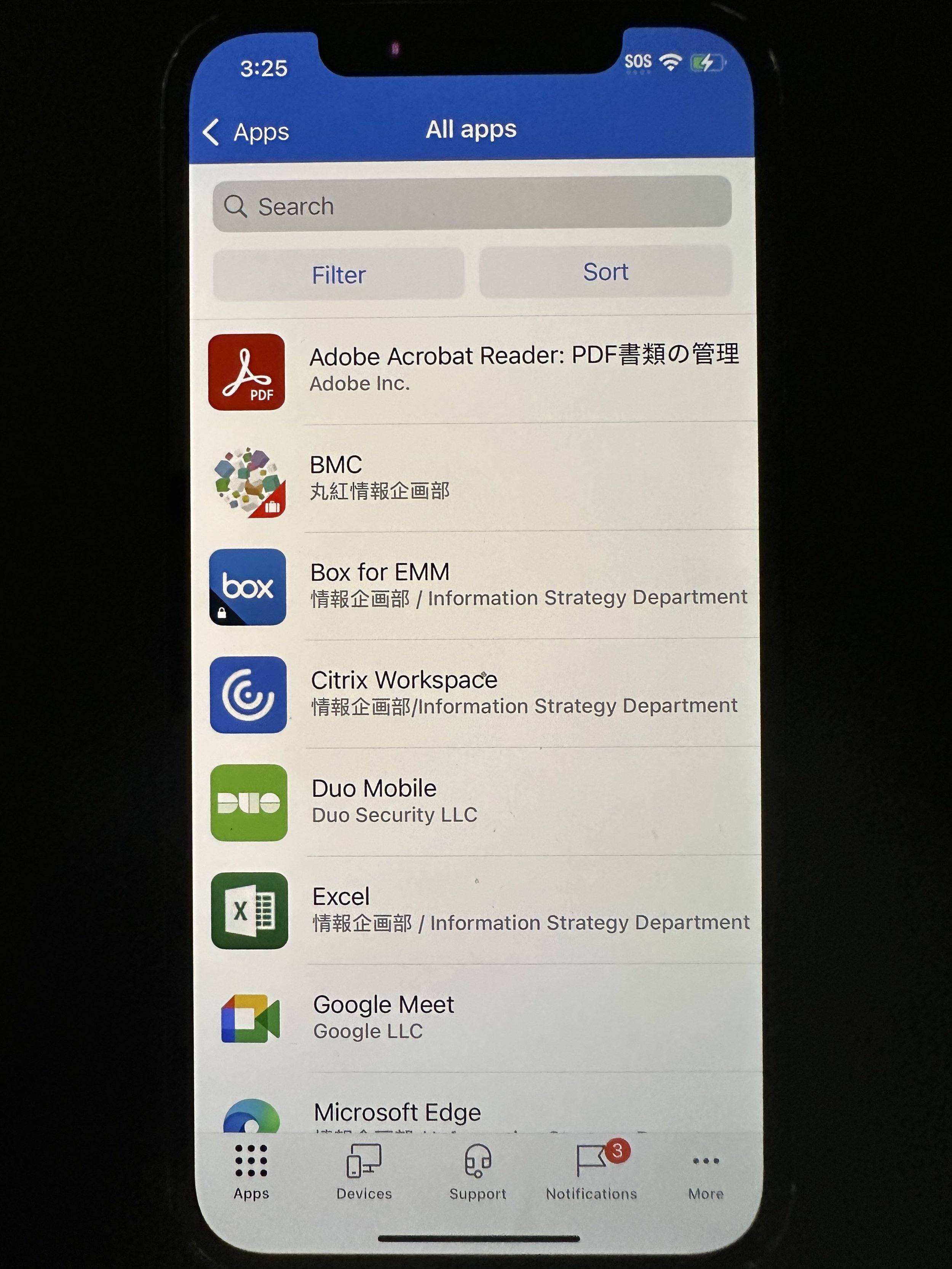
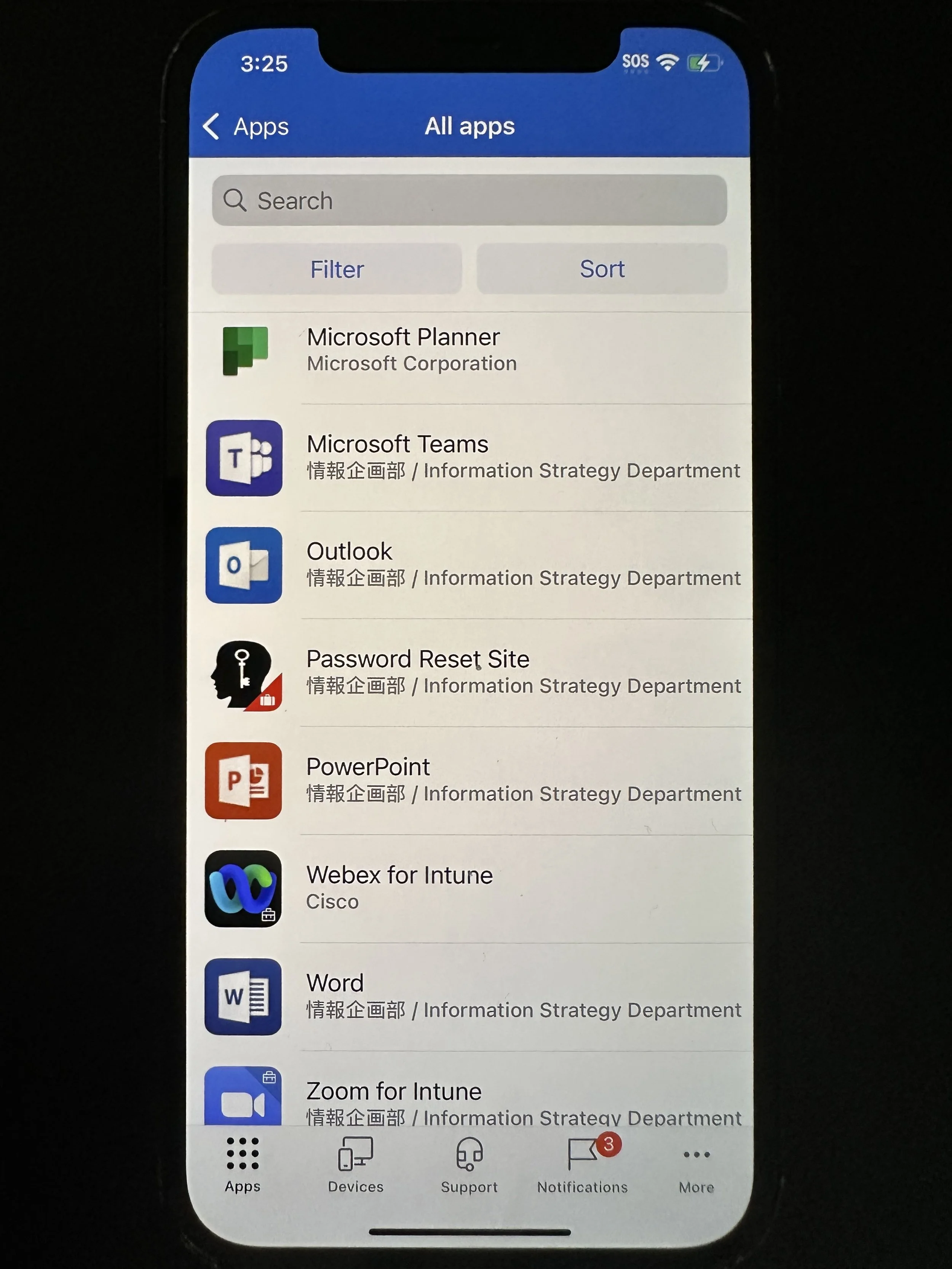
if missing anything, go back to Comp Portal and tap View all apps (not View all).
You can install anything on this list. We recommend Outlook, Teams, and Box for EMM (and Citrix Workspace for expats).
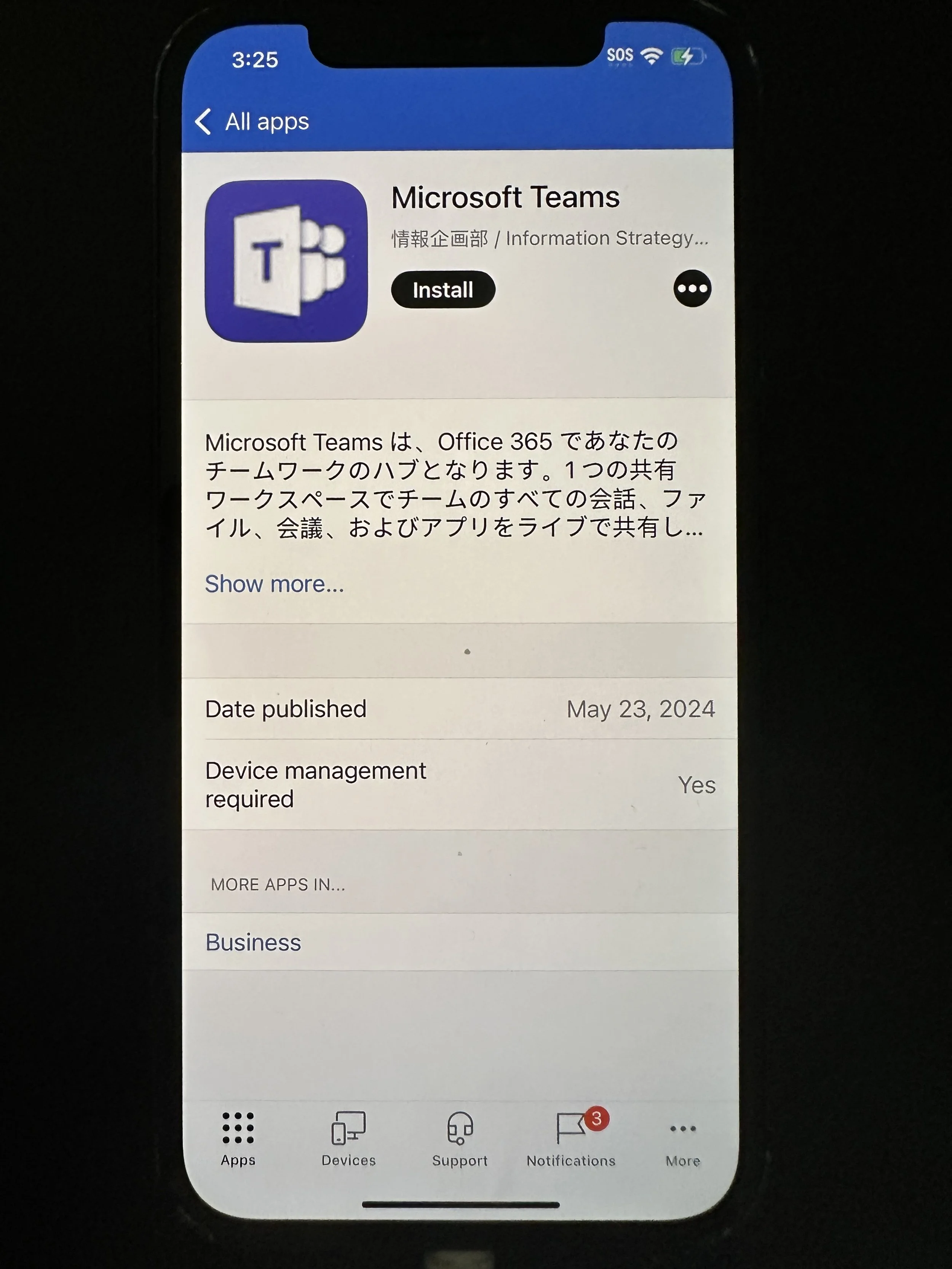
for this guide we will use Teams as an example. Tap Microsoft Teams.
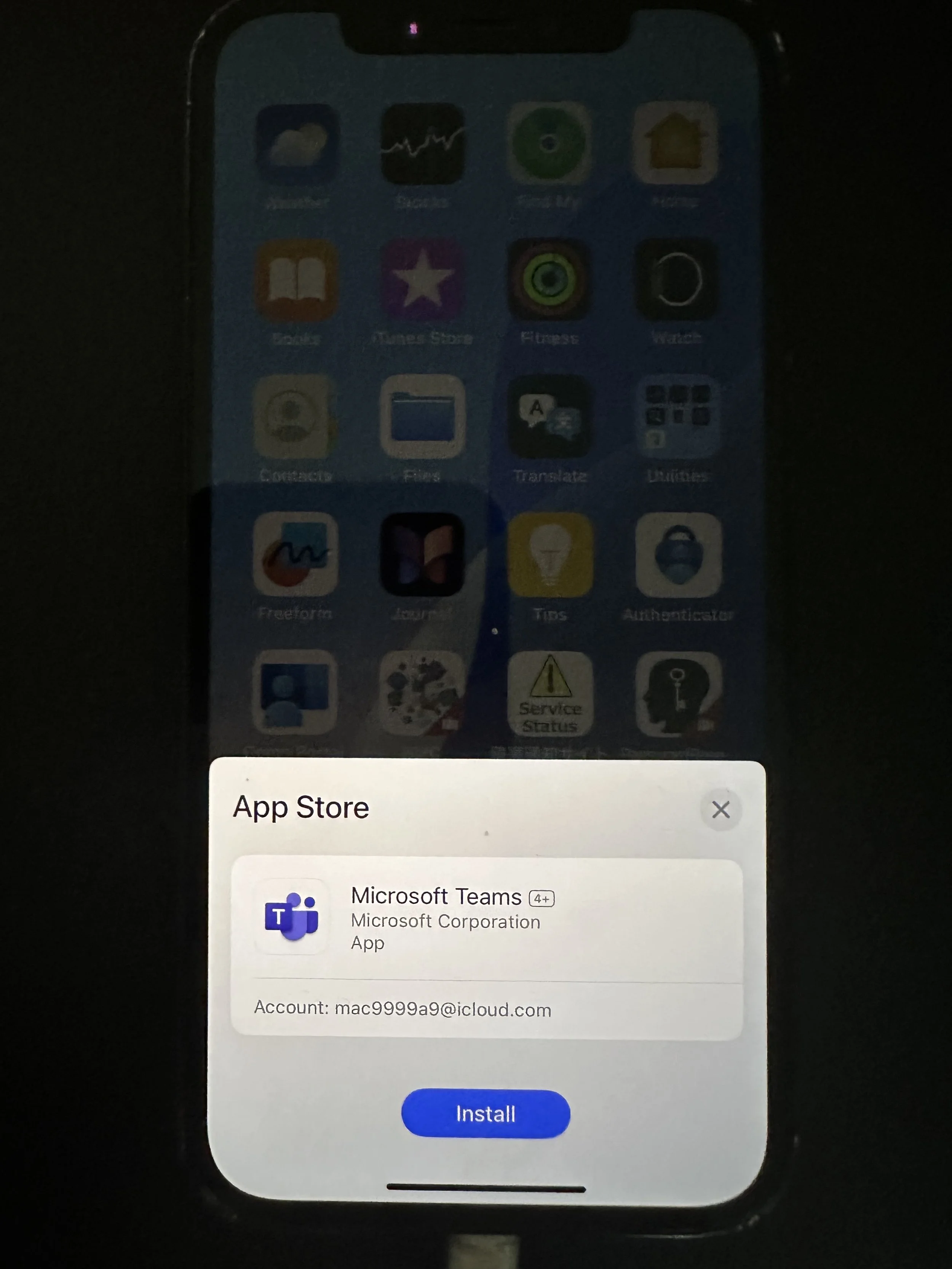
tap Install
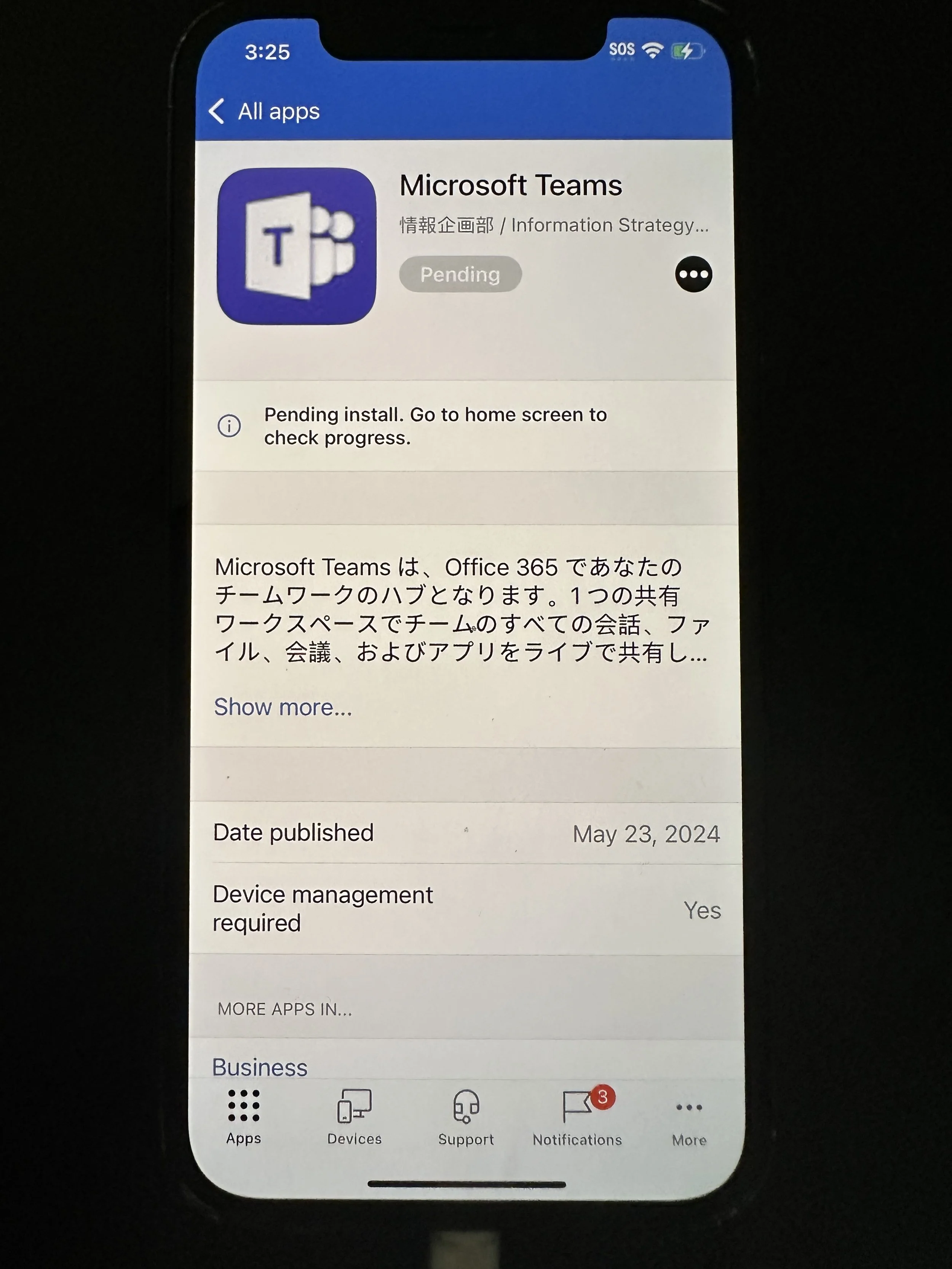
once you see this screen, swipe up to go back to your home screen.
You may have to wait depending on the strength of your network. Once this shows up, tap Install.
tap Install
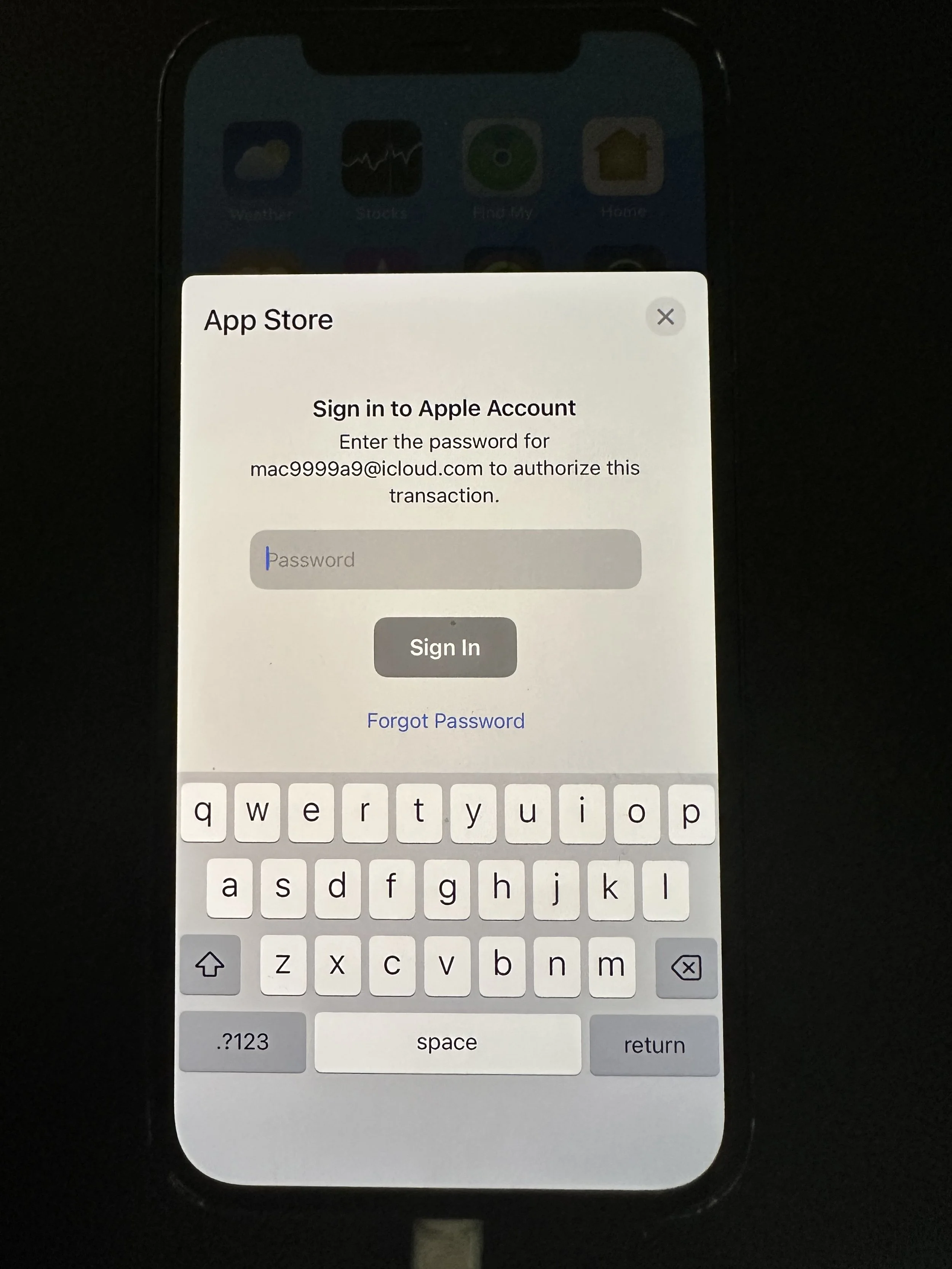
enter your Apple ID password
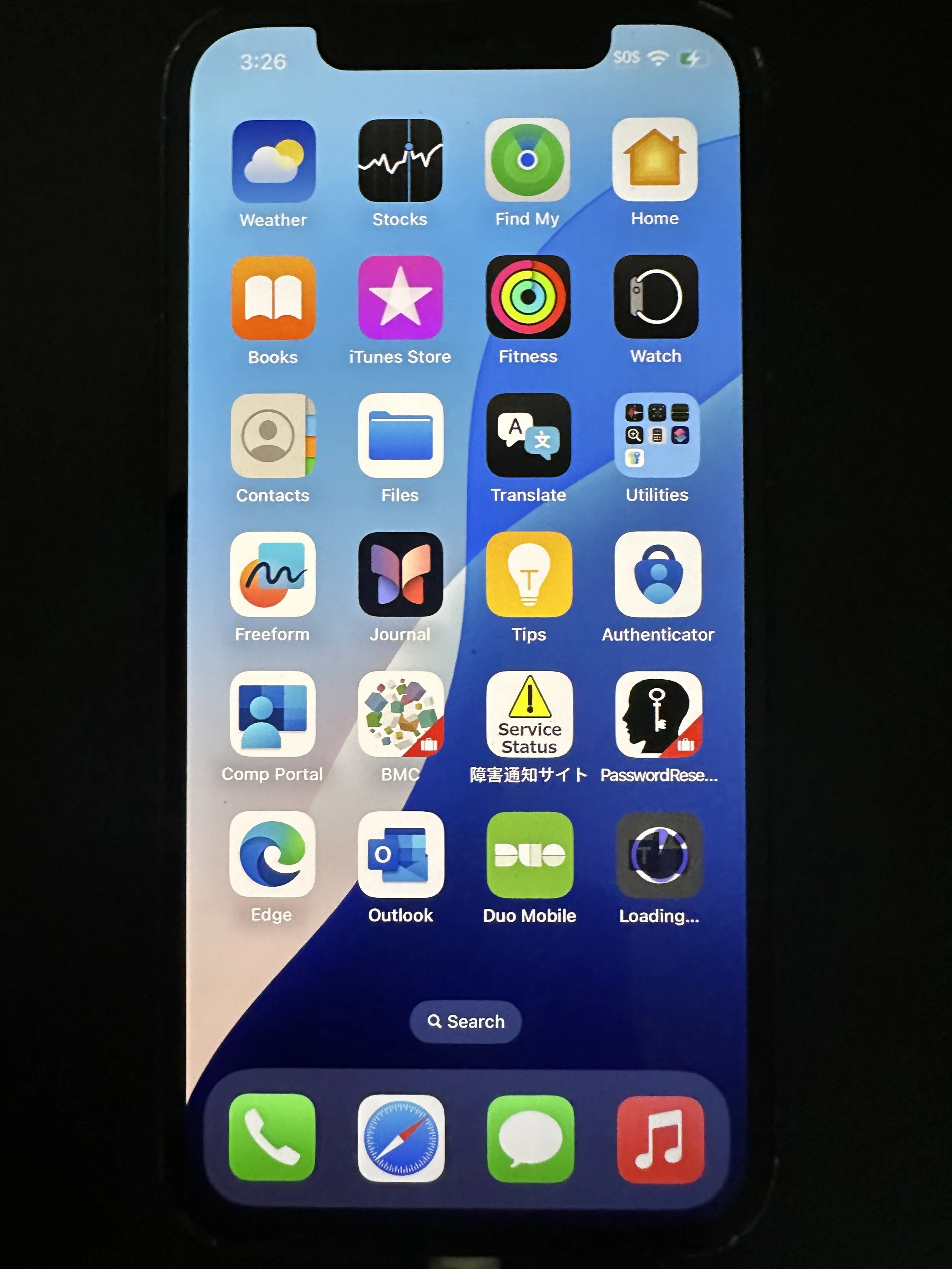
wait for the install
This ends the app install.
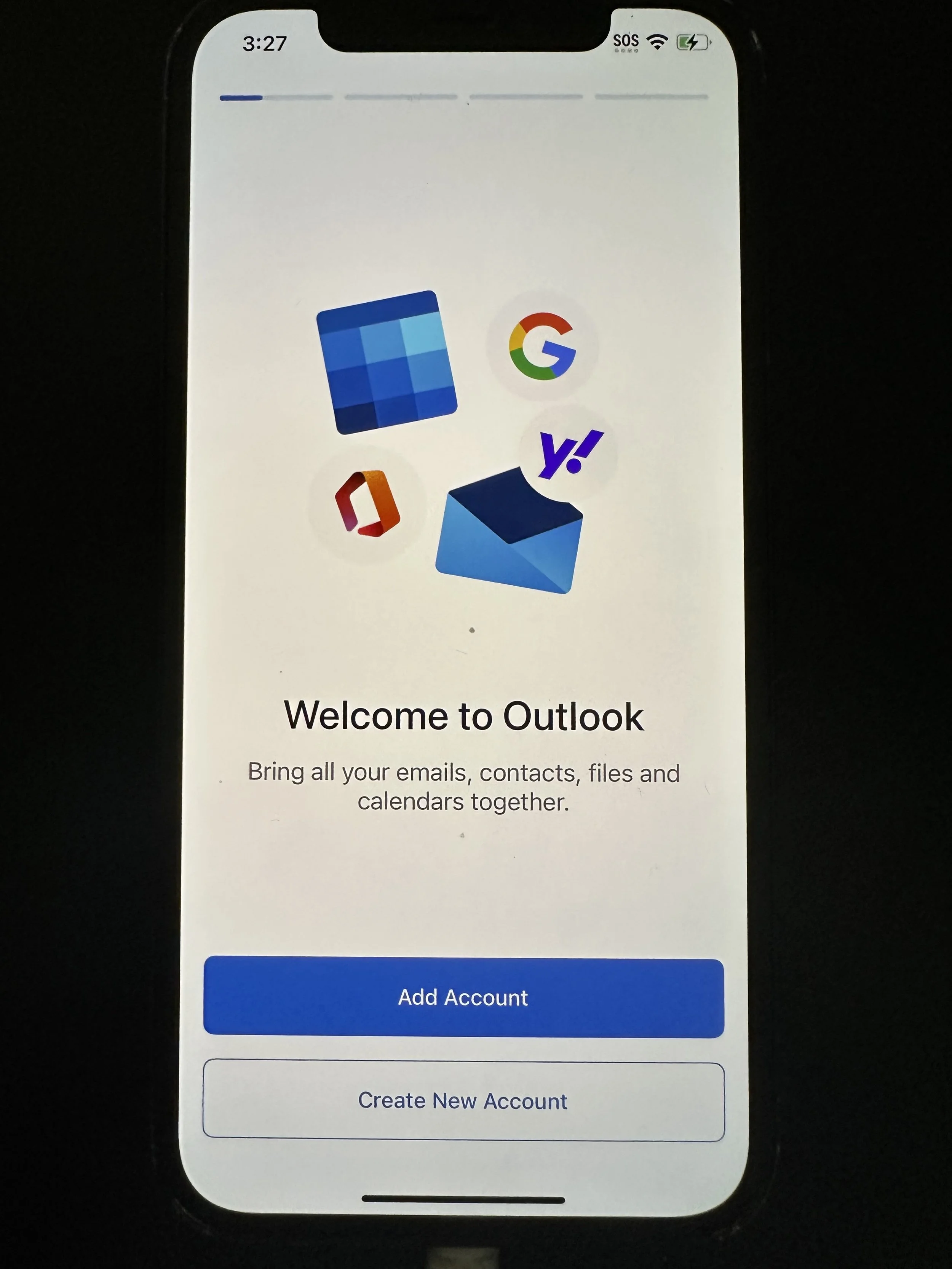
Outlook: tap Add Account
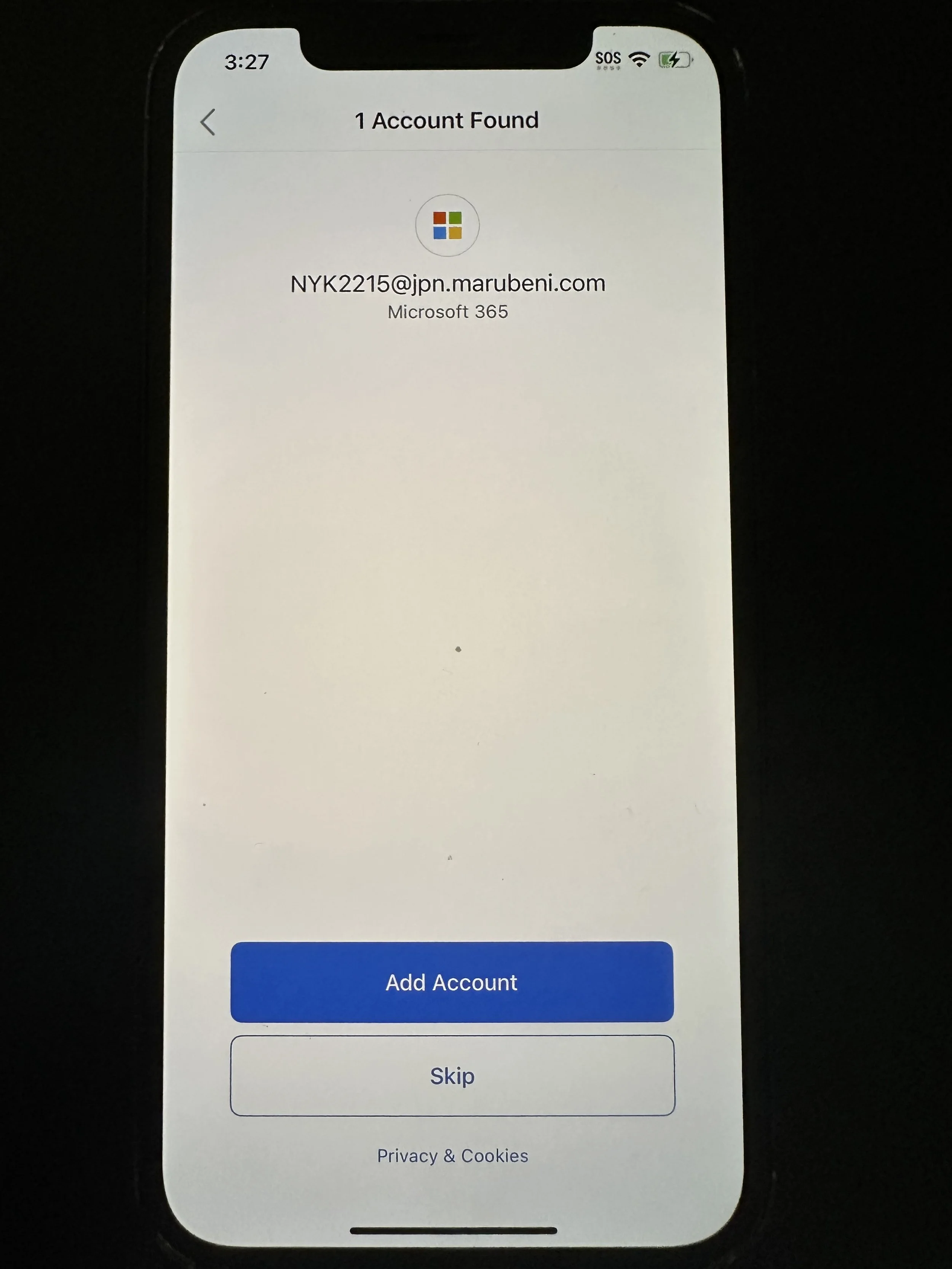
tap Add Account
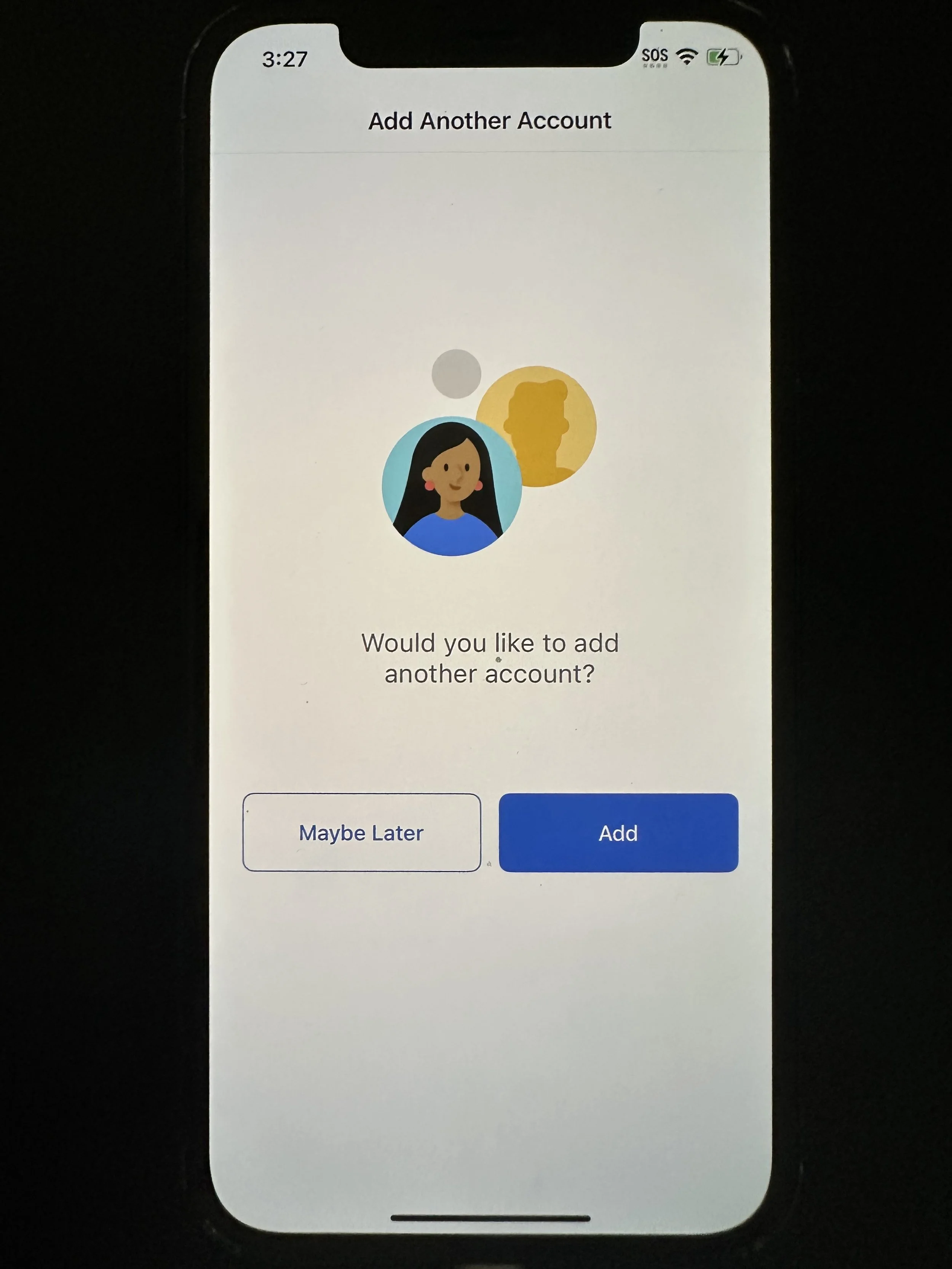
if you have other shared mailboxes you would like to add, you can add them here.
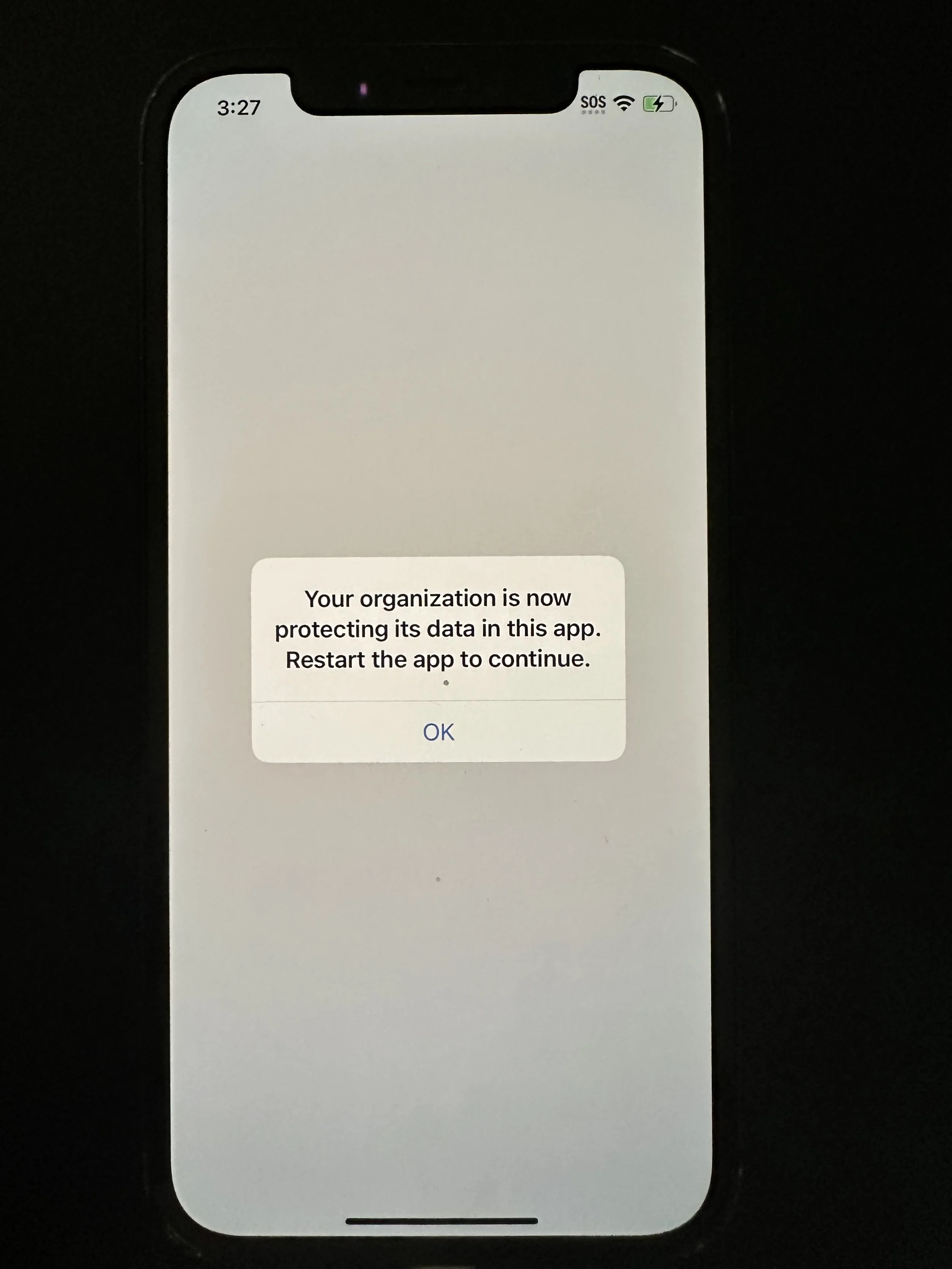
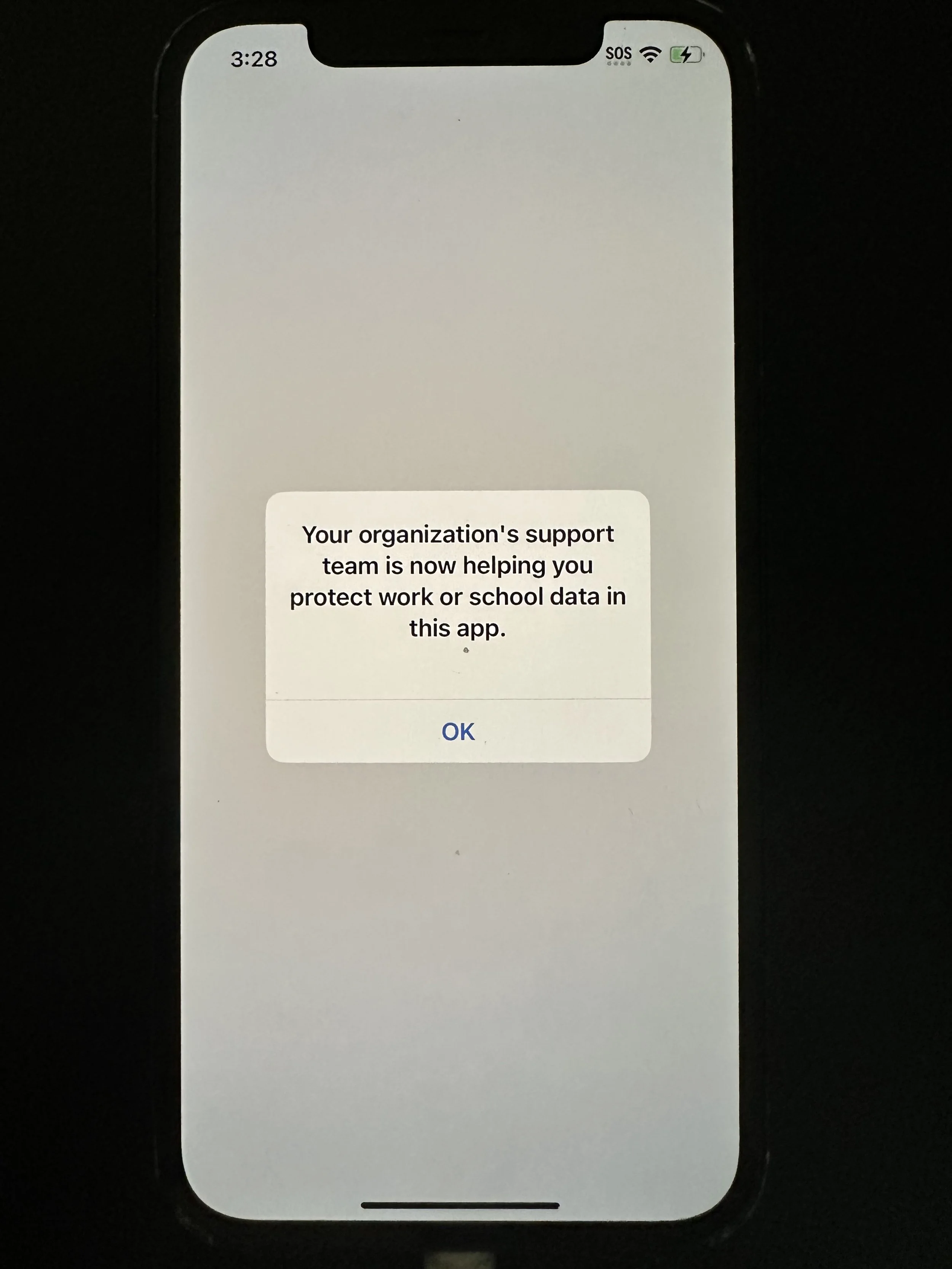
tap OK. The app will automatically close.
tap Outlook
tap OK
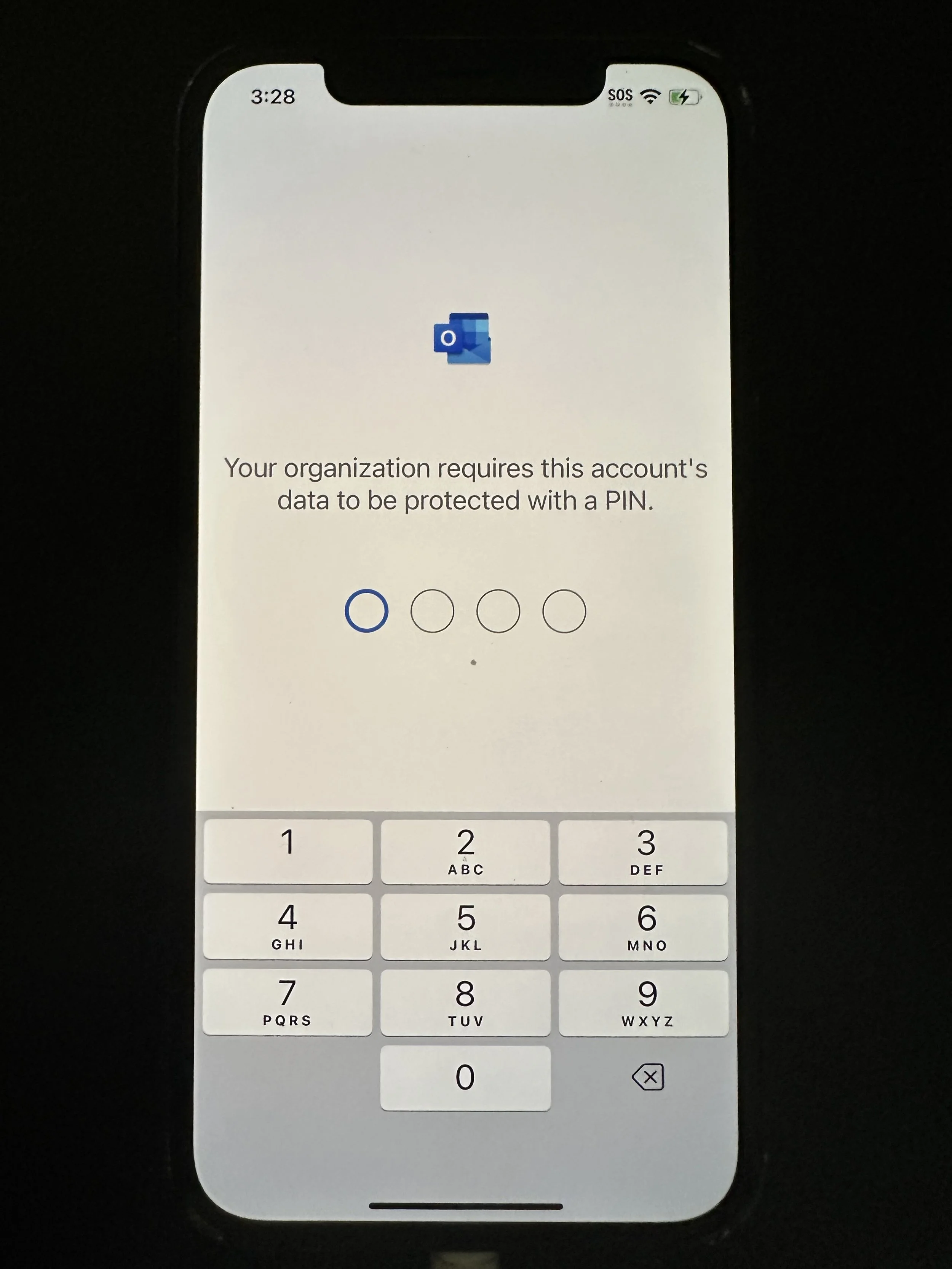
enter a 4-digit PIN. We cannot recover this PIN for you.
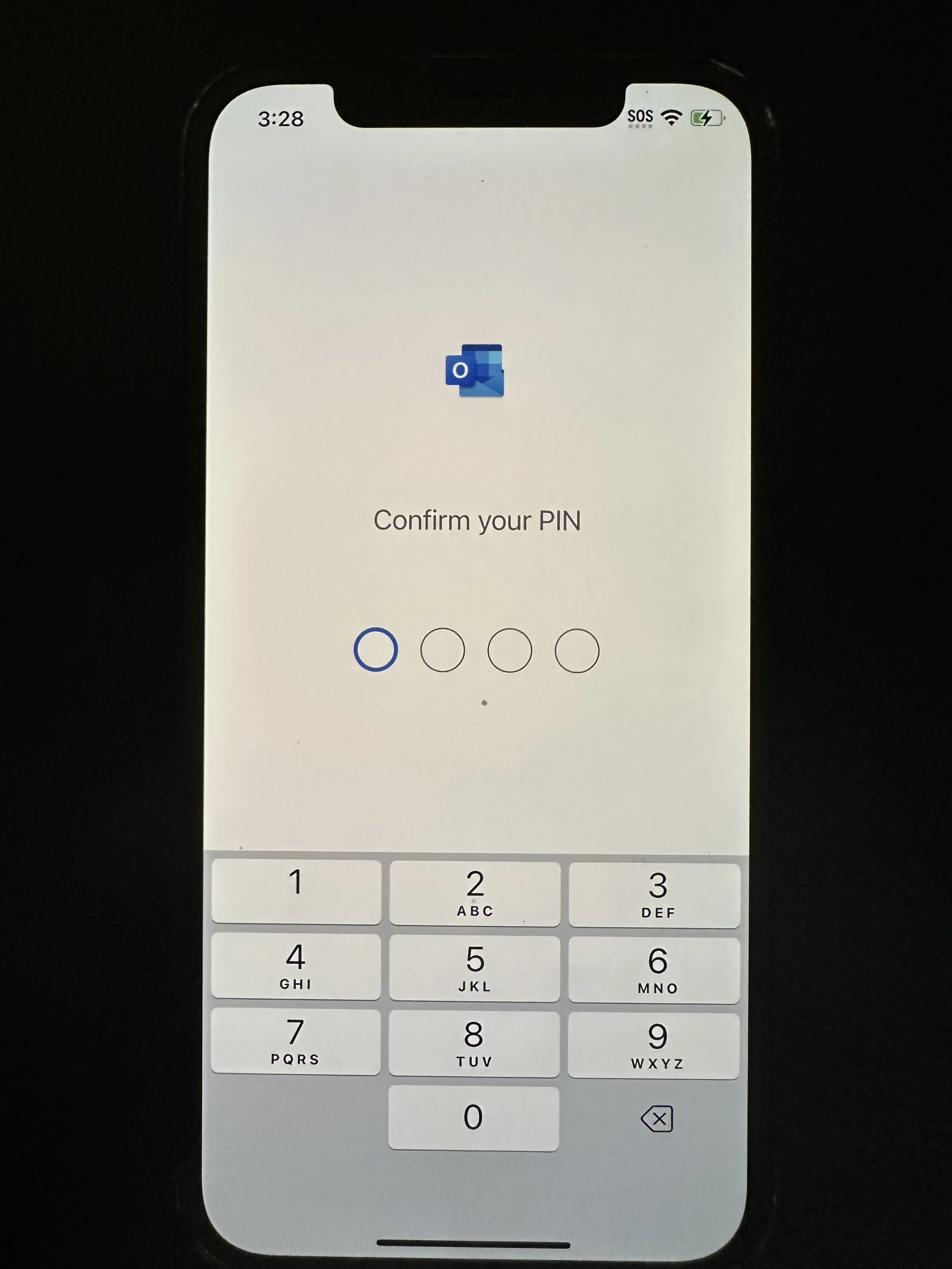
enter the same 4-digit PIN. You should now see your Outlook email. We recommend turning all notifications on when prompted.
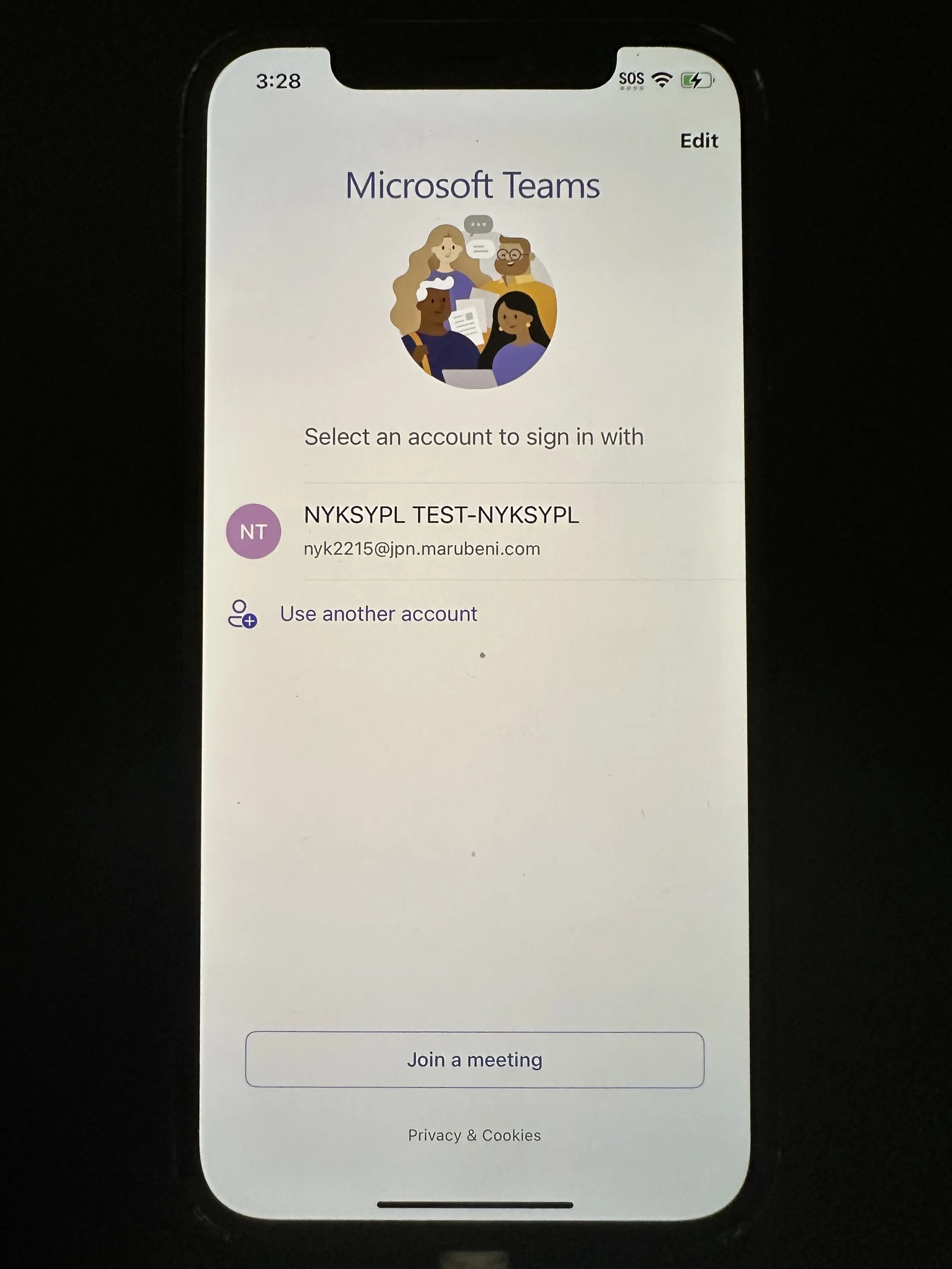
Teams: tap the listed account name.
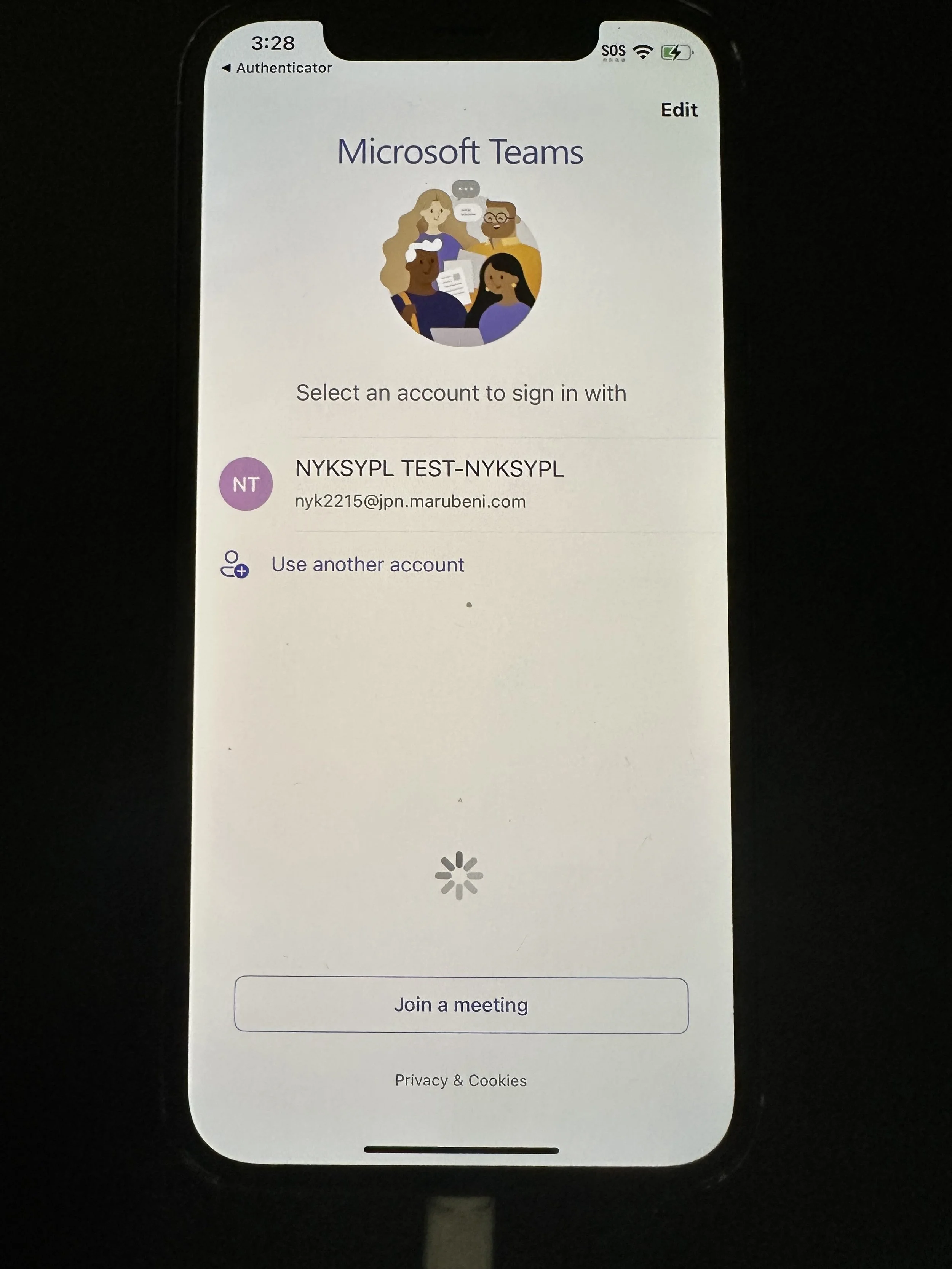
wait for loading
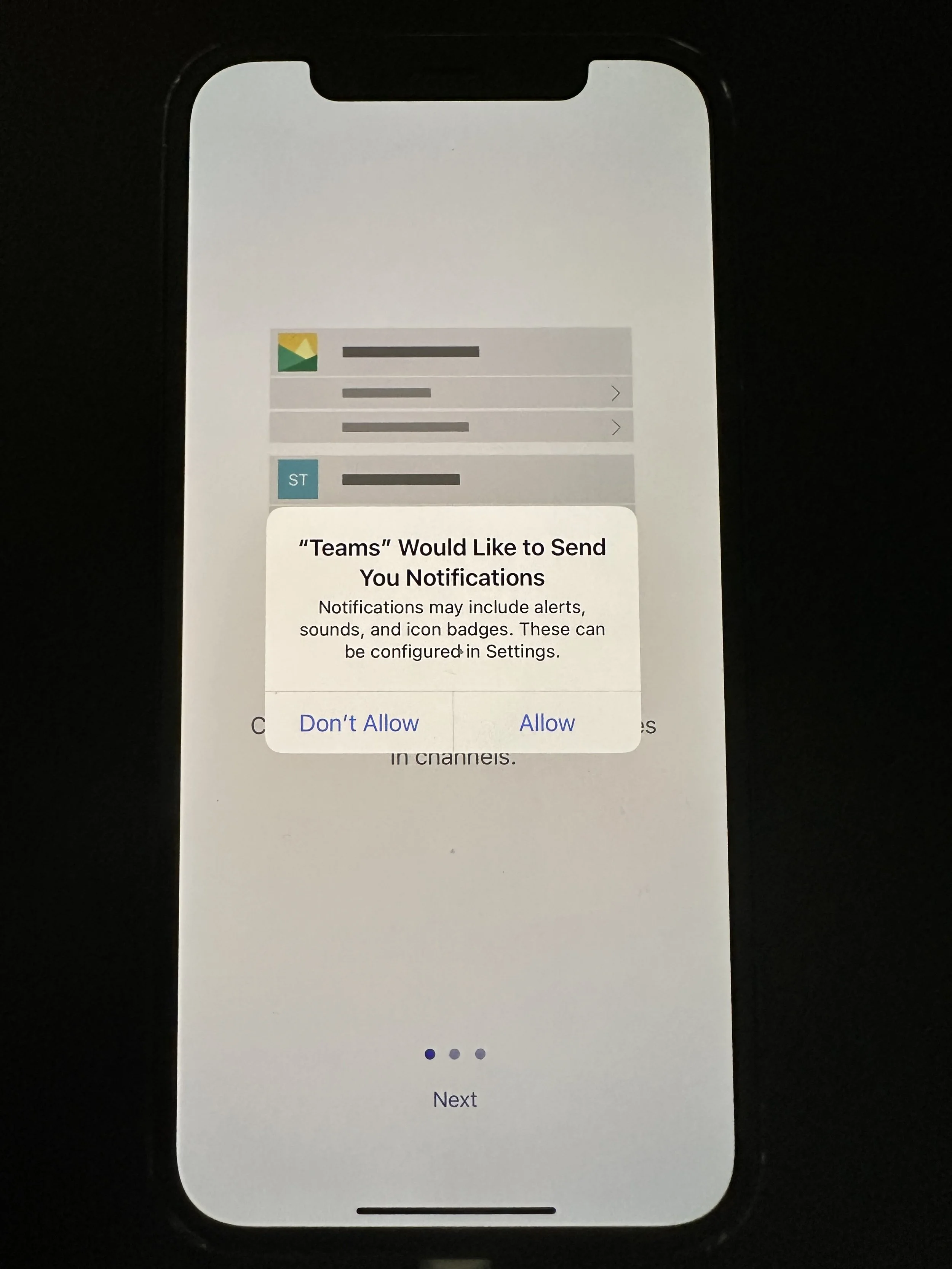
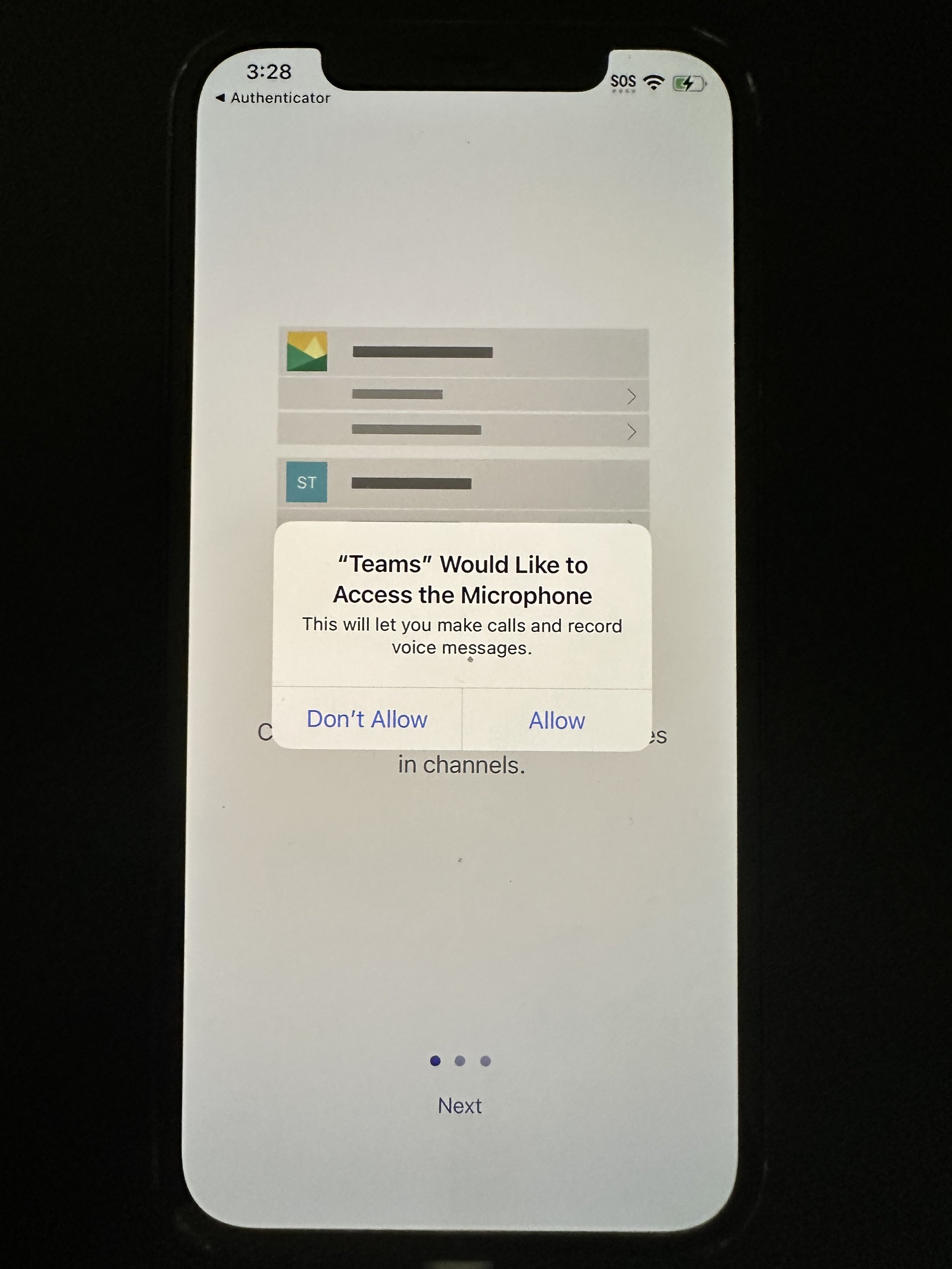
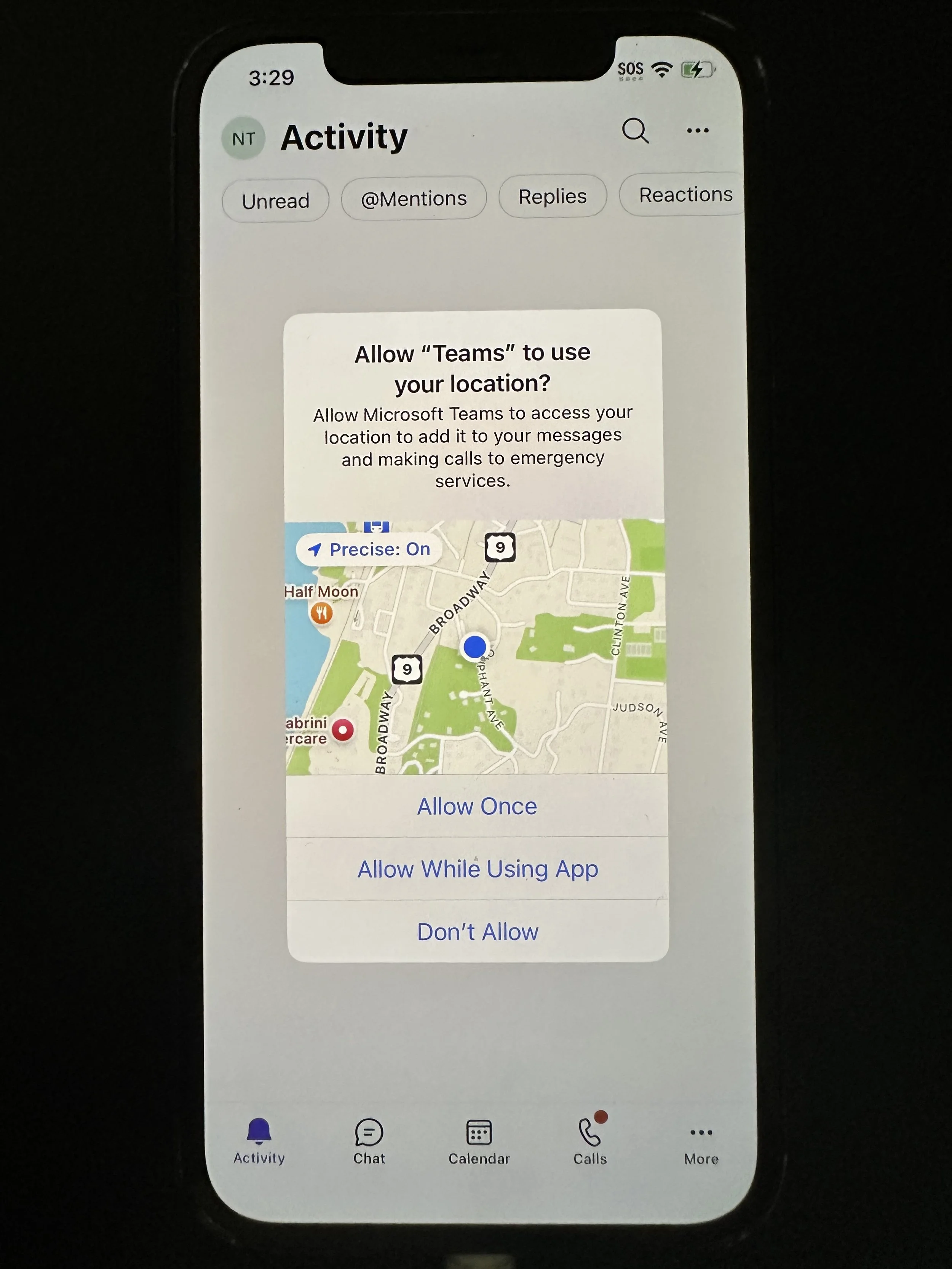
tap Allow
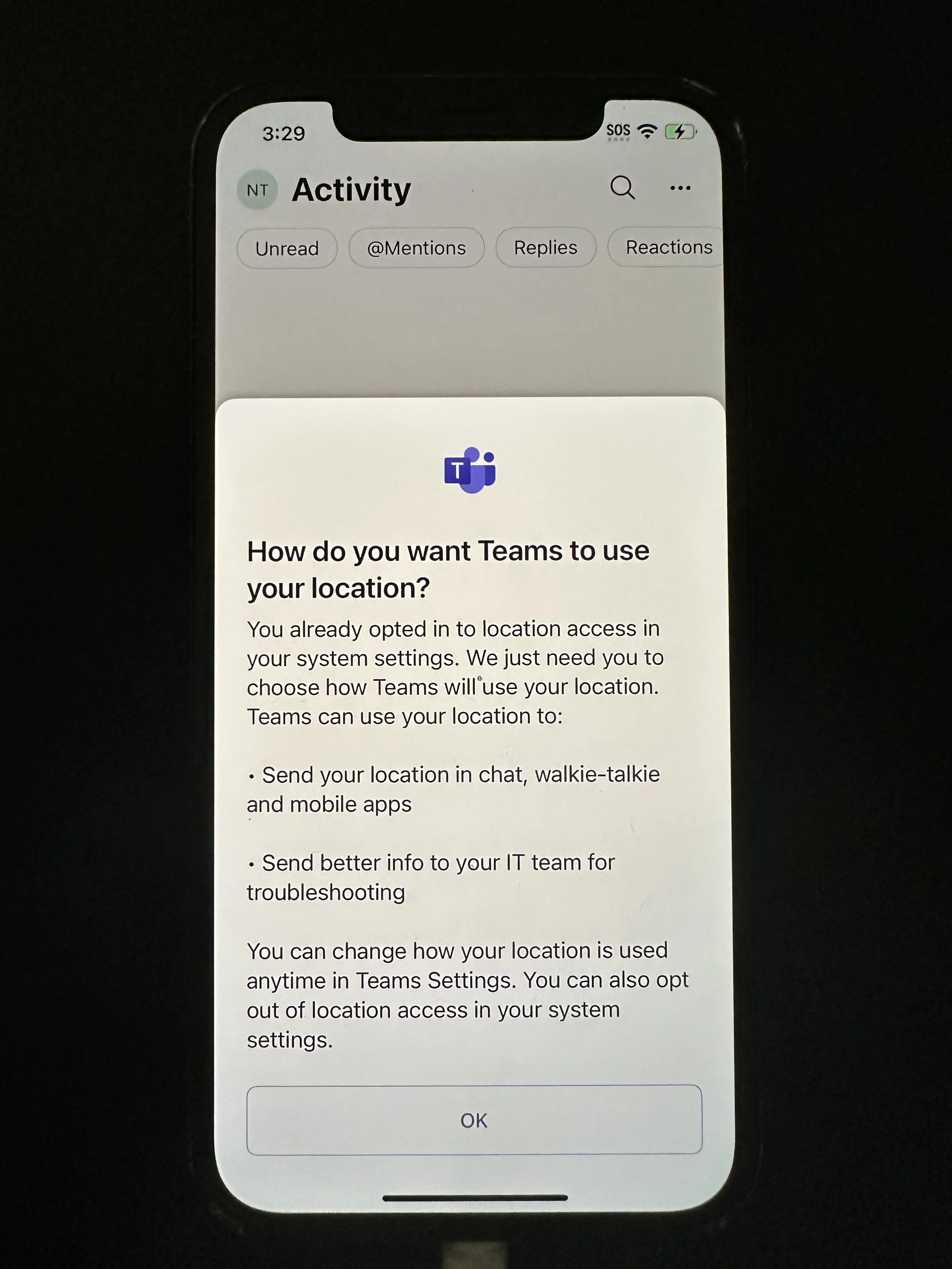
tap Allow
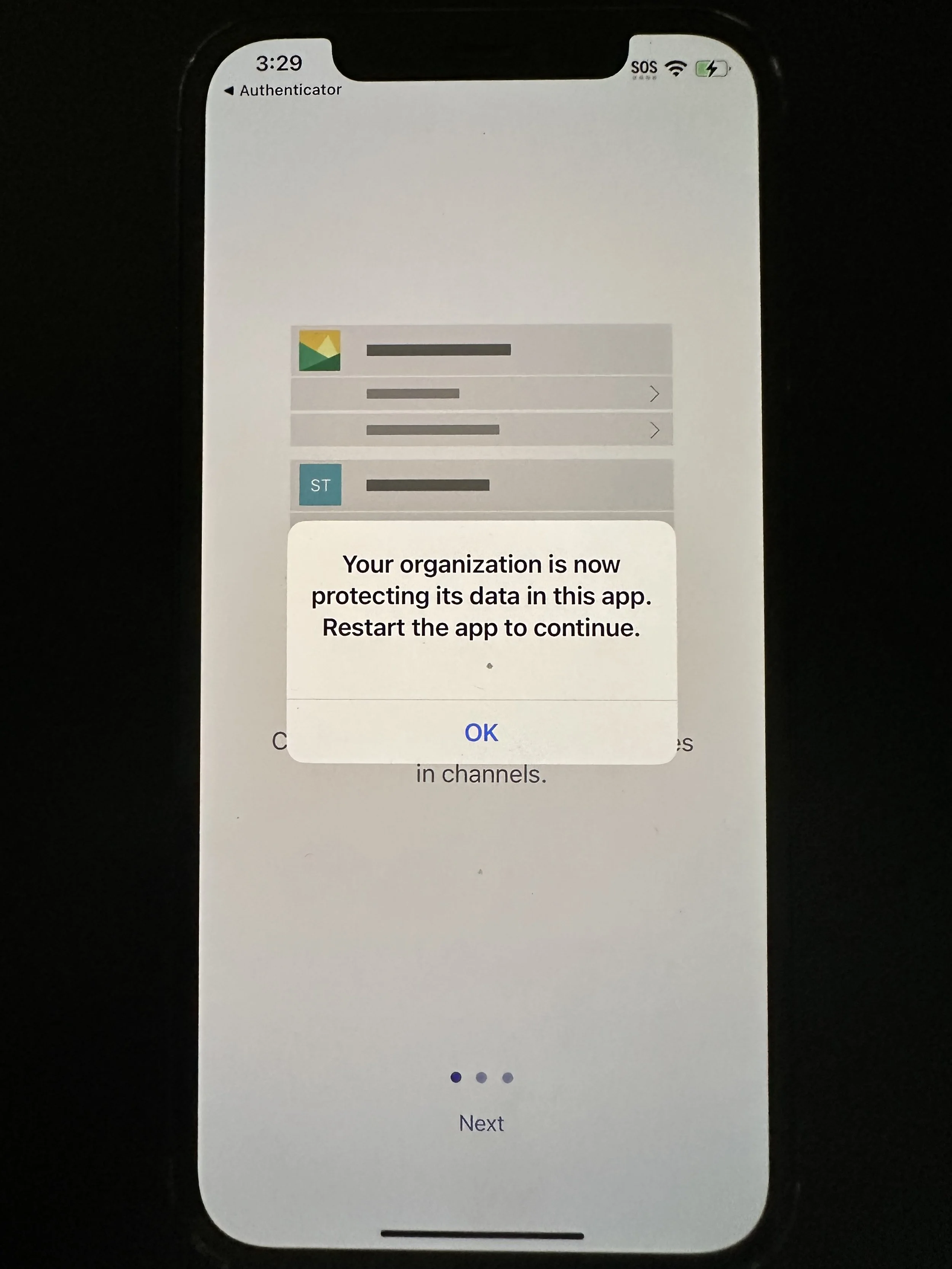
tap OK. The app will automatically close.
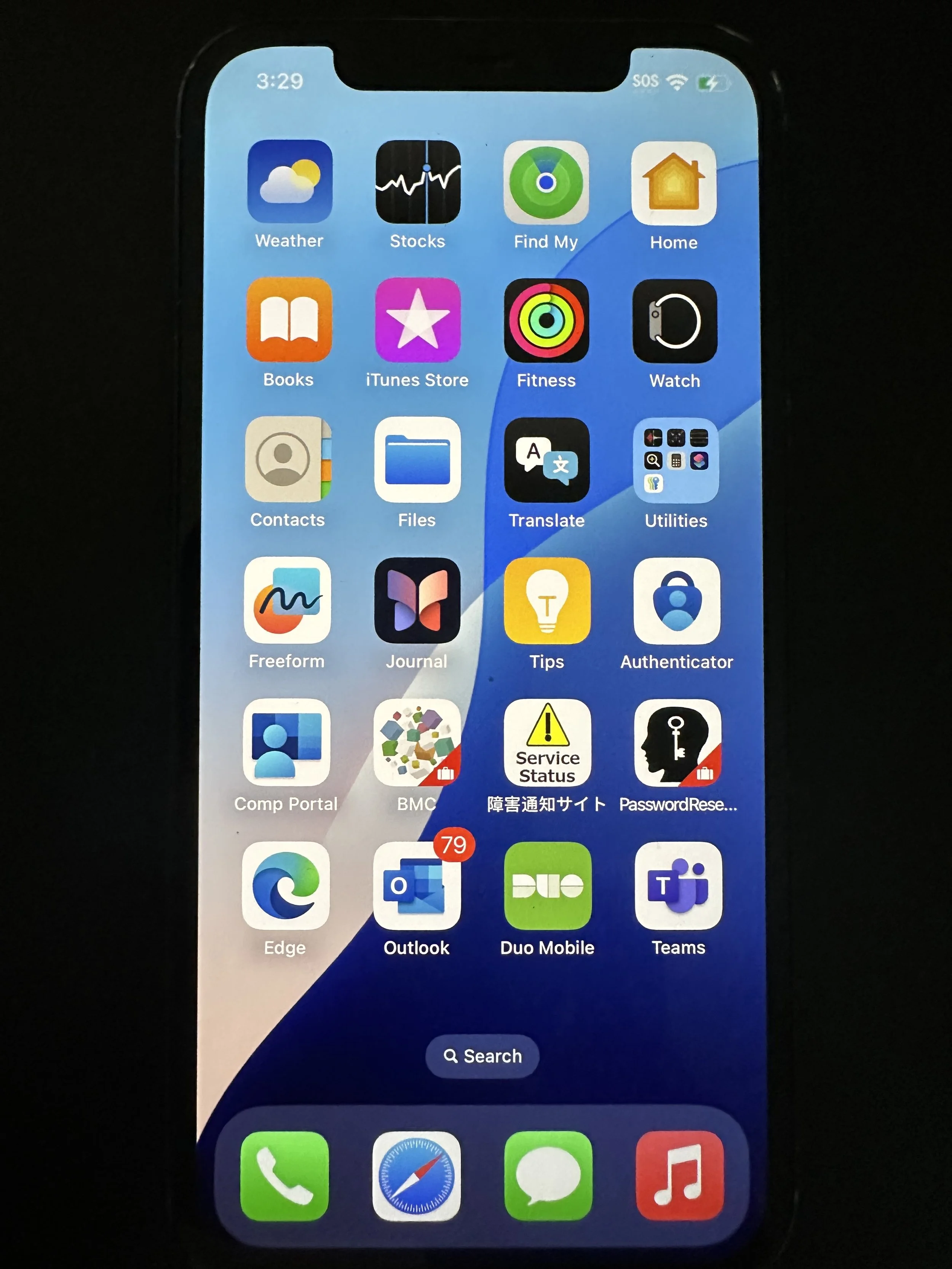
tap Teams
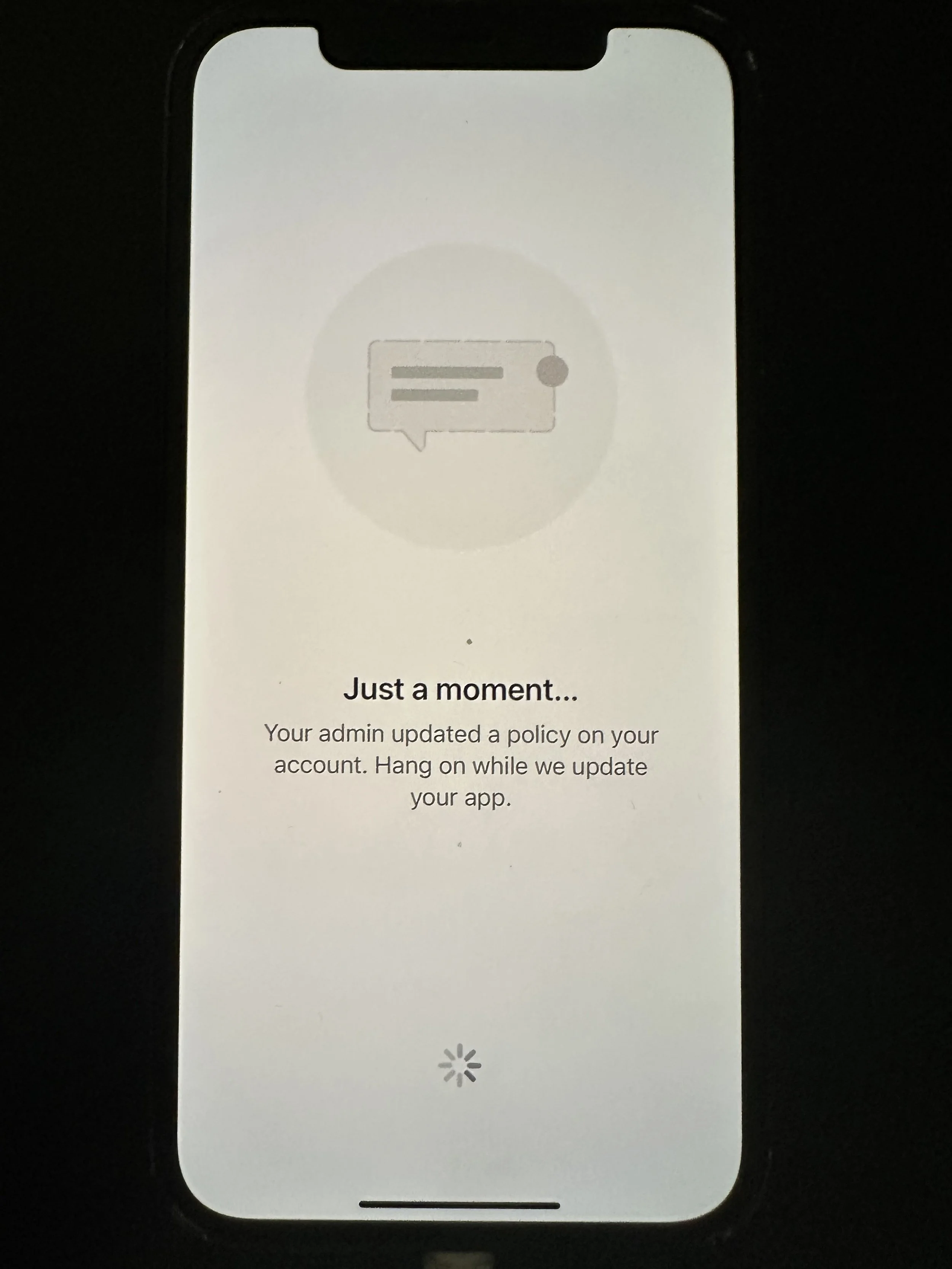
wait for loading
This is optional.
tap OK. You should now see your Teams messages and receive calls.
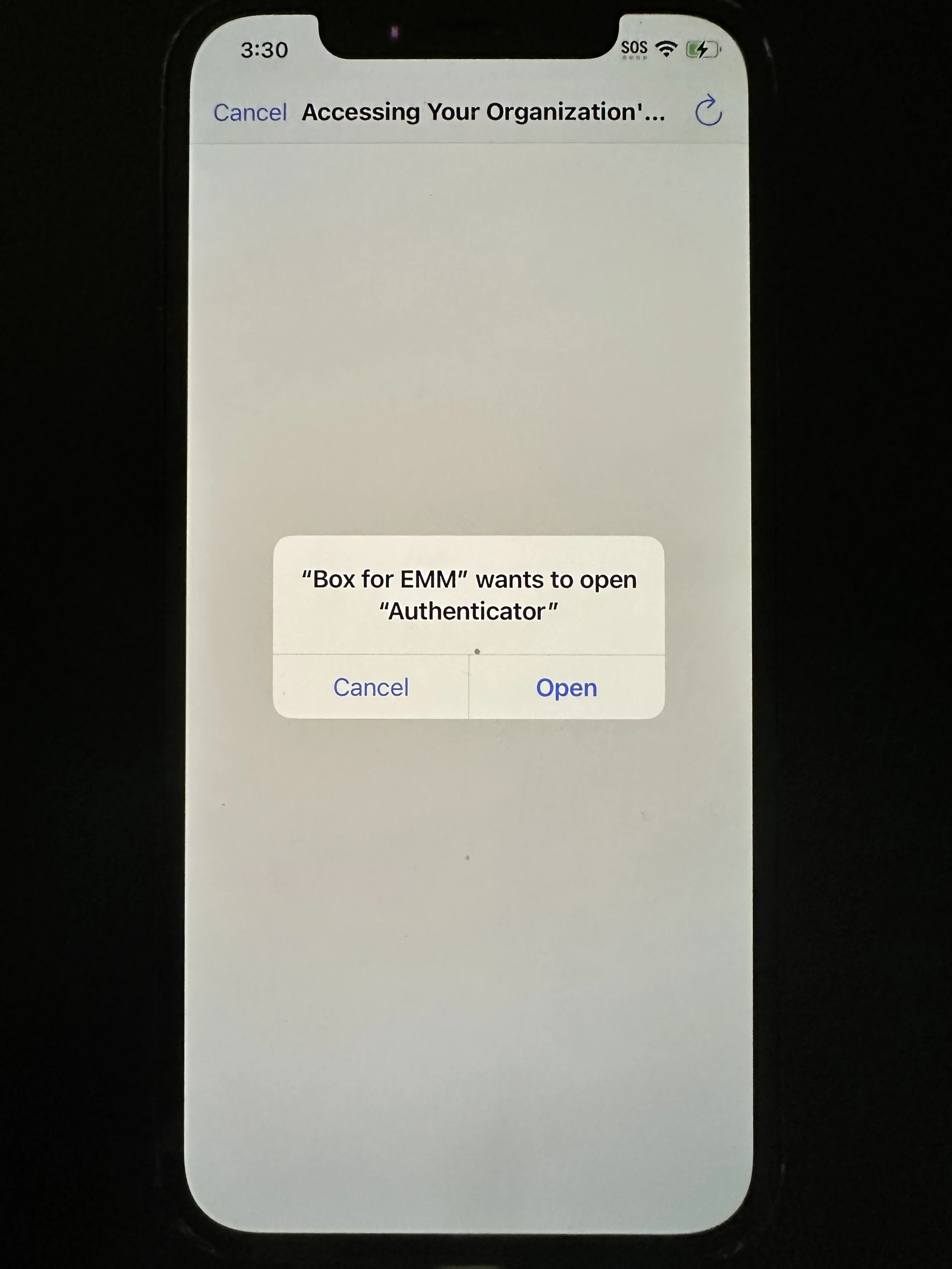
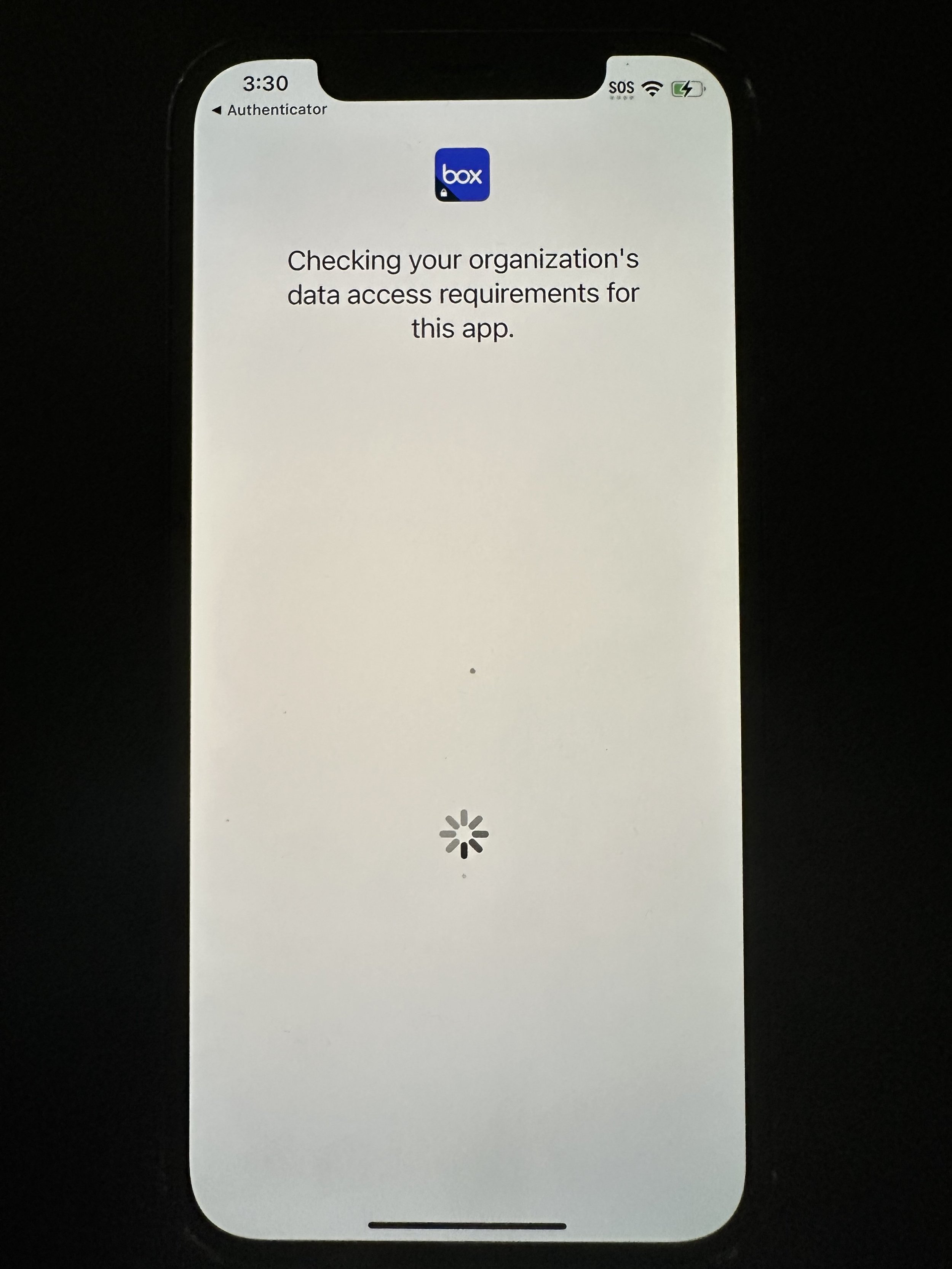
Box for EMM: Depending on how you set up your Microsoft Authenticator, the initial authentication may vary. If Microsoft Authenticator is installed to this device, tap Open
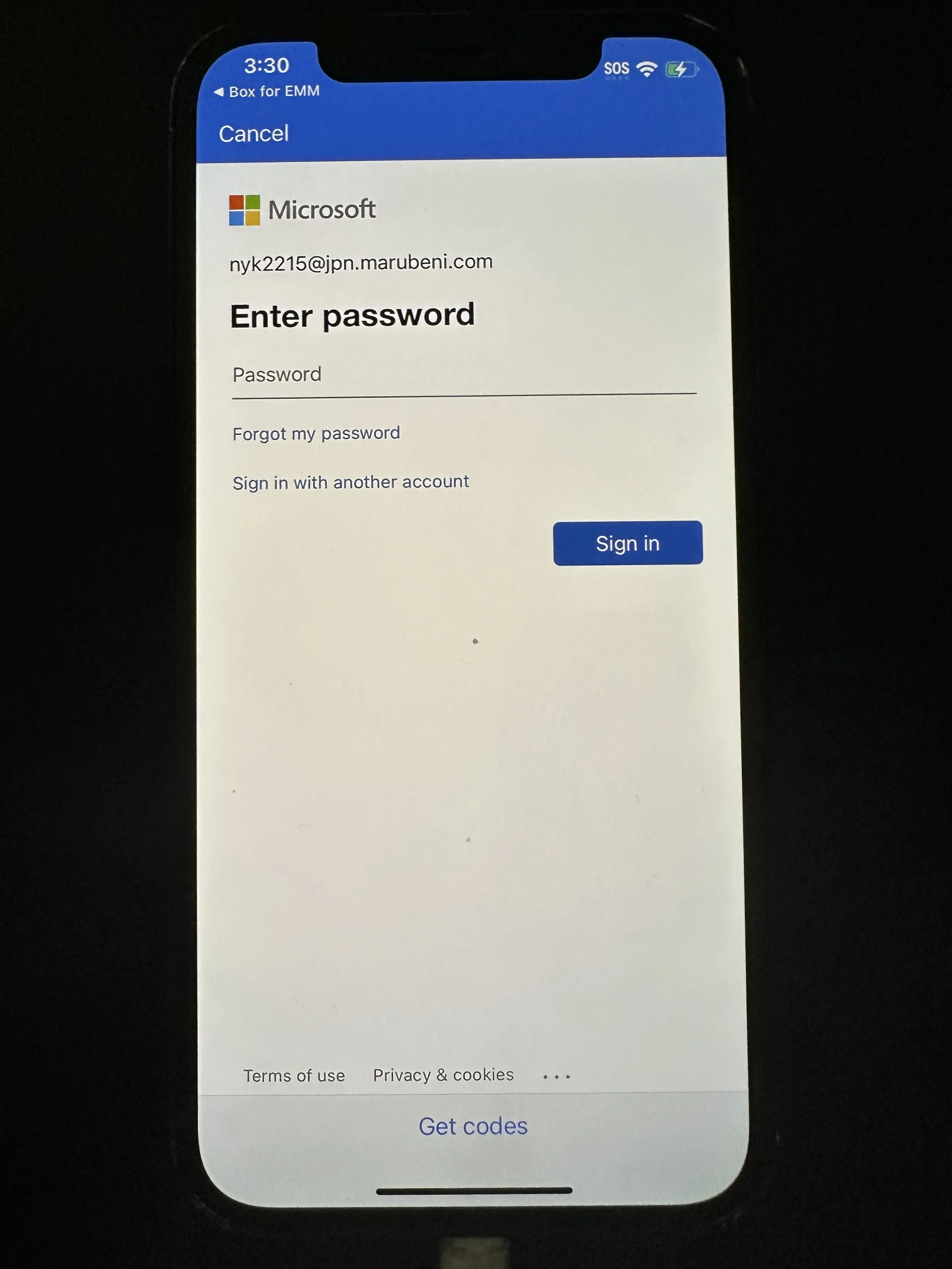
The app will automatically shift to Microsoft Authenticator. Enter PC/VDI password.
The app will automatically shift back to Box for EMM. Wait for loading.
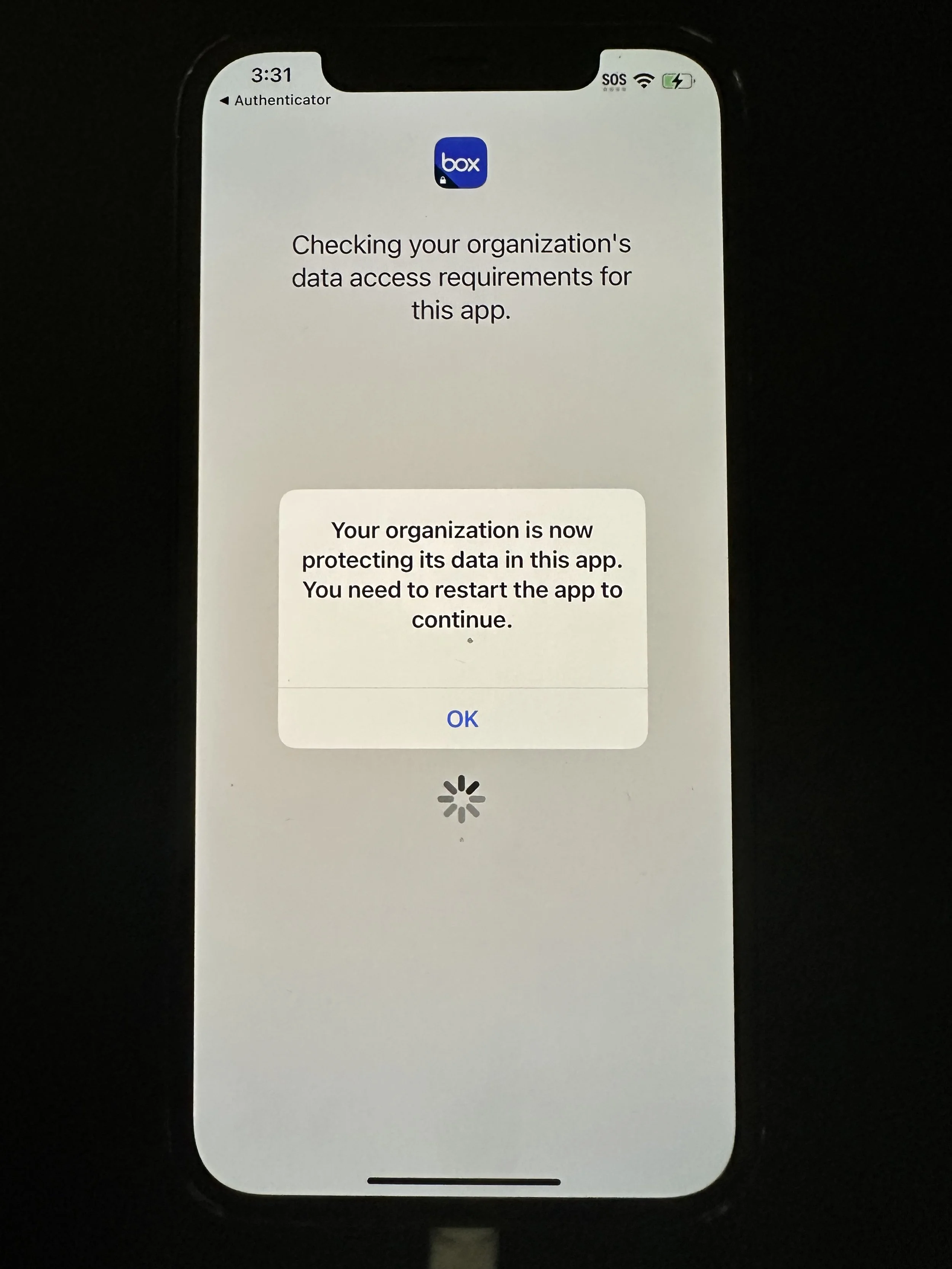
tap OK. The app will automatically close.
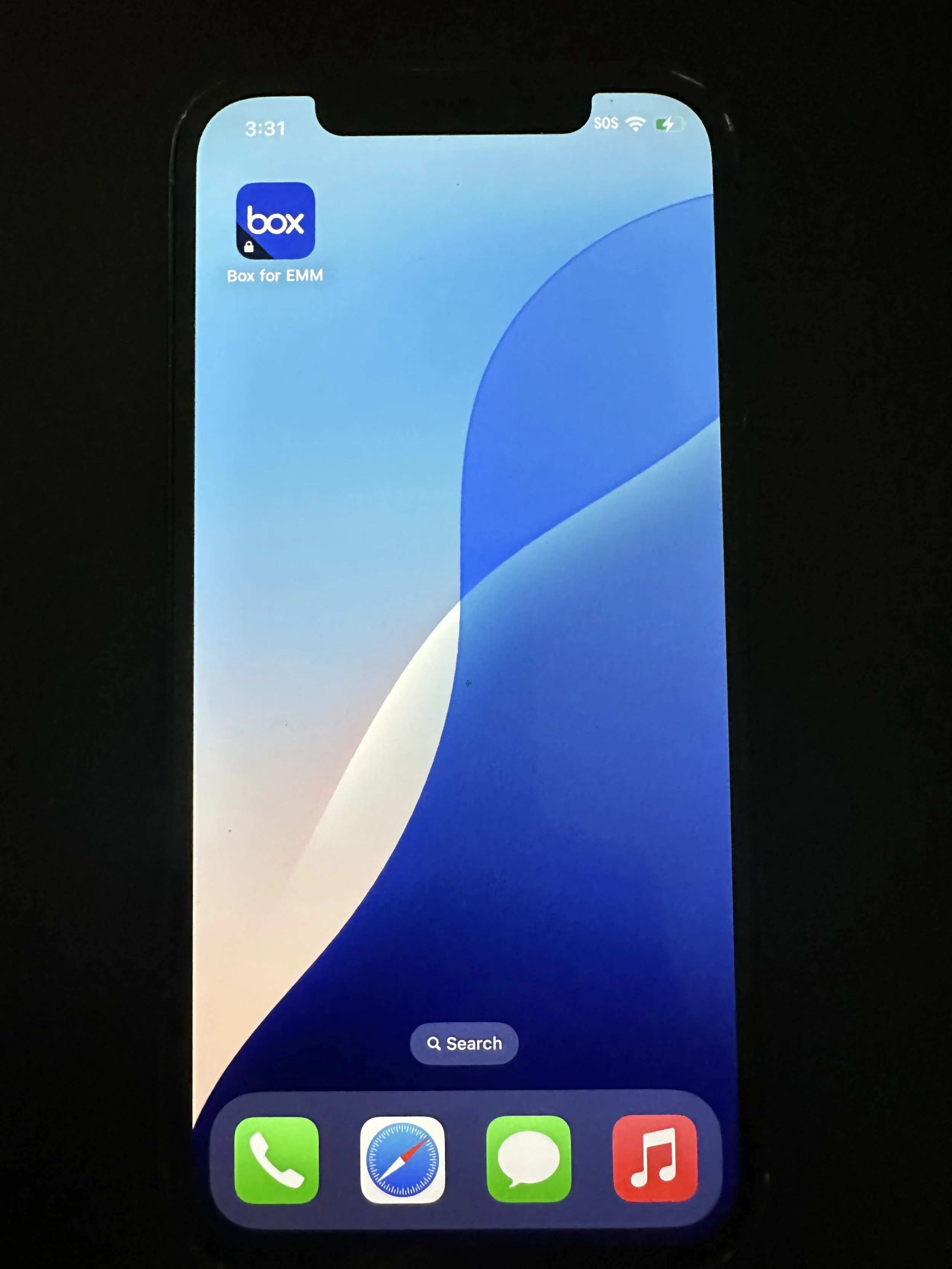
tap Box for EMM
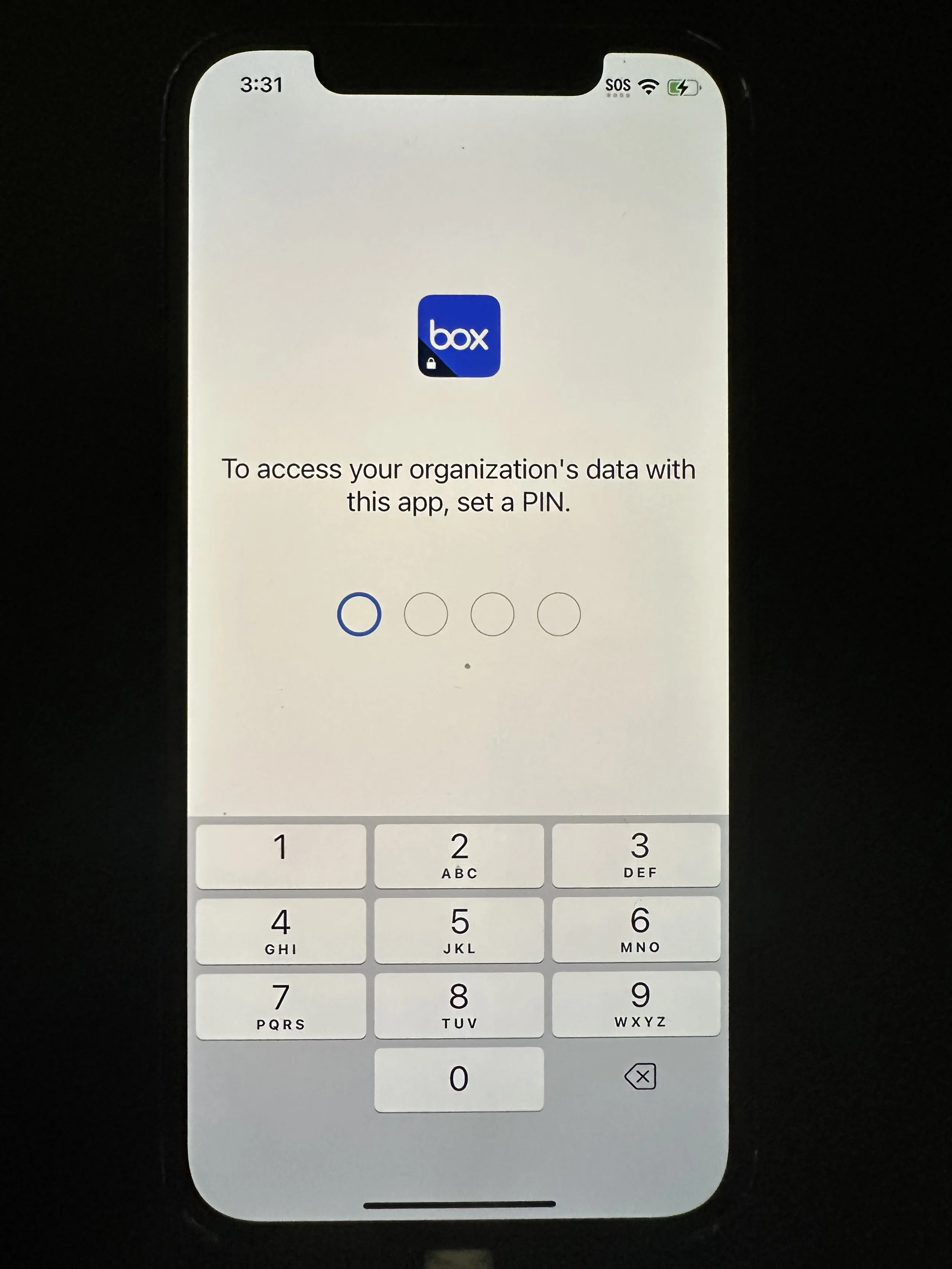
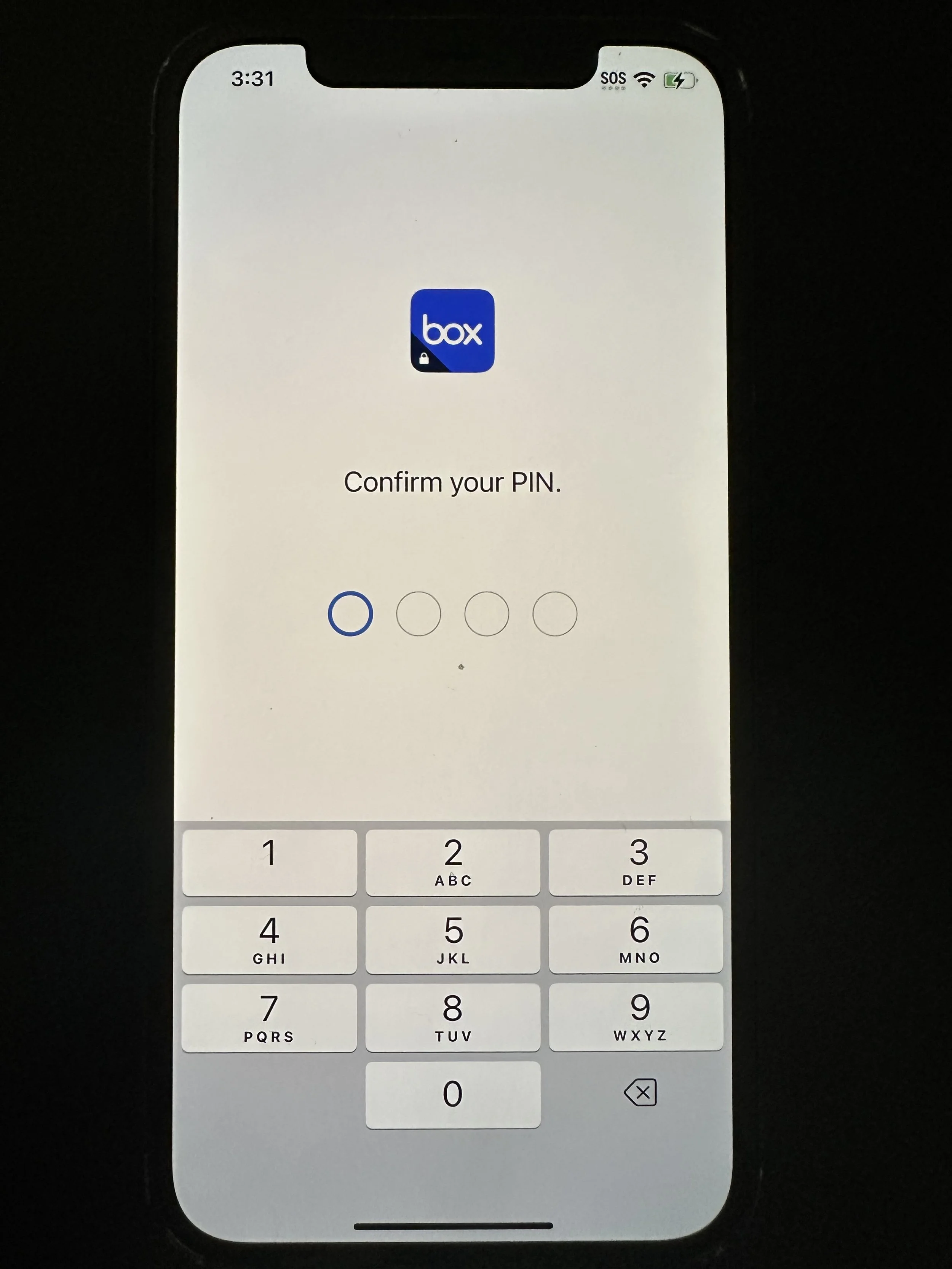
enter 4-digit PIN. We cannot recover this PIN for you.
enter the same 4-digit PIN.
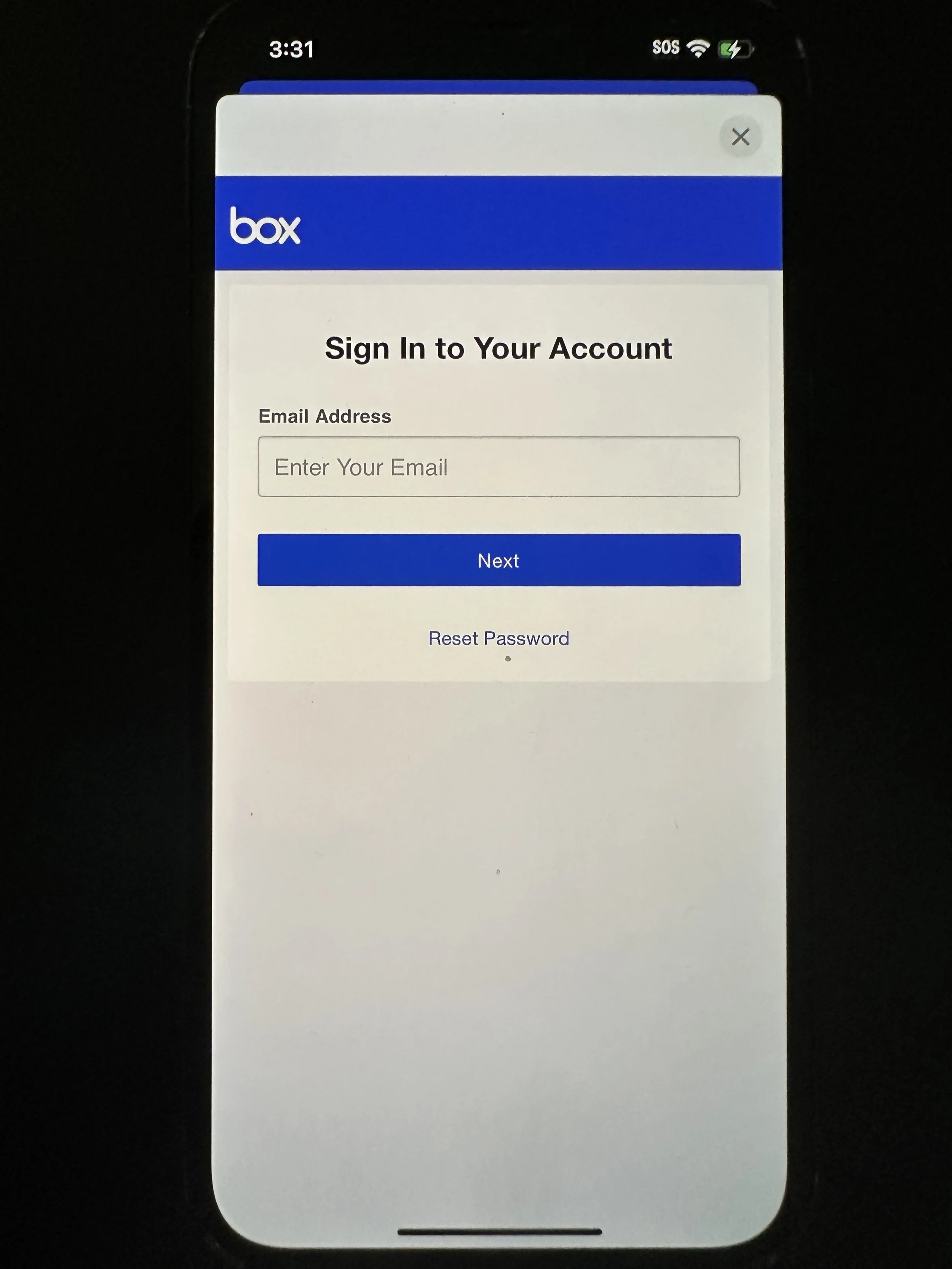
enter PC/VDI ID@jpn.marubeni.com
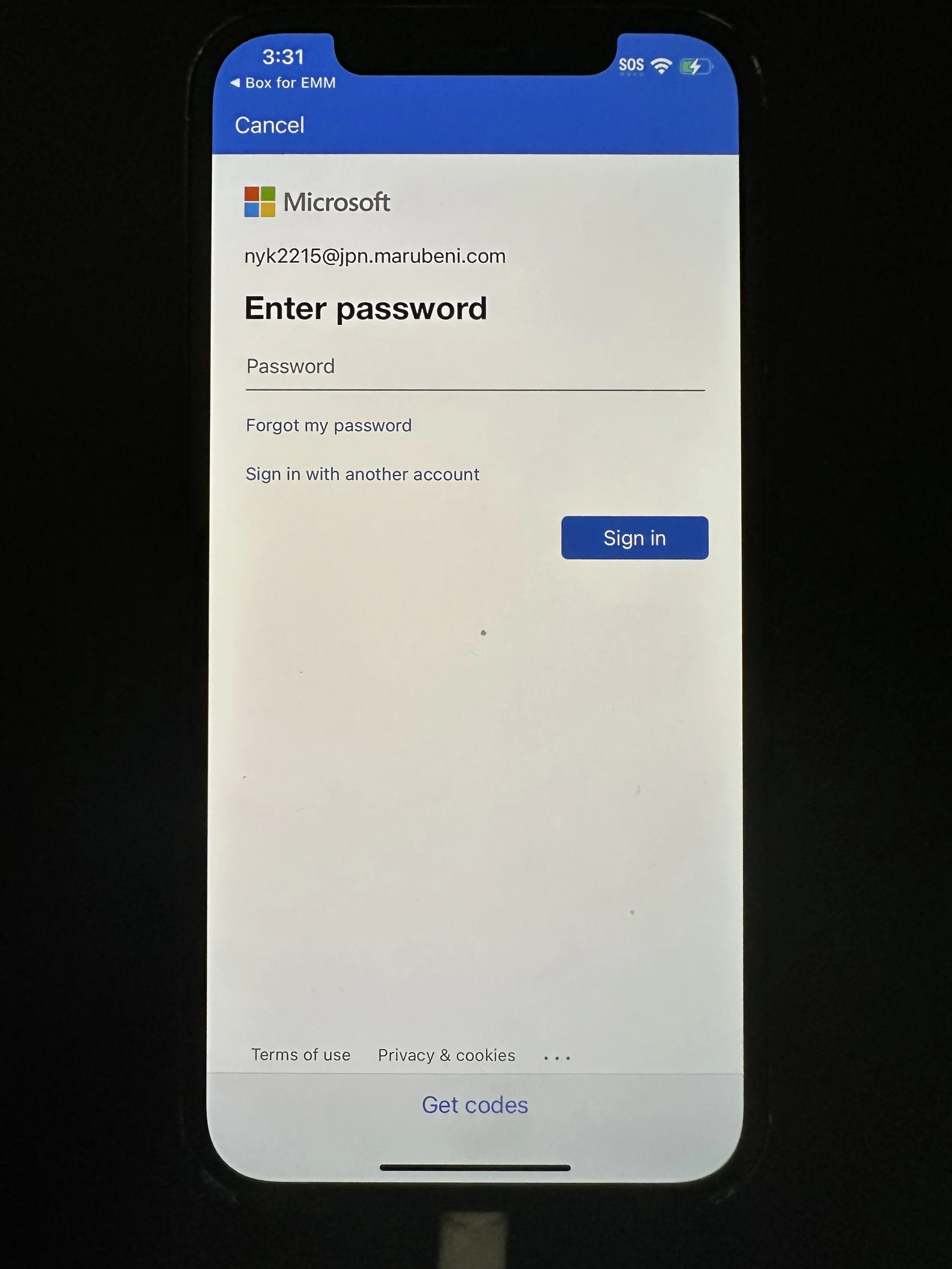
The app will automatically shift to Microsoft Authenticator. Enter PC/VDI password.
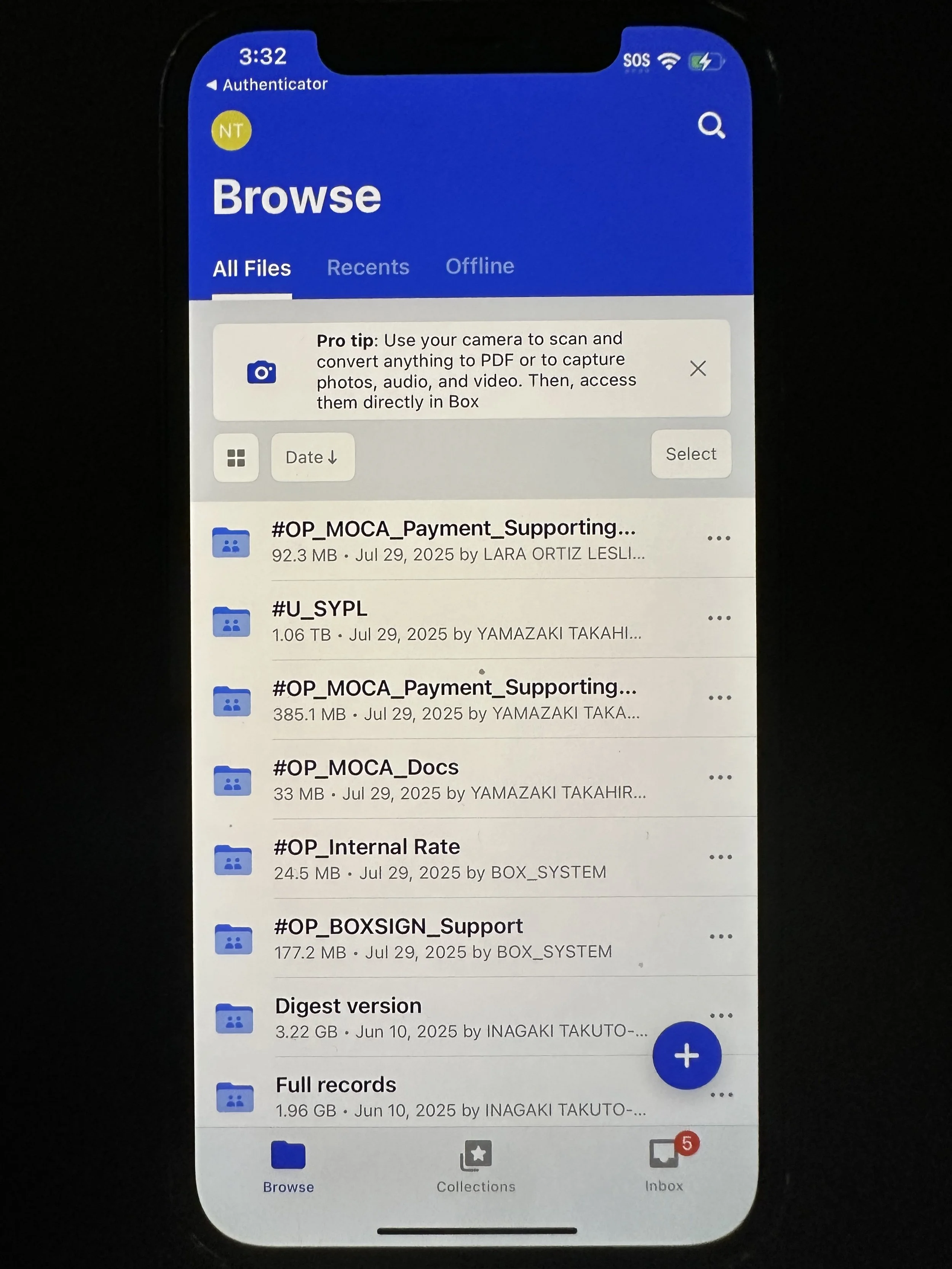
The app will automatically shift back to Box for EMM. You should now see all Box files.